
Bulk delete multi products from the online stores is a common and necessary option. We considered an option for delete multi product in the VBULKiT – Bulk Edit WooCommerce Variations – plugin.
You can delete the products according to any features by filtering them from the filter form or after finding them from the quick search box and selecting in our plugin.
Filter products
To delete multi products in this plugin, you have to filter considered products.
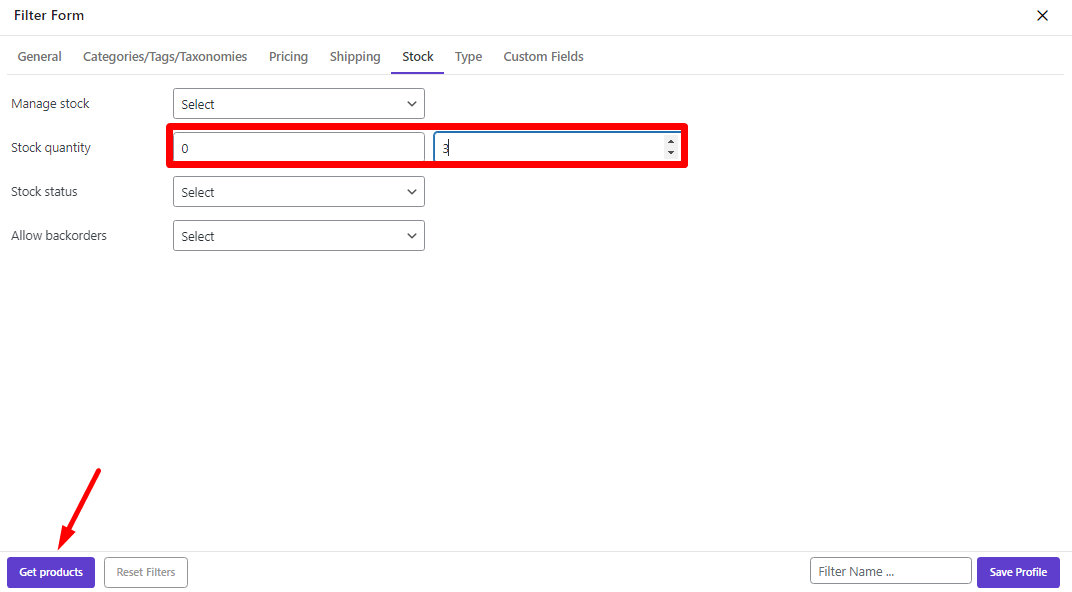
For example, in this tutorial we are going to delete the products that their stock quantity is less than 3. To do this following the below steps:
- Open the Filter Form > Stock.
- Set the stock quantity in the range of “0” to “3”.
- Click on “Get Products” button.
Set columns of product table
At the first, it makes sense to add the columns related to the stock quantity as we filtered them before.
As we have already created this column profile as a preset named “Stock”, we can easily apply it to our table from the profile column as below:
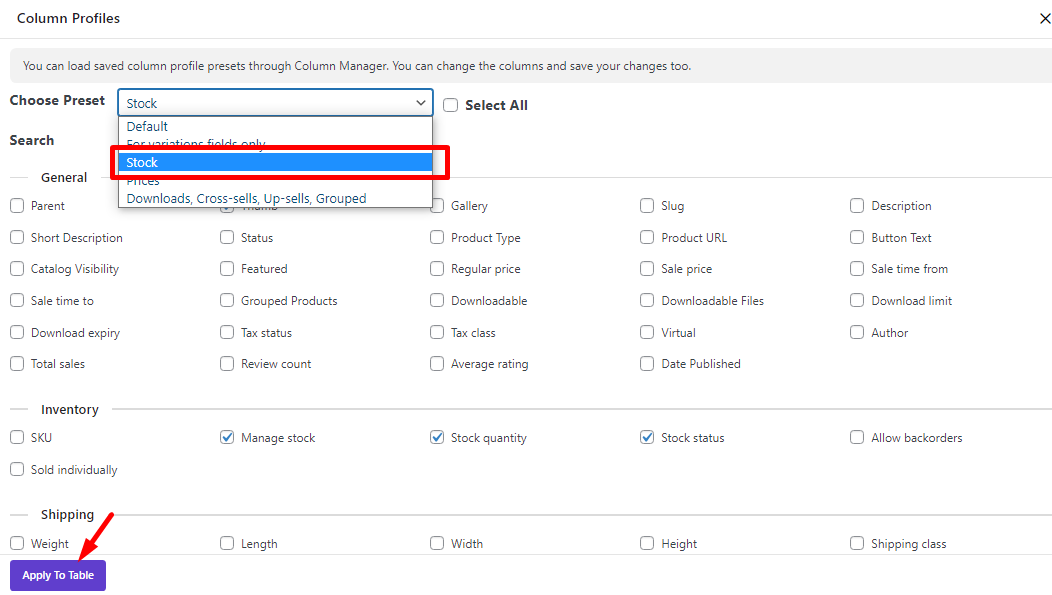
if you click on “Apply to Table”, it show just the products with the stock quantity less than “3”.
Read More: How to manage product table columns in VBULKiT – Bulk Edit WooCommerce Variations plugin?
Bulk delete multi products
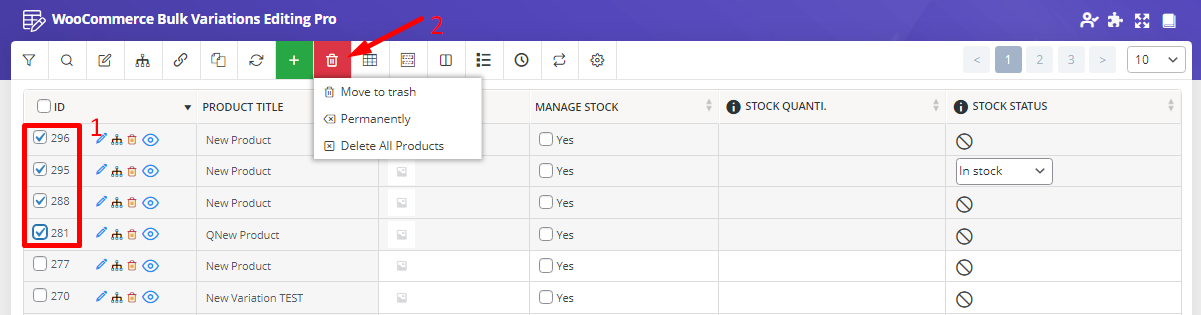
After filtering the products you need to delete, you have to select them by clicking on the checkbox next to ID to see “Delete” Option in the main page which has two options:
- Move to trash.
- Permanently.
Bulk delete multi products using move to trash
If you choose “Move To Trash” the products you have selected will be removed and transferred to the trash box of WooCommerce.
Open the trash page from the WooCommerce product page. It is possible to restore those products to your website again. Also you can undo the last action by clicking on the “Undo” button on the plugin toolbar.
Bulk delete multi products using permanent delete
If you choose “Permanently”, it is not possible to restore the removed products as they are deleted from the WooCommerce products, permanently.
When you click on “Permanently” under “Delete” button, a pop-up will be displayed which asks you to confirm that those products must be deleted permanently, as below:
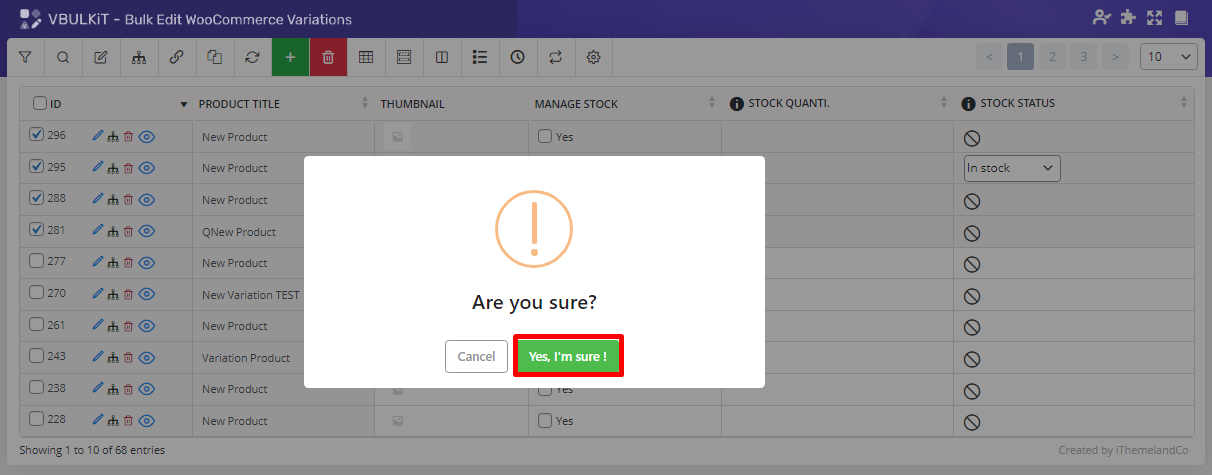
The products will permanently delete from the list of products in your website by clicking on “Yes, I’m sure” and you don’t have any access to them to restore or other changes in the future.
Comments