


Have you ever felt overwhelmed by the many data driven from WooCommerce reports, wondering which metrics you truly need to focus on? You’re not alone. Many store owners have problems in interpreting WooCommerce reports and extracting actionable strategies from the struggling data.
To help you cover this gap between data and decision-making, in this comprehensive guide, we want to answer the most common WooCommerce reporting FAQs and provide a clear framework for turning raw numbers into a roadmap for success.
Why Understanding WooCommerce Reports Matters
Ignoring your WooCommerce analytics means you have no reliable way to know if you’re making ahead toward reaching your goal or not. That’s why interpreting WooCommerce reports is essential for proactive business growth.
These reports provide an unbiased, quantitative story of:
- Store’s health,
- Customer behavior,
- And financial performance.
Using them, you can answer critical WooCommerce reporting FAQs:
- Are your marketing campaigns actually profitable?
- Which products are your true bestsellers?
- Is your customer base growing or churning?
Without this insight, you may miss important information necessary for improving your store performance, like stock-out opportunities, successful marketing channels, or your loyal customers.
Ultimately, consistent report analysis is the key to boosting profit margins and building an online store that systematically meets and exceeds customer demand.
Overview of Report Types in WooCommerce
WooCommerce provides the most important reports in the analytics, each focusing on a different aspect of your business. Understanding the scope of each report category is the first step to effective analysis.
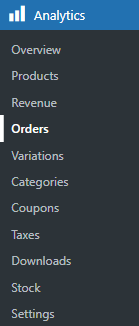
Product/Categories/ Variations Reports: In these sales reports, you can find all the necessary data about selling products in your store. It is useful for identifying the best-selling/worst-selling products and making smarter decisions for providing products that satisfy your customers in the future.
Revenue Reports: The revenue report is the financial pulse of your store, providing very important information like net sales, taxes, shipping revenue, and coupons used. It’s your primary source for understanding revenue trends and order volume.
Tax reports: Tax reports provide a critical financial summary of all taxes collected through your store, organized by tax code, rate, and jurisdiction. They allow you to easily reconcile the sales tax you’ve collected with your filing obligations, ensuring accounting compliance. This report typically breaks down totals for order tax, shipping tax, and the number of taxable transactions, giving you a clear view of your tax liabilities over any selected period.
Download Reports: Download reports allow you to track Digital Product Sales (e.g., eBooks, software, music) by the number of times each file has been downloaded or links have been clicked to specific customer orders. It can help you verify delivery, identify popular digital items, and detect any potential abuse or unauthorized sharing of download links.
Stock Reports: Inventory reports are the most important WooCommerce reports help store managers to manage their inventory effectively. By analyzing stock report, you can identify low stock, out-of-stock, and overall inventory status, which is critical for preventing stockouts or overstocking.
Accessing WooCommerce Reports: Step-by-Step
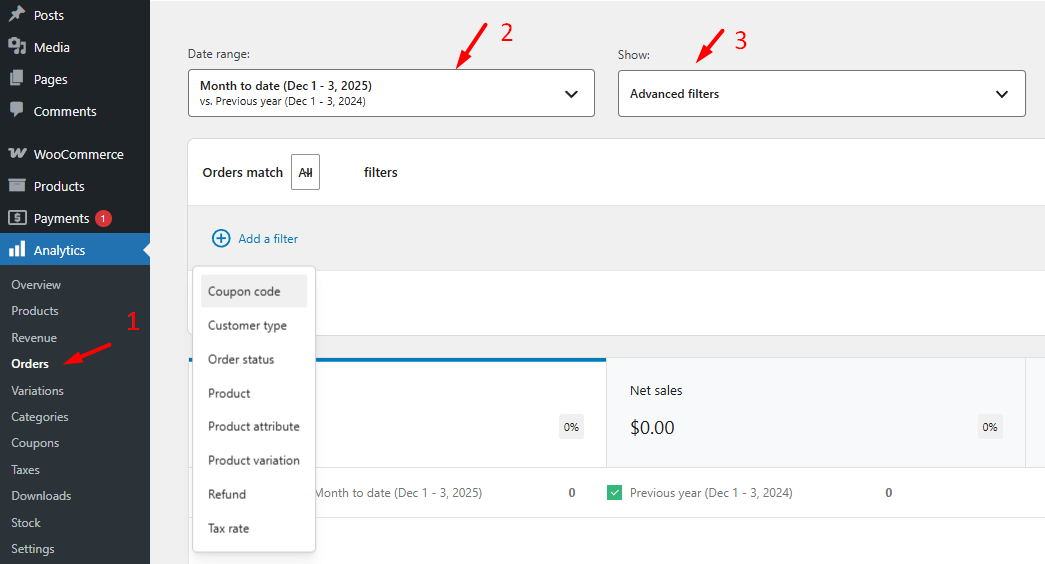
Accessing WooCommerce reports is straightforward. From your WordPress admin dashboard, navigate to WooCommerce > Analytics.
To generate the reports in the Analytics tab, follow the steps below:
- Simply click on one of the items in the sidebar menu to switch between different report sections, like Orders.
- Customize the date range for any report using the date selector in the top-right corner, allowing you to analyze performance for a specific day, week, month, quarter, or custom period.
- Use the Advanced filter to narrow down the data in the report by Customer type, Order status, Product, etc.
Limitations and Caveats of Native WooCommerce Reporting
Although small businesses with limited orders may find the WooCommerce reports powerful, the native analytics have limitations.
Key limitations include:
Lack of Cross-Channel Data: No Attribution report integrates data from Google Ads or Facebook, making true ROI calculations effective.
Limited Customization: You are not able to easily filter reports, Search among data, or customize the columns of the table report based on your requirements.
Basic Visualization: Building highly specific dashboards with chart options are somewhat limited compared to dedicated business intelligence tools.
Recommended Plugins and Tools for Enhanced Reporting
For many store owners, the native reports available in the WooCommerce analytics is not effective. To unlock advanced features, they need to use a dedicated Advanced reporting for WooCommerce plugin.
Interpreting WooCommerce reports generated by the WooCommerce reports plugin can answer the most WooCommerce reporting FAQs.
It is a robust solution provides a wide array of pre-built, customizable report templates that go beyond the basics, such as:
- Detailed attribution summaries,
- Purchased product reports,
- And in-depth customer segmentation analytics
Easy to understand visual format with enhanced charts and graphs makes the process of interpreting WooCommerce reports faster and more intuitive.
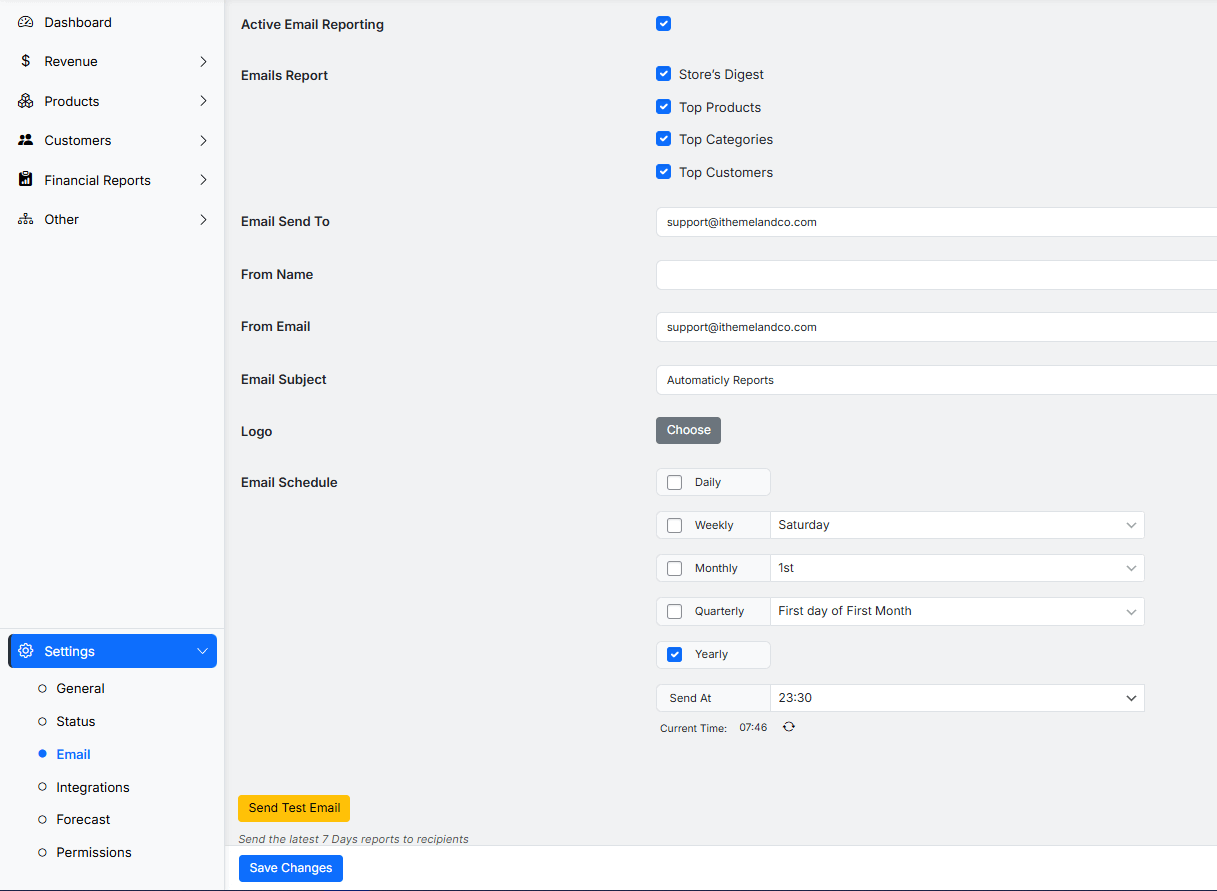
It simplifies automating and scheduling sending reports to managers, accountants, andthe sales team and offers one-click download reports to CSV format for further analysis.
Step-by-step guide for accessing WooCommerce Reports
To access all features of the WooCommerce reports plugin, first you need to download the ZIP file and install then activate it using the license key.
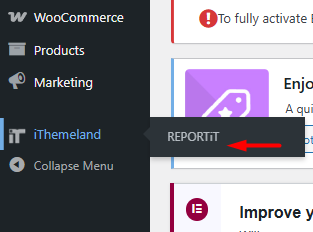
After activation, you can find REPORTiT under the iThemeland menu in your WordPress Dashboard.
By clicking on the REPORTiT item, you are directed to the main page of the plugin, providing a list of all available reports in the left sidebar:
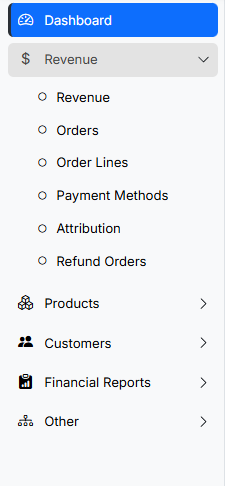
Simply click on each item in the menu to find the related WooCommerce reports.
Before generating your required report, it is important to set the Date Range. You can either use the presets like Today, This week, Last month, etc. or set a start and end date via built-in calendar.
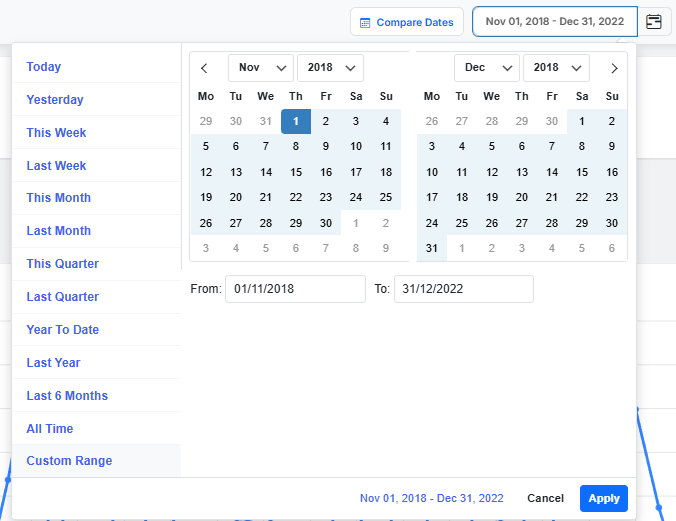
Once you specify the date, you can click on any item in the menu to generate the report.
Let’s review the most common WooCommerce reports and explore how to interpret them to answer your WooCommerce reporting FAQs.
Interpreting Sales Reports: Common Metrics & What They Mean
The sales reports are useful for your financial analytics to recognize if you are running a healthy business.
You can generate a sales report in the advanced reporting for WooCommerce plugin by navigating to Revenue > Revenue.
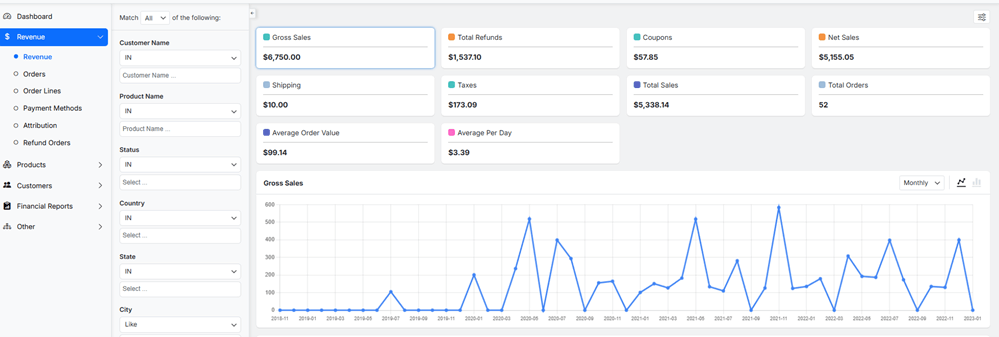
Key metrics you can monitor in the Revenue report include:
Net Sales: This is your total revenue minus refunds. It’s the clearest indicator of your store’s earning power over a period.
Orders: The total number of orders placed in the specified date range.
Average Order Value (AOV): AOV is the average amount that customers pay per order. A rising AOV means customers are spending more per visit, which can be more efficient than just acquiring more customers.
Coupon Usage: Tracks the total discount amount given. This helps you assess the cost and effectiveness of your promotional campaigns.
What WooCommerce reporting FAQs can Revenue report answer?
Which days drove the most sales?
To identify seasonal patterns, compare the Net Sales in different periods.
What is the Average Order Value (AOV), and how can it be increased?
Review the AOV in the report and prioritize cross-selling and upselling strategies.
What is the true net impact of coupons and discounts on revenue?
Use the data to calculate the ROI of promotions and optimize them.
Understanding Customer Reports: Key Insights
Customer reports answer the most common WooCommerce reporting FAQs about customer behavior.
Different types of Customer reports are available in the WooCommerce report plugin, including:
- All customer report
- Customer segment report
- Customer group report
For instance, by interpreting WooCommerce reports information in the Customer Segment report, you can explore the following:

New Customers vs. Returning Customers: This is your primary retention metric. A high rate of new customers indicates successful marketing, while a high rate of returning customers signifies strong loyalty and product satisfaction.
Customer Lifetime Value (CLV): An estimate of the total revenue you can expect from a single customer over their relationship with your store. Increasing CLV is often more cost-effective than constantly acquiring new customers.
Orders per Customer: Shows how frequently your customers make purchases. A number above 1.0 indicates repeat business.
What WooCommerce reporting FAQs can Customer report answer?
Who are my top-spending VIP customers and what do they buy?
Find the most valuable segments in the report and send exclusive offers and personalized communication.
How many customers are at risk of churning based on inactivity?
Check at-risk customers and launch timely re-engagement campaigns before they are lost completely.
Do registered customers spend more than guest buyers?
Compare the Net Revenue of Registered and Guest customers to quantify the value of your loyalty program and account creation incentives.
Product Reports: Analyzing Product Performance & Trends
Interpreting WooCommerce reports by product is essential for inventory management and marketing strategy decisions.
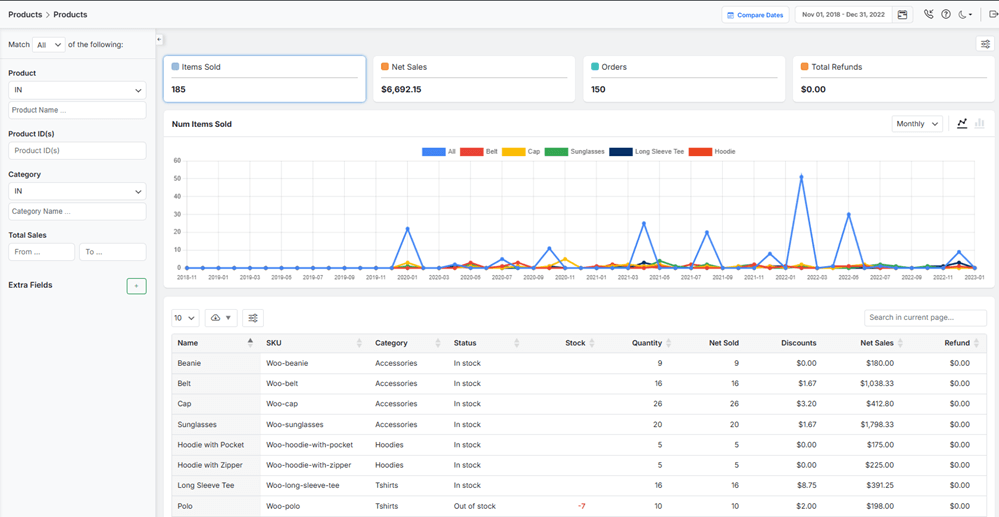
There are many types of products reported under the Product menu, such as:
All product report: Feature top/Worst-selling products.
Variation report: Investigate why specific Variations underperform—is it product quality, pricing, or page description? Consider bundling slow-moving items with bestsellers.
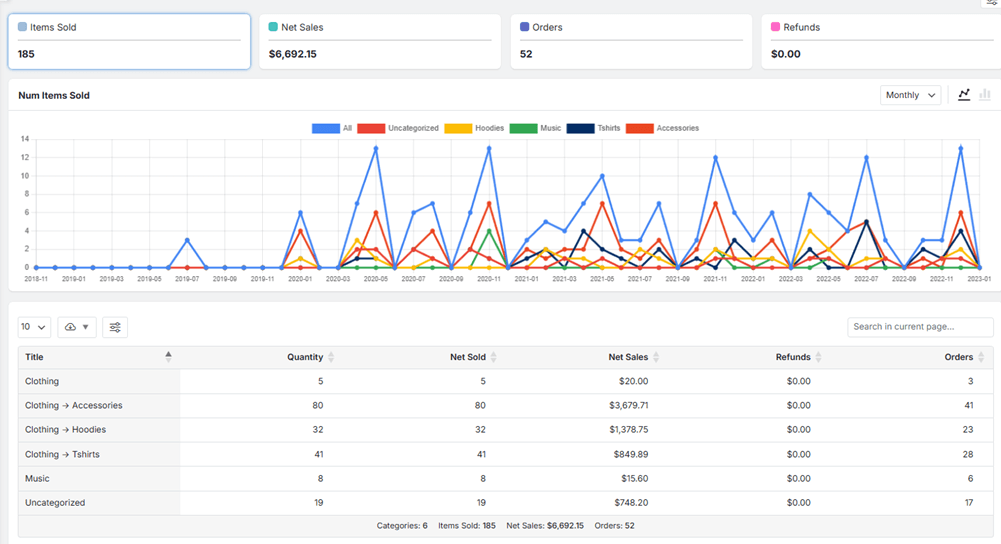
Category report: Helps you understand which product categories or niches are driving your business.
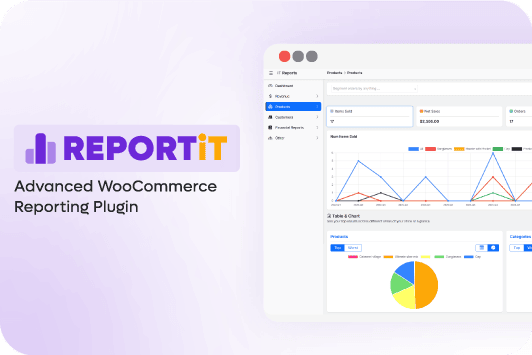
REPORTiT – Advanced WooCommerce Reporting
The Easy Way to Master WooCommerce Reports: Your FAQ Roadmap
What WooCommerce reporting FAQs can the product report answer?
What are my top and worst-selling products?
Sort all product reports by ‘Net Sales’ or ‘Units Sold’ to quickly identify stars and underperformers.
Which product categories are the most profitable?
Compare Net Sold in the Category report to allocate marketing budget effectively.
Stock Reports: Managing Inventory Effectively
Proactive inventory management prevents lost sales from stockouts and tied-up capital in excess stock.
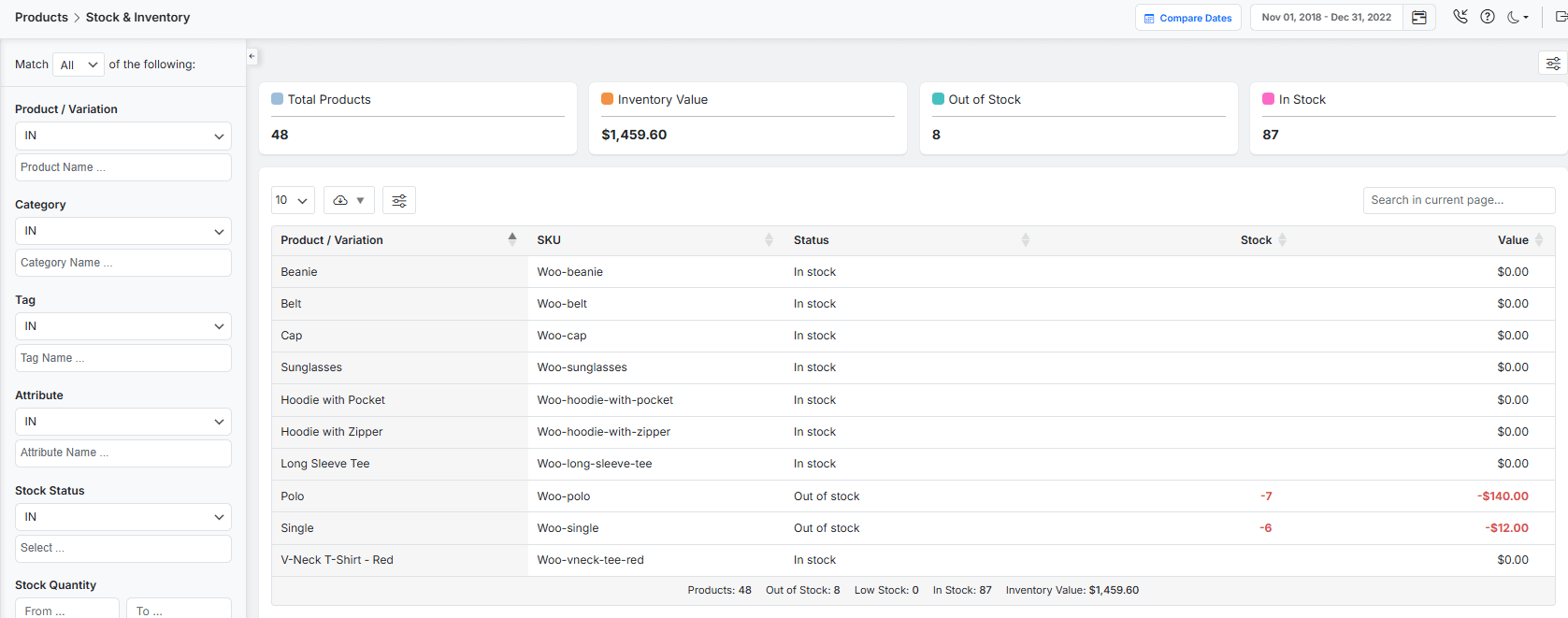
| Report Section | Key Data Point | Why It Matters |
|---|---|---|
| Stock Overview | Current Stock Level | Real-time view of inventory for all products. |
| Low Stock | Products below your set threshold | Early warning to reorder bestsellers before they sell out. |
| Out of Stock | Products with 0 stock | Identifies lost sales opportunities; urgent restock needed. |
Interpreting WooCommerce reports related to product stock can help you to identify low stock thresholds for your top-selling items based on their sales velocity.
What WooCommerce reporting FAQs can the stock report answer?
Which products are low or out of stock?
Filter the stock report by ‘Stock Status’ to see items needing immediate restock.
What is the total value of my current inventory?
Check the inventory to calculate the sum value of all ‘In Stock’ items.
Do I have enough stock for an upcoming sale?
Check the current ‘Stock Quantity’ of the most demanded products.
Tax Reports: Simplifying Tax Management
For stores required to collect sales tax, VAT, or GST, these tax reports are essential for compliance.
They aggregate taxes collected by rate and by tax code over your selected period, providing the clear audit trail you need for filing returns with your local revenue service.
Always consult with a tax professional to ensure you are collecting and reporting correctly for your specific region.
The tax report in the WooCommerce report plugin is designed under the Financial tab.
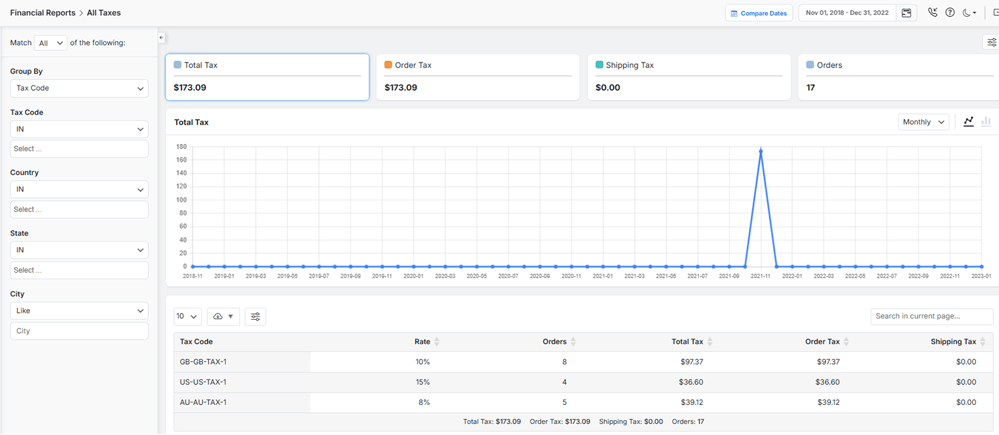
What WooCommerce reporting FAQs can the tax report answer?
Which tax rate or region generated the most tax collection?
Filter the Tax report by ‘Tax Code’ or ‘Country/State’ to see the breakdown.
Is the tax collected from products and shipping accurate?
Compare ‘Order Tax’ vs. ‘Shipping Tax’ to verify correct calculations.
Do I have records for my tax filing or audit?
Export the detailed report with codes, rates, and totals as documentation.
Customizing and Exporting WooCommerce Reports
While the default views are useful, you can customize many reports by applying filters (e.g., by product category, customer country, or coupon).
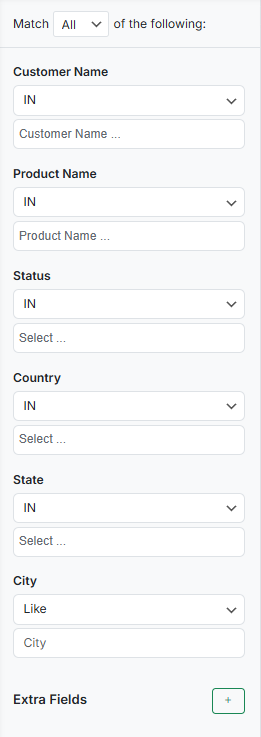
Another customization option is showing/hiding the information in the report table. You can easily mark/unmark the columns to control which data is displayed in the report:

To exactly find the data you need to answer WooCommerce reporting FAQs, you can search for any item in the Search box designed on the top right of all table reports:

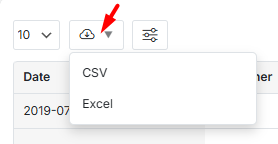
For deeper analysis or external sharing, you can export any report. The “download” icon on top of the reports allows you to export data to a CSV or XLS file. By customizing the displayed data in the report, you can export custom files to combine data sets, or prepare financial summaries in spreadsheet software.
Best Practices and Tips for Interpreting WooCommerce Data
To truly harness the power of your WooCommerce store, moving beyond surface-level metrics is key. Here, you can find essential best practices and tips to help you analyze performance, understand customer behavior, and optimize for growth:
- Establish a Baseline: Don’t just look at numbers in isolation. Compare this week to last week, this month to the same month last year, to understand seasonal trends and real growth.
- Focus on Trends, Not Just Snapshots: A single day’s poor sales are noise; a two-week downward trend is a signal that requires investigation.
- Correlate Metrics: Don’t view reports in silos. Did a spike in “New Customers” correlate with a specific marketing campaign? Did a change in “AOV” follow a new checkout upsell plugin?
- Set Aside Regular Time: Schedule a weekly 30-minute “data review” session and a more comprehensive monthly review to stay consistently informed.
In the WooCommerce report plugin, you can easily schedule sending sales reports to one or more emails by navigating to Settings > Email and enabling the Activate Email Reporting option:
REPORTiT – Advanced WooCommerce Reporting
The Easy Way to Master WooCommerce Reports: Your FAQ Roadmap
Conclusion: Making Data-Driven Decisions in WooCommerce
Mastering your WooCommerce analytics is not about becoming a data scientist; it’s about becoming a more informed and effective store owner.
By moving from passive viewing to active interpreting WooCommerce reports, you gain the confidence to make decisions based on evidence, not instinct.
Start with the core native reports, establish your review routine, and then leverage tools like the Advanced Reporting for WooCommerce plugin when you need deeper insights.
When you consistently ask WooCommerce reporting FAQs and answer them truly based on reliable data, you can transform your store from a hopeful venture into a strategically managed, growing asset.
FAQ
Q: What are WooCommerce reports used for?
A: WooCommerce reports help store owners track sales, customer activity, inventory, taxes, and other key performance indicators to make informed business decisions.
Q: How do I access reports in WooCommerce?
A: You can access WooCommerce reports from your WordPress dashboard by navigating to WooCommerce > Reports.
Q: What are the most important metrics to track in WooCommerce reports?
A: Key metrics include gross sales, net sales, refunds, average order value, product performance, customer acquisition, and inventory levels.
Q: Can I customize or filter WooCommerce reports?
A: Yes, WooCommerce reports allow you to filter by date ranges, categories, and specific products. For more advanced customization, additional plugins may be required.
Q: Are WooCommerce reports exportable?
A: Yes, most WooCommerce reports can be exported as CSV files for further analysis or sharing.
Q: What limitations does the default WooCommerce reporting offer?
A: Default WooCommerce reports are basic and may lack certain analytics, such as customer lifetime value or detailed product segmentation, which can be supplemented with plugins.
Q: Which plugins can enhance WooCommerce reporting capabilities?
A: Popular plugins include WooCommerce, Google Analytics, Metorik, Advanced Reporting for WooCommerce, and WP All Export.
Q: How often are WooCommerce reports updated?
A: WooCommerce reports are updated in real time, reflecting live data from your store.
Q: Is it possible to automate WooCommerce reports?
A: Automation is possible through third-party plugins that schedule regular report exports and email them to specified recipients.
Q: How accurate are WooCommerce reports?A: WooCommerce reports are generally accurate if all store data and configuration settings are correct. However, manual adjustments or misconfigurations can affect accuracy.”


