


Understanding your store performance is essential for running a successful online business. One of the most important tools for evaluating store performance is the WooCommerce sales report. These reports allow store managers to monitor revenue, track product performance, analyze customer behavior, and make better business decisions.
WooCommerce provides several built-in reporting tools that help store owners view important sales statistics such as total sales, number of orders, top selling products, and customer data. By reviewing this data regularly, businesses can identify trends, evaluate marketing campaigns, and improve their overall sales strategy.
However, the default WooCommerce reporting system has some limitations. Many store managers need more flexible filters, more detailed data, or automated reporting features that are not available in the default WooCommerce dashboard.In this guide, we will explore three practical ways to generate WooCommerce sales reports. First, we will review how to check sales reports using the built-in WooCommerce reports and analytics dashboards. Then we will look at generating reports with SQL queries for advanced users. Finally, we will introduce a powerful REPORTiT as a powerful WooCommerce reporting plugin that provides more detailed sales analysis and automation features.
How to check your sales report in WooCommerce without the plugin?
Generating the sales report for WooCommerce is one of the most popular reports used by store managers to analyze their store performance. However, there is a slight difference between getting sales reports in the new and old versions of WooCommerce. Let’s see how.
WooCommerce sales analysis in the WooCommerce reports
Sales analysis for WooCommerce in the WooCommerce reports is generated by going to the address below:
WordPress Dashboard > WooCommerce > Reports
By opening the reports tab, you can see four categories for receiving WooCommerce reports, including orders, customers, stock, and taxes. If you select Orders on top of the page, you can find below sales reports as subcategories:
WooCommerce sales report by date
This report displays the total number of orders based on the specified date range.
You can choose one of the default date ranges, which are:
- Year
- Last month
- This month
- Last 7 days
Or specify a customized date range in the Custom date. For example, you can set one day to get WooCommerce’s daily sales report.
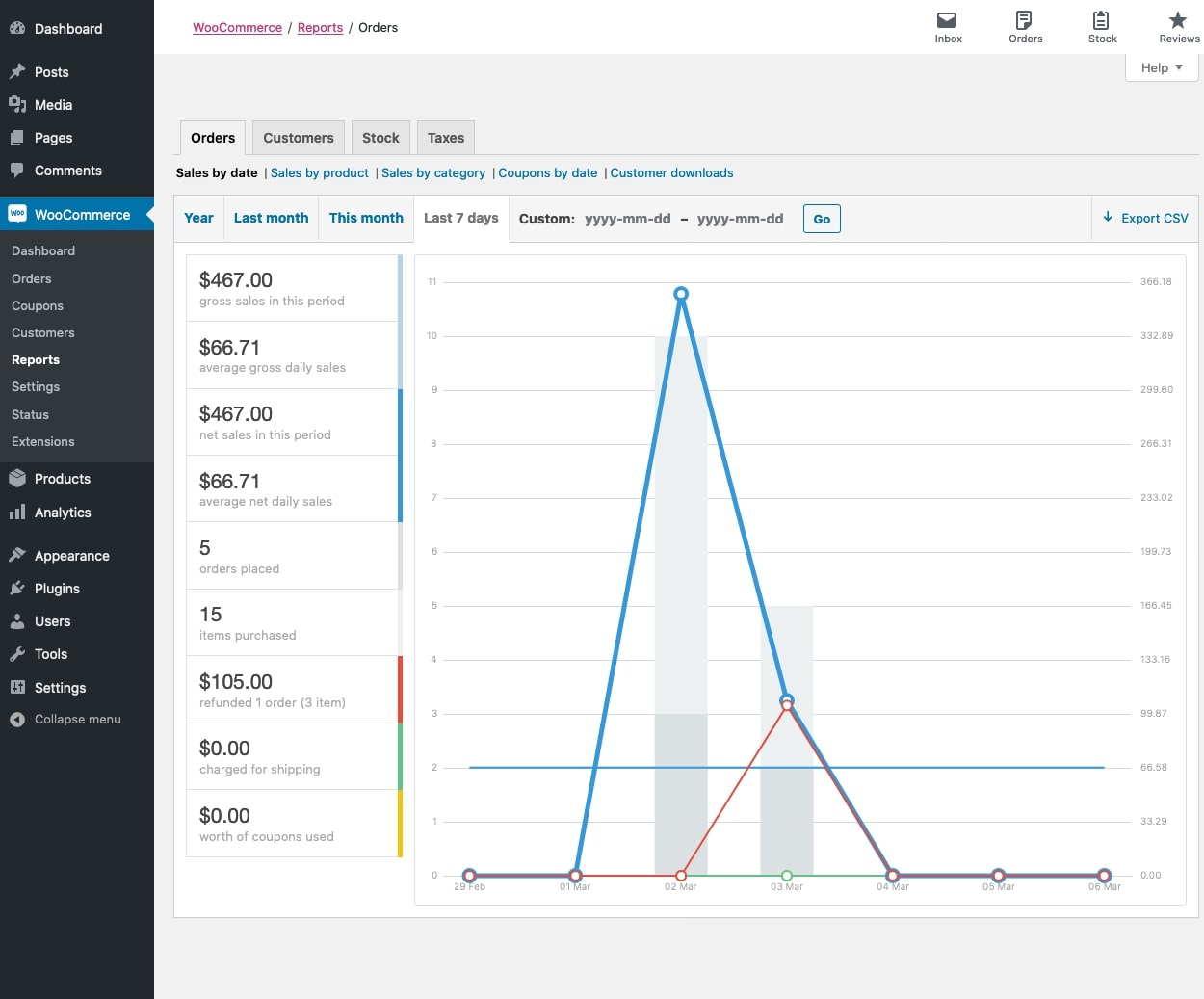
As you may notice, a guide panel on the screen’s left helps you match the colors in the chart with the data in this panel. For example, light blue is gross sales, while dark blue is the net sales.
WooCommerce sales report by product
If you want to generate a WooCommerce daily report for products, you can click on this tab and choose one of the date ranges as we described in the previous report.
For example, if you choose the last 7 days, the sales report by product is like the below:
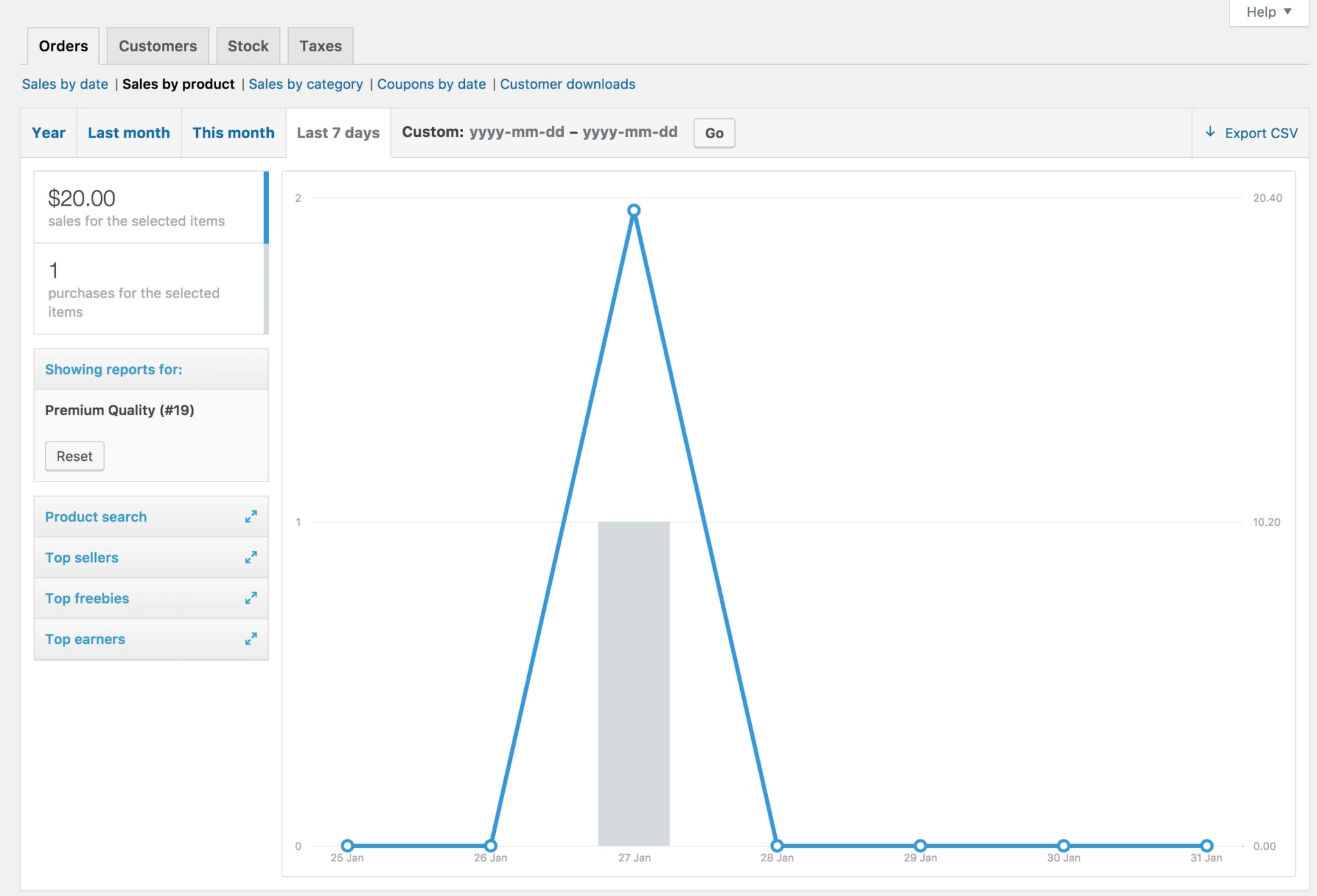
Some options on the left panel allow you to review WooCommerce sales analysis about Top sellers, Top freebies, Top earners, etc.
It is also possible to find the product you want to see its sales report in the Product Search field.
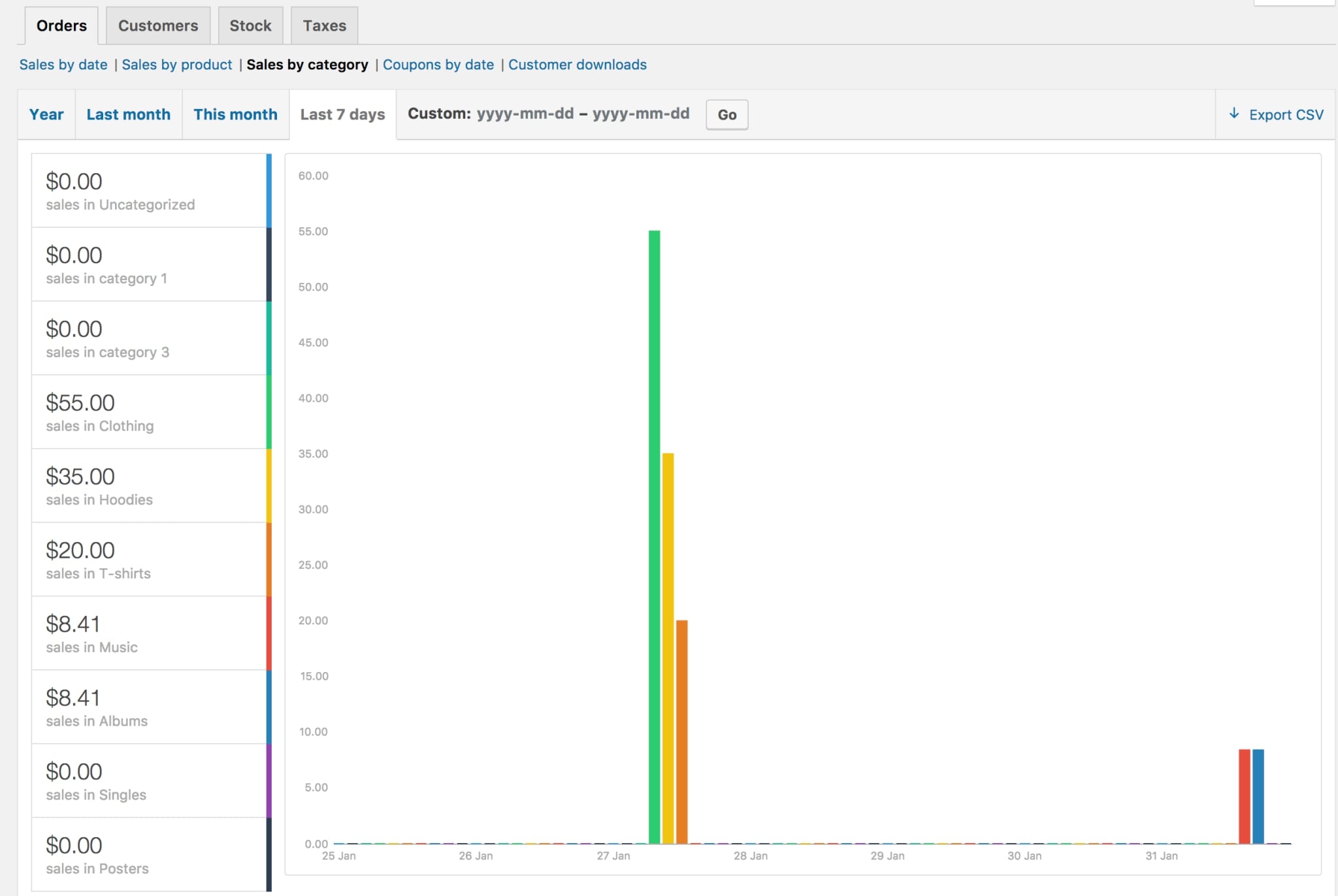
WooCommerce sales report by category
In this tab, you can first choose some categories in the Select Category field of the left panel:
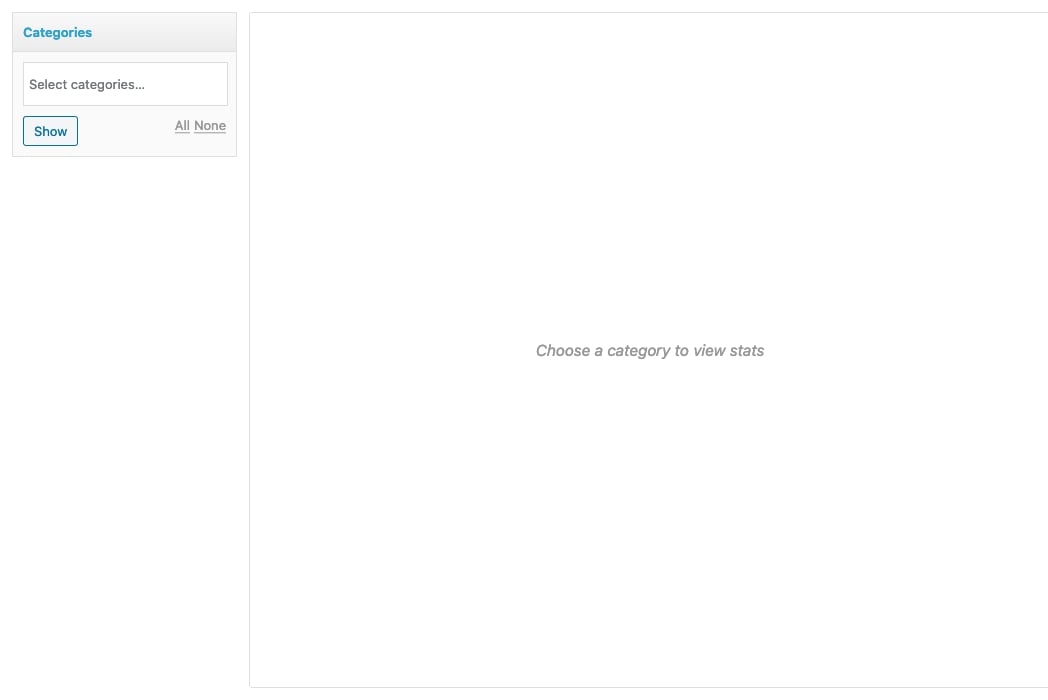
Then, by clicking on the Show button and choosing the date range, you can get sales reports of those categories in WooCommerce, as illustrated below:
Export WooCommerce sales report
Exporting WooCommerce sales reports is crucial when sharing the details with other managers or using data to create reports in different formats. There is a hassle-free option on the WooCommerce reports page for exporting sales report WooCommerce.
You just need to generate the WooCommerce sales report as we described before then press the Export CSV button on the top right corner of the screen.
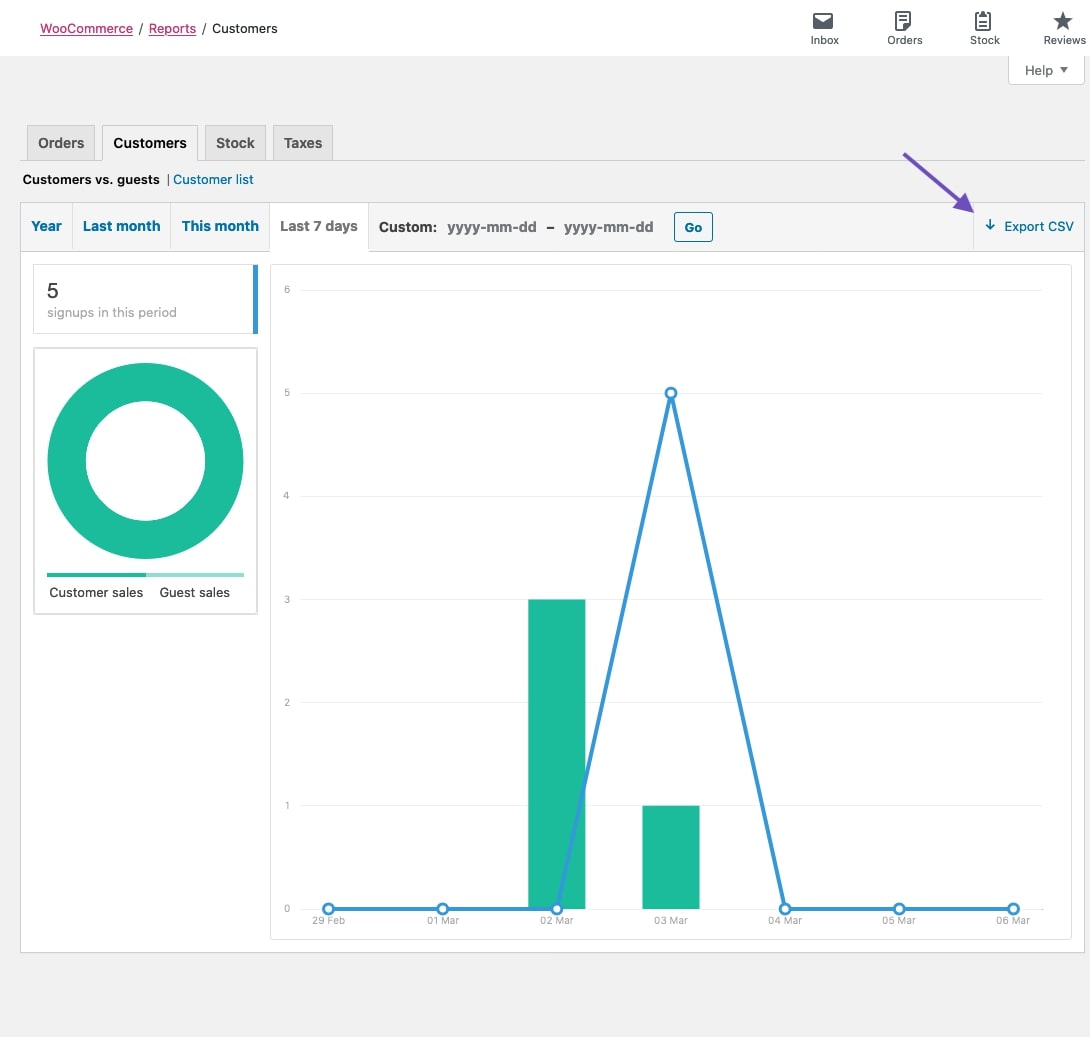
Clicking on this option, a CSV file will be downloaded and saved on your PC. So, you can open it in Excel or google sheet and use it to analyze sales trends further, track the inventory, or prepare for financial audits.
Get sales report in WooCommerce Analytics
The store managers who are using the new version of WooCommerce have access to the sales reports by going to the address below:
WordPress Dashboard > WooCommerce > Analytics > Orders
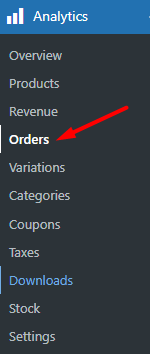
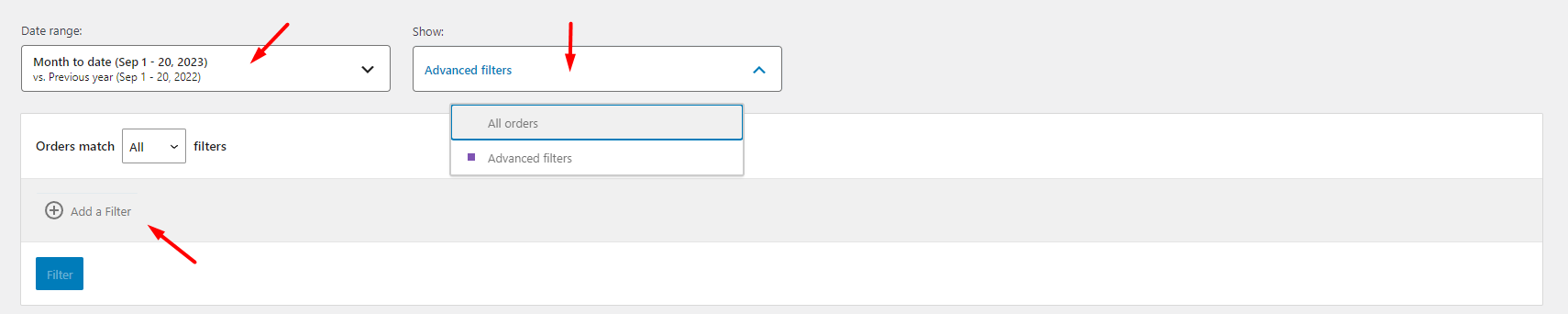
By going to the Orders tab, you can find the below options for filtering the WooCommerce sales statistics:
Date range: You can set a custom date range in this field.
Show: There are two options in this tab:
- All orders: All orders placed in the specified date range are listed in the sales report.
- Advanced filters: You can limit the orders by adding as many filters as you need after choosing these options.
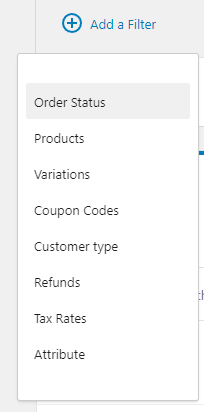
The filtering options in the WooCommerce sales dashboard are limited to the below items:
- Order Status
- Products
- Variations
- Coupon codes
- Customer type
- Refunds
- Tax rates
- Attribute
When all desired filters are set, you can get the sales report for WooCommerce by clicking on the Filter button.
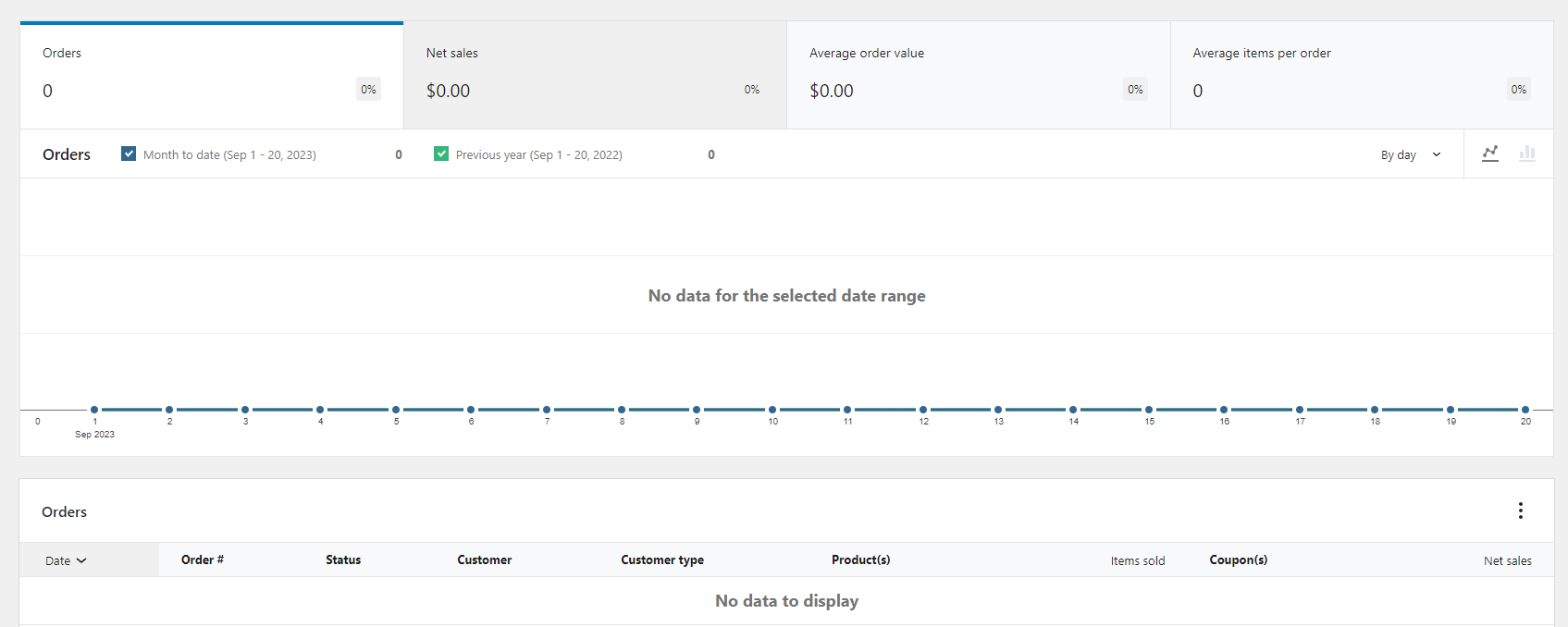
In this report, a list of orders is provided by date, and you can find some other information in the table, including:
- Order Status
- Customer
- Customer Type
- Products
- Coupons
Generating WooCommerce sales reports in old and new versions has many limitations and is not useful for store managers needing specific and detailed information. As WooCommerce analytics does not show the sales report you need, to receive more comprehensive reports, you need a powerful tool like the WooCommerce report plugin with flexible options for filtering and generating sales reports.
Download WooCommerce product sales report
If you need to create a product sales report for WooCommerce regularly and share the details with your marketing or sales teams, you probably need to export WooCommerce sales reports.
Fortunately, this is a pretty straightforward task in WooCommerce analytics. By default, the Download option is displayed in the right corner of the report table as illustrated below.
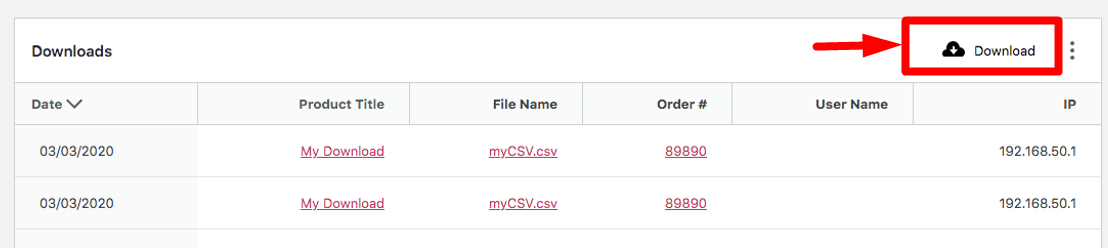
As soon as clicking on this option, WooCommerce will send an Email to the admin email address with the WooCommerce sales report as an attachment.So, when you generate your preferred report by WooCommerce analytics, for example, WooCommerce sales by country or sales report by product, press the Download button to send the report to the admin Email.
How to use SQL query to get sales report for WooCommerce
It is also possible to run different SQL queries to receive WooCommerce sales statistics. Here we provide you a SQL query for generating a sales report of all products in your shop:
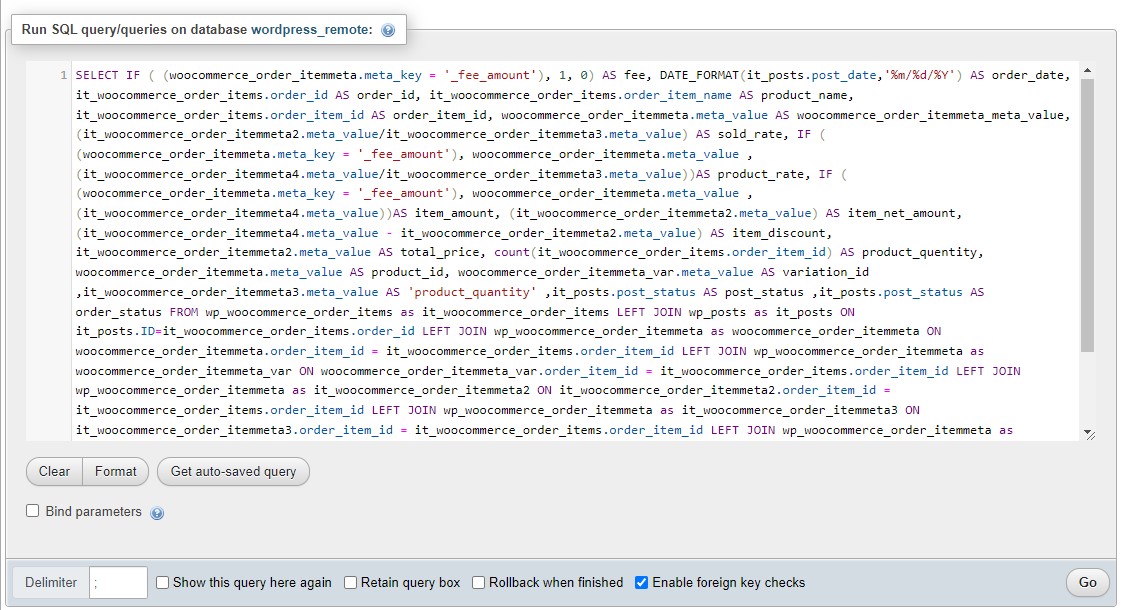
SELECT IF ( (woocommerce_order_itemmeta.meta_key = '_fee_amount'), 1, 0) AS fee, DATE_FORMAT(it_posts.post_date,'%m/%d/%Y') AS order_date, it_woocommerce_order_items.order_id AS order_id, it_woocommerce_order_items.order_item_name AS product_name, it_woocommerce_order_items.order_item_id AS order_item_id, woocommerce_order_itemmeta.meta_value AS woocommerce_order_itemmeta_meta_value, (it_woocommerce_order_itemmeta2.meta_value/it_woocommerce_order_itemmeta3.meta_value) AS sold_rate, IF ( (woocommerce_order_itemmeta.meta_key = '_fee_amount'), woocommerce_order_itemmeta.meta_value , (it_woocommerce_order_itemmeta4.meta_value/it_woocommerce_order_itemmeta3.meta_value))AS product_rate, IF ( (woocommerce_order_itemmeta.meta_key = '_fee_amount'), woocommerce_order_itemmeta.meta_value , (it_woocommerce_order_itemmeta4.meta_value))AS item_amount, (it_woocommerce_order_itemmeta2.meta_value) AS item_net_amount, (it_woocommerce_order_itemmeta4.meta_value - it_woocommerce_order_itemmeta2.meta_value) AS item_discount, it_woocommerce_order_itemmeta2.meta_value AS total_price, count(it_woocommerce_order_items.order_item_id) AS product_quentity, woocommerce_order_itemmeta.meta_value AS product_id, woocommerce_order_itemmeta_var.meta_value AS variation_id ,it_woocommerce_order_itemmeta3.meta_value AS 'product_quantity' ,it_posts.post_status AS post_status ,it_posts.post_status AS order_status FROM wp_woocommerce_order_items as it_woocommerce_order_items LEFT JOIN wp_posts as it_posts ON it_posts.ID=it_woocommerce_order_items.order_id LEFT JOIN wp_woocommerce_order_itemmeta as woocommerce_order_itemmeta ON woocommerce_order_itemmeta.order_item_id = it_woocommerce_order_items.order_item_id LEFT JOIN wp_woocommerce_order_itemmeta as woocommerce_order_itemmeta_var ON woocommerce_order_itemmeta_var.order_item_id = it_woocommerce_order_items.order_item_id LEFT JOIN wp_woocommerce_order_itemmeta as it_woocommerce_order_itemmeta2 ON it_woocommerce_order_itemmeta2.order_item_id = it_woocommerce_order_items.order_item_id LEFT JOIN wp_woocommerce_order_itemmeta as it_woocommerce_order_itemmeta3 ON it_woocommerce_order_itemmeta3.order_item_id = it_woocommerce_order_items.order_item_id LEFT JOIN wp_woocommerce_order_itemmeta as it_woocommerce_order_itemmeta4 ON it_woocommerce_order_itemmeta4.order_item_id = it_woocommerce_order_items.order_item_id AND it_woocommerce_order_itemmeta4.meta_key='_line_subtotal' Where ((woocommerce_order_itemmeta.meta_key = '_product_id' AND it_woocommerce_order_itemmeta3.meta_key='_qty') OR (woocommerce_order_itemmeta.meta_key = '_fee_amount')) AND woocommerce_order_itemmeta_var.meta_key = '_variation_id' AND it_woocommerce_order_itemmeta2.meta_key='_line_total' GROUP BY it_woocommerce_order_items.order_item_id ORDER BY order_id DESC If you run this query, a WooCommerce daily order report is generated, listing the data in the below columns:
- Order id
- Order date
- product name
- Product rate
- Order item
- Order status
- Quantity
- Order amount
- Net amount
As you may notice, running SQL queries is time-consuming, and you need special knowledge about writing codes and working with WordPress databases. If you are looking for a more convenient and flexible way to get sales reports in WooCommerce, we recommend you use the WooCommerce report plugin. Continue reading to find out how easy sales analysis is for WooCommerce with this plugin.
How to generate WooCommerce daily sales report by WooCommerce report plugin?
The WooCommerce report plugin is one of the best sales report WooCommerce plugin has a user-friendly interface with many customization options for filtering and generating the sales report and providing required data for WooCommerce sales analysis in the specified date range.
REPORTiT – Advanced WooCommerce Reporting
The easy way to get sales report in WooCommerce
To get sales report in WooCommerce by using this plugin, you need to follow the below steps:
- After installation of the WooCommerce report plugin, go to the WordPress dashboard and click on iT Woo Report to see the plugin dashboard.
- On the left panel, find the Order tab and click on the All Order option as shown below:
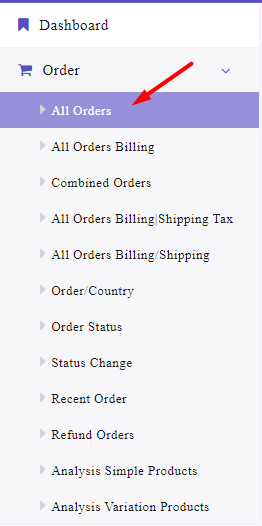
- In the new page just appeared, click on the Search icon to see the Search form.
- There are a lot of fields in the Search form that you can customize to filter the sales report based on your needs, including:
- Date From, Date To: By getting help from the built-in calendar in these fields, you can limit the report to a specified date range.
- Order Id: Limit the report to a specific order
- Customer: You can fetch reports just for specific customer(s)
- Category: In this case, the plugin display the orders that including products in specific category(s)
- Product: Limit the report to a specific product(s)
- Status: You can choose an order status to see the list of orders with that status in the sales report.
- Country: If you need to fetch all of report from specific country choose your country here
- State: If you need to fetch all of report from specific state choose your state here
- Variations: You can use the items in this field to check the sales report related to any product variations.
- Variation only: If you mark this item, the plugin only generates the sales report of variation products.
- Postcode: If you set postcode, the plugin display the orders with current postcode
- Email: You are able to fetch orders with specific billing email
- Order by: If you want to sort your report based on any data, you can choose one of the items in this list.
- Coupon code: If you want to fetch orders that including specific coupon code set this field
- Show order item details: By marking this item, you can see order item details in the sales report, like the ordered products, their qty, etc.
Coupon used only: If you mark this option, the list of orders that use coupons will be listed in the report.
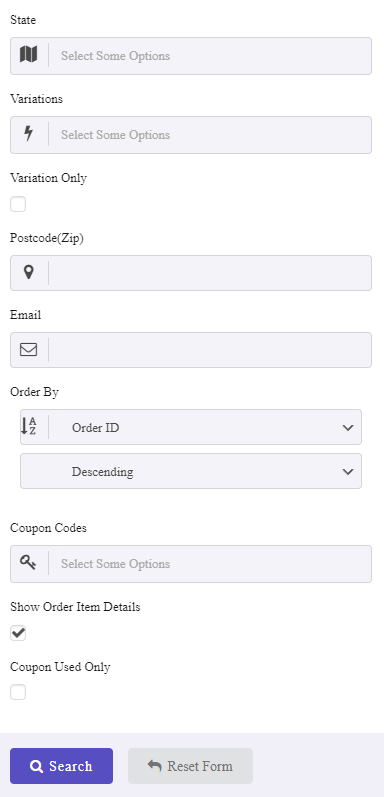
After editing the filter options you need, the report will be generated by clicking on the Search icon.
In this report, you will find a list of orders in a table, along with other useful information in the below columns:
- Name
- Customer
- Phone no
- Date
- Country
- State
- Status
- Payment method
- Coupon code
- Product
- Category
- Qty
- Prod.Amt.
- Shipping Amt.
- Invoice Actions
There is also a summary report at the bottom of the table, showing the below information to you:
Order count
- Product count
- Qty
- Rate
- Product Amount
- Product Discount
- Net Amount
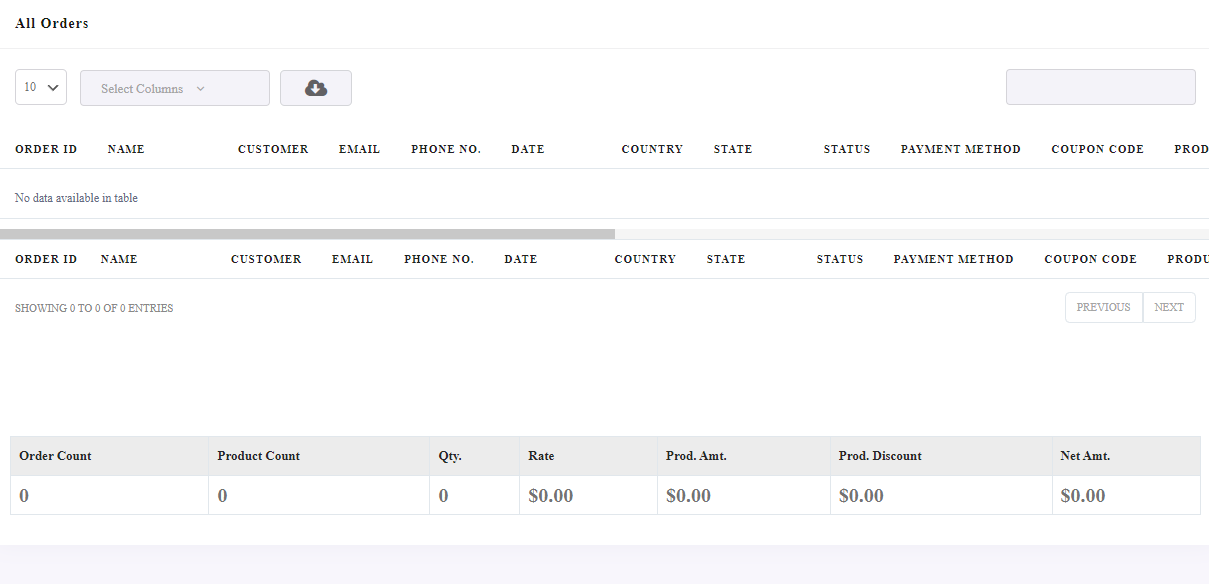
Now, let’s make some examples to see how WooCommerce sales report can help to analyze the performance of your online shop.
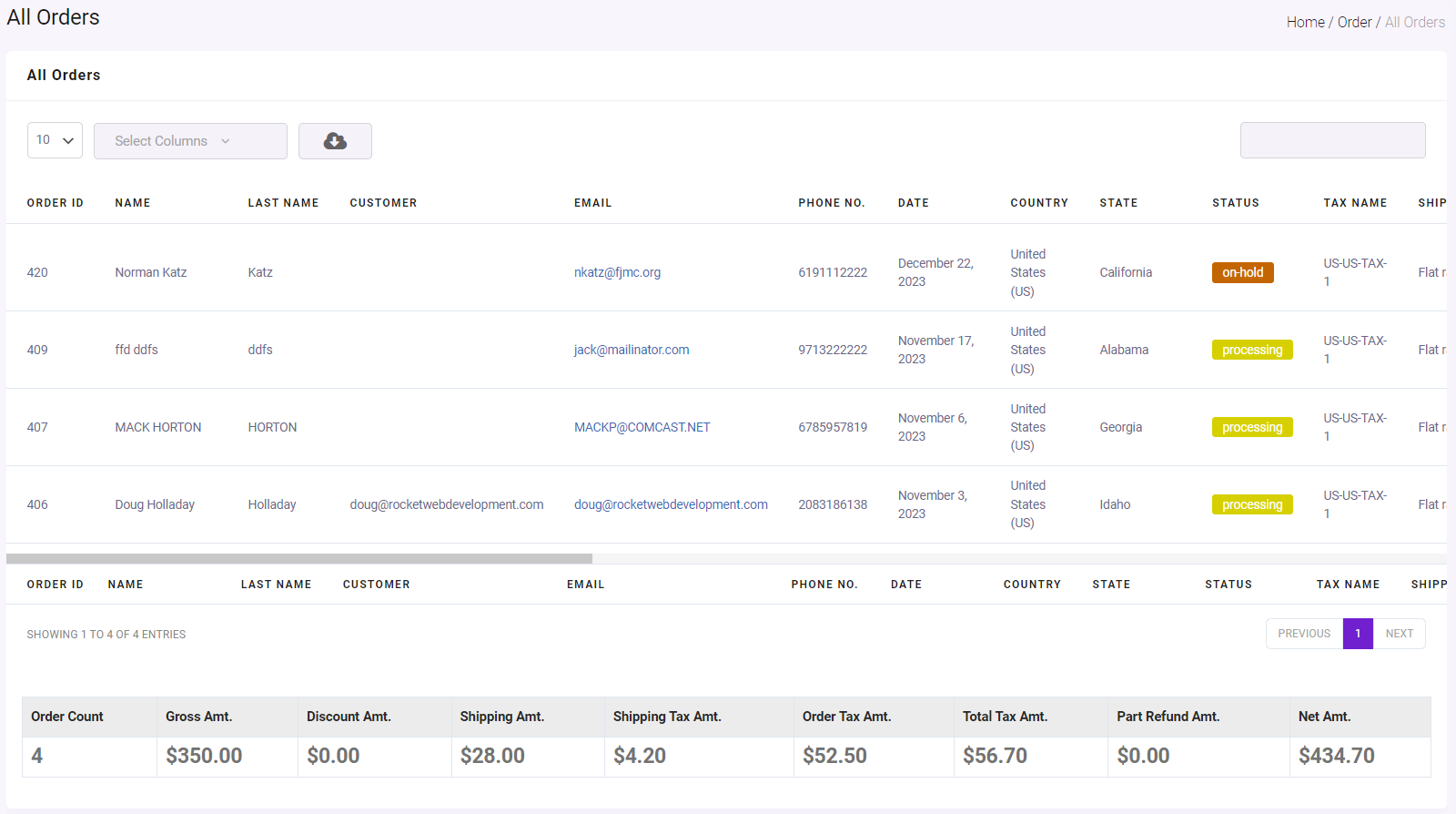
Example 1: WooCommerce daily sales report of a specific country
Let’s suppose that you need to analyze your e-commerce website performance in the last month of the year in the United States. So, to generate WooCommerce sales reports for the United States in Dec.2023, follow the below steps:
- Open All Orders report.
- Press Search Icon.
- Set 1.Nov.2023 to 31.Dec.2023 for Date from and Date to fields.
- Scroll down and locate the County field, then open the dropdown list and choose United States from the list.
- Press the Search button.
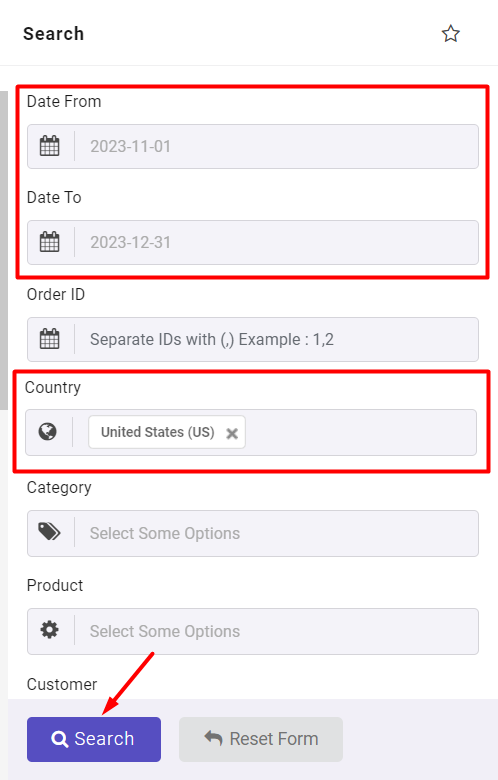
That’s it the plugin will report all orders placed in the United States in the last month.
Example 2: WooCommerce sales report of a specific category in the last year
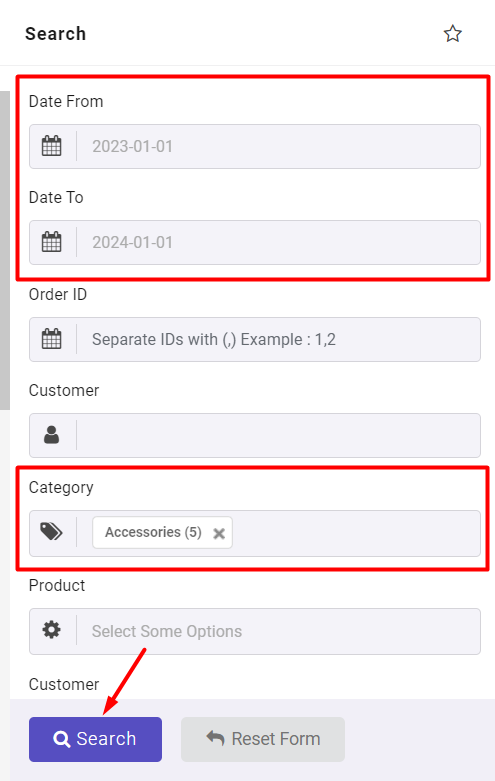
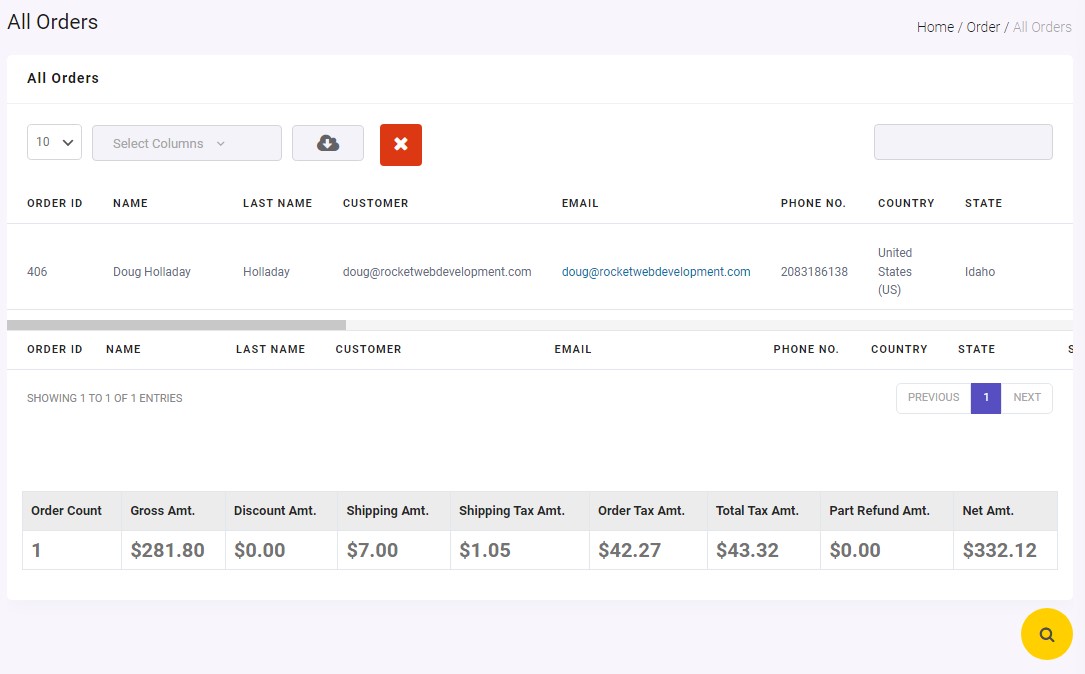
One of the most popular insights store managers need is about ecommerce sales report of a specific category. For example, let’s consider that you want to evaluate sales performance of Clothing in your online sport during last year.
To get this report, you can easily:
- Go to the All Orders page and open the Search form.
- Set the date range to 1 Jan 2023 to 1 Jan 2024 by using the built-in calendar.
- Open the dropdown list of Category and choose Clothing.
- Press the Search button.
The plugin will automatically report all required information about WooCommerce sales report of the Clothing category, such as total sales, total quantity, etc.
Extra features to customize WooCommerce sales report
There are also extra options available on the top of the table for customizing the report as below:
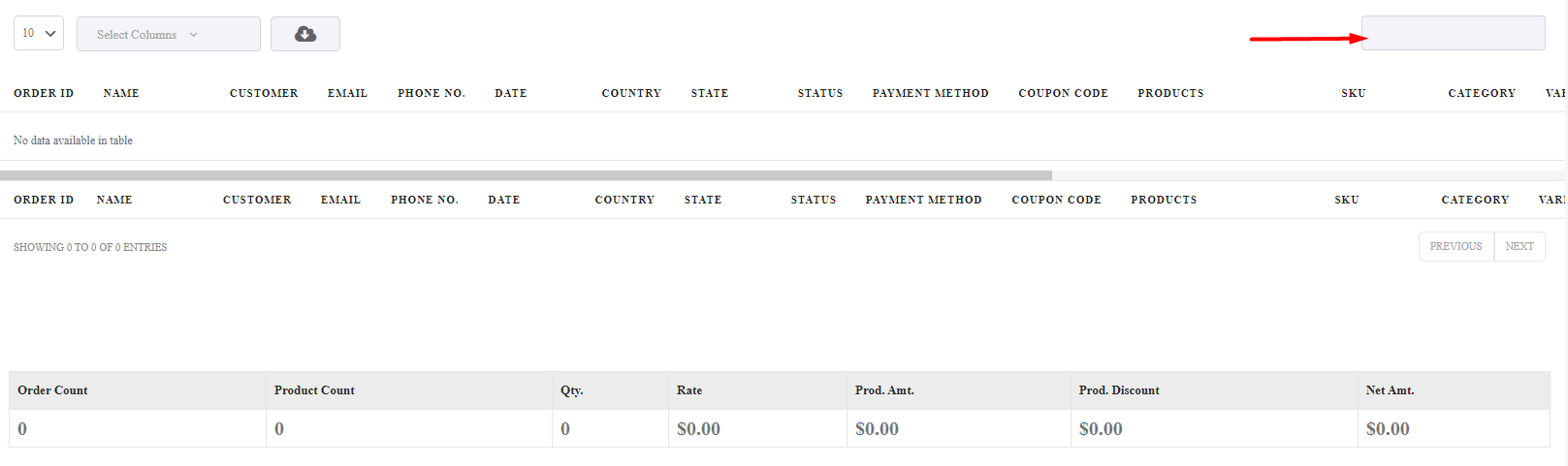
Search box
By using this box, you can search for a specific name to filter the sales report based on it.
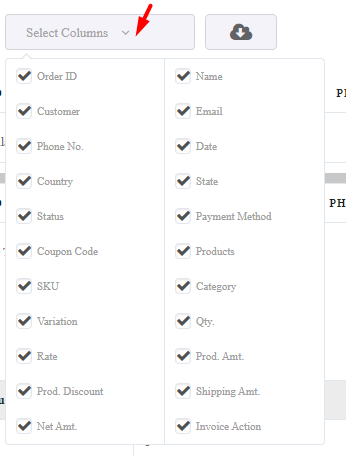
Select Columns
This is an ideal option when you want to customize the columns in your report. By marking/un-marking the items in this list, you can set which columns to be displayed in the table.
Export WooCommerce daily sales report
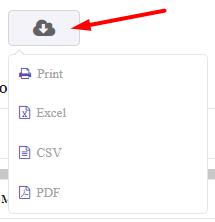
Exporting sales reports is one of the most amazing features of the WooCommerce report plugin. This plugin allows you to export the sales report with just one click on the Download icon and choose one of the below formats:
- Excel
- CSV
It is also possible to print the report directly by choosing the Print option.
WooCommerce sales report email
Another powerful feature of the WooCommerce report plugin is scheduling and automating WooCommerce sales report email. This feature is essential when faced with the limited capabilities of WooCommerce‘s built-in functions for exporting data like custom fields or the insufficient options for filtering details in the WooCommerce sales report.
The WooCommerce report plugin is your ultimate solution for receiving automated sales reports directly to your inbox. Forget about manual logins to check sales analysis for WooCommerce, with activating the Email settings you can stay informed about WooCommerce sales reports effortlessly.
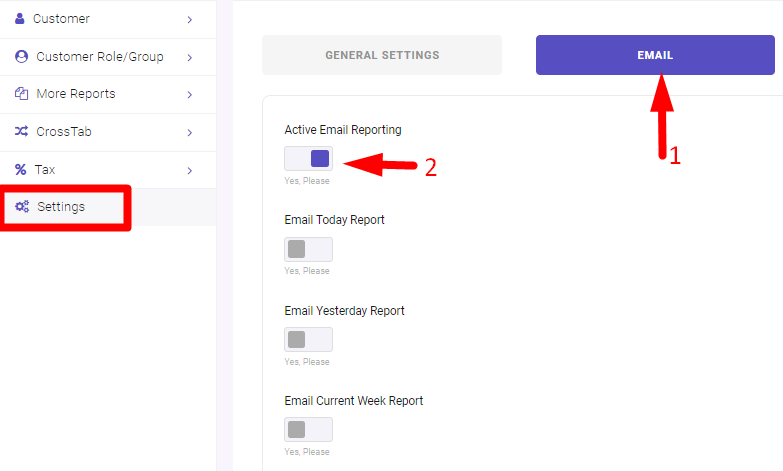
To automate WooCommerce sales reports, you just need to go to Settings > Email > Active Email Reporting, then choose one of the options like Email Today Reports, and schedule it to have the reports regularly in your inbox.
You can also set various Email addresses to send the WooCommerce sales report email to them.
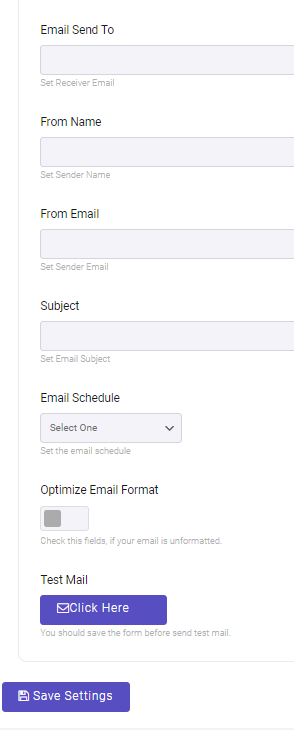
In this step-by-step guide, we fully covered all options available in the WooCommerce report plugin for receiving sales reports from WooCommerce by Email, automatically.
REPORTiT – Advanced WooCommerce Reporting
The easy way to get sales report in WooCommerce
What is a sales report?
A sales report is a table or chart showing an online store’s daily, weekly, or monthly sales. WooCommerce sales analysis allows managers to make more informed decisions to achieve their goals. The wooCommerce order report plugin is usually used to get WooCommerce daily order reports, which allows the sales manager to collect more detailed data about their store performance. This report usually includes data about sales results, such as the amount of each order, the quantity of ordered products, the total number of orders, and customer data, such as their name, country, etc.
Why are sales reports important?
Sales reports are very important for online store managers because they help them evaluate their through reaching their goals. With WooCommerce sales analysis, managers can determine better ways to improve sales in the short or long term. They can also decide which marketing strategies will help them sell more products to their customers.
Why should you need to keep track of WooCommerce sales reports?
The WooCommerce sales report analyzes an e-commerce store sale over a specific period. The data analysis of this report helps businesses review their sales strategy and other efforts to grow.
Online store managers find it important to evaluate sales reports for the following reasons:
- Make better decisions by monitoring the performance of their online store.
- Quickly identify problems using sales data before they get out of hand.
- Identify potential customers worth greeting.
- Determining the type of consumers who order their products or services.
- Providing a more accurate insight into their sales performance.
Conclusion
Sales reports play a crucial role in understanding the performance of any WooCommerce store. By analyzing sales data, store managers can identify profitable products, understand customer behavior, and adjust marketing strategies to improve overall revenue.
WooCommerce provides built-in reporting tools through the Reports and Analytics dashboards, allowing store owners to track sales by date, product, and category. These reports provide basic insights into store performance and can be exported for further analysis.
For advanced users, SQL queries can generate customized WooCommerce sales statistics directly from the database. However, this method requires technical knowledge and can be complex for most store managers.
If you need more flexible filters, advanced sales analysis, and automated reporting features, using REPORTiT plugin is often the most efficient solution. This plugin allows you to generate detailed reports, export them in different formats, and even schedule automated email reports.
By using the right WooCommerce reporting method, you can gain deeper insights into your store performance and make smarter business decisions based on accurate sales data.
FAQ
How can I view WooCommerce sales reports?
You can view WooCommerce sales reports from the WordPress dashboard by going to WooCommerce and opening the Reports or Analytics sections. These dashboards provide information about orders, revenue, products, and customer activity within a selected date range.
What data is included in a WooCommerce sales report?
A WooCommerce sales report usually includes important sales statistics such as total revenue, number of orders, quantity of products sold, refunds, discounts, and customer information. These metrics help store managers evaluate the performance of their online store.
Does WooCommerce have built-in reporting tools?
Yes, WooCommerce includes built-in reporting tools such as the Reports page and the Analytics dashboard. These tools allow store owners to analyze sales by product, category, customer, or time period without installing additional plugins.
Can I export WooCommerce sales reports?
Yes, WooCommerce allows users to export sales reports as CSV files from the reports or analytics pages. This makes it possible to analyze sales data in spreadsheet software such as Excel or Google Sheets or share reports with team members.
How can I automate WooCommerce sales report emails?
To automate WooCommerce sales report emails, you usually need to use a WooCommerce reporting plugin like REPORTiT. This plugin allows store managers to schedule reports and send them automatically to specific email addresses on a daily, weekly, or monthly basis.


