

Many store managers waste a lot of time frequently editing prices for dozens or hundreds of products, especially when planning for seasonal sales or supplier price adjustments. If you are in the same situation and are exhausted from manually updating the product prices regularly, it’s time to automate the process by scheduling bulk price changes in WooCommerce.
Although the native WooCommerce platform has significant limitations for this specific function, you can use the PBULKiT – Bulk Edit WooCommerce Products plugin to solve this problem efficiently.
This Product Bulk Edit plugin provides the perfect solution to seamlessly schedule bulk price changes in WooCommerce and save you immense time, prevent costly mistakes, and ensure your promotions launch perfectly on time.
Let’s explore how you can use the PBULKiT plugin to automate scheduling bulk edit changes in WooCommerce.
Introduction to Scheduled Bulk Price Changes
Scheduled bulk price change is an automated process of defining new prices for a large set of WooCommerce products at a specific future date and time.
For store owners planning to change prices in many events, like flash sales, holiday discounts, or incremental price increases many times, scheduling bulk price changes is essential.
WooCommerce’s native option allows basic sale scheduling per product, but there is no feature to schedule bulk price changes in WooCommerce across multiple products or categories simultaneously.
To cover this gap, managers need to use specialized tools like PBULKiT that can handle automated, large-scale pricing workflows efficiently.
WooCommerce Limitations for Scheduling Price Changes
The native operator of WooCommerce provides only limited scheduling capabilities.
It provides an option to set sale start and end dates for individual products, but there is no bulk edit scheduling option for multiple products.
To truly automate the scheduling process, you need to:
- Select hundreds of products,
- Apply a new pricing rule (like increasing all prices in a category by 10%),
- And set a future date for that change to take effect.
As the built-in scheduler in WooCommerce does not support the bulk scheduling process, store owners must try other solutions, like:
- Manual updates,
- Repetitive spreadsheet imports,
- Or a third-party plugin with options for scheduling bulk price changes in WooCommerce.
Among these solutions, using a third party plugin is the most reasonable way. So, we want to walk you through a step-by-step by step guide about how to schedule bulk price changes in WooCommerce using the PBULKiT plugin.
How Scheduled Bulk Price Changes Work (The General Workflow)
For applying scheduled bulk price changes across dozens or hundreds of products simultaneously, first you need to install and activate the PBULKiT plugin.
It extends WooCommerce’s core functionality by providing a user-friendly interface that allows store owners to
- Filter products,
- Apply bulk edits (support all WooCommerce fields),
- And schedule those changes for future execution
Let’s explore the complete step-by-step workflow of how scheduled bulk price changes work in this plugin, from selecting your target products to automating the exact date and time your new prices go live.
Step 1: Filter Products
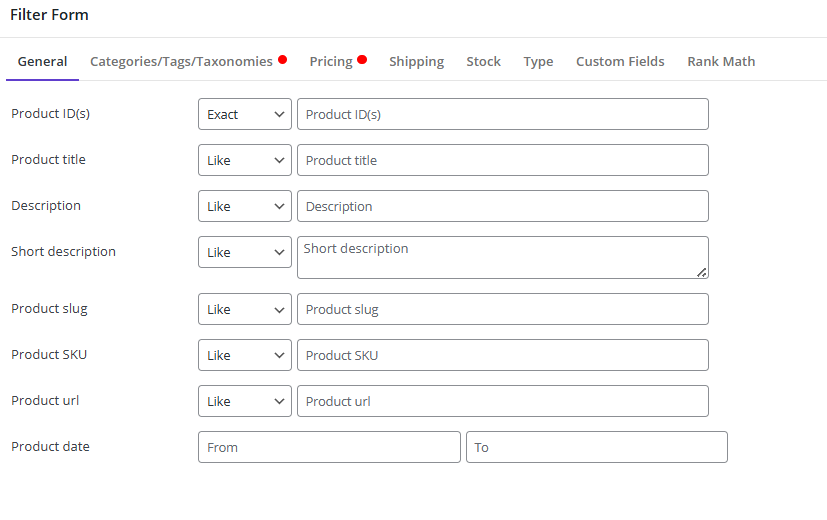
PBULKiT provides an advanced filter form supporting all WooCommerce fields. To use this, you just need to click on the Filter icon designed on top of the product table.
Then set as many filters as you need (by category, tag, price range, etc.) in the filter form to choose the products you want to update their prices.
Step 2: Select products and define the bulk changes rule
Once filtered products, you can select all or part of them in the product table to Schedule Bulk Price Changes in WooCommerce using the Bulk Edit form.
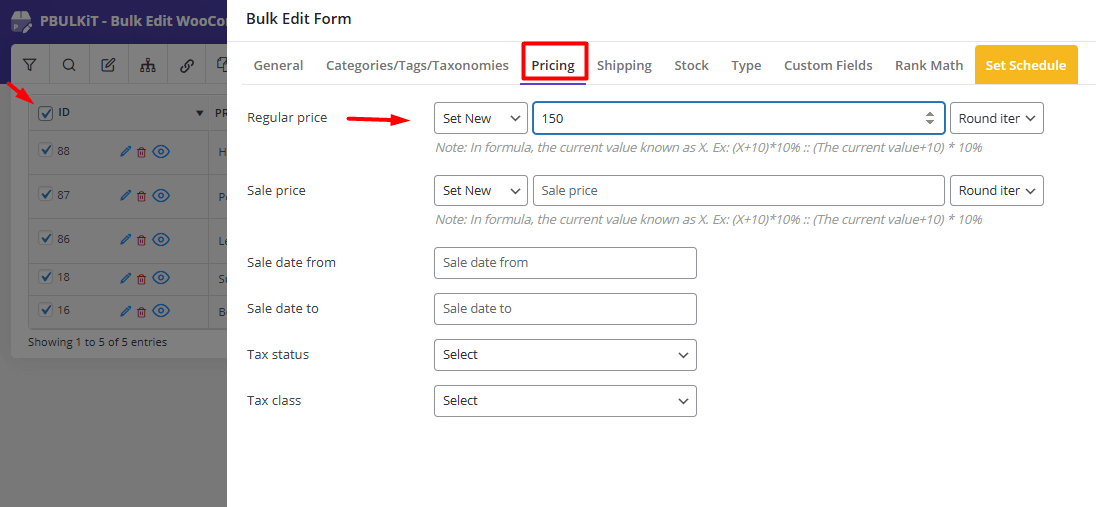
Click on the Bulk Edit icon on the toolbar to open the bulk edit form. Now, follow the steps below to set your desired changes to product prices:
- Go to the Pricing tab.
- Locate the Regular / Sale price field.
- Choose one of the operators, including: Set new, Increase/Decrease by % or Value, Increase or decrease based on Regular or Sale price, or Formula.
- Set the new value: Insert a fixed amount, a percentage increase/decrease, or a formula-based value in the textbox.
- Choose the Round Item if needed.
Read More: Bulk edit product price: Comprehensive guide about bulk edit WooCommerce product prices
Step 3: Set the schedule bulk price changes in WooCommerce to take effect specific date/time
After defining your preferred changes, click on the Set Schedule tab and follow the instructions below to schedule bulk price changes in WooCommerce to take effect specific date/time.
- Activate Enable Schedule Bulk Edit.
- Insert a Name and a Description in the related fields.
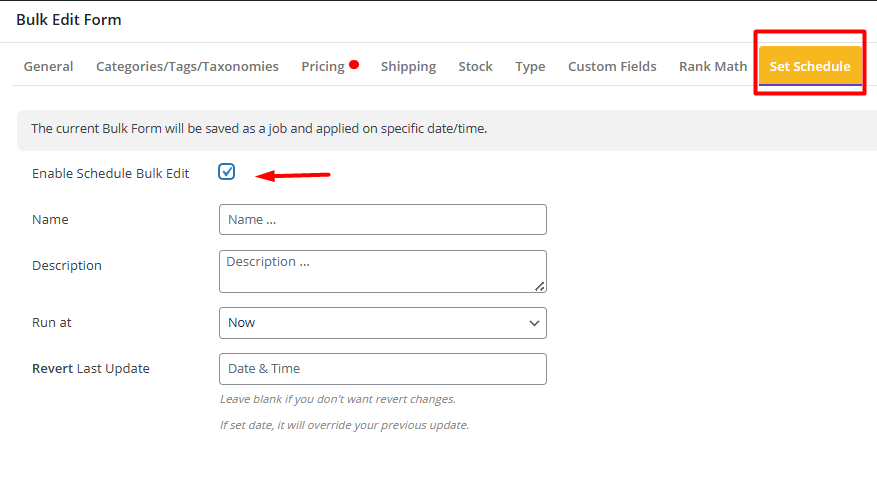
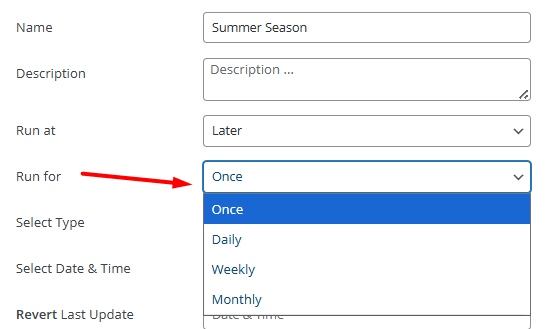
- Open the Run at combo box and choose Later from the list.
- Open the Run For combo box and set one of the items, including:
- Once: Apply changes just one time.
- Daily/ Weekly/ Monthly: Apply changes every day/ Week/ Month.
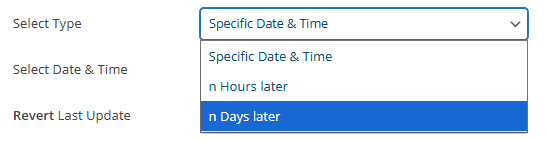
- Open the Select Type combo box and choose one of the options:
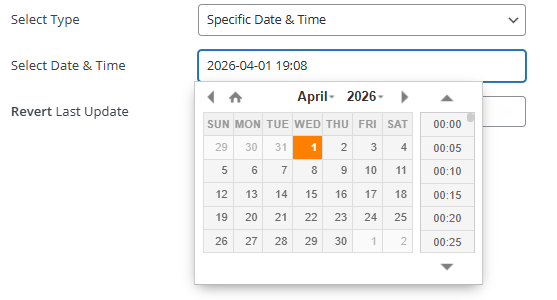
- Specific Date &Time: Set exact date and time using built-in calendar.
- n hours/ Days later: Schedule bulk edit to apply after n hrs/days.
- Set the exact date and time for the new prices to take effect at Select Date & Time field.
- Press the Schedule Bulk Edit button.

PBULKiT – Bulk Edit WooCommerce Products
The easy way to schedule bulk price changes in WooCommerce

Step 4: Managing and Editing Scheduled Price Rules
If you need to edit the scheduled bulk changes, you can easily click on the Edit Scheduled icon on the Toolbar.
The plugin provides a control panel to manage all pending tasks. Here, you can view a list of upcoming scheduled changes, edit their parameters (like the date or the new price value) before they run, or cancel them entirely if plans change.
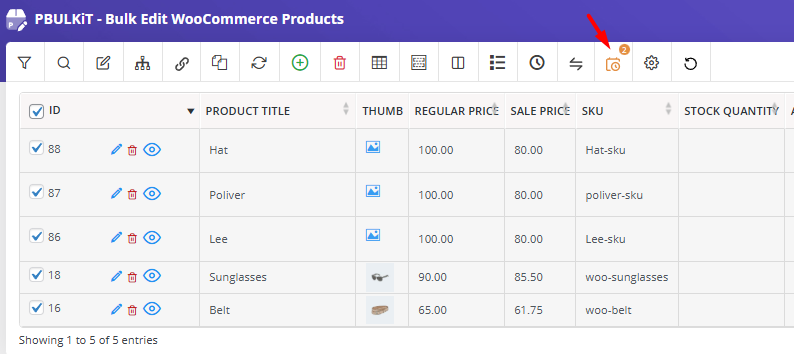
To make any changes, you have access to the following icons in the scheduled jobs list:
- Edit Item: Edit the products you want to apply the changes to.
- Edit job: Edit the defined date and time.
- Delete: Remove the scheduled task.

Why Schedule Bulk Price Changes in Advance?
Scheduling bulk changes in WooCommerce products has many advantages for busy store managers, including:
- Saving valuable time,
- Eliminating the risk of human error during last-minute updates,
- And guaranteeing that all promotions go live exactly when intended—even if you’re asleep or offline.
It is an ideal solution for coordinating complex campaigns like Black Friday sales, seasonal clearances, or responding to planned supplier cost changes.
Automating the process of bulk editing prices means you can set your pricing rules once and focus on other aspects of your business.
Common Mistakes When Scheduling Bulk Price Changes
Scheduling bulk price changes can save hours of manual work and ensure your pricing strategy runs like clockwork. However, even with powerful tools like PBULKiT, small oversights can lead to incorrect prices that confuse customers, and make problems in completing orders.
Here are the common mistakes to watch out for when scheduling bulk price changes in WooCommerce:
Ignoring Time Zones
Your WordPress installation and web server have specific time zone settings. If you schedule a price update for 3:00 PM without verifying your store’s time zone, the change could execute five hours earlier or later than intended.
To avoid this mistake, always check Settings > General > Timezone in WordPress and ensure your scheduled task aligns with your target audience’s local time, especially for time-sensitive promotions.
Skipping Previews
One of the biggest mistakes is scheduling a bulk update without using the preview function first. An incorrect formula, or a filter that accidentally includes the wrong product category, can have disastrous results. Always run a preview to review the applied changes before setting the schedule.
Confusing Sale Price with Regular Price
The PBULKiT plugin allows you to target both Regular and Sale price fields, but selecting the wrong one can lead to prices not changing as expected. Make sure you are scheduling the process of bulk changes for the right field in the Bulk Edit form.
Forgetting Caching
If you use a caching plugin like WP Rocket, W3 Total Cache, or server-side caching, your customers might still see old prices even after your scheduled update runs successfully. The cached HTML pages can display outdated information until the cache expires or is cleared.
To avoid this problem, we recommend configuring your caching plugin to clear automatically after bulk updates or manually purging the cache following a scheduled price change.
Overlooking Product Variations
Variable products are often the culprit behind failed bulk updates. A common mistake is applying a scheduled price change only to the parent variable product while leaving its individual variations untouched.
If you aim to schedule bulk edit changes on Variations, double-check your filtered products and ensure your selected products include the variations as well as the parent product.
Setting and Forgetting Without Monitoring
Scheduling a price change and never checking if it executed correctly is risky. Server load, PHP timeouts, or plugin conflicts can sometimes interrupt scheduled tasks. Always build a monitoring step into your workflow: check the affected products after the scheduled time, verify prices in the frontend, and review logs if your scheduling tool provides them.
Not Accounting for Tax Settings
A price of $100 with tax excluded displays differently from $100 with tax included. If you schedule a bulk price change without considering your store’s tax settings, you might unintentionally increase or decrease the final customer-facing price. Preview your changes while logged out of your store to confirm the display matches your intention.
Failing to Communicate with Your Team
If you schedule a major price change without notifying your customer support or marketing teams, they may be caught off guard by customer inquiries or social media mentions. Always communicate scheduled updates internally so your team can respond knowledgeably and align any promotional messaging.
Common Use Cases for Scheduled Price Updates
| Use Case | Description | Automation Trigger | Business Benefit |
|---|---|---|---|
| Seasonal & Holiday Sales | Automate the start and end of Black Friday, Cyber Monday, or holiday discounts | Predefined calendar dates | Ensures timely promotions without manual intervention |
| Planned Markdowns | Schedule gradual price reductions for inventory clearance | Scheduled intervals (e.g., weekly reductions) | Moves excess stock efficiently and maximizes sell-through |
| Supplier Price Adjustments | Automatically increase prices across affected product lines upon new cost sheet receipt | Supplier cost update or new pricing import | Protects margins by reflecting updated supplier costs |
| Category-Wide Changes | Apply a percentage-based discount to an entire product category for a promotion | Manual trigger or scheduled campaign start/end | Quickly launches promotions across multiple SKUs |
PBULKiT – Bulk Edit WooCommerce Products
The easy way to schedule bulk price changes in WooCommerce
Conclusion
The ability to schedule bulk price changes in WooCommerce is not a luxury but a necessity for stores aiming to scale efficiently and execute timely promotions. While WooCommerce native operator lacks this functionality, the PBULKIT plugin transforms this complex task into a simple, set-and-forget operation.
By automating your price management, you gain precision, save time, and reduce errors, allowing you to focus on growing your business.
FAQs About Scheduling Bulk Price Changes
Can WooCommerce schedule bulk price changes without a plugin?
No, the native functionality is limited to setting sale dates on individual products. True bulk scheduling requires a dedicated plugin.
Do scheduled price updates work for product variations?
Yes. PBULKiT allows you to apply scheduled changes to variations as well as simple products.
How precise is the scheduling time?
Updates are triggered by the WordPress system. While highly reliable, tasks may run within an hour of the scheduled time, depending on your site’s traffic and configuration.
Can I edit a scheduled task after creating it?
Yes, within the plugin, you should be able to view, reschedule, modify, or delete pending price updates from a central dashboard.


