


Managing products in a WooCommerce store becomes increasingly complex as your catalog grows. One of the most important elements that helps store managers organize and track products efficiently is the WooCommerce SKU (Stock Keeping Unit).
A product SKU in WooCommerce acts as a unique identifier for each product or variation. It helps store owners quickly search for products, manage inventory, track stock movements, and maintain an organized catalog. Many WooCommerce stores also rely on SKUs to synchronize inventory with external systems such as warehouses, accounting tools, or marketplaces.
While adding SKUs manually is possible for a small number of products, it becomes extremely time-consuming when managing hundreds or thousands of items. WooCommerce does not provide a built-in solution for bulk editing or generating SKUs, which makes large-scale product management difficult.In this guide, you will learn what SKU means in WooCommerce and how to bulk edit WooCommerce product SKUs efficiently. We will also explain how store managers can automatically generate SKUs, modify existing ones, and apply SKU changes across multiple products or variations at once.
What is the product SKU in WooCommerce?
An SKU is a unique code assigned to each product in WooCommerce allowing store managers to identify them in the inventory easily. Adding a unique identity to each product enables store owners to search for specific products in seconds. Similarly, customers can use SKUs to find and buy particular products instead of entering their names and finding them from search results.
The purpose of assigning SKUs to the products is:
- Enhancing product tracking,
- Improving customer service,
- Optimizing search and sort functions.
- Ensure efficient inventory control,
- Prevent overselling,
- and maintain a professional and organized catalog
How to bulk add WooCommerce product SKUs?
When you add a new product to your WooCommerce store, it doesn’t have an SKU by default. Adding SKU to a product in WooCommerce is only possible by opening each product page and writing it down manually in the Inventory tab.
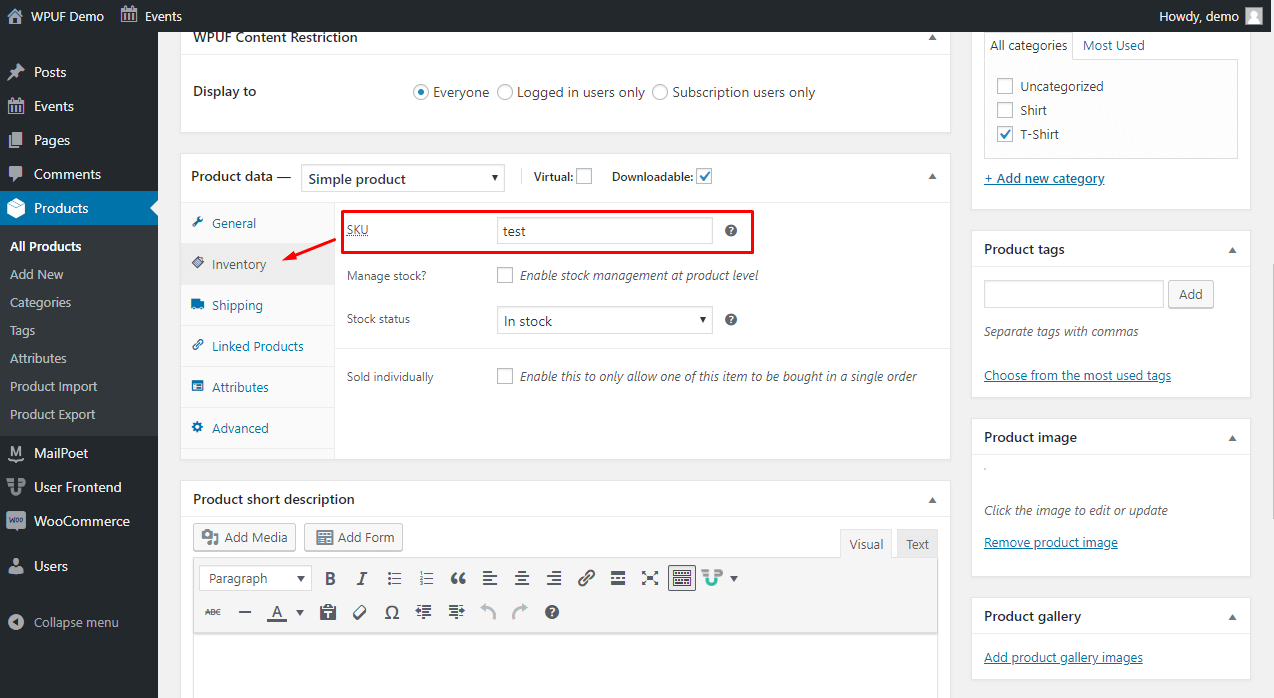
Once you add SKU, it acts as a unique product ID. No two products can have the same SKU. So, it is not possible to copy or duplicate SKUs for multiple products. On the other hand, creating SKUs for a large number of products in big e-commerce stores is a time-consuming and tedious task. Unfortunately, the WooCommerce default editor has no option for bulk generating or bulk editing SKUs.
The good news is that you can use the WooCommerce products bulk edit plugin as an automatic product SKU generator to bulk create new product SKUs or bulk edit the existing ones.
The advanced bulk edit form of this plugin helps you to automatically bulk create SKUs for all your WooCommerce products and variations. These plugins come with various SKU format options, allowing you to add SKU to your online store as per your requirements.
Let’s delve into a step-by-step guide to bulk generate and bulk edit SKUs in WooCommerce.
Step 1: Install bulk WooCommerce product SKU generator
You can start using the WooCommerce products bulk editing plugin by going through a simple installation and activation process- Read more here.
Once activated the plugin, you can see a new tab in the WordPress dashboard called iT Bulk Editing. By opening this tab and clicking on Woo Products, the plugin will lead you to the main page.
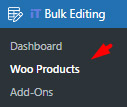
On the main page, all products in your WooCommerce online store are listed in a table with customizable columns. There is also a comprehensive toolbar on top of the table displaying all required tools you need to filter and bulk edit SKU in WooCommerce.
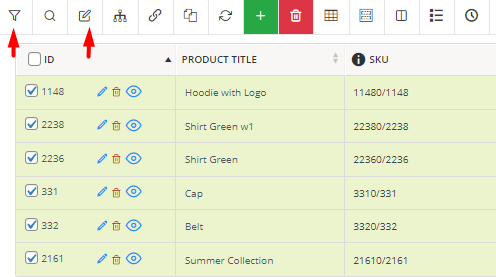
Let’s review how to use these tools for bulk generating new SKUs or bulk editing the existing ones.
PBULKiT – Bulk Edit WooCommerce Products
The easy way to bulk edit product SKUs in WooCommerce

Step 2: Filter WooCommerce products
One of the biggest advantages of the WooCommerce products bulk edit plugin that satisfies every user is the comprehensive filter form supporting all WooCommerce product fields and meta fields. You can set multiple filters in this form to select the products for bulk editing WooCommerce SKUs.
The best practice of this filter form is easy to use interface that makes finding WooCommerce fields seamlessly possible by dividing product fields into seven different tabs, including:
- General: Listing the most popular product fields like Product Title, Product SKU, URL, Date, Product Description, Product Short Description, etc.
- Categories/Tags/Taxonomies: Allowing users to set filters by Product Tags, Product Categories, Product Attributes, etc.
- Pricing: Including all fields related to the product price like Regular and sale price for filtering.
- Shipping: Listing all shipping fields like Weight, Height, etc. To let filter products based on them.
- Stock: Displaying all inventory fields like Stock Quantity, Stock Status, etc. for filtering products.
- Type: Helping to find items related to Product type like simple and variable or other options like Featured products.
- Custom fields: Displaying a list of all meta fields you have already added to WooCommerce to filter the products based on.
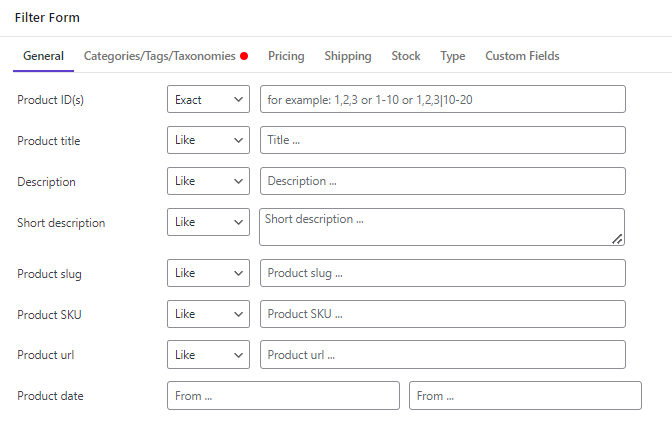
In this user-friendly filter form, you can quickly find the desired fields and use relevant features such as editing operators or a built-in calculator or calendar to set your filters. Finally, you can see a list of all filtered products in the table by pressing the Apply to Table button.
Step 3: Bulk edit WooCommerce product SKUs
Once you have filtered the products, it is time to bulk edit WooCommerce SKUs by following the below steps:
- Mark some products on the table.
- Open the Bulk Edit form.
- Find the Product SKU field in the General tab.
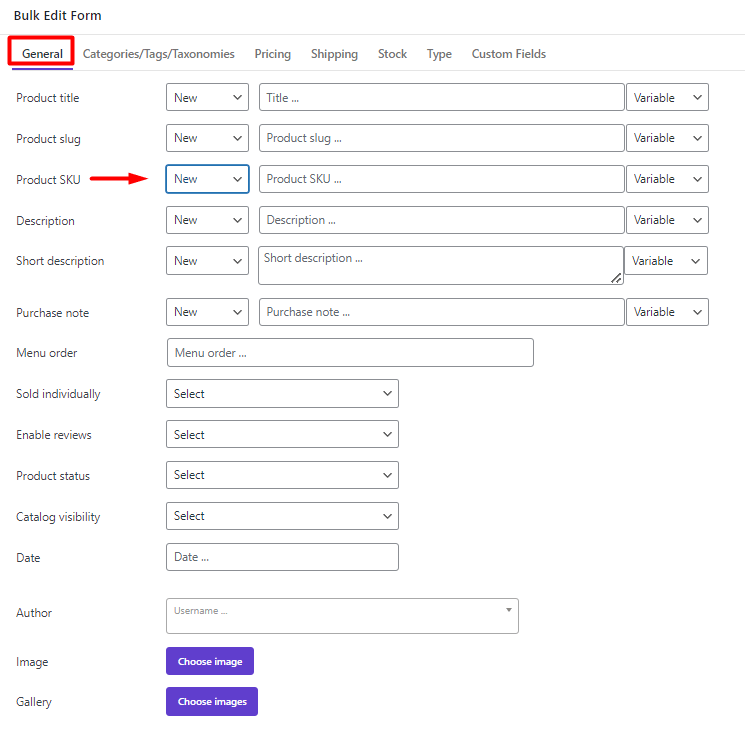
- Choose one of the operators based on your editing purpose, including:

- New: To bulk create new WooCommerce product SKUs.
- Append: To add text to the end of the current product SKUs.
- Prepend: To add text to the beginning of the current product SKUs.
- Delete: To remove some part of the text from the current product SKUs.
- Replace: To replace some parts of the SKU text with a new text.
- Clear: To completely remove the current product SKUs.
- Fill in the text box with either a new text or variables from the list. You can insert a combination of Text, numbers, symbols, and variables in the textbox to bulk edit WooCommerce SKUs.
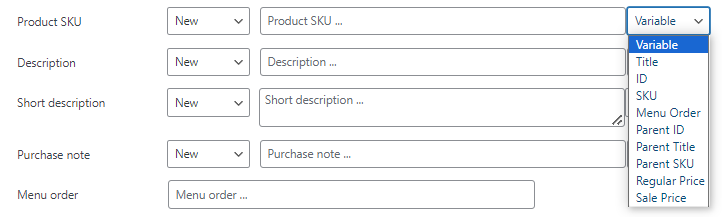
- Press Do bulk edit to apply the changes to the selected products.
The whole process is absolutely simple and intuitive. However, we are going to make some examples and let you know exactly how each operator works for bulk editing WooCommerce product SKUs.
Example 1: Bulk add a new SKU in WooCommerce
If you have already added some new products to your online store it is necessary to assign new SKUs as unique identifiers to them for enhancing stock management and improving customer service. WooCommerce has no option for bulk creating new SKUs for newly added products, however, you can easily use the WooCommerce products bulk editing plugin as an SKU generator by following the below instructions:
- Filter your desired products.
- Mark them on the table.
- Open the Bulk Edit form.
- Choose New from the list of operators.
In this stage, you have to decide about the content you want to use for bulk-generating WooCommerce product SKUs. You can insert any number, text, or symbol in the text box. It is also possible to add one or more variable texts from the list of Variables field to create a unique identifier for each product.
For example, suppose that you want to add “Menu order” and “ID” with “– “ as separators to the text box. So, you can choose Menu order from the Variable list then write “–” manually, and finally select ID from the Variable list again.
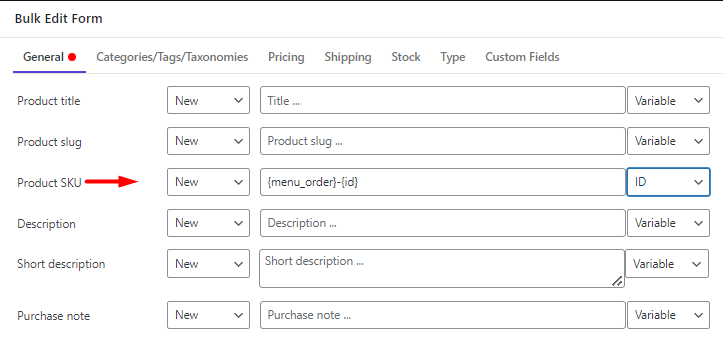
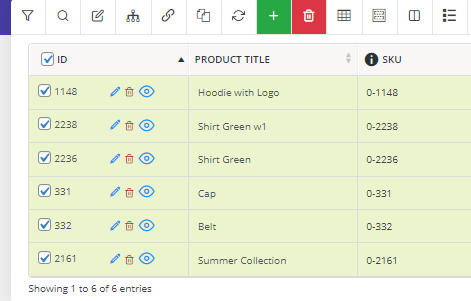
So, when pressing the Do Bulk Edit button, the plugin will bulk generate new SKUs and assign them to the products as illustrated below:
Example 2: Bulk append text to the SKU of WooCommerce products
Sometimes you have already assigned SKUs to your products, however, you want to bulk change them by adding a new text or variable to the end of current SKUs. To make this happen, you can simply choose Append from the list of operators then insert the new text or variable in the textbox and apply the changes to the selected products.
In this example, we decided to append Title to the current SKUs as illustrated below:
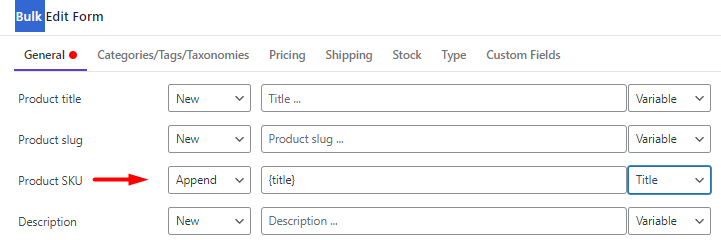
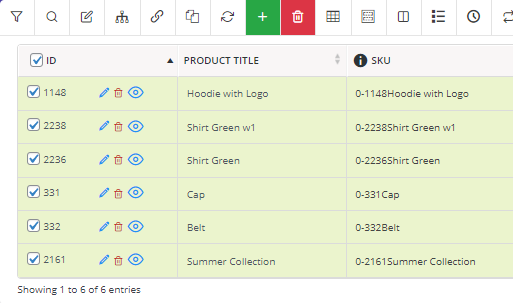
So, we chose Append and Title from the list of Operators and Variable respectively and applied changes by pressing Do Bulk Edit as shown below:
Example 3: Bulk Prepend text to the product SKU in WooCommerce
If your purpose for bulk editing WooCommerce SKUs is adding text at the beginning of the current SKU, you can use the Prepend operator.
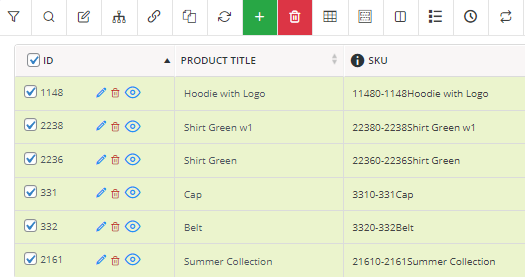
For example, suppose that you want to add ID to the beginning of the current SKUs, to do this, you need to:
- Choose Prepend from the dropdown list of operators.
- Select ID from the Variable dropdown list.
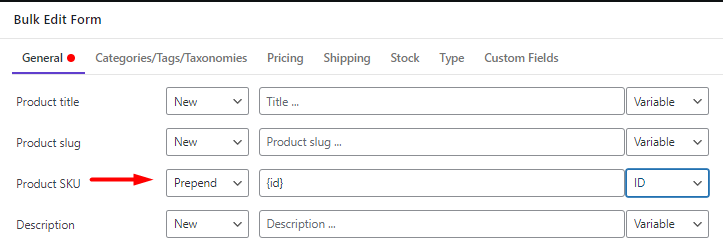
- Press Do Bulk Edit to apply the changes to the selected products.
Example 4: Bulk remove WooCommerce SKU of products
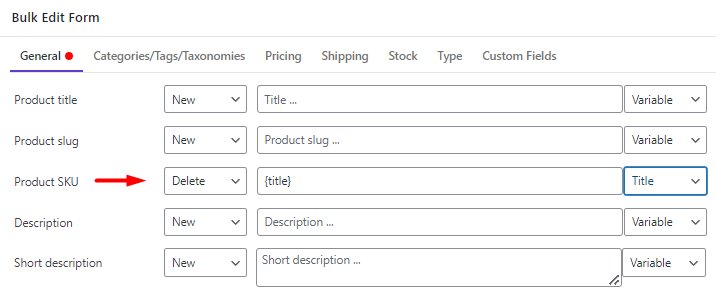
Bulk delete is useful when you want to eliminate a character, some part of text, or some variables from the current SKUs. For example, if you want to bulk delete Title from the whole SKUs, simply choose Delete from the operator list, then select Title from the Variable list and press Do Bulk Edit:
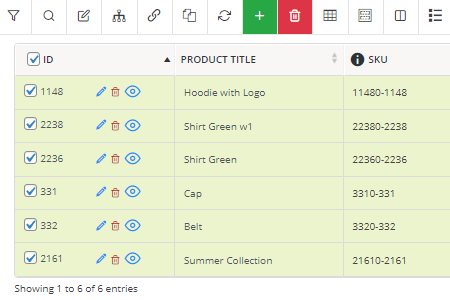
As illustrated below, Titles were removed from all SKUs.
Example 5: Bulk replace text in the SKU of WooCommerce products
One of the most useful operators for bulk editing product SKUs is the Replace option which allows store managers to replace one or more characters, text, or variables in the SKUs of multiple products with preferred ones simultaneously.
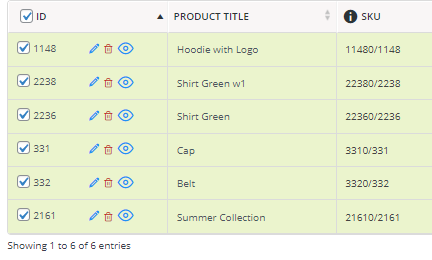
For example, let’s try to replace the “–” character with the “/” character in all SKUs:
- Choose Replace from the operator list.
- Write “–” in the first text box (you can choose any variable as well from the list to replace it with other content)
- Write “/” in the second text box (alternatively choose one or more variables from the list)

- Press Do Bulk Edit to see the result in the table
Bulk edit SKU of WooCommerce product variations
WooCommerce products bulk edit plugin provides a useful feature for bulk editing SKUs of product variations to simplify stock management of variable products for store managers. If you want to assign SKUs to product variations, follow the below steps:
- Filter variable products
When it comes to bulk changing WooCommerce product variations SKUs, first you need to filter variable products:
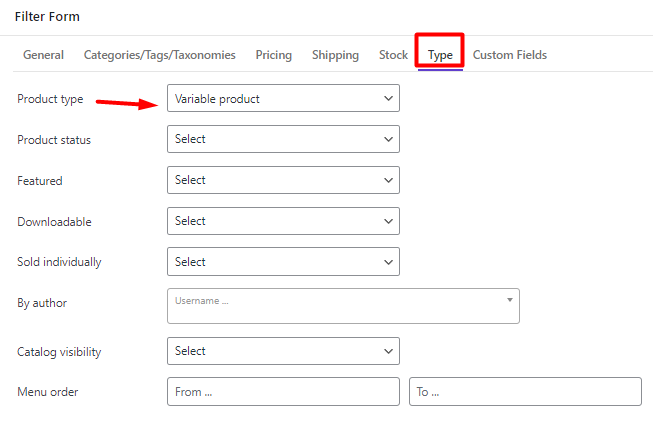
- Open the Filter Form.
- Go to the Type tab and choose Variable Product from the list of Product Type field.
- Press the Apply to table button.
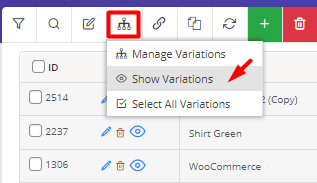
- Show Variations in the table
Once you filter the variable products, a list of all parent products will be displayed in the table. However, you must show child products in the list to bulk-generate SKUs for variations. To fulfill this task, try to:
- Click on the Manage Variation tool.
- Choose Show Variations from the list.
- Bulk edit SKU of product variations
After displaying all variation products on the table, you must mark your desired variations. To ensure that bulk editing works properly, it is important to just select variation of products and then press the Bulk Edit tool on the Toolbar.
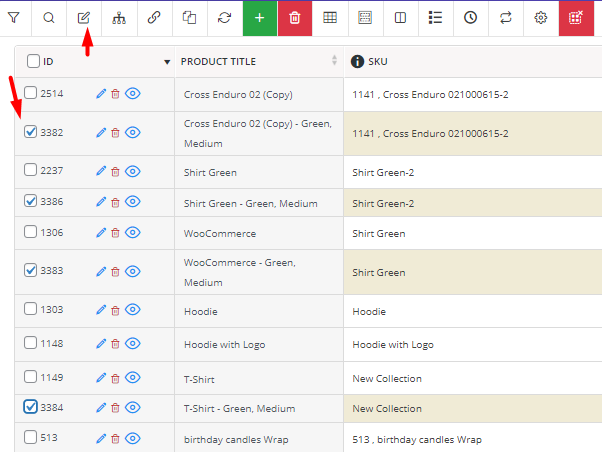
The other steps for bulk creating SKUs of product variations are the same as before.
For example, if you want to add ID and Parent title to the SKU of selected variations, you can simply:
- Choose New from the list of operators.
- Select ID then Parent Title from the list of variables.
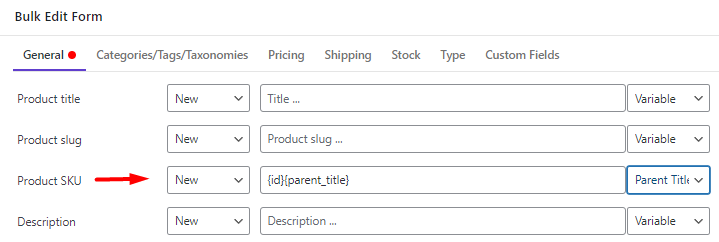
- Press the Do Bulk Edit button.
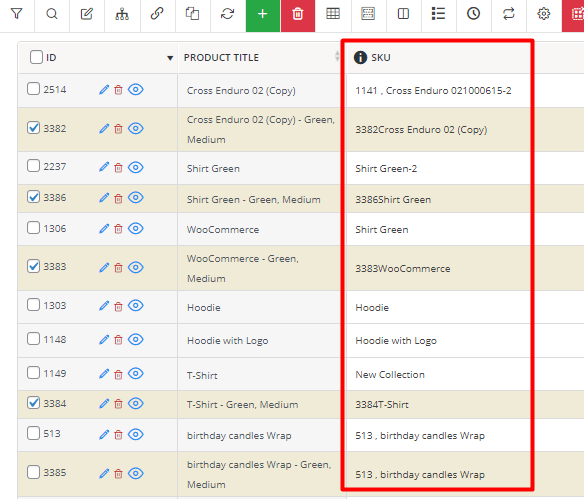
As illustrated below, the plugin assigned the specified SKUs to the product variations:
PBULKiT – Bulk Edit WooCommerce Products
The easy way to bulk edit product SKUs in WooCommerce
Conclusion
SKUs play a critical role in organizing products and managing inventory in WooCommerce stores. A well-structured SKU system makes it easier to track products, search inventory quickly, and prevent stock management errors.
However, when your store contains hundreds or thousands of products, manually assigning or editing SKUs is not practical. WooCommerce does not include a native bulk editing option for SKUs, which means store managers need more advanced tools to manage product identifiers efficiently.
Using PBULKiT plugin allows you to generate new SKUs, modify existing ones, append prefixes or suffixes, and update product variation SKUs in bulk. This approach saves time and ensures that every product in your store has a consistent and organized SKU structure.
By implementing a clear SKU strategy and using PBULKiT plugin, WooCommerce store owners can improve inventory management, product tracking, and overall store organization.
FAQ
What is SKU in WooCommerce?
In WooCommerce, SKU stands for Stock Keeping Unit. It is a unique identifier assigned to each product or product variation in your store. SKUs help store managers track inventory, search products quickly, and organize their product catalog more efficiently.
Does WooCommerce require SKUs to be unique?
Yes. WooCommerce requires each SKU to be unique across products and variations. If two products have the same SKU, WooCommerce will prevent the duplicate from being saved to avoid inventory conflicts.
How do I bulk edit SKUs in WooCommerce?
To bulk edit SKUs in WooCommerce, you need a bulk editing tool like PBULKiT that allows you to select multiple products and update their SKU fields at once. With these tools, you can generate new SKUs, append text, replace parts of existing SKUs, or remove them entirely.
Can I search products by SKU in WooCommerce?
Yes. WooCommerce allows store managers to search for products using their SKU from the product management page. This feature makes it easier to find specific items quickly, especially in stores with large product catalogs.
Can WooCommerce automatically generate SKUs?
WooCommerce does not automatically generate SKUs by default. Store owners typically assign SKUs manually or use bulk editing plugins like PBULKiT to automatically create SKUs based on product attributes such as product ID, title, or category.
How do I edit SKUs for WooCommerce product variations?
Product variations in WooCommerce can also have their own unique SKUs. To edit variation SKUs efficiently, you can display the variations in a PBULKiT plugin and apply SKU changes to multiple variations at the same time.


