


Managing product stock efficiently is one of the most important responsibilities of WooCommerce store owners. Sometimes a product temporarily runs out of stock, but you still want customers to be able to purchase it while waiting for the next shipment. This is where the WooCommerce backorder feature becomes extremely useful.
Allowing backorders in WooCommerce enables customers to place orders for products that are currently out of stock. Instead of losing potential sales, store owners can continue accepting orders and deliver the products once inventory becomes available again. Many large eCommerce platforms such as Amazon use this strategy to keep customers engaged and maintain sales momentum.
However, when your store contains dozens or hundreds of products, enabling backorders individually can be time-consuming. In these situations, store managers usually need a faster solution to bulk edit allow backorders settings in WooCommerce.In this guide, we will first explain what backorders are in WooCommerce and how the backorder options work. Then we will show you two practical methods to enable or disable backorders for multiple products at once, both with the default WooCommerce tools and with a powerful bulk editing plugin.
What is allow backorder in WooCommerce?
Allow backorders in WooCommerce is useful when you want to let customers order out-of-stock products. This strategy is known as a solution for selling the products that could be supplied soon but it is not available currently in the shop. Store owners can evaluate the demand for supplying goods and prevent their warehouse from overstocking.
WooCommerce backorder settings have three options in WooCommerce including:
- Allow: If you choose the Allow option on backorder WooCommerce, even the out-of-stock products will be displayed as “In Stock” to the customers. So, they can order the out-of-stock products with no idea about being a backorder. To keep your customers satisfied, you need to supply the ordered products very fast and deliver them on time.
- Allow, but notify customer: By choosing WooCommerce backorder allow but notify customer, customers will see Available on Backorder message on the product page. They can order the products as usual, and it is better to inform them about the delivery date which has a great influence on their purchase behavior.
- Don’t Allow: If you choose this option, customers will see the Unavailable message on the product page when the product is out of stock. So, it is not possible to order them before you make them available again.
How to bulk edit WooCommerce allow backorders?
One of the most important parts of your online store is product management. The site manager usually spends a lot of time managing, editing, adding, or removing products on the site. Editing stock status and WooCommerce backorder settings is one of the most important tasks of the store manager. Fortunately, in the default WooCommerce editor, the option to bulk edit WooCommerce allow backorders is considered, however, when the number of products is very large or the managers need to edit the WooCommerce back order for variable products, they should get help from the WooCommerce backorder plugin.
In the following, we fully explain both methods to allow backorders in WooCommerce.
Method 1: Bulk edit WooCommerce allow backorders without a plugin
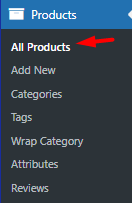
If you want to use the default editor to bulk edit backorder setting in WooCommerce, first you need to go to the Products -> All Products page.
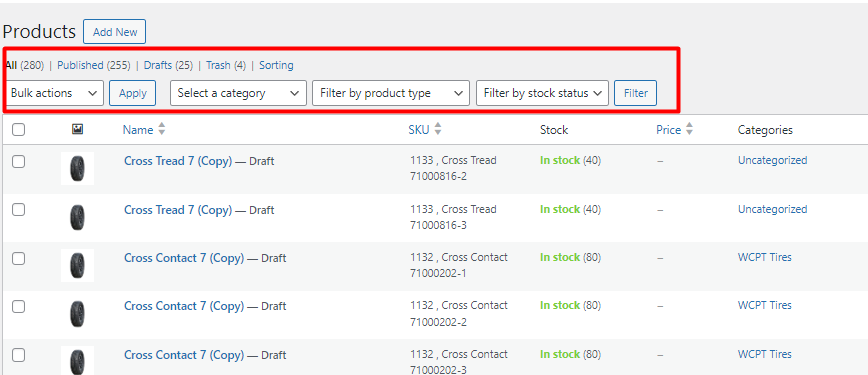
In this page, there is a list of all WooCommerce products in a table with some Filtering and Bulk Actions tools on top.
Let’s review the step-by-step guide, to see how you can use the default editor for bulk edit WooCommerce allow backorders.
Step 1: Filter desired products
One of the best tools provided in WooCommerce for finding and limiting products is Filtering. To filter the WooCommerce products, you can use one of the below options:
- Select a category: To filter products in a specific category.
- Filter by product type: To filter products by their types like simple, variable, downloadable, etc.
- Filter by stock status: To filter in-stock and out-of-stock products.
When you set one of the filters, press the Filter button to see your desired products in the table.
Step 2: Bulk edit WooCommerce on backorder
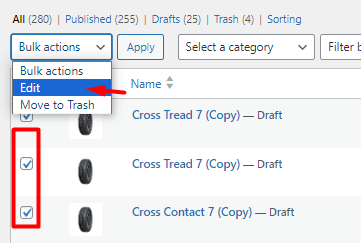
After filtering, you have to mark some products in the table, then follow the below instructions:
- Open the Bulk Actions combo box.
- Choose the Edit option.
- Press the Apply button to see the Bulk Edit form.
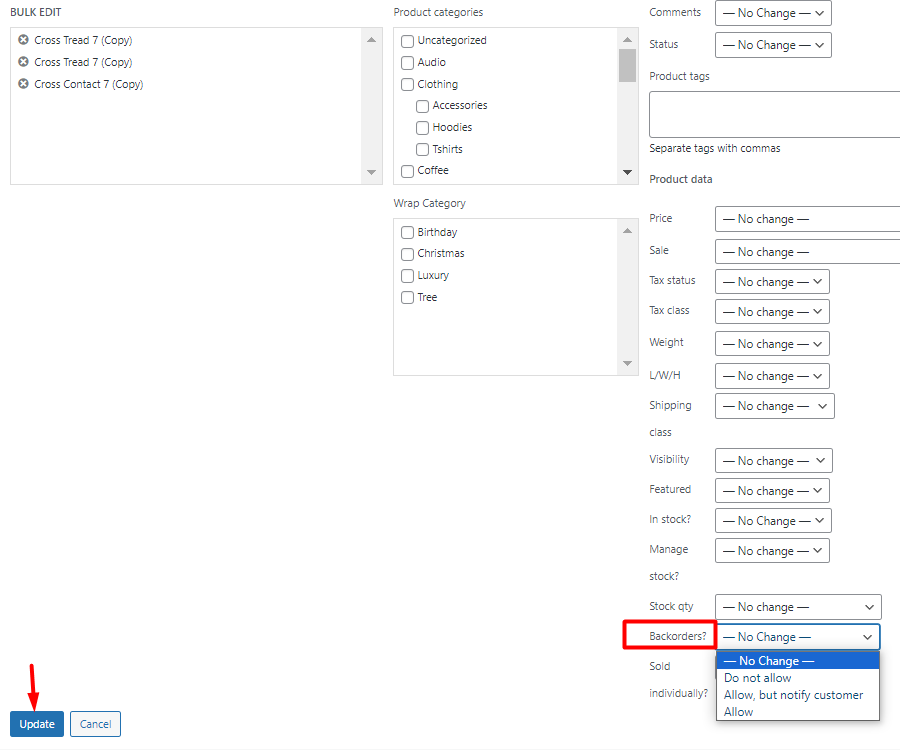
- Locate the Backorder field in the form.
- Open the dropdown list and choose one of the options: Don’t Allow, Allow, but notify the customer, Allow.
- Press the Update button to change the WooCommerce backorder settings of selected products.
Although WooCommerce default editor is the easiest way to bulk edit WooCommerce allows backorders on all products, however, there are some limitations:
- Filtering options are not flexible.
- There is no option for bulk edit allow backorders in WooCommerce variable products.
So, if you are looking for a flexible solution that provides fast and easy tools for bulk edit product backorder, you need to use WooCommerce products bulk edit plugin.
Method 2: Bulk edit allow backorders in WooCommerce with a plugin
The WooCommerce products bulk edit plugin is a practical tool for the WooCommerce store that will enable you to bulk edit all WooCommerce fields in addition to bulk edit product backorder status. You also have access to an advanced filter form that supports all WooCommerce fields and you can apply multiple filters to select products simultaneously.
To use this WooCommerce backorder manager, follow the below steps:
Step 1: Install WooCommerce backorder plugin
First, install and activate the WooCommerce product bulk editig plugin – read more here.
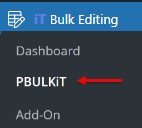
Then the new IT Bulk Editing menu will be added to the WordPress Dashboard, by clicking on the Woo Products sub-menu, you can make your desired settings for Bulk edit allow backorders status in WooCommerce. In the following, we will describe the plugin settings.
PBULKiT – Bulk Edit WooCommerce Products
The easy way to bulk edit allow backorders status in WooCommerce

Step 2: Filter desired products
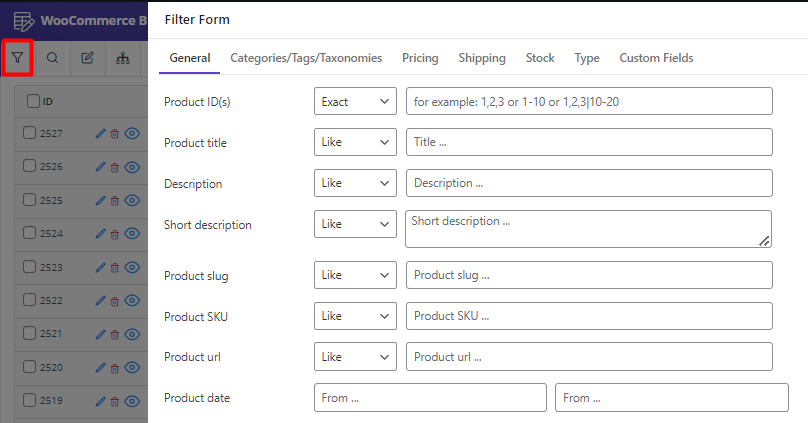
The first tool in the Toolbar is used to open a comprehensive Filter Form in the plugin. By opening the filter form, you can see all WooCommerce fields divided into seven different tabs to help you easily find what you need.
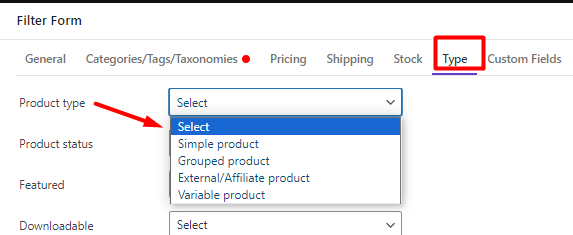
For example, if you want to filter products by type, it is simply possible to open the Type tab, and then set the field in front of Product Type based on your need. Finally, you can press Get Products to see your preferred products in the table.
In the next steps, we will show you how to allow backorders in WooCommerce for multiple simple and variable products.
Step 3: Bulk change WooCommerce allow backorders for simple product
Let’s suppose that you have chosen Simple products in the Filter Form and list them in the table. It is now possible to WooCommerce allow backorders on all products with one of the below tools:
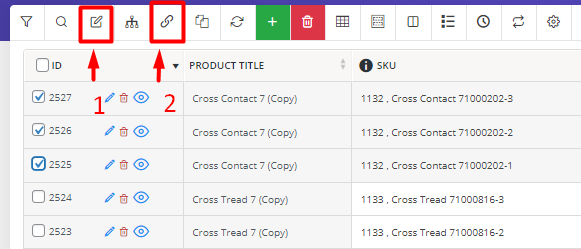
If you choose the Bulk Edit tool, you have access to a practical form supported by all WooCommerce fields for bulk editing. You can set multiple values for different fields and apply them to your products simultaneously. However, if you are looking for a simple and fast option, Bind Editing is your favorite option. It is useful when you just want to set WooCommerce allow backorders for multiple products.
Let’s try both methods in the WooCommerce backorder plugin.
Method 1: Bulk edit WooCommerce allow backorders on all products
To use the Bulk Edit tool for WooCommerce allow backorders on all products, try to:
- Mark all products in the table.
- Press the Bulk Edit tool in the toolbar to open the Bulk Edit form.
- Go to the Stock tab.
- Open the dropdown list of Allow backorders and choose one of the options.
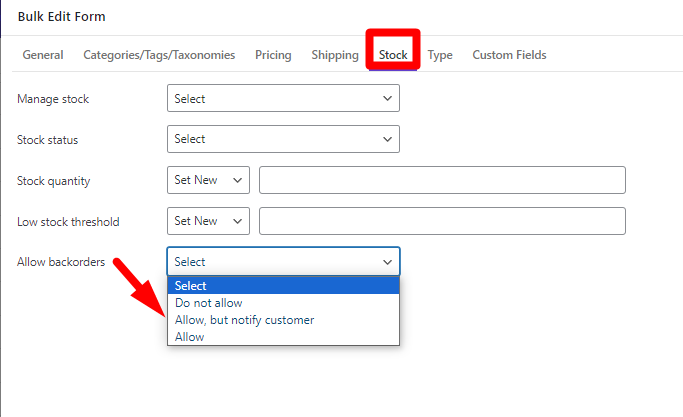
- For example, we selected Allow and pressed t
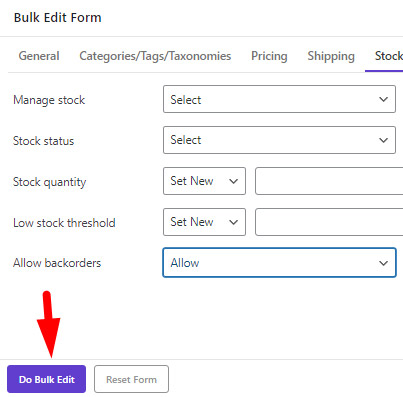
So, even if these products are out of stock, the customers can order them.
Method 2: Bind edit WooCommerce allow backorders
To bind edit WooCommerce product backorder directly in the table, follow the below steps:
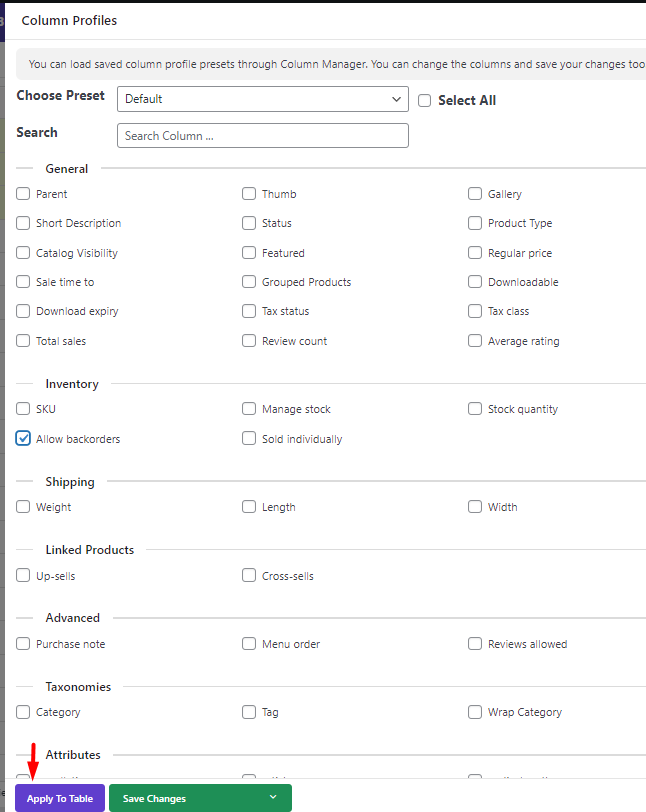
- Open the Column Manager form and mark Allow backorders to add this column to the table.
- Press the Apply to Table button.
- Mark some products on the table.
- Choose the Bind Edit tool in the toolbar.
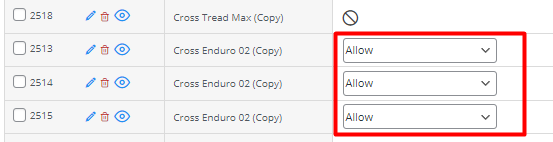
- Open the dropdown list of Allow backorders related to one of the selected products.
- Choose one of the options.
- Wait a few seconds and let the plugin apply changes on other products.
Example 1: Bulk change WooCommerce backorder settings for a specific category
Set WooCommerce backorders on all products in a specific category is simply possible in 3 steps:
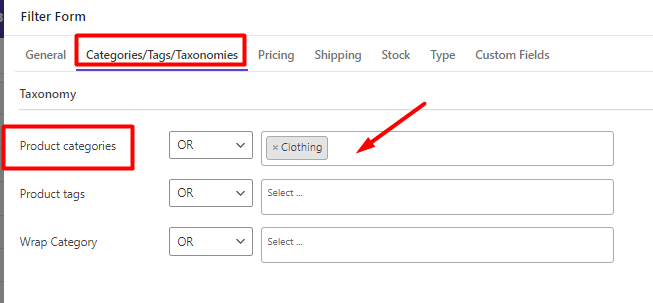
- Open the filter form and choose your preferred product category in the Categories/Tags/Taxonomies tab – For example, clothing – then press the Apply to table button.
- Mark some products in the table and open the Bulk Edit form.
- Open Allow backorders combobox and choose one of the items in the list like Do not allow.
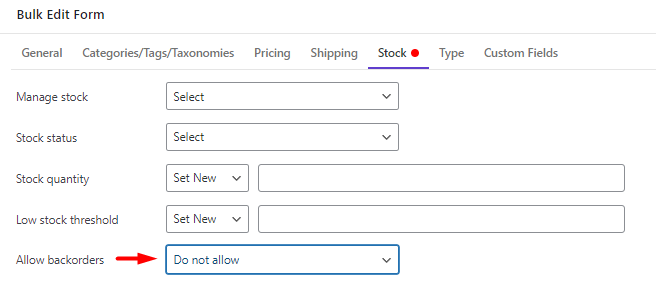
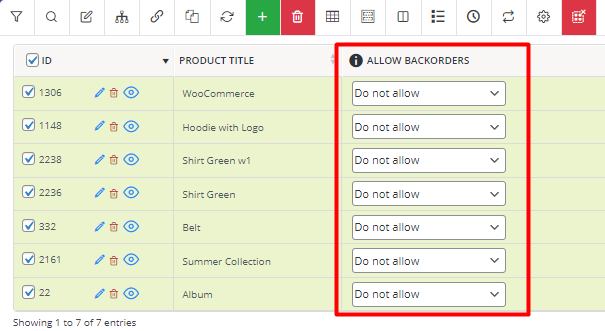
By pressing the Do bulk edit button, you can see the changes in the table:
Example 2: Bulk edit WooCommerce backorders on all out-of-stock products
Suppose that you want to set WooCommerce allow backorders on out-of-stock products. To make this happen, you can:
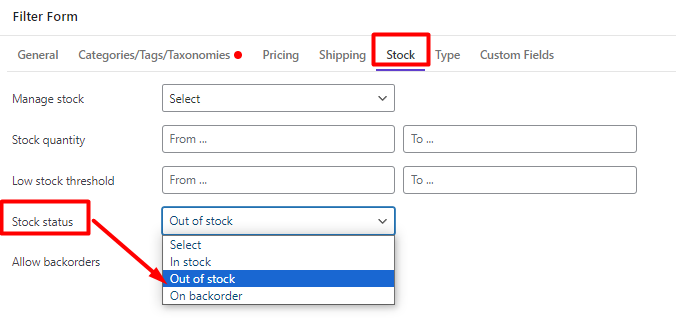
- Open Filter Form and go to the Stock tab.
- Choose Out of Stock from the Stock Status field.
- Press the Apply to Table button.
- Mark some products on the table.
- Press the Bind Edit tool.
- Choose Allow, but notify customer from the list of Allow backorders column.
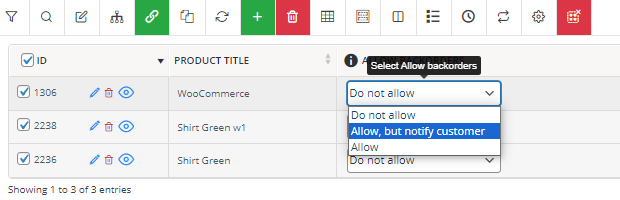
- Wait for the plugin to make the changes.
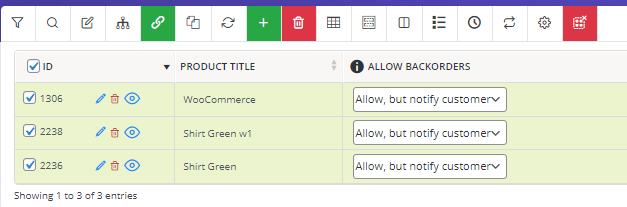
Step 4: Bulk edit allow backorders in WooCommerce for variable products
To change WooCommerce backorder settings for variable products, it is required to use the Manage Variations tool to show all product variations in the table, then bind edit the Allow backorders product variations in the table.
Here you can find the step-by-step guide:
- Open the Column Manager form and add the Stock status, Manage stock, and Allow backorders columns to the table.
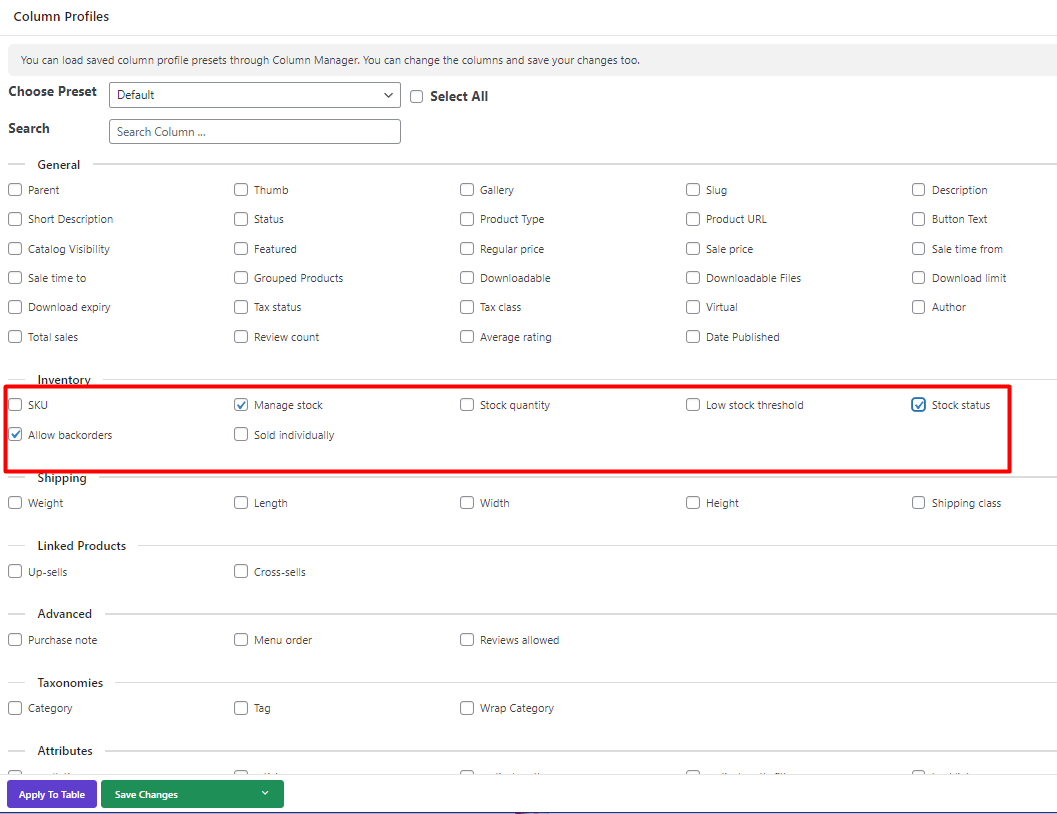
- Open the Filter Form and filter variable products in the Type tab. You can also filter some specific variations by going to the Taxonomies tab and choosing your desired attributes. For example, we selected Green and Red in the Product Color field to filter the related products
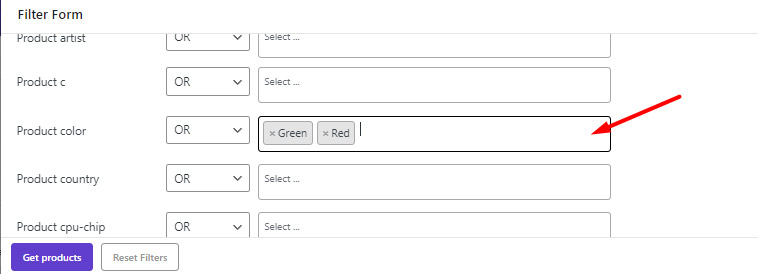
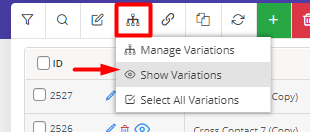
- Press the Manage Variations tool and select Show Variations to see all product variations in the table.
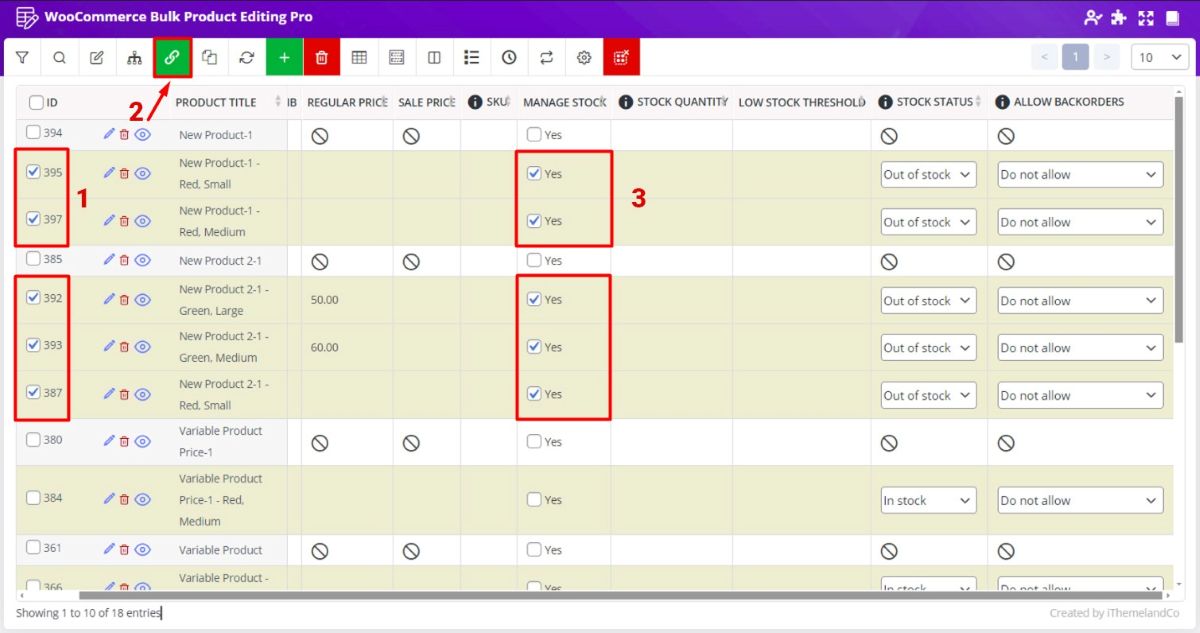
- Activate Manage stock for all desired variations of products by the below steps:
- Mark all desired product variations.
- Choose Bind Edit tool.
- Mark Yes in the Manage stock column of one product.
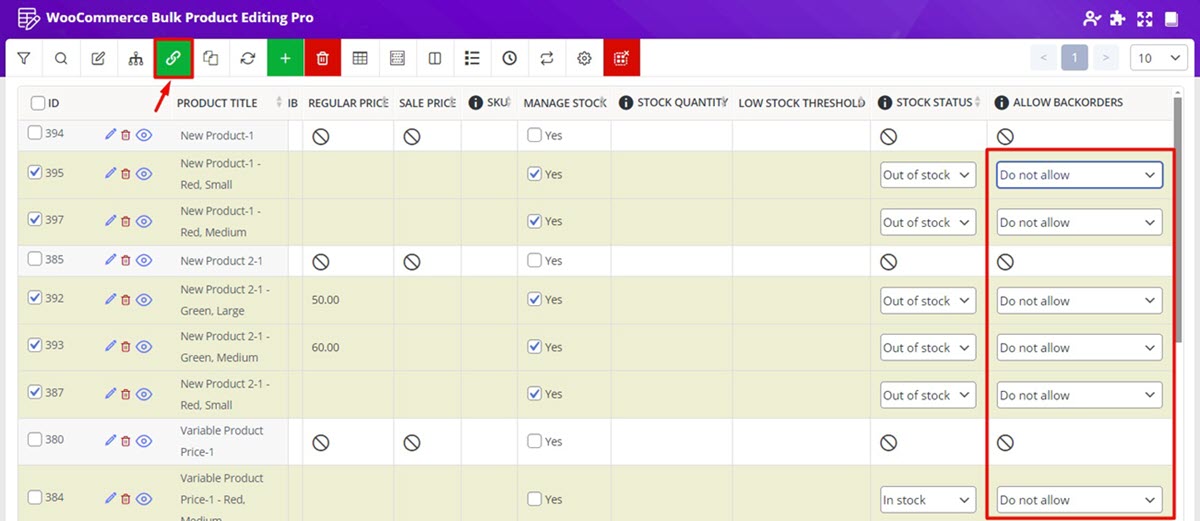
- Open the dropdown list of Allow Backorders field for one of the variable products.
- Choose your preferred option, for example, Do not allow.
- Let the plugin change WooCommerce allow backorders on all variations.
PBULKiT – Bulk Edit WooCommerce Products
The easy way to bulk edit allow backorders status in WooCommerce
Conclusion
Allowing backorders in WooCommerce is a powerful strategy for maintaining sales even when products are temporarily out of stock. Instead of losing customers, you can continue accepting orders and deliver them once inventory is available again.
In this guide, we explained how WooCommerce backorders work and what the different backorder options mean. We also reviewed two practical methods to bulk edit backorder settings. The default WooCommerce editor allows store managers to change backorder options for selected products, but it offers limited filtering and editing capabilities.
For stores with a large number of products or complex inventory management needs, using a WooCommerce bulk editing plugin like PBULKiT provides a faster and more flexible solution. With advanced filtering tools and table-based editing, store managers can update backorder settings for multiple simple and variable products in just a few clicks.
By choosing the right method, you can manage WooCommerce stock settings more efficiently and ensure that customers can continue purchasing products even when inventory is temporarily unavailable.
FAQ
What is backorder in WooCommerce?
A backorder in WooCommerce allows customers to purchase a product even when it is currently out of stock. The order is recorded normally, and the store owner ships the product later when it becomes available again. This feature helps store owners continue selling popular products without losing potential customers.
What do the WooCommerce backorder options “Yes”, “Notify”, and “No” mean?
WooCommerce provides three backorder options. “Allow” lets customers order products that are out of stock without any notification. “Allow, but notify customer” informs customers on the product page that the item is available on backorder. “Do not allow” prevents customers from ordering products when they are out of stock.
How do I allow backorders in WooCommerce?
To allow backorders in WooCommerce, open the product editing page, go to the Inventory section, and enable the Manage stock option. Then select one of the backorder settings such as Allow or Allow but notify customer. This setting lets customers place orders even when the product is out of stock.
Can I enable WooCommerce backorders for multiple products at once?
Yes, WooCommerce allows you to enable backorders for multiple products using the bulk edit feature in the Products list. You can also use a PBULKiT plugin to apply backorder settings to large groups of products or product variations more quickly.
Why do WooCommerce stores use backorders?
WooCommerce stores use backorders to prevent lost sales when products temporarily run out of stock. By allowing customers to place orders in advance, store owners can measure product demand, maintain customer interest, and deliver items as soon as new inventory arrives.


