


Exporting WooCommerce orders manually can take a lot of time, especially when you need regular reports for accounting, inventory management, fulfillment, customer analysis, or business reporting. If you export order details every day, week, or month, setting up WooCommerce auto export orders can help you save time, reduce manual errors, and keep your team updated with fresh order data.
In this tutorial, you’ll learn how to automate WooCommerce order exports and send order reports by email using REPORTiT – Advanced Reporting for WooCommerce. You’ll also learn how to export WooCommerce orders to Excel, CSV, or PDF, filter orders by date, status, and product, schedule recurring exports, and use the exported data for accounting, QuickBooks workflows, Google Sheets, and store performance analysis.
What are the benefits of automating WooCommerce order exports?
By automating exports, you streamline operations, improve accuracy, and gain better insights into your store’s performance. It also offers several key advantages:
- Save Time: Automate WooCommerce order exports eliminate manual and time-consuming tasks, and enable you to focus on growing your business.
- Reduce Errors: It can minimize human mistakes in data entry and file generation.
- Improve Efficiency: Scheduled exports ensure timely delivery of order data to accounting, fulfillment, or analytics teams.
- Enable Real-Time Updates: Syncing with external systems (ERP, CRM) prepares you for better inventory and customer management.
- Enhance Reporting: Automatically generating and sending reports is a great way for better decision-making.
How to automatically send order exports to email or cloud storage?
Keeping track of WooCommerce orders is easier when reports are automatically emailed to you or your team. Using the WooCommerce report plugin, you can schedule to automate WooCommerce order export manual work.
This plugin lets you:
- Customize WooCommerce reports and generate various types of sales reports with one click.
- Filter data (e.g., only completed orders, specific products).
- Export orders in CSV, Excel, or XML formats.
- Schedule automatic reports (daily, weekly, monthly).
- Send exports via email to specified recipients.
Let’s review a step-by-step guide to automate WooCommerce order exports:
Step 1. Install & Activate the Plugin
- Download the plugin ZIP file after purchase it.
- Go to WordPress Dashboard > Plugins > Add New > Upload Plugin.
- Upload the ZIP file, click “Install Now“.
- Then activate the plugin by inserting your license key in the activation form under iThemland > License.
Step 2. Enable Email Sending
Go to iThemeland > Woo Reports to see the plugin’s menu. Then follow the below steps:
- Navigate to the Settings menu.
- Open the Email tab.
- Enable “Active Email Reporting” field.
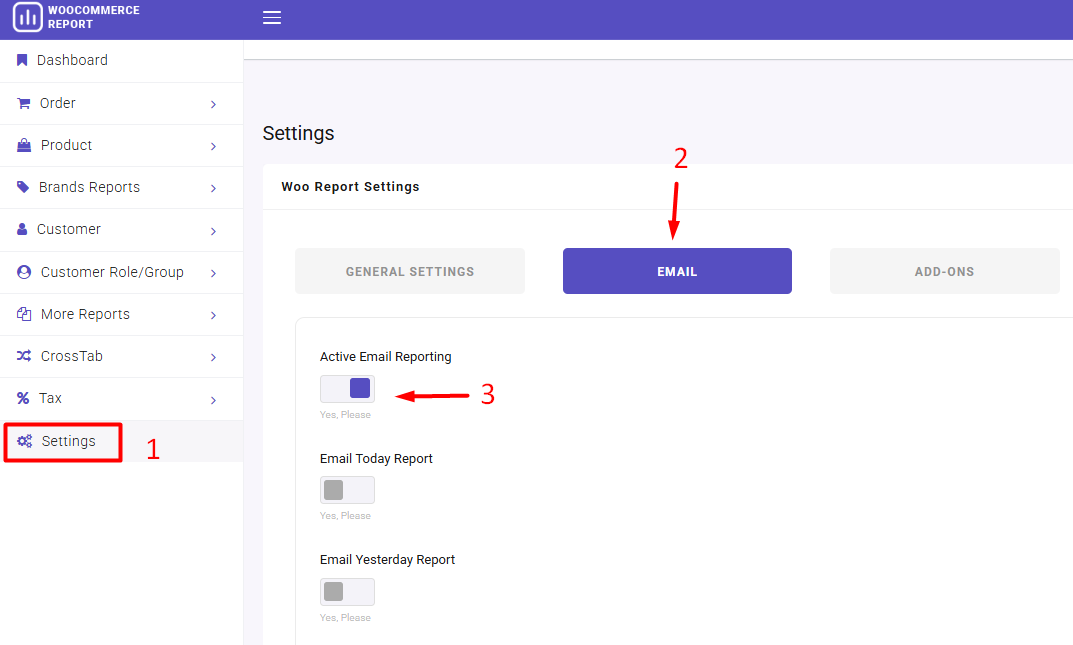
Step 3: How to Specify the Report Date?
You can automate WooCommerce order exports by date. The WooCommerce reports plugin allows you to choose a date range such as Today, This week, This month, etc. To Filter orders by date in the report.
For example, if you choose Email Current Year Report, the plugin will send you the details about all orders placed on your website during this year as you scheduled.
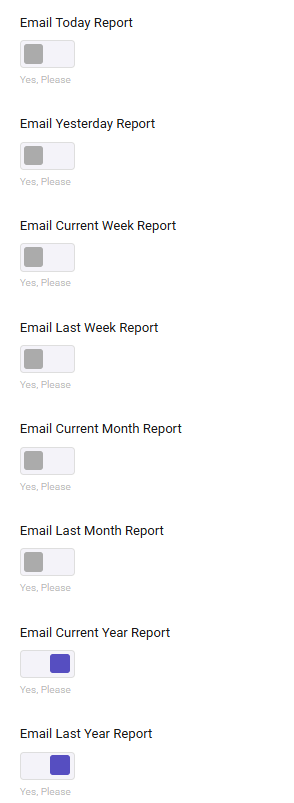
You can also specify which report to receive in your email including:
- Total summary report to track WooCommerce sales and revenue.
Read more: How to Track WooCommerce Sales and Revenue in WooCommerce
- Purchased products by customer report to get customer purchase history reports in WooCommerce.
Read more: How to Get Customer Purchase History Reports in WooCommerce
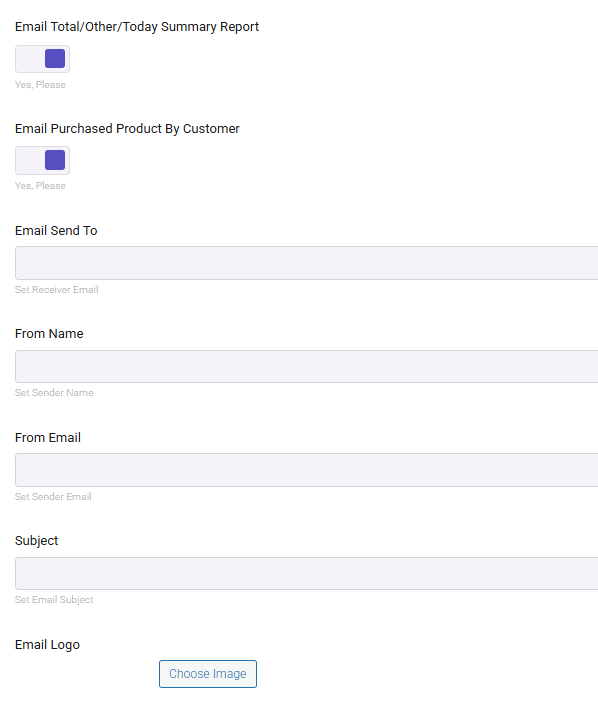
In the next fields, you can add any email address and specify the Email Subject, From Email, and From Name details.
Step 4. How to set up scheduled order exports without manual effort?
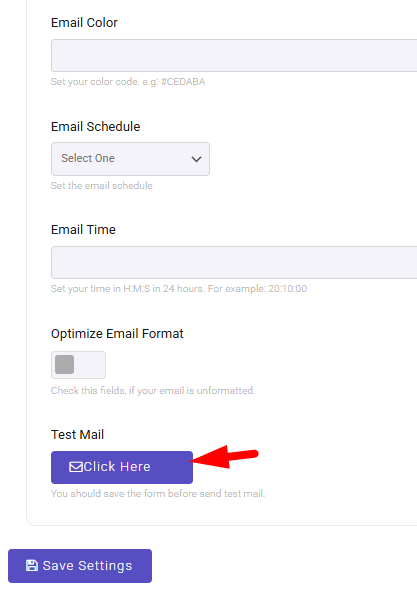
To automate WooCommerce order exports you have to open the Email Schedule dropdown list and choose frequency (e.g., daily, weekly, or monthly).
It is also possible to insert a time (e.g. 20.10.00) in the Email Time field to receive the email exactly on the scheduled time.
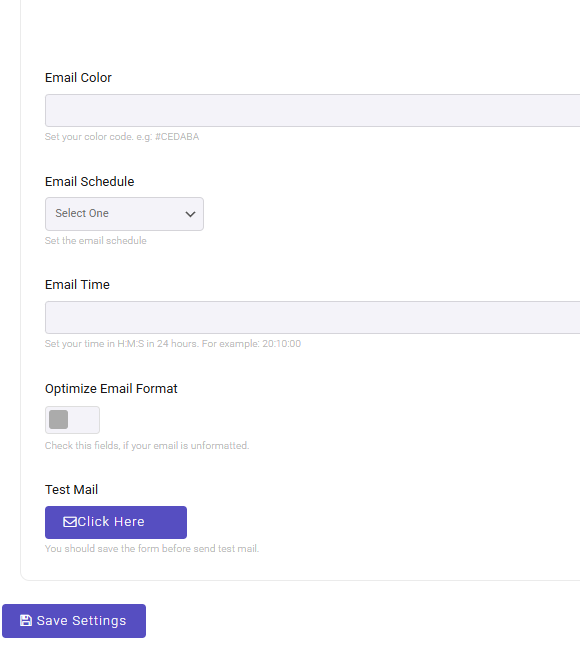
Step 5. Save settings to automate WooCommerce order exports
Finally, click on Save Settings to let the WooCommerce report plugin automatically email order reports on the schedule you set.
How to export orders based on specific criteria (date, status, product)?
Using the WooCommerce report plugin, you can easily filter and export orders matching your exact requirements. Here’s how:
– Navigate to Orders > All Orders.
– To use the filter form to select your criteria, click on the Search icon on the bottom right corner of the screen. In this form, you can find different fields to filter the report based on, including:
– Date Range: Export orders from a specific period (e.g., last 30 days).
– Order Status: Filter orders by their statuses like Completed, Pending, Failed, Refunded, etc.
– Products: Select specific products from the list to export their orders.
– and more
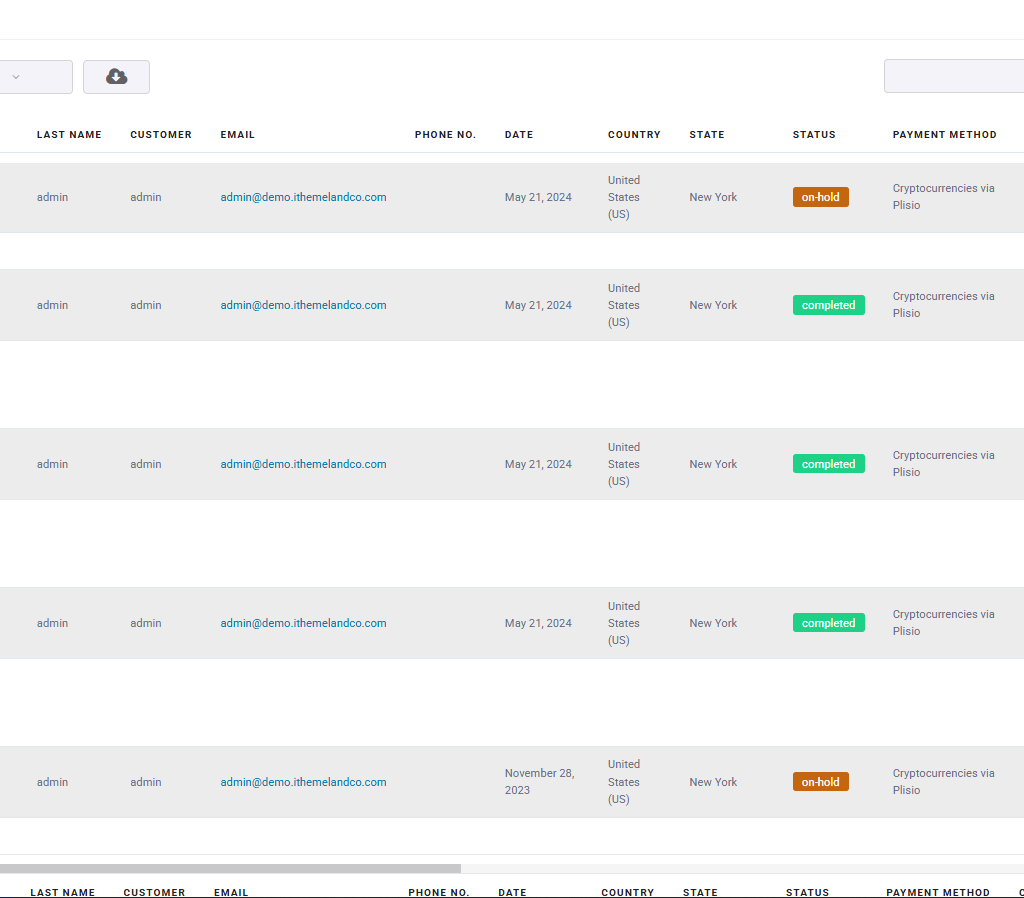
– Once you have set your desired filters, click on the “Search” button to get the report.
How to analyze exported order data for better business decisions?
Your exported report contains critical business insights across sales, customers, and operations.
Here’s how to use each data field to grow your store:
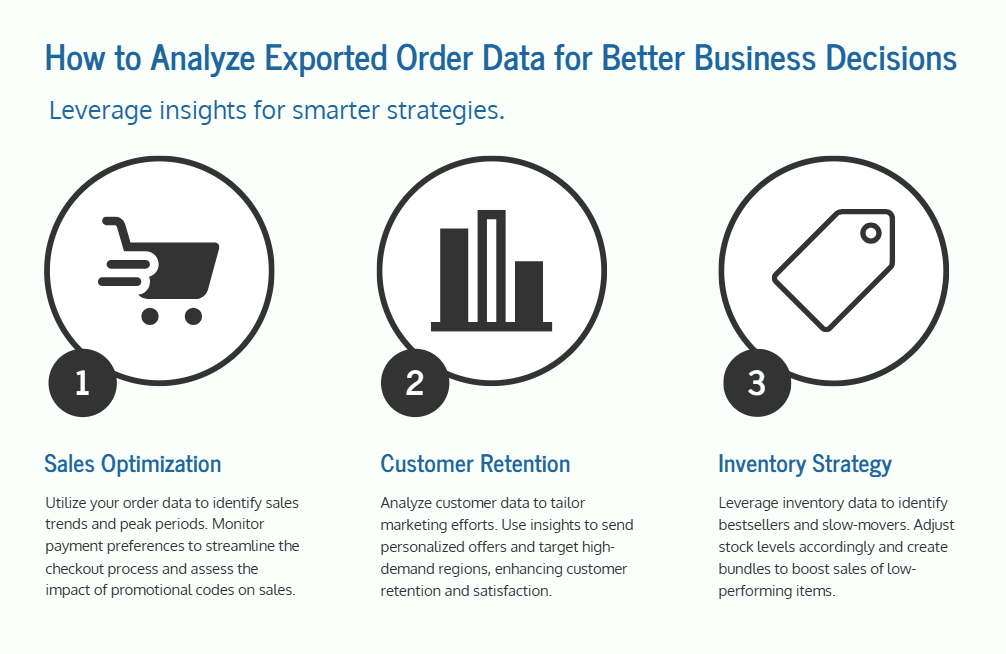
1. Sales & Revenue Optimization
- Order ID, Date, Net Amt.: Track daily/weekly revenue trends and identify peak sales periods.
- Payment Method: See which payment options (e.g., PayPal, credit cards) customers prefer to optimize checkout.
- Coupon Code: Measure discount effectiveness (e.g., “Did the ‘SUMMER20’ code boost sales?”).
By using these data you can Run promotions during low-sales periods (based on `Date` trends).
2. Customer Behavior & Retention
- Customer Email, Name: Build email lists for loyalty programs or retargeting.
- Country, State: Identify top markets to focus ads or offer localized shipping.
- Repeat Orders: Filter by `Customer Email` to reward frequent buyers.
You can use these insights to Send personalized discounts to customers who haven’t ordered in 30+ days or offer faster shipping to high-demand regions (from `Country/State` data).
3. Inventory & Product Strategy
- SKU, Products, Qty.: Spot bestsellers and slow-movers to adjust stock levels.
- Category, Variation: See which types (e.g., “Men’s Shoes”) or colors sell best.
- Prod. Amt., Prod. Discount: Calculate profit margins per product.
These data can help you to Bundle low-selling items (`Qty.`) with popular ones and Restock top `SKUs` before they sell out.
Which export format (CSV, Excel, XML) is best for your business?
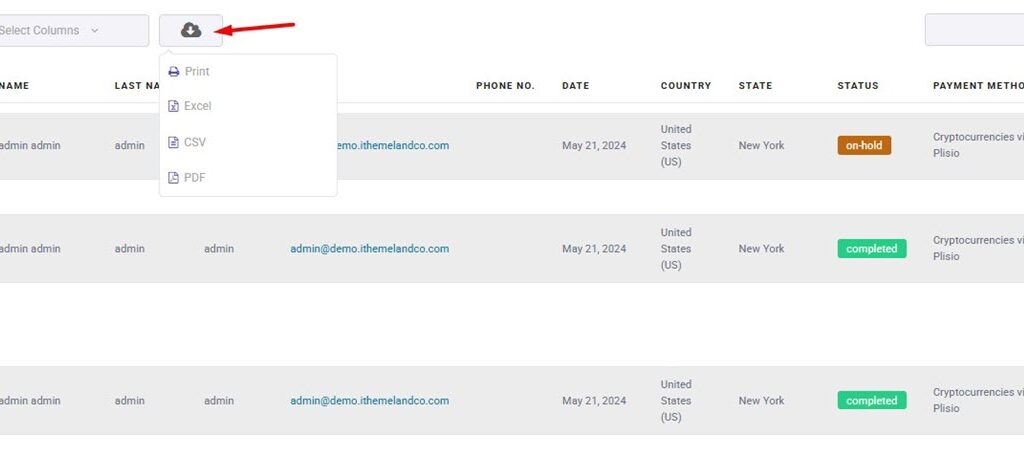
In WooCommerce report plugin, you can choose export format by clicking on the Download icon and selecting one of the following formats:
- CSV,
- Excel (XLS),
- Or PDF.
CSV (Comma-Sepparated Values) is the most versatile and widely compatible format for WooCommerce order exports, particularly suited for businesses that prioritize seamless data transfer between systems. Its lightweight structure ensures fast processing even with large datasets, making it ideal for automated workflows where orders need to be imported into accounting software, ERP systems, or marketing platforms without unnecessary formatting overhead.
However, CSV files lack visual formatting and advanced features like formulas or multiple sheets, which means they require additional tools like Excel or Google Sheets for detailed analysis or presentation-ready reports.
Excel (XLS/XLSX) is the preferred choice for businesses that rely on manual data review or need polished, presentation-ready reports, as it preserves formatting, supports formulas, and enables advanced features like pivot tables and charts. This format is especially valuable for accounting teams, sales managers, or anyone who needs to analyze trends, apply conditional formatting, or share structured reports with stakeholders.
While Excel files are slightly larger and slower to process than CSVs, their readability and functionality make them indispensable for internal reporting and collaborative workflows where data visualization is key.
Ultimately, the optimal format depends on your workflow priorities.
REPORTiT – Advanced WooCommerce Reporting
The easy way to automate your WooCommerce order exports
Can WooCommerce order exports be synced with Google Sheets?
WooCommerce order exports can be synced with Google Sheets by using WooCommerce Google Sheets Plugin.
This method enables real-time data tracking, automated reporting, and seamless integration with other tools.
Benefits of Syncing with Google Sheets:
- Live order tracking: Always see the latest data.
- Custom reports & dashboards: Use Sheets formulas or Data Studio.
- Team collaboration: Share order data without giving WooCommerce access.
- Automated backups: Store order history securely in Google Drive.
What are the best tools for integrating WooCommerce with accounting software?
For businesses looking to automate WooCommerce order exports, tools like Zapier and Make (formerly Integromat) provide seamless integration with 5,000+ applications, including accounting platforms like QuickBooks, Xero, and NetSuite.
By setting up automated workflows (Zaps), you can eliminate manual data entry—triggering actions such as converting new orders into invoices, syncing customer details, or reconciling payments in real-time.
This automation is ideal for businesses that need flexibility without custom coding, though complex workflows may require premium plans.
Which solution is right for you?
- Zapier/Make (Integromat) → Best for flexibility, connecting WooCommerce to multiple apps.
- Sage Intacct → Best for enterprises needing robust financial automation.
- Wave → Best for startups wanting free, simple order export automation.
By automating WooCommerce order exports, you can reduce errors, save time, and ensure accurate financial records—whether you’re a small shop or a high-volume retailer.
How to connect WooCommerce order exports to Zapier for automation?
Automate WooCommerce order exports by connecting Zapier to your store is simply possible by creating a new Zap that automatically processes exported order data – like adding it to Google Sheets – every time an export run.
This seamless integration ensures your order information flows directly to your preferred destination without manual intervention.
You can automate WooCommerce order exports by:
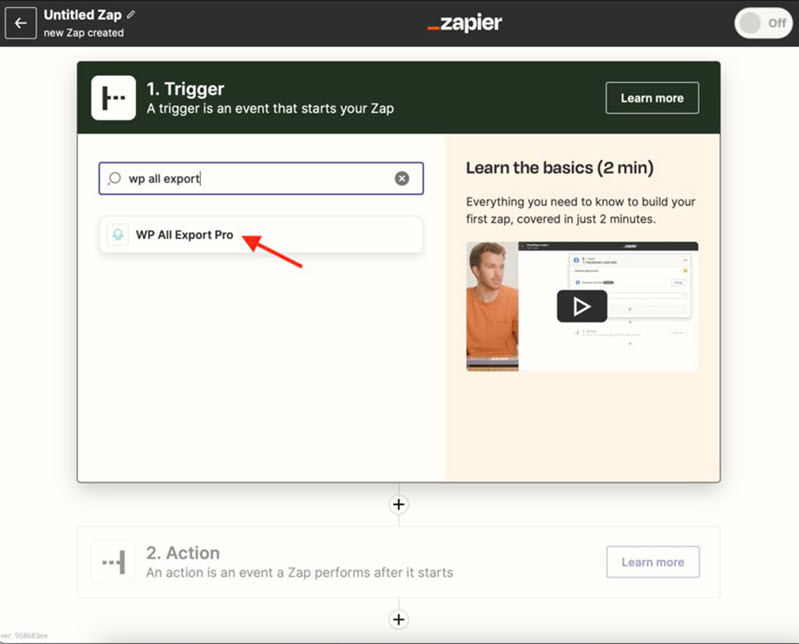
- Create Zapier Trigger.
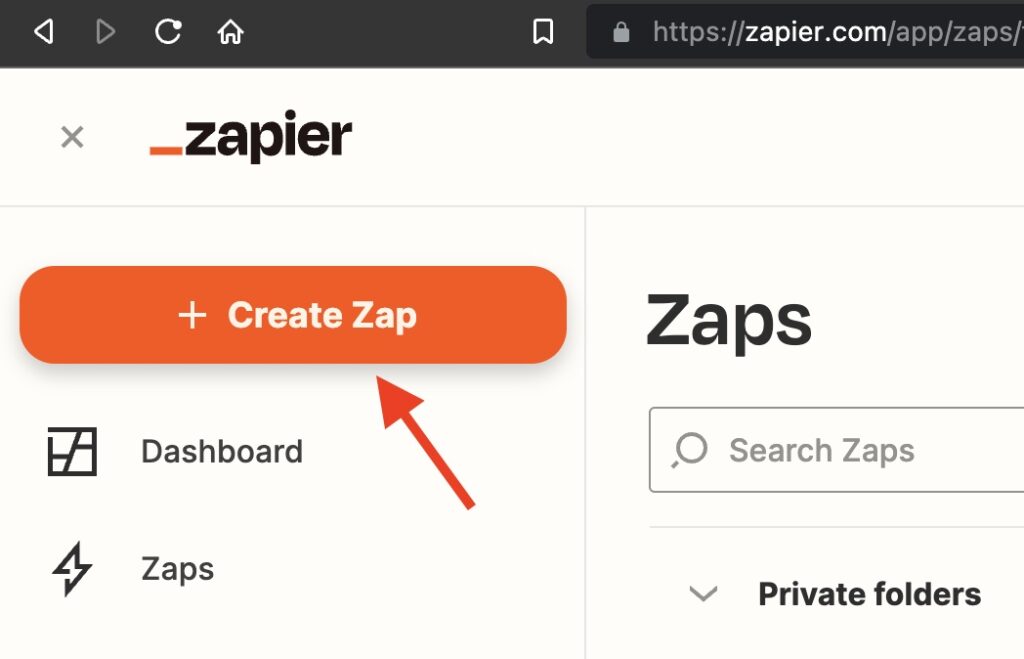
- Select WP All Export Pro as the app → Choose “Real Time Export Completed” as the trigger.
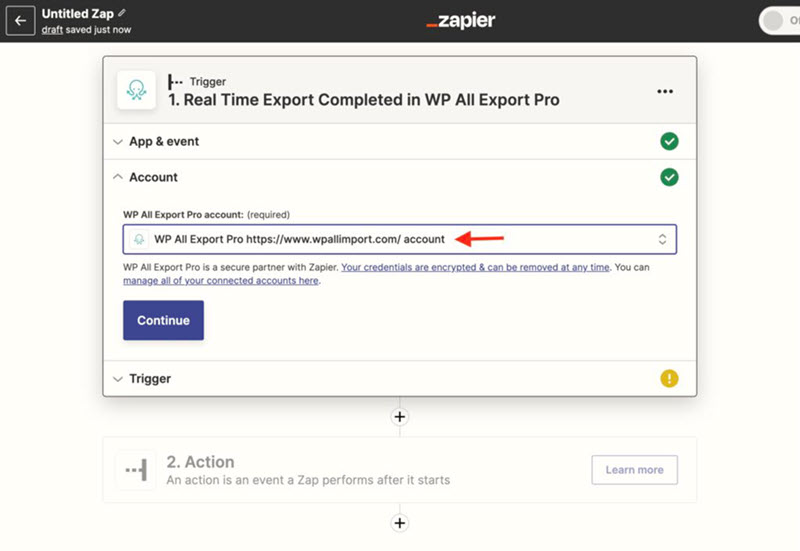
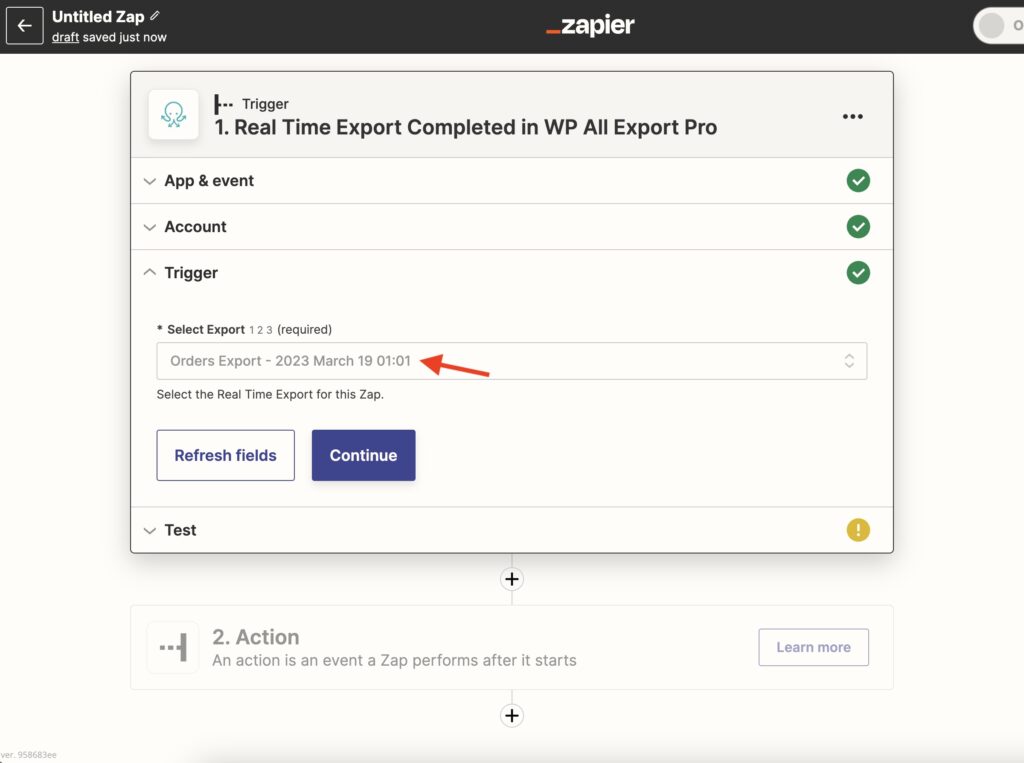
- Link your account and select your WooCommerce orders export.
- Choose Google Sheets as the action app → Set “Create Spreadsheet Row” as the event.
- Map exported order data (e.g., Order ID, Customer Email) to sheet columns.
- Test the Zap, then publish. New orders will auto-populate your Google Sheet.
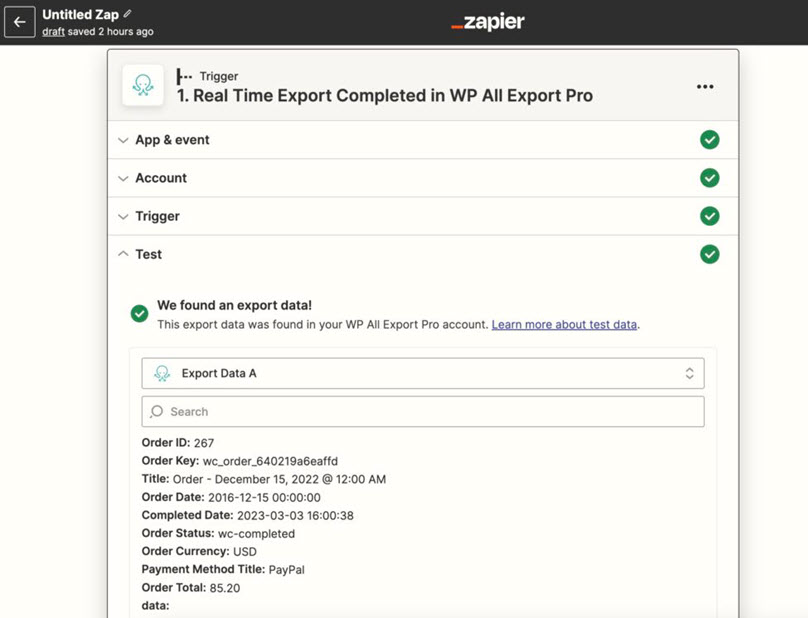
Done! Now orders sync instantly without manual exports.
How to prevent errors and data loss in automated order exports?
Automating WooCommerce order exports can sometimes lead to errors like missing data, duplicates, or sync failures. To prevent these issues, validate and filter data before exporting. Use tools like Zapier or WP All Export to map fields correctly and exclude incomplete orders (e.g., “Pending” or “Failed”). Adding filters ensures only clean, relevant data is transferred.
Another key step is preventing duplicates by checking if an order already exists in your destination system (e.g., Google Sheets or QuickBooks). Use incremental exports to sync only new or modified orders instead of full batches. This reduces redundancy and keeps records accurate.
To safeguard against data loss, maintain backups and enable logging. Store raw export files in a secure location (like Google Drive) and use plugins that log sync failures. Monitoring tools like Zapier History or WooCommerce logs help identify and fix errors quickly.
Finally, test your automation before full deployment. The WooCommerce report plugin allows you to run trial exports, check for mismatches, and ensure retry mechanisms are in place for failed syncs.
By validating data, preventing duplicates, keeping backups, and testing thoroughly, you can minimize errors and ensure smooth, reliable order exports.
Conclusion
WooCommerce auto export orders are useful for any store that needs accurate, repeatable, and easy-to-share order data. Instead of exporting reports manually, you can schedule automatic exports, send them to the right email recipients, filter orders by specific criteria, and review the data in formats like Excel, CSV, or PDF.
With REPORTiT – Advanced Reporting for WooCommerce, you can automate WooCommerce order exports, create scheduled reports, export order details, analyze sales and customer data, and share reports with your accounting, operations, or management team. This makes order reporting faster, more reliable, and easier to use for daily business decisions.
FAQ
What does WooCommerce auto export orders mean?
WooCommerce auto export orders means setting up a scheduled process that exports order data automatically instead of downloading reports manually. Store owners use it to send order details to email, accounting teams, fulfillment teams, spreadsheets, or reporting workflows on a daily, weekly, or monthly schedule.
How do I automate WooCommerce order exports?
You can automate WooCommerce order exports by using a reporting plugin that supports scheduled email reports. After installing the plugin, you choose the report type, set the date range, select the export format, add recipient emails, define the schedule, and save the settings so the report is sent automatically.
How do I export order details from WooCommerce to Excel?
You can export order details from WooCommerce to Excel by filtering the orders you need and downloading the report in Excel format. This allows you to review order IDs, dates, customers, products, quantities, payment methods, revenue, discounts, and other order data in a spreadsheet.
Can I export WooCommerce orders to Excel automatically?
Yes. You can export WooCommerce orders to Excel automatically if your reporting plugin supports scheduled exports. This is helpful when your accounting, sales, or operations team needs a regular Excel order report without logging in to WooCommerce every time.
Can I export all WooCommerce orders?
Yes. You can export all WooCommerce orders by choosing a full date range or removing restrictive filters before generating the report. For large stores, it is better to export orders in a controlled format and use filters when needed to avoid oversized files.
Can I export WooCommerce orders from the database?
WooCommerce order data is stored in the WordPress database, but exporting directly from the database is not the safest option for most store owners. A reporting or export plugin is usually better because it presents the data in a readable format and reduces the risk of missing important order fields.
Can I export WooCommerce orders for QuickBooks?
Yes. You can export WooCommerce order data for QuickBooks workflows by downloading order reports in a compatible format such as CSV or Excel, then importing or syncing the data through your accounting process. For more advanced automation, you may need an integration tool that connects WooCommerce with QuickBooks.