
Introduction
Getting a visitor to create an account is valuable only when the customer has a reason to use it. A member-only free gift gives shoppers an immediate, easy-to-understand benefit for registering and signing in, while also giving the store a way to build campaigns around known customers instead of anonymous guest sessions.
With GIFTiT – Free Gifts for WooCommerce, you can combine a free-gift method with customer, purchase, timing, and usage conditions. That makes it possible to build more controlled campaigns than simply displaying the same gift to every visitor.
In this tutorial, we will build one complete campaign from start to finish: a skincare store offers one travel-size moisturizer to a registered, logged-in customer who spends at least $50 during a limited campaign. The same customer can receive the gift only once from this rule. We will use GIFTiT Pro conditions so the rule can combine customer eligibility, a cart threshold, a campaign window, and a one-time limit.
If you are planning several promotion types rather than one member-only campaign, start with our Complete Guide to WooCommerce Free Gifts for the broader strategy, then use this tutorial for the registered-customer setup.
Quick Answer: How Do You Give a Free Gift to Registered WooCommerce Customers?
Create a free-gift rule in GIFTiT, choose the promotion method, define the gift, and then use Conditions to restrict the rule to logged-in customers. For a stronger registration campaign, combine “is logged in = Yes” with a campaign date range, a minimum cart requirement, and a one-time rule limit. To prevent the same customer from receiving the gift again from that rule, add “Quantity purchased – This rule,” set the period to “All time,” choose “Less than,” and enter “1.”
| Setting | Example in This Tutorial |
| Method | Simple Adjustment |
| Gift | 1 travel-size moisturizer |
| Customer | Logged-in customer |
| Minimum cart value | $50 |
| Campaign timing | Limited start and end date |
| Repeat limit | One gift per customer from this rule |
Why Offer Free Gifts to Registered Customers?
A registered-customer gift is not only a discount alternative. It can be used as a reason to create an account, a benefit for existing members, or a controlled reward for a specific customer segment. Because the rule can be combined with other conditions, the gift does not have to be available simply because someone is logged in.
- Encourage account creation by attaching a visible benefit to registration and sign-in.
- Increase conversion by giving an eligible customer an extra reason to complete the order.
- Build member-only campaigns without exposing the same reward to every guest visitor.
- Control promotion cost with cart thresholds, date limits, and one-time eligibility.
- Create different campaigns for new customers, returning customers, or other supported customer criteria.
Registered Customers vs. Logged-In Customers vs. New Customers
These terms are often used interchangeably in marketing copy, but they describe different states. A registered customer has an account. A logged-in customer is actively signed in during the current session. A new customer may have registered but not completed a previous order.
| Customer State | What It Means | How It Can Affect a Gift Rule |
| Registered | The shopper has a user account. | Useful for member-oriented campaigns, but the shopper may still browse while logged out. |
| Logged in | The shopper is authenticated in the current session. | Use “is logged in = Yes” when the rule should apply only after sign-in. |
| New customer | The customer has no previous qualifying orders. | Can be combined with order-history conditions when the promotion is specifically for first-time buyers. |
| Returning customer | The customer has purchase history. | Can be targeted separately when the goal is loyalty rather than registration. |
For this article, the central requirement is that the customer is logged in. The campaign can be advertised as a registration incentive during a defined promotional period, but an active date window is not automatically the same thing as checking the exact account-creation date. If you need to target only accounts created within specific dates, use a dedicated registration-date condition if it is available in your setup.
How to Offer a Free Gift to Registered Customers in WooCommerce
We will use the same scenario through every step so the configuration is easy to reproduce.
| Rule Setting | Scenario |
| Promotion | Spend at least $50 and receive 1 free travel-size moisturizer |
| Audience | Registered customers who are logged in |
| Method | Simple Adjustment |
| Gift quantity | 1 |
| Gift experience | Customer receives the configured gift |
| Campaign | Limited promotional period |
| Usage limit | Once per customer for this rule |
Step 1 – Install and Activate GIFTiT
Install and activate GIFTiT on the WooCommerce store. If you are using the Pro version for the advanced conditions in this tutorial, make sure the required GIFTiT components are active and the Pro license is available before configuring the rule.
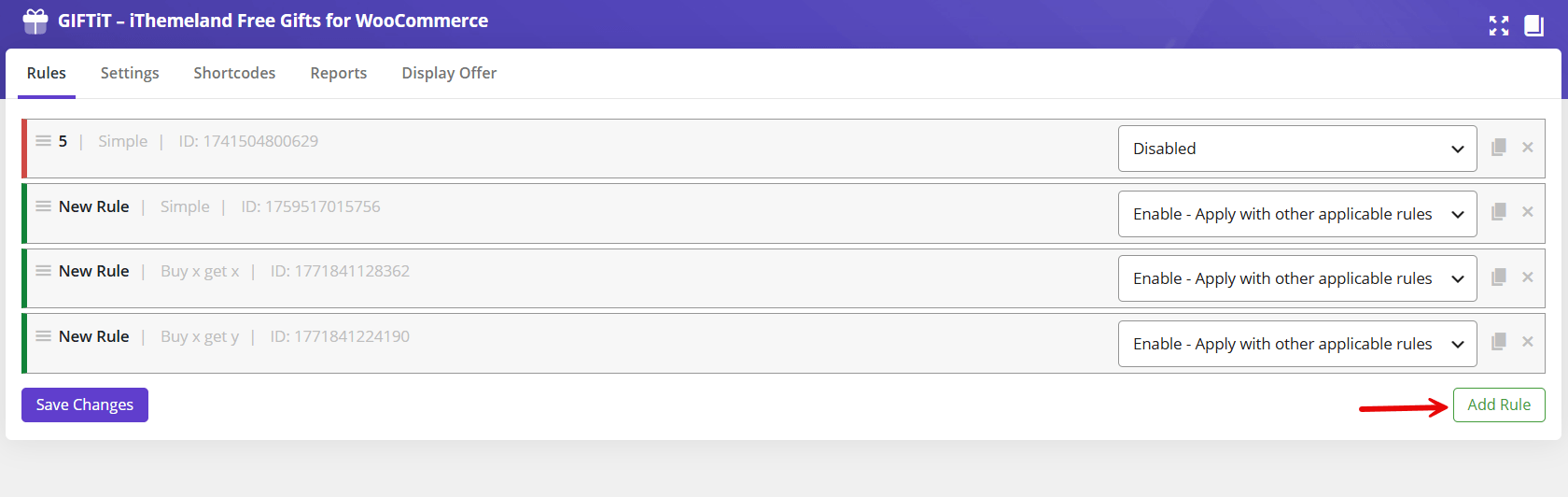
After activation, navigate to WordPress Dashboard > iThemeland > GIFTiT > Rules / Settings. The rule builder is where you define the method, quantities, gift products, and conditions.
Step 2 – Create a New Rule and Choose Simple Adjustment
Click Add Rule and give the campaign a descriptive internal name such as “Registered Customer – $50 Skincare Gift.” A clear name matters when several seasonal, BOGO, subtotal, and customer-specific rules are active at the same time.
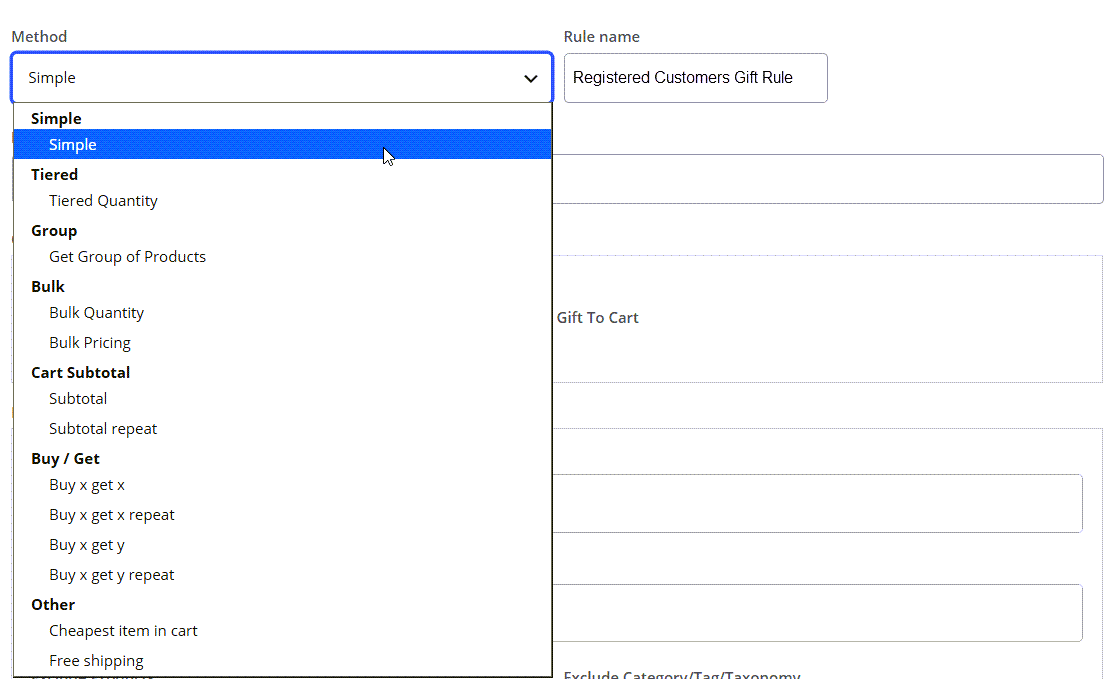
For this scenario, choose Simple Adjustment. We are not building a Buy X Get Y relationship between two specific product groups; the purpose is to make a gift available when the customer satisfies the campaign conditions.
GIFTiT supports different promotion methods, and you are not limited to using registered-customer conditions only with one method. The same customer condition can be combined with another suitable method when the campaign requires different purchase logic. Here, Simple Adjustment keeps the example focused on customer eligibility and the $50 threshold.
Step 3 – Set the Gift Quantity and Gift Behavior
Open Quantities & Settings and set Get to 1 because each eligible customer should receive one gift. For a straightforward one-gift campaign, keep the quantity easy to communicate.
If your configuration includes Same Gift, enable it when the campaign should consistently use the same selected gift. The Auto Add Gift to Cart option controls the gift experience: when it is disabled, a campaign with multiple eligible gifts can let the customer choose; when it is enabled for an appropriate setup, the gift can be added without an extra selection step.
- Get: 1
- Same Gift: enable when the same gift should be used consistently
- Auto Add Gift to Cart: choose according to whether the campaign should add the gift automatically or let the shopper select

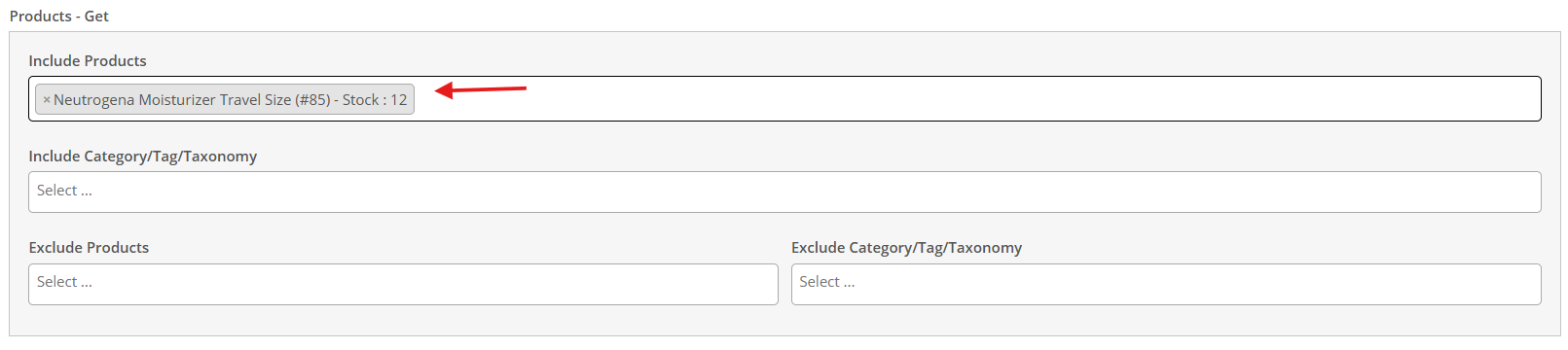
Step 4 – Select the Free Gift
In the Get section, choose the product that eligible customers can receive. For our skincare example, select the travel-size moisturizer. If you prefer to offer several possible gifts, you can configure the Get section around the supported product, category, tag, or taxonomy selection and let the shopper choose when Auto Add Gift to Cart is disabled.
Keep the gift relevant to the purchase. A sample or complementary product usually makes the campaign easier to understand than an unrelated item. Also check stock and product availability before launching the promotion.
Step 5 – Restrict the Rule to Logged-In Customers
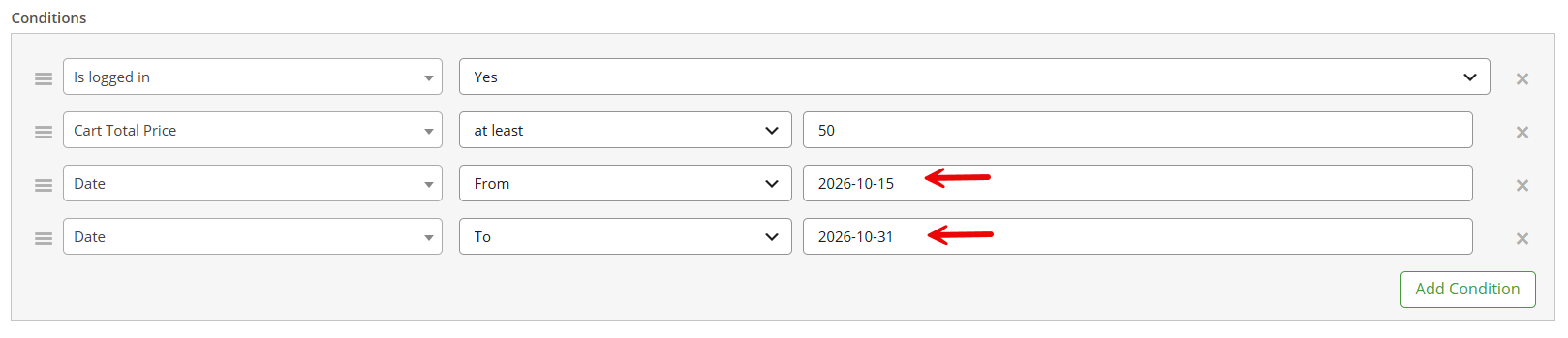
Now open Conditions and click Add Condition. Choose “is logged in” under the Customer group and set the value to “Yes.” This is the core condition that separates registered, authenticated customers from guest shoppers.
- Click Add Condition.
- Choose Customer > is logged in.
- Set the value to Yes.
- Keep this condition combined with the remaining campaign requirements.
After this condition is active, a guest visitor should not qualify for the member-only gift. The shopper needs to sign in before the rule can evaluate them as an eligible logged-in customer.

Step 6 – Add the $50 Minimum Cart Requirement
The campaign should not give the moisturizer to every logged-in customer regardless of purchase value. Add a cart-total or subtotal condition and set the threshold to $50 using the appropriate comparison in your rule builder.
This gives the promotion two separate requirements: the shopper must be logged in and the cart must meet the minimum value. Keeping these requirements separate makes the logic easier to test and easier to explain in customer-facing copy.

Step 7 – Limit the Campaign to a Specific Date Range
A registration-focused gift is more persuasive when it has a clear campaign window. Set the rule or supported date conditions so the promotion runs only between the intended start and end dates. For example, a store could run a “Join This Month and Get a Gift” campaign for two weeks rather than leaving the incentive open indefinitely.
This creates urgency and gives the store a clear period for measuring registrations and orders. In the promotion message, tell shoppers when the offer ends. However, distinguish the campaign period from the customer’s registration date: a rule that is simply active from one date to another does not automatically prove that the account was created inside that same period.
Step 8 – Make the Gift Available Only Once per Customer
To prevent the same customer from repeatedly receiving the gift through this rule, add another condition and select “Quantity purchased – This rule.” Then configure the row exactly as follows:
| Condition Field | Value |
| Condition | Quantity purchased – This rule |
| Period | All time |
| Comparison | Less than |
| Value | 1 |
This tells the rule to remain eligible only while the customer’s purchased quantity associated with this rule is below one. Once the customer has already received the gift through the same rule, they should no longer satisfy this condition.

Reference screenshot — Quantity purchased – This rule / All time / Less than / 1
The important detail is the scope: this is a limit for this rule. It should not be described as a lifetime ban on receiving any free gift from the store. The same customer may still qualify for a different campaign if another rule allows it.
GIFTiT – Free Gifts For WooCommerce
The easy way to offer free gifts to registered customers in WooCommerce
Step 9 – Save the Rule and Test the Storefront Result
Save the changes and enable the rule. Then test the campaign with realistic customer states instead of checking only the admin form.
| Test | Expected Result |
| Guest visitor with $50+ cart | No registered-customer gift |
| Logged-in customer below $50 | No gift yet |
| Logged-in eligible customer with $50+ cart | Gift becomes available |
| Eligible customer outside campaign dates | No gift |
| Customer who already received this rule’s gift | No second gift from the same rule |
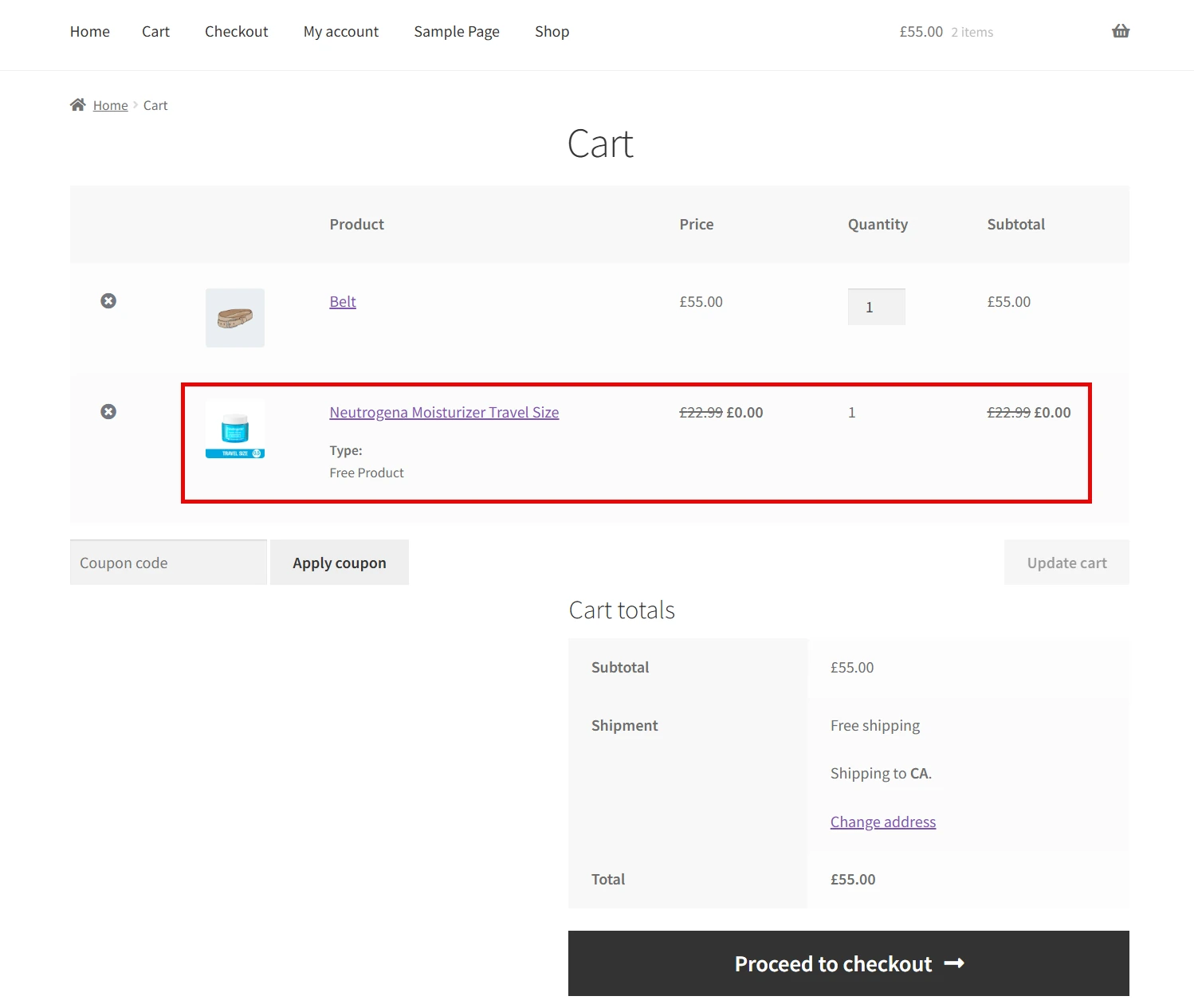
Finally, inspect the cart and checkout experience. Confirm that the gift is free, the quantity is correct, and the customer can understand why it appeared. Also test the exact storefront flow you advertise: registration or login, qualifying purchase, gift availability, and checkout.
Practical Registered-Customer Gift Ideas for Different Industries
The setup above uses skincare, but the same customer-targeting logic can support very different merchandising goals. The gift, purchase threshold, and timing should change with the industry rather than repeating the same campaign everywhere.
| Industry | Registered-Customer Offer | Why It Works |
| Fashion | Members spending $100 receive a free tote bag once during a launch week. | The gift is visible, useful, and easy to tie to a collection launch. |
| Coffee | Logged-in customers buying two bags of coffee receive a sample of a new roast. | The gift introduces another product without discounting the main items. |
| Electronics | Account holders purchasing selected accessories receive a cable organizer. | A low-cost complementary item adds value to a higher-intent purchase. |
| Books | Registered customers spending $40 receive a reading journal during a seasonal event. | The gift supports the use of the purchased products and fits the audience. |
| Pet supplies | Members purchasing qualifying food receive a sample treat pack once. | The campaign can support product discovery while controlling repeat claims. |
| Home & garden | Logged-in customers buying from a spring collection receive a seed packet. | A date-limited gift naturally matches a seasonal campaign. |
When Should You Use a Registered-Customer Gift?
A member-only gift is strongest when registration serves a real business purpose and the customer can see the value immediately. It is less useful when the campaign adds unnecessary friction to a simple purchase.
- Use it when you want to encourage account creation before checkout.
- Use it for member events or short campaigns where signed-in shoppers receive an exclusive benefit.
- Combine it with a minimum spend when the gift cost needs to be supported by a higher order value.
- Add a one-time condition when the incentive is intended as a welcome reward rather than a repeat promotion.
- Use purchase-history conditions when the campaign is specifically for first-time or returning customers, instead of assuming login status proves purchase history.
Registered-Customer Gift vs. First-Order Gift
A registered-customer gift and a first-order gift solve different problems. The first rewards account membership or sign-in; the second depends on purchase history.
| Campaign Type | Main Requirement | Example |
| Registered-customer gift | Customer is logged in | Sign in and spend $50 to receive a gift |
| First-order gift | Customer has no previous qualifying order | Get a welcome gift with your first order |
| Returning-customer gift | Customer has previous purchase history | Returning customers receive a loyalty gift |
| Member event | Customer is logged in during a campaign period | Members receive a gift during the October event |
If your real goal is to reward only customers who have never ordered before, combine the customer login requirement with the appropriate order-count condition supported by your setup. Do not rely on registration alone to identify first-time buyers.
Read More: How to Offer a Free Gift on First Purchase in WooCommerce?
Best Practices for Member-Only Free Gift Campaigns
- Make the benefit visible before the customer reaches checkout. If registration is required, shoppers should know why signing in is worthwhile.
- Keep the rule logic aligned with the marketing message. If the banner says “one gift per customer,” the rule should enforce that limit.
- Use a relevant gift with a controlled cost. A complementary product can feel valuable without requiring a large discount.
- Test guest, logged-in, below-threshold, above-threshold, expired, and previously-redeemed states.
- Avoid stacking several overlapping customer rules without testing their interaction.
- Use a clear end date when urgency is part of the registration incentive.
- Explain whether the gift is added automatically or must be selected by the customer.
Common Mistakes to Avoid
Even a well-planned registered-customer gift campaign can behave differently than expected if the eligibility conditions are not configured carefully. Before publishing the rule, check these common mistakes.
Treating Registered and Logged-In Customers as the Same
Having a WooCommerce account does not necessarily mean the customer is currently logged in. A registered customer can visit the store while logged out and behave like a guest during that session.
If the free gift should only become available after authentication, use the Is Logged In condition and set it to Yes. This also gives customers a clear reason to sign in before completing their purchase.
Using Campaign Dates as Registration-Date Conditions
Running a gift rule between two dates does not automatically mean that only customers who registered during those dates are eligible.
A campaign date range controls when the promotion is available. If you specifically want to verify when the customer’s account was created, you need a condition that targets the registration date. Keep these two concepts separate when describing the offer to customers.
Forgetting to Limit the Gift to One per Customer
A registration incentive is often intended to be a one-time reward. Without a usage restriction, an eligible customer may qualify again as long as the other conditions continue to be satisfied.
To prevent this, add Quantity purchased – This rule and configure it as All time → Less than → 1. This prevents the same customer from receiving another gift through that specific rule after they have already used it.
Testing the Rule Only as an Administrator
Testing while logged in as a WordPress administrator does not accurately represent every customer scenario. The administrator is already authenticated, which can make a customer condition appear to work without revealing problems affecting normal shoppers.
Test the campaign with a regular customer account as well as a guest session. You should also test customers below and above the minimum cart threshold and a customer who has already received the gift.
Choosing a Gift That Is Not Relevant to the Purchase
A free product can technically satisfy the promotion while still feeling disconnected from what the customer is buying. An unrelated gift may reduce the perceived value of the campaign.
Choose a complementary product, useful accessory, sample, or discovery product that makes sense alongside the qualifying purchase. The gift should feel like an added benefit rather than an arbitrary free item.
GIFTiT – Free Gifts For WooCommerce
The easy way to offer free gifts to registered customers in WooCommerce
Conclusion
A registered-customer free gift works best when the rule has a clear purpose: give shoppers a reason to create an account or sign in, require a meaningful purchase, and prevent uncontrolled repeat claims. In the example above, Simple Adjustment provides one travel-size moisturizer when a logged-in customer reaches $50 during the campaign, while “Quantity purchased – This rule / All time / Less than / 1” keeps the reward to one use per customer for that rule.
GIFTiT gives you the flexibility to combine gift methods with customer and purchase conditions, so the same framework can be adapted to welcome offers, member events, first-order campaigns, and loyalty promotions. Explore GIFTiT – Free Gifts for WooCommerce for the plugin, or use the Complete Guide to WooCommerce Free Gifts to plan a broader free-gift strategy across your store.
FAQ
1. Can I offer a free gift only to logged-in WooCommerce customers?
Yes. In GIFTiT, add the “is logged in” customer condition and set it to Yes. The gift rule can then be combined with other requirements such as minimum cart value, campaign dates, or purchase history.
2. How can I give the gift only once to each customer?
Add “Quantity purchased – This rule,” set the period to “All time,” choose “Less than,” and enter “1.” This limits repeat eligibility for that specific rule.
3. Can I use a minimum spend with a registered-customer gift?
Yes. Add the supported cart-total or subtotal condition and set the threshold you want. In this tutorial, the logged-in customer must reach $50 before the gift becomes available.
4. Can I limit the free gift to a specific campaign period?
Yes. Use the rule’s scheduling or supported date conditions to define the promotion window. This is useful for short registration drives, launches, and seasonal campaigns.
5. Does being registered mean the customer is a first-time buyer?
No. Registration status and order history are separate. If the gift is intended only for customers with no previous orders, add the appropriate order-count or purchase-history condition as well.
6. Can I use the logged-in customer condition with other gift methods?
Yes. Customer eligibility is not limited to the Simple Adjustment example used here. You can combine supported customer conditions with another suitable gift method when the promotion requires different purchase logic.