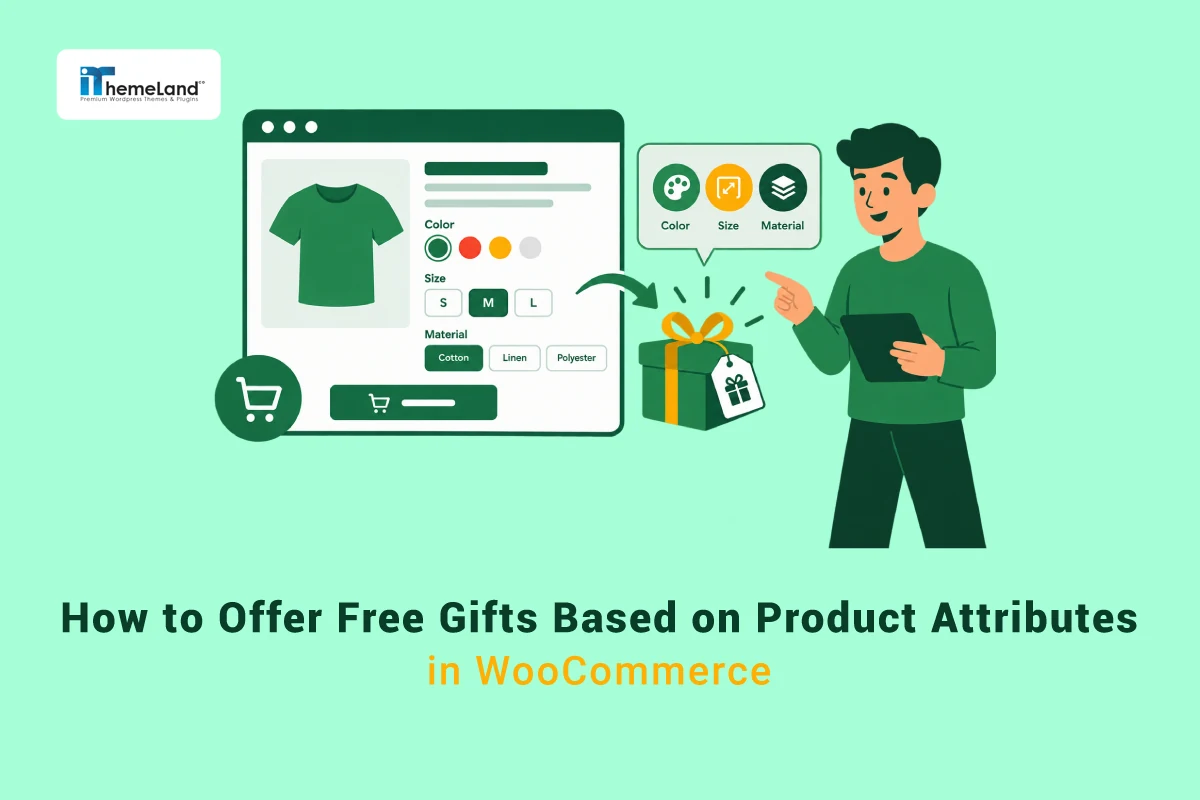

Product attributes give WooCommerce store owners a way to describe and organize product details such as color, size, material, and other specifications. They can also become useful criteria for creating more targeted promotions. Instead of offering the same gift to every customer or limiting a campaign to an entire product category, you can build a promotion around a particular product attribute.
For example, a fashion store could offer a free accessory when customers buy a red item. A clothing shop might give away a bonus product with selected sizes, while a furniture store could reward customers who purchase products made from a particular material. These offers connect the gift to the products customers actually choose.
With GIFTiT – Free Gifts for WooCommerce, you can create a rule, select a promotion method, define the products that qualify, and configure the gift customers can receive. This guide explains how to configure an attribute-based offer using the Taxonomy option in the Buy section.
For a broader overview of gift promotion strategies and rule types, see our Complete Guide to WooCommerce Free Gifts
Quick Answer: How Do You Offer Free Gifts Based on Product Attributes in WooCommerce?
Create a gift rule in GIFTiT and configure the Buy section to identify qualifying products. Add a product condition, select Taxonomy, choose an operator such as In List, and select the required attribute and value in the third field. Then configure the gift and choose how it should be offered to customers.
For example, to offer a free accessory when a customer buys a red product, set the Buy condition to the color attribute and select Red. Choose the gift product in the Get section, save the rule, and test it with eligible and ineligible products.
| Campaign example | Attribute condition | Possible gift |
| Red product promotion | Color = Red | Matching accessory |
| Large-size promotion | Size = Large | Free add-on |
| Cotton collection offer | Material = Cotton | Care product |
| Seasonal collection | Selected seasonal attribute value | Themed gift |
What Are Product Attributes in WooCommerce?
Product attributes are details that describe items and provide structured information for shoppers. Common examples include Color (Red, Blue, Black), Size (Small, Medium, Large), Material (Cotton, Leather, Wool), Style (Classic or Modern), and specifications such as capacity, finish, or pattern.
In WooCommerce, attributes can be created globally and reused across products, or configured for individual products. They can also be used to create product variations when customers need to select a particular option, such as a shirt in Large or a chair in Black.
Product Attributes vs. Product Variations
An attribute describes a product characteristic. A variation is a purchasable version of a variable product created from selected attribute values. A Red, Large T-shirt can be one variation of a product that has several colors and sizes.
This guide focuses on attributes as qualifying criteria. For the separate use case of configuring BOGO offers for variable products, read our guide to WooCommerce BOGO offers for variable products.
Why Use Product Attributes for Free Gift Campaigns?
Categories are useful for promoting broad product groups, but a category may contain items with different colors, sizes, materials, or specifications. Attribute-based rules let you narrow the qualifying purchase to a particular characteristic.
Imagine a Shirts category containing red, blue, and black shirts. A category-only condition may include all of them. An attribute condition can focus the promotion on red products, even when similar products appear in other categories.
Attribute targeting can support color-specific promotions, size-based campaigns, material-related gifts, collection promotions, and seasonal offers. The important prerequisite is consistent product data: if attributes are missing or applied inconsistently, the rule may not match the products you expect.
How to Offer Free Gifts Based on Product Attributes in WooCommerce
The walkthrough below uses a sample offer: customers who buy a product with Color = Red can receive a free accessory. The example uses one gift and one attribute value to keep the setup easy to follow. Adapt the method and gift settings to your campaign.
Step 1: Install and Activate GIFTiT
Before creating a gift rule, install and activate GIFTiT – Free Gifts for WooCommerce. WooCommerce should also be installed and active.
- Download the GIFTiT plugin ZIP file.
- In WordPress, go to Plugins > Add New Plugin.
- Click Upload Plugin and choose the ZIP file.
- Click Install Now.
- When installation finishes, click Activate Plugin.
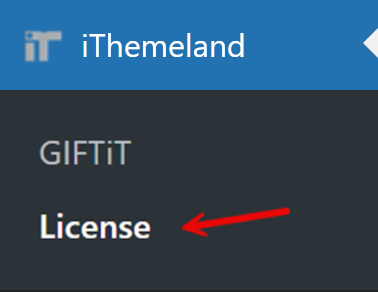
- Open the GIFTiT rule-management area from your dashboard.
If GIFTiT is already installed and active, skip this step. The exact menu location can depend on the plugin version and dashboard configuration.
Step 2: Create a New Gift Rule
Open the GIFTiT rule-management page and click Add Rule. Give the rule a descriptive name, such as “Free Accessory for Red Products.” A clear name makes it easier to identify the campaign later, especially when several promotions are active. At this stage, you are creating the rule structure; the qualifying products, gift, and promotion behavior come next.

Step 3: Choose a Gift Method
For this walkthrough, use a straightforward free-gift method:
A customer who buys a product with Color = Red receives one accessory.
Select the method in the Method field that represents a free-gift offer in your version of GIFTiT. Attribute targeting is configured separately in the Buy section, so the same Taxonomy condition can be used with other supported methods when a campaign requires a quantity or spending threshold.
Keep this example simple: do not add a minimum quantity or subtotal requirement. The only qualifying requirement will be the selected product attribute. Other campaigns can use a different method, and you are not limited to one method across all your rules.
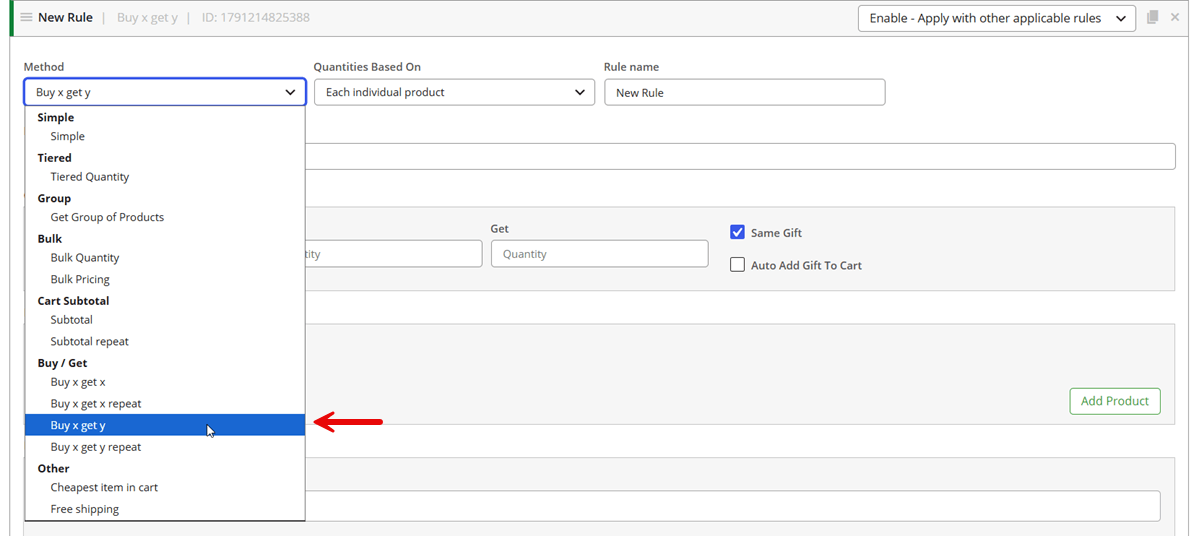
Step 4: Select the Qualifying Attribute in the Buy Section
The Buy section identifies the products customers must purchase to qualify. Add a product condition and follow this field sequence:
- Open the Buy section and add a product condition.
- In the first field, select Taxonomy.
- In the second field, choose an operator such as In List.
- In the third field, select the attribute and value you want to target.
For the sample campaign, choose the Color attribute and select Red as the value. The first field specifies the condition type, the second defines how the selection is evaluated, and the third is where you select the relevant taxonomy item. The available choices in the third field depend on the taxonomy and operator.
In List is useful when one or more selected values should qualify. For example, you could select both Red and Blue if both colors should activate the same offer. The same approach can be adapted to Size = Large or Material = Cotton. Before saving, confirm that the selected taxonomy is the attribute you intend to target, rather than a product category or another taxonomy.

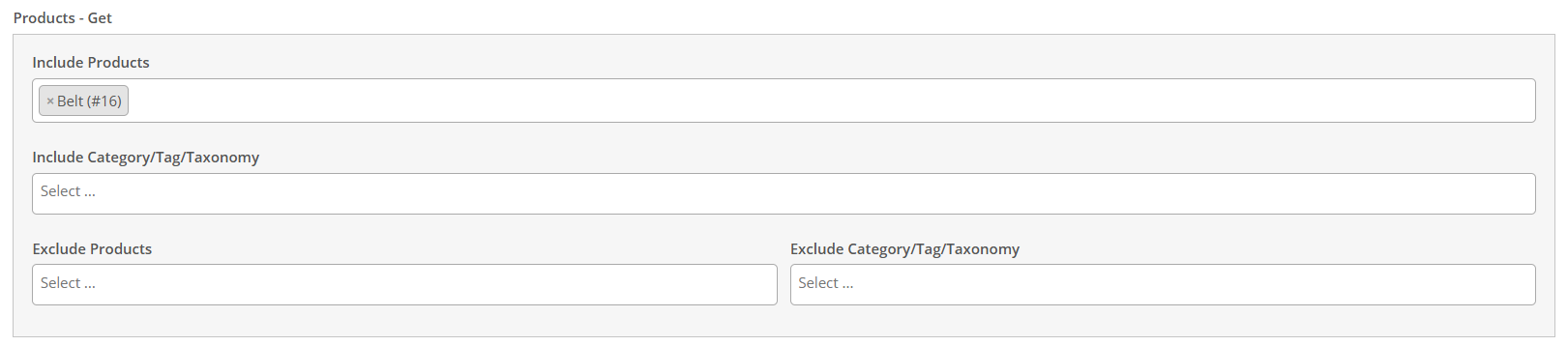
Step 5: Choose the Gift Products in the Get Section
Now define the reward. Open the Get section, select the accessory that should be given with a qualifying red product, and set the gift quantity to one. For this scenario, configure the gift to be added automatically if that option is available in the selected method. This keeps the example focused on one clear outcome: buy an eligible red product and receive one accessory.
Keep the two sides of the rule distinct: Buy identifies the qualifying purchase, while Get defines the reward. You can select multiple gift choices in campaigns designed to let customers choose, but this example uses one gift product.
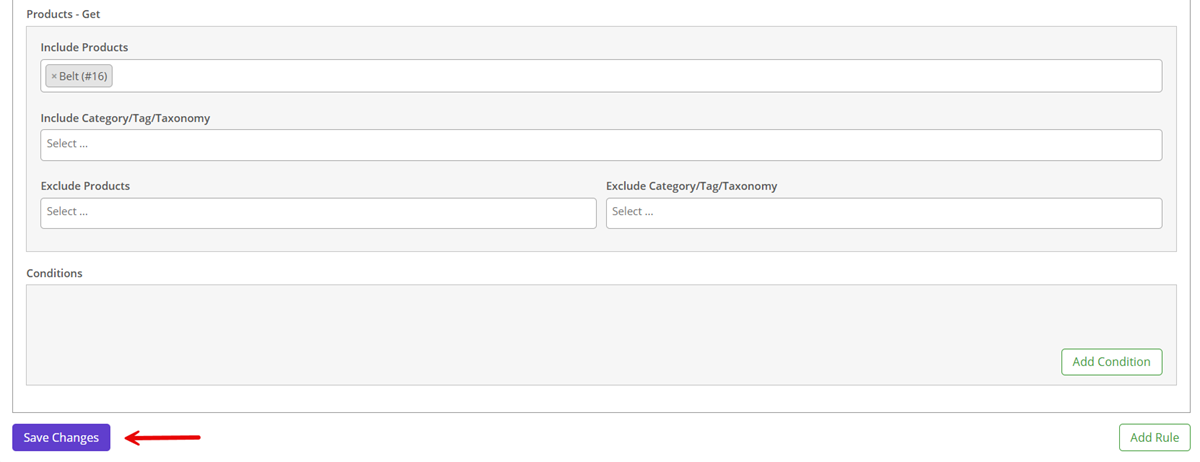
Step 6: Save and Test the Rule
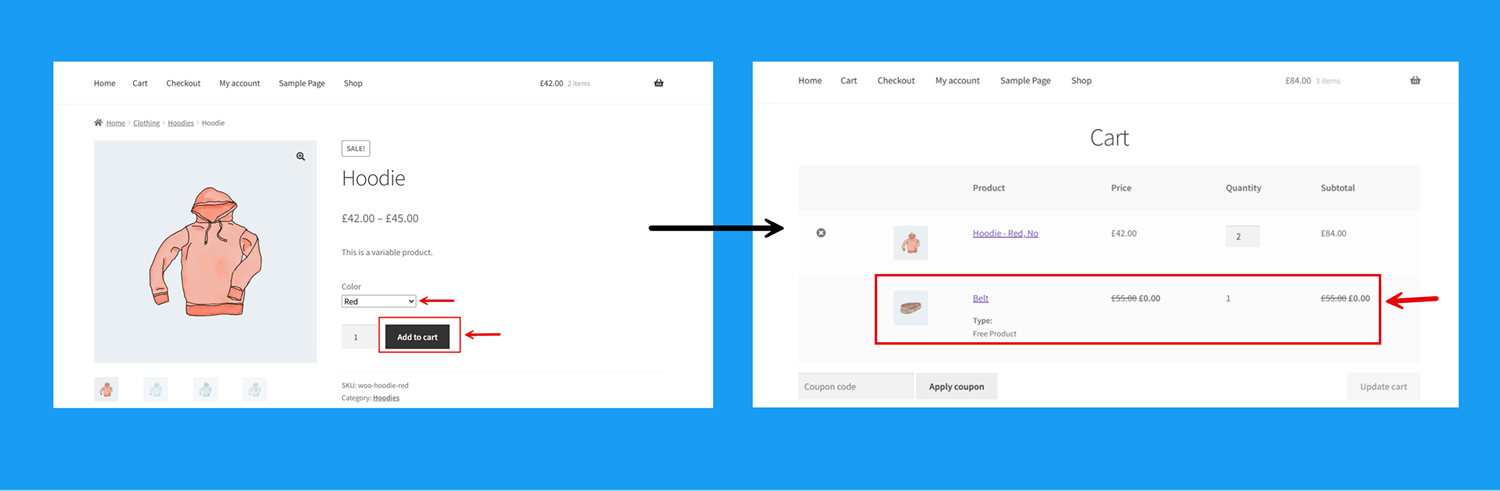
Save the rule, then test it before launching the promotion. Add a product with the selected attribute value, such as a red product, and check whether the gift appears as expected. Repeat the test with a product that does not have the selected value, such as a blue product.
| Test | Cart product | Expected result |
| Eligible product | Product with Color = Red | Gift becomes available according to the rule |
| Ineligible product | Product with Color = Blue | Condition should not qualify |
| Mixed cart | Red and Blue products | Rule qualifies based on selected Red value |
| No qualifying product | Product without selected value | Gift is not offered by this condition |
If the gift appears unexpectedly, review the taxonomy, operator, and selected value. Also check other conditions and active rules that may affect the cart.
Step 7: View the Result on the Storefront
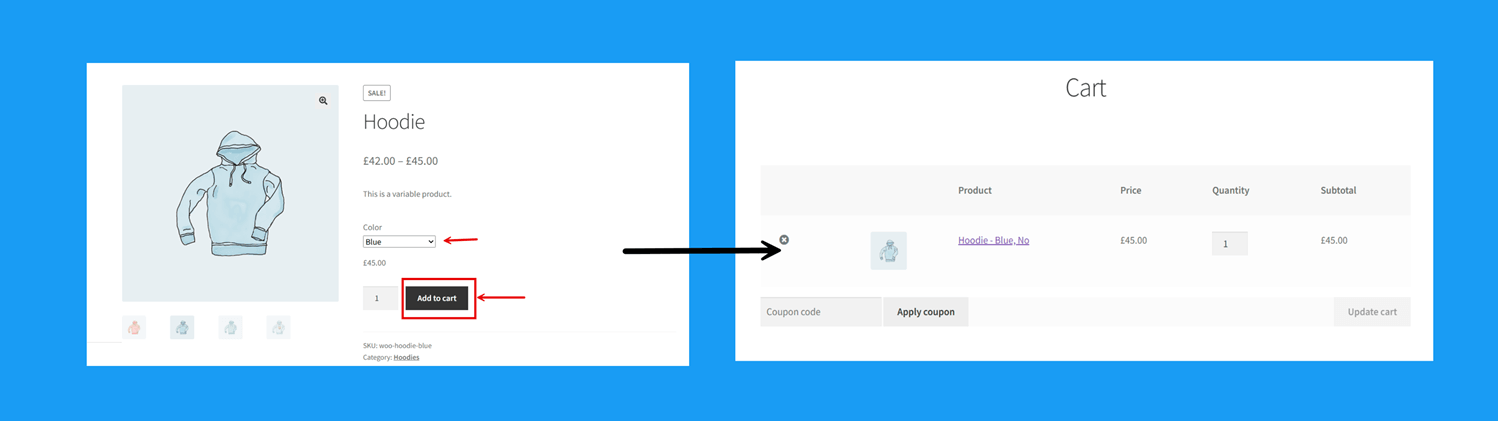
The final check is to experience the offer as a customer. Open the storefront and add a qualifying product to the cart. If the rule uses automatic gift addition, confirm that the gift appears once the conditions are met. If customers choose a gift, verify that the available options are visible and selectable.
Repeat the test with a product that does not have the selected attribute value. The gift should not be offered based on this condition. The exact display location depends on the rule configuration and store setup, so check the relevant product, cart, or checkout experience.
Practical Examples of Attribute-Based Free Gift Campaigns
Promote Outdoor Gear by Season or Use
An outdoor retailer could offer a compact dry bag with products tagged Season = Summer, or a maintenance kit with gear tagged Activity = Camping. If the campaign should run only during a limited period, combine the attribute condition with a supported date condition. For more campaign inspiration, see the seasonal free-gift ideas article.
Offer a Bonus with Skincare for a Specific Skin Type
A beauty store that uses a Skin Type attribute could offer a travel-size cleanser with products marked Sensitive. Select the matching attribute value in Buy and the sample product in Get. Before launching, confirm the attribute is used consistently and that the gift is appropriate for the products included.
Reward Customers Buying Furniture with a Specific Material
A furniture store could include a wood-care kit when customers buy items with Material = Solid Oak. The same approach can target upholstery or finish attributes if those values are consistently assigned. The gift should relate to the purchase, while the attribute condition keeps the campaign limited to the intended materials.
Offer a Gift with Selected Coffee or Tea Products
A coffee retailer could offer a reusable cup with coffee beans tagged with Roast = Dark, or a tea infuser with products tagged Type = Herbal. In Buy, use Taxonomy and the relevant attribute value; in Get, select the complementary gift. This lets the retailer promote a product characteristic without applying the offer to every item in the beverage category.
Combine Attribute-Based Rules with Other Conditions
An attribute condition can be part of a broader campaign. For example, you may want a gift to be available only when a customer buys a selected attribute value and meets another requirement. Possible combinations include:
- Attribute and subtotal: require the cart to reach a minimum amount.
- Attribute and customer role: limit the offer to a selected customer group.
- Attribute and date range: run a promotion during a seasonal event.
- Attribute and quantity: require a certain number of qualifying products.
Best Practices for Attribute-Based Gift Campaigns
Use consistent attribute values. If some products use “Red” while others use a different label for the same color, standardize values where possible.
Choose a relevant gift. A complementary gift can make the offer easier for customers to understand.
Keep rule names descriptive. Names such as “Red Products – Free Accessory” are easier to manage than generic labels.
Test eligible and ineligible products. Confirm that the gift appears for products with the selected value and not for products that do not meet the condition.
Review the customer experience. Check whether the gift is automatic or requires selection, and verify where it appears.
Check overlapping rules. If several promotions may apply to the same cart, test the combinations before launch.
Common Mistakes to Avoid
Selecting the Wrong Taxonomy
The first field determines the type of product data being targeted. If you intend to use an attribute, select Taxonomy and then choose the correct attribute in the third field.
Choosing an Incorrect Operator
The operator controls how the selected value is evaluated. In List may suit a campaign that matches one or more selected values. Review the available operators and test the rule.
Forgetting to Configure the Gift
A qualifying condition does not define the reward. Make sure the Get section includes the intended product and that the gift quantity and delivery options match the campaign.
Testing Only One Product
Test several products with the selected attribute value and at least one product without it. This helps reveal inconsistent product data or unexpected rule interactions.
Confusing Attribute Targeting with Variation Targeting
An attribute value and a specific variation are different concepts. Decide whether the campaign should apply based on a characteristic or on a particular purchasable version.
GIFTiT – Free Gifts For WooCommerce
The easy way to offer free gifts based on product attributes in WooCommerce
Conclusion
Product attributes let WooCommerce store owners build gift promotions around specific product characteristics instead of targeting only broad product groups. With GIFTiT, use Taxonomy in the Buy section, select an operator such as In List, and choose the relevant attribute and value in the third field. The Get section defines the gift, while the selected method controls the promotion structure.
Whether you are promoting a particular color, size, material, or seasonal collection, test the rule with eligible and ineligible products before making the campaign available. Accurate product attributes and a clear gift experience help keep the promotion predictable and easy to understand.
For a broader overview of gift promotion strategies and rule types, see our Complete Guide to WooCommerce Free Gifts
FAQ
1. Can I offer free gifts based on product attributes in WooCommerce?
Yes. Create a gift rule in GIFTiT and use a condition in the Buy section to identify qualifying products by attribute. Select Taxonomy, choose a suitable operator, and specify the attribute and value.
2. Can I offer a free gift when customers buy a specific product color?
Yes. If your products use a color attribute, select it and choose the required value in the Buy condition. For example, a rule can target Color = Red and offer an accessory when the customer qualifies.
3. What is the difference between product attributes and product variations?
An attribute describes a characteristic such as color, size, or material. A variation is a purchasable version of a variable product, often created from a combination of attribute values. A shirt may have Color and Size attributes, while “Red / Large” is one of its variations.
4. Can I target multiple product attribute values in one gift rule?
You can select multiple values when the chosen condition and operator support a list. For example, an offer may target both Red and Blue. Test the rule to confirm it matches the intended products.
5. Can I combine attribute-based rules with subtotal or customer conditions?
An attribute condition can be combined with other supported conditions, such as subtotal, customer role, date, or quantity. The exact behavior depends on the complete rule configuration and selected method.
6. Can I offer different gifts for different product attributes?
You can create separate rules for different attribute-based campaigns and configure the gift products in each rule. Test overlapping rules if the same cart could qualify for more than one promotion.