

Editing orders in bulk can save a lot of time for WooCommerce store owners, especially when you need to update order status, shipping details, customer information, payment notes, or fulfillment data across many orders. But bulk order processing can also create serious problems if it is done without a clear workflow.
A small mistake in a single order is easy to fix. A mistake in hundreds of orders can lead to wrong shipments, incorrect order statuses, customer confusion, inventory issues, and lost trust. That is why store managers need to understand the most common bulk order editing mistakes before applying large changes.In this tutorial, we’ll review 5 mistakes to avoid when editing WooCommerce orders in bulk and show how OBULKiT – Bulk Edit WooCommerce Orders can help you filter orders, test changes, update order fields, use history/undo options, and manage bulk edits more safely without opening every order manually.
Quick Answer:
Bulk order editing can save time, but it can also create serious problems if store managers update the wrong orders, change statuses incorrectly, overwrite important data, or skip backups. The safest workflow is to filter orders carefully, review the results, and apply changes only to the selected group.
For controlled order editing, use OBULKiT – Bulk Edit WooCommerce Orders. After installing the plugin, go to WordPress Dashboard > iThemeland > OBULKiT. Start with the Filter Form to find orders by status, date, customer, product, billing fields, shipping fields, payment method, or other order data. Review the table before applying any bulk action.
This helps avoid common mistakes such as updating completed orders by accident, changing the wrong customer group, or applying actions without checking the filtered results. OBULKiT plugin is useful because it gives store managers better visibility, filtering, and control before making large-scale order changes.
Mistake 1: Not Backing Up Order Data
One of the most critical yet often neglected order edits best practices is performing a complete order data backup before executing any bulk changes. Editing orders in bulk can sometimes lead to unintended consequences—whether due to plugin conflicts, human error, or system glitches.
Without a recent backup, reversing mistakes becomes incredibly difficult, especially when changes affect hundreds of orders simultaneously. A single misconfigured bulk action can overwrite critical customer details, payment records, or shipping information, creating long-term complications for order management.
To avoid errors in order editing, always create a full database backup before running bulk operations. Many WooCommerce store owners rely on plugins like UpdraftPlus or their hosting provider’s backup tools.
Additionally, consider exporting a CSV of your orders as a secondary precaution using the WooCommerce orders bulk edit plugin. This way, if something goes wrong during bulk order processing, you can quickly restore data without disrupting customer transactions.
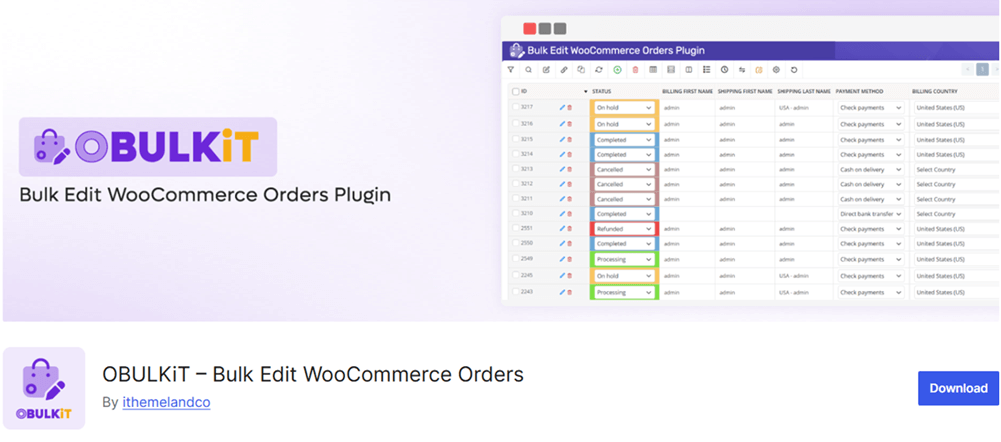
Remember, a few minutes spent on backups can save hours of troubleshooting and potential revenue loss.
Mistake 2: Overlooking User Permissions and Access Control
Another common pitfall in bulk order editing mistakes is failing to restrict access to authorized personnel. Not every team member should have the ability to modify orders in bulk—especially since accidental or unauthorized changes can lead to incorrect shipments, refunds, or status updates.
Proper order management requires role-based permissions to ensure only admins or trusted staff can perform high-risk bulk edits. Without these safeguards, an employee might unknowingly apply incorrect discounts, cancel paid orders, or alter fulfillment details.
To implement order editing tips for security, you can use plugins like User Role Editor. It can help customize access levels further.
Additionally, maintain an audit log of bulk changes (using plugins like WP Activity Log) to track who made modifications and when.
By enforcing strict access controls, you minimize risks while maintaining smooth bulk order processing.
Mistake 3: Failing to Validate or Test Changes Before Applying
Rushing into editing orders in bulk without testing is a recipe for errors. Many merchants assume bulk actions will work flawlessly, only to discover too late that a misconfigured rule updated the wrong orders or skipped critical validations. For example, applying a blanket “Completed” status to all orders—including those pending payment—can lead to fulfillment chaos. Proper order edits best practices require testing changes in a staging environment first, especially when dealing with complex workflows.
To avoid errors in order editing, start by filtering a small batch of test orders (e.g., 5-10) and verify the results before scaling up. Check if status transitions, email notifications, and inventory updates behave as expected. Some order management plugins offer “preview modes” for bulk edits—use them to catch mistakes early. If you rely on automation rules (e.g., auto-canceling unpaid orders), double-check conditions to prevent false triggers. Taking these precautions ensures smoother bulk order processing with fewer surprises.
For even greater control, consider using the WooCommerce Bulk Orders Editing plugin, which includes an undo feature based on edit history.
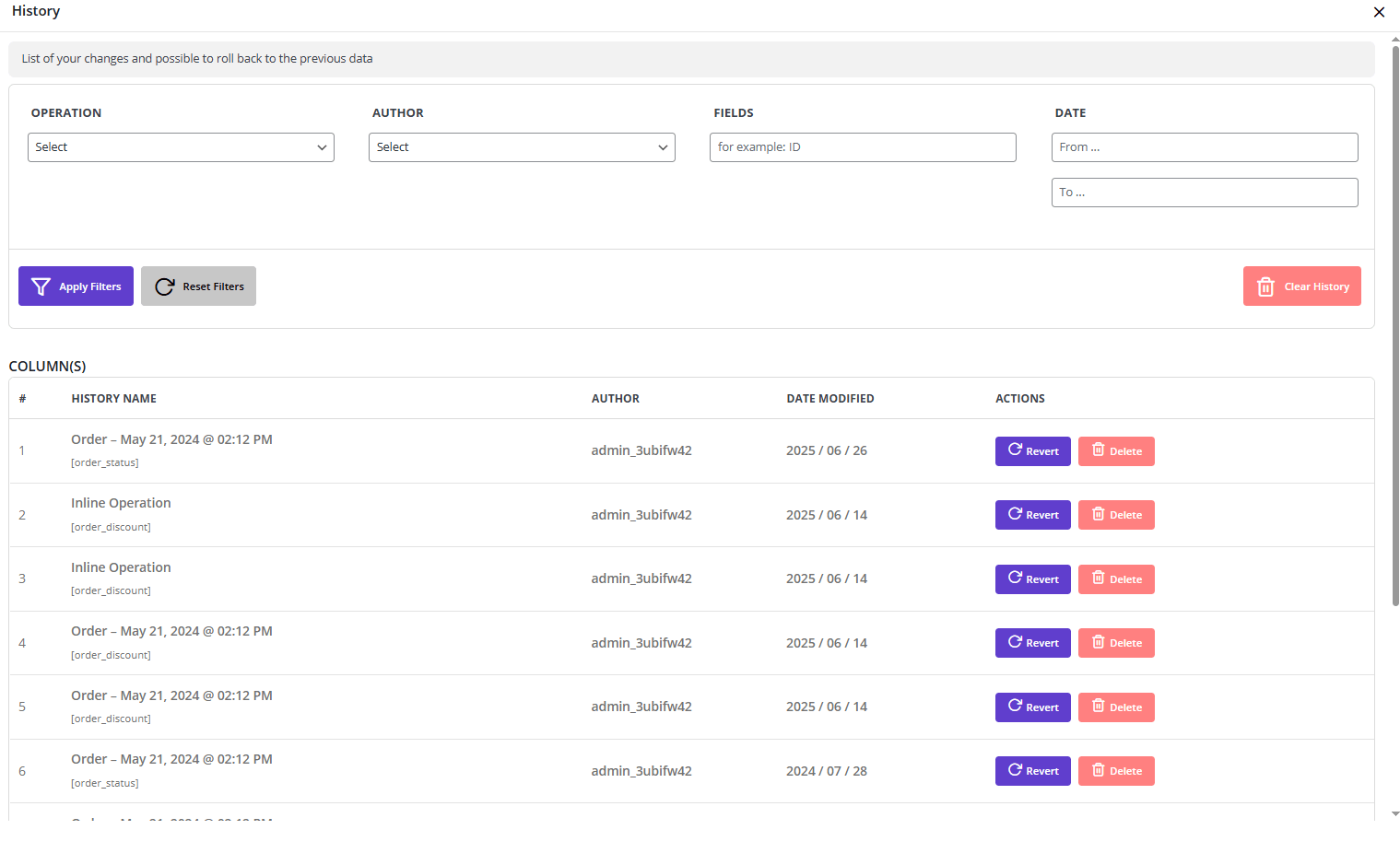
This allows you to revert changes if something goes wrong, providing a safety net for bulk modifications. By tracking all adjustments with timestamps, you can quickly restore previous states without manual backups.
Mistake 4: Ignoring Order Dependencies or Linked Data
Bulk order editing mistakes often occur when merchants overlook how changes affect linked data. For instance, marking orders as “Shipped” in bulk without updating tracking numbers leaves customers in the dark. Similarly, modifying product quantities without adjusting inventory levels can lead to stock discrepancies. Order management isn’t just about statuses—it’s about ensuring all connected systems (shipping, inventory, CRM) stay synchronized.
To refine your order editing tips, always review dependencies before applying bulk updates. Use plugins that support partial bulk edits (e.g., updating statuses + tracking numbers simultaneously). For inventory-sensitive products, confirm that stock levels adjust correctly when orders are canceled or refunded. Tools like Advanced Order Export for WooCommerce can help analyze order relationships before making changes. By addressing these nuances, you’ll maintain consistency across your bulk order processing workflows.
Mistake 5: Missing Out on Communication with Customers After Edits
The final—and often most damaging—error in editing orders in bulk is forgetting to notify customers. Whether you’re adjusting delivery dates, canceling items, or resolving payment issues, transparency is key to retaining trust. Silent changes frustrate buyers and increase support requests. For example, bulk-canceling backordered items without explanation can lead to negative reviews or chargebacks.
To avoid errors in order editing, integrate automated notifications for bulk actions. Personalize messages in order notes to explain changes (e.g., “Your order #1234 has shipped—track it here!”). For major updates (e.g., delays), consider follow-up emails or SMS alerts. These order edit best practices not only improve customer experience but also reduce post-purchase confusion.
By addressing these five mistakes—backups, permissions, testing, dependencies, and communication—you’ll optimize bulk order processing while minimizing risks. Adopting these strategies ensures efficient and error-free order management for your WooCommerce store.
OBULKiT – Bulk Edit WooCommerce Orders
The easy way to avoid mistakes when bulk editing WooCommerce orders
Best Practices for Bulk Order Editing
Bulk order editing is a powerful feature for WooCommerce store owners, enabling efficient management of large order volumes. However, improper execution can lead to errors, data loss, or customer dissatisfaction. Below are five essential best practices to ensure smooth and error-free bulk order editing, along with actionable tips and tools.
1. Always Back Up Order Data Before Bulk Edits
Before making bulk changes, create a complete backup of your WooCommerce database and order records. This ensures you can restore data if an error occurs during editing.
How to Implement?
- Install and activate WooCommerce bulk order editing plugin.
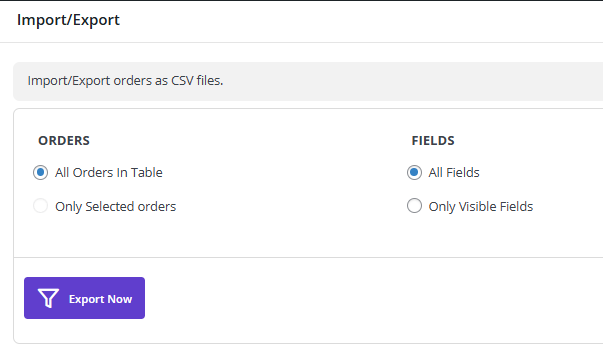
- Open Import/Export form.
- Mark the following options: All Orders in Table, All Fields.
- Press the Export Now button.
Why It Matters?
- Prevents irreversible mistakes (e.g., accidental status changes or overwritten customer details).
- Ensures compliance with data retention policies.
2. Test Changes in a Staging Environment First
Never apply bulk edits directly to a live store without testing. A staging site lets you verify automation rules, status transitions, and plugin compatibility before affecting real orders.
How to Implement?
- Use WP Staging or a subdomain to clone your store.
- Test bulk edits on a small batch (e.g., 5–10 orders) before scaling.
Why It Matters?
- Identifies conflicts with payment gateways or inventory systems.
- Avoids disruptions to customer-facing processes (e.g., incorrect shipping notifications).
3. Use Dedicated Bulk Editing Plugins for Efficiency
WooCommerce’s default bulk edit features are limited, making it challenging to manage large order volumes efficiently. Instead, specialized tools like WooCommerce Bulk Order Editing Plugin provide advanced functionality, including real-time filtering, inline editing, and bulk status updates—all designed to streamline bulk order editing while minimizing errors.
Why Choose WooCommerce Bulk Order Plugin?
- Inline Editing: Modify order statuses, customer details, and notes directly from the order table without opening individual orders.
- Advanced Filters: Quickly locate orders by status, date range, payment method, or custom fields.
- Bulk Status Updates: Change hundreds of order statuses at once (e.g., mark all “Processing” orders as “Completed”).
- HPOS Compatibility: Works seamlessly with WooCommerce’s High-Performance Order Storage system.
- Undo Functionality: Revert accidental changes before saving, preventing irreversible mistakes.
By using this plugin, store owners can reduce manual work by 80%+ compared to one-by-one edits while ensuring accuracy in order status automation.
How to Use WooCommerce Bulk Order Plugin for Bulk Edits
To enhance order management with features of this powerful plugin that are specifically built for bulk order processing, follow the steps below:
Step 1: Install the WooCommerce orders bulk editing plugin
Download the plugin ZIP file with the license key.
Go to WordPress Dashboard > Plugins > Add New > Upload Plugin.
Upload the ZIP file, and install it.
To activate it, go to iThemeland > License (newly added to the WordPress Dashboard) and insert the License key in the activation form.
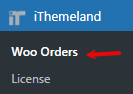
Now you have access to all bulk editing orders features by clicking on the Woo Orders option in the iThemeland menu.
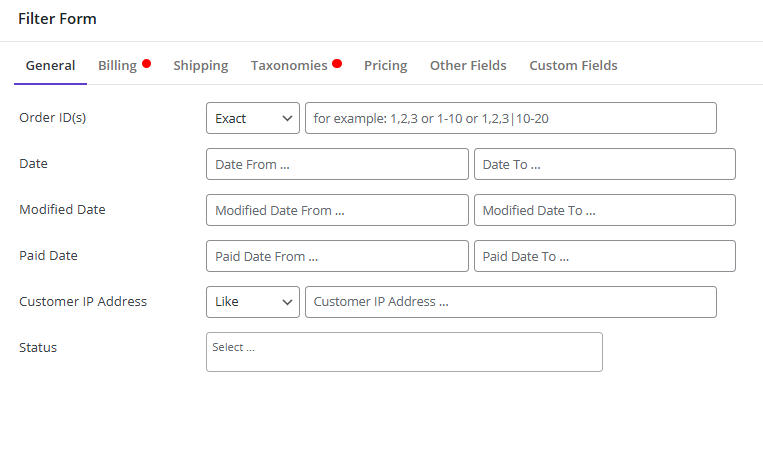
Step 2: Filter WooCommerce Orders
Choose the Filter icon from the Toolbar as shown below:
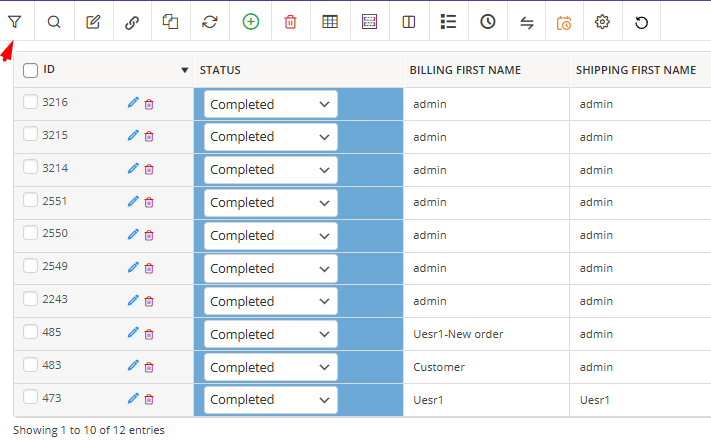
Use filters (status, date, customer, etc.) in the Filter Form that supports all WooCommerce order fields to narrow down the orders you want to edit.
Step 3: Select the Desired Orders in the table
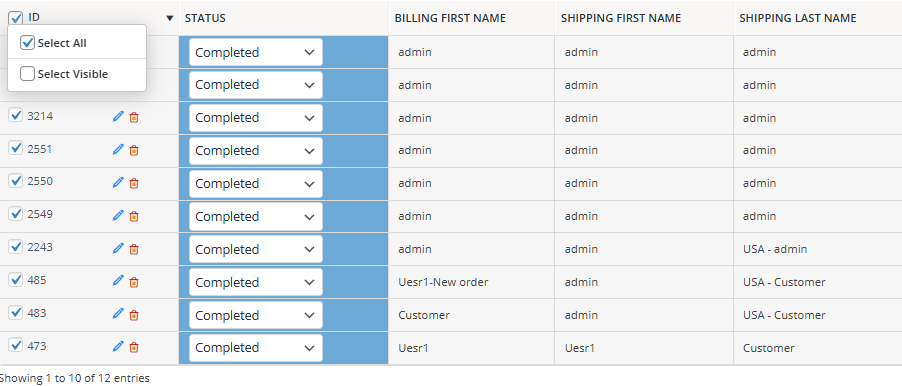
Check the boxes next to orders in the table or use “Select All” for mass select all filtered orders.
Step 4: Bulk Edit Orders
The WooCommerce bulk edit orders plugin provides different ways to manage orders, including:
Option 1: Bind Editing
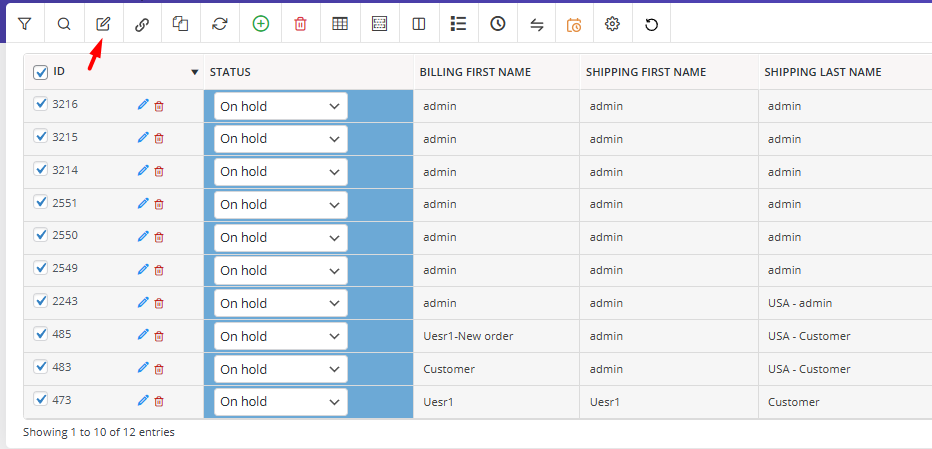
Choose the Bind Edit tool from the Toolbar.
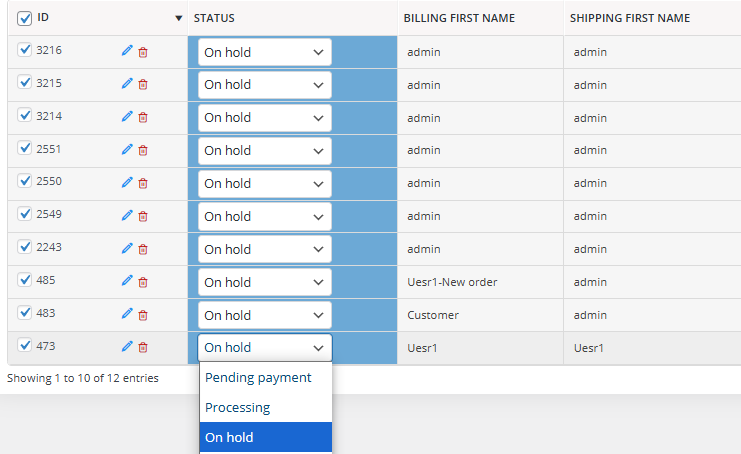
Click on one of the fields directly in the table and set new data. The plugin will automatically apply changes to all selected orders in the table.
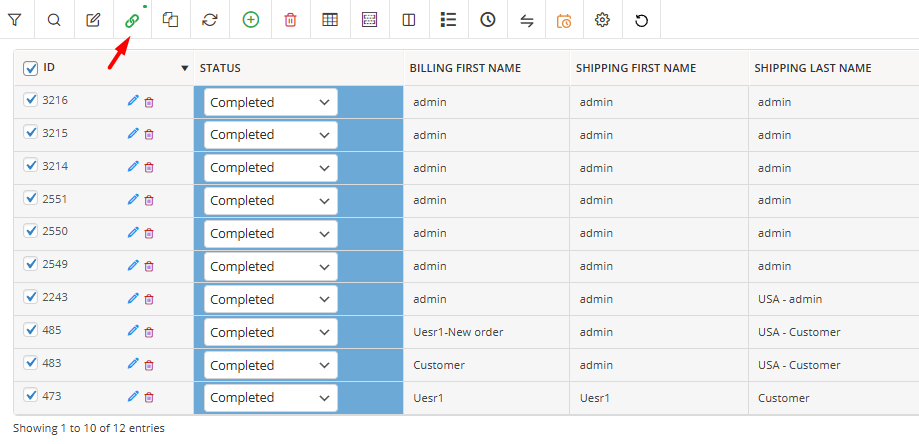
For example, you can choose a new status for one of the orders, and you can see that the statuses of all selected orders will be changed.
Option 2: Bulk Edit Form
Click the Bulk Edit icon in the toolbar to open the Bulk Edit form.
In this form, you can manage bulk order processing by setting new data to one or more fields, and apply changes to all selected orders.
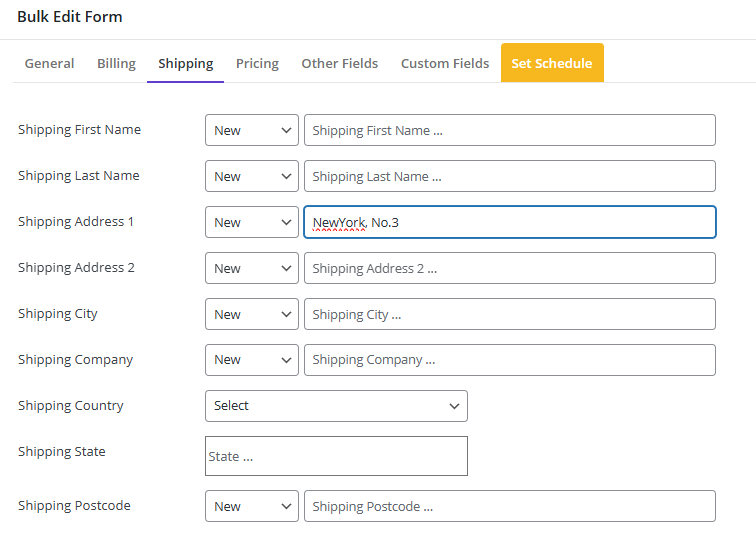
For example, you can set a new shipping address and a new order date for all selected orders as follows:
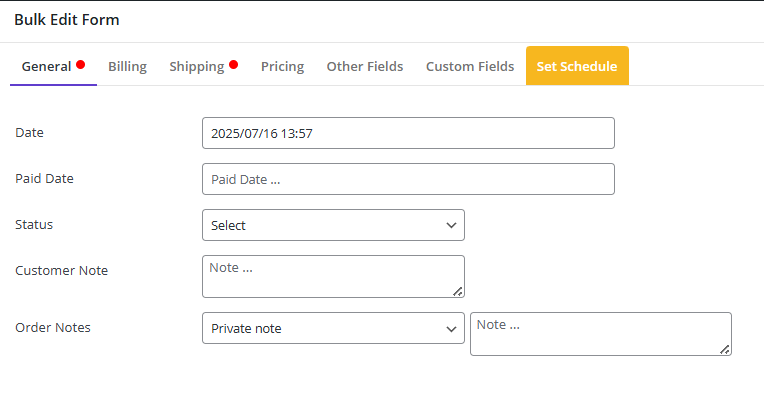
Step 5: Save Changes or Schedule them for the future
If you press Do Bulk Edit button in the Bulk Edit form the plugin will process updates instantly. This method ensures fast, error-free bulk order status updates, making it ideal for stores handling high order volumes.
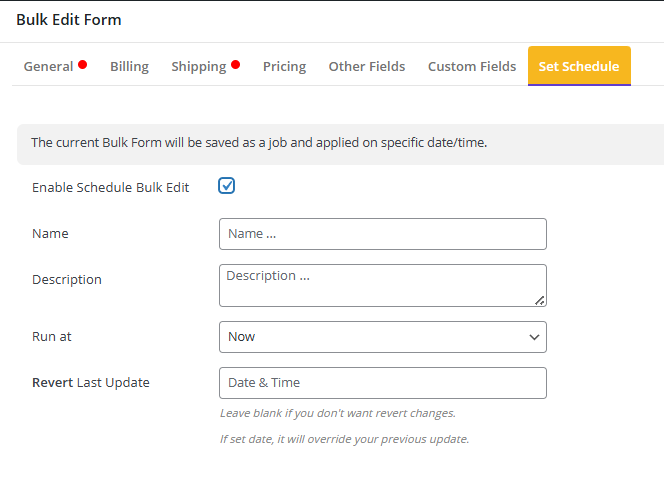
Otherwise, you can go to Schedule tab and set a date and time to apply changes in the future.
Read More : Big Update: Schedule Bulk editing Process in All iThemeland Bulk Edit Plugins
4. Maintain Clear Communication with Customers
Bulk edits (e.g., status changes or shipping updates) should trigger automated customer notifications to prevent confusion.
How to Implement?
- Use the AutomateWoo plugin for status-based alerts.
- Personalize messages (e.g., “Your order #1234 has shipped – track it here!”) in order notes.
Why It Matters?
- Improves transparency and trust.
- Reduces support inquiries (“Where’s my order?”).
5. Monitor and Audit Changes
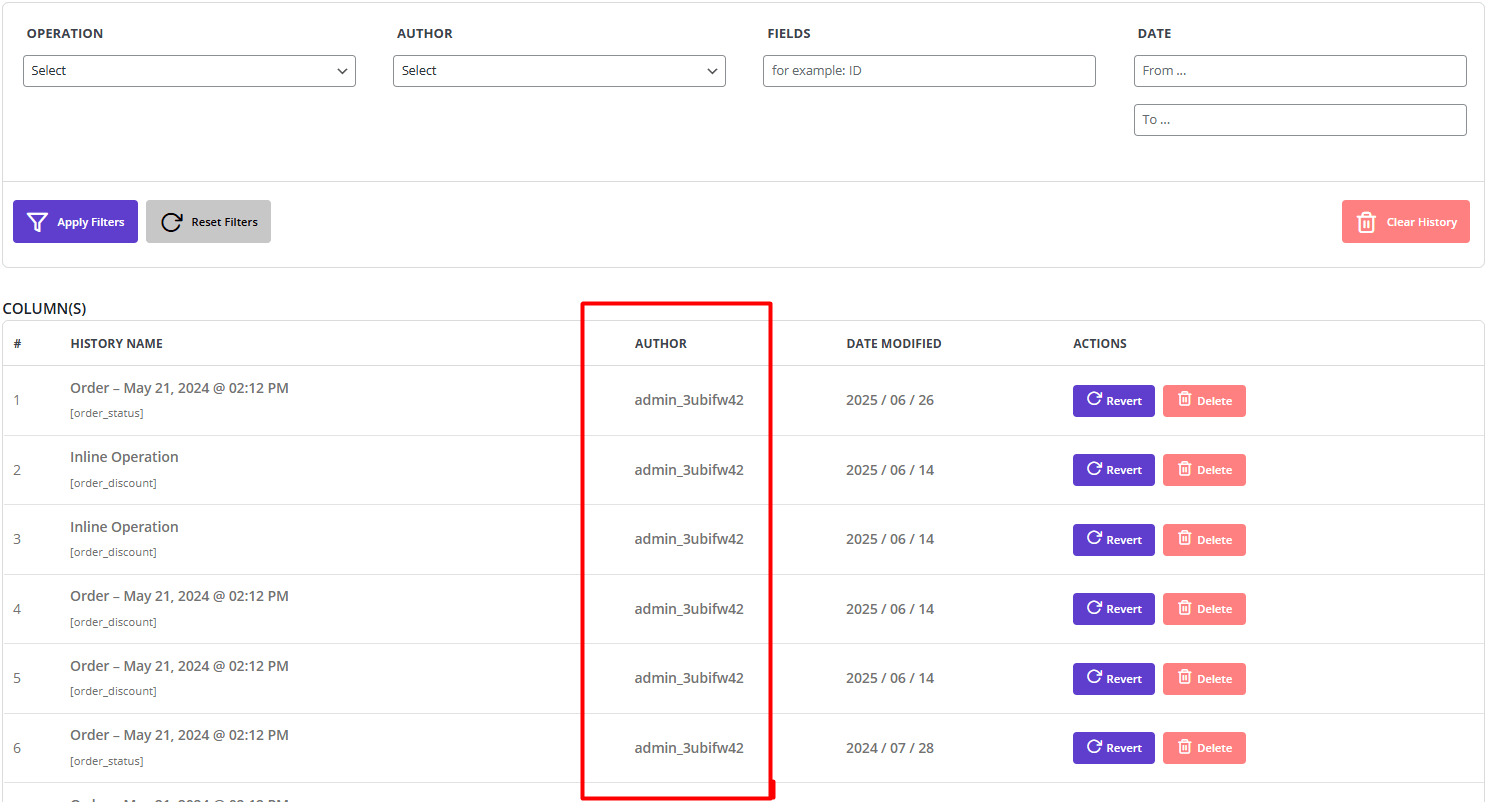
Track all bulk modifications to identify errors or unauthorized actions.
How to Implement?
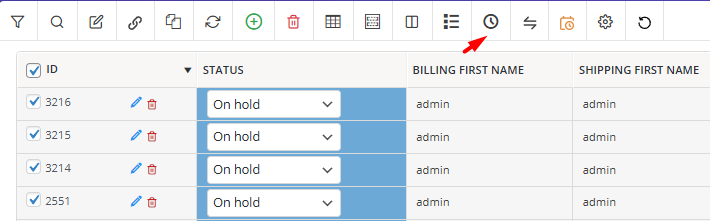
- Open the undo form by clicking on the History tool in the WooCommerce orders bulk edit plugin
- Monitor all bulk edit actions in the History form.
Why It Matters?
- Ensures accountability among team members.
- Helps troubleshoot fulfillment bottlenecks.
OBULKiT – Bulk Edit WooCommerce Orders
The easy way to avoid mistakes when bulk editing WooCommerce orders
Conclusion
Bulk order editing is useful, but it should never be treated as a simple one-click task. When order data, customer communication, stock changes, payment details, and shipping information are involved, every bulk action needs backup, testing, filtering, and review.
The safest approach is to start with a small group of orders, check the result, and then apply the same change to a larger filtered list. This reduces the risk of wrong status updates, missing customer notifications, or changing orders that should not be edited.With OBULKiT – Bulk Edit WooCommerce Orders, store owners and WooCommerce managers can handle bulk order processing more carefully. Advanced filters, table editing, bulk edit forms, history, and undo options make it easier to avoid costly mistakes and keep order management accurate.
FAQ
1. What are the most common bulk order editing mistakes in WooCommerce?
The most common mistakes include editing orders without a backup, applying changes to the wrong order group, ignoring order dependencies, not testing changes first, and forgetting to notify customers after important order updates.
2. Why is editing orders in bulk risky?
Editing orders in bulk is risky because one wrong action can affect many orders at the same time. This can change order statuses, shipping data, customer notes, or fulfillment details across a large number of orders.
3. How can I avoid errors in WooCommerce bulk order processing?
You can avoid errors by backing up order data, filtering orders carefully, testing changes on a small group, reviewing connected data, and checking the final result before saving large updates.
4. Should I back up orders before bulk editing them?
Yes. A backup is important before any bulk order edit because it gives you a recovery option if the wrong orders are changed or important order data is overwritten.
5. Can I undo WooCommerce bulk order edits?
It depends on the method or tool you use. The OBULKiT plugin includes history and undo options that can help store managers review and reverse bulk changes when needed.
6. What order fields can be edited in bulk?
Common fields include order status, shipping details, billing information, customer notes, order date, payment method, and other order-related fields depending on your WooCommerce setup.
7. When should I use a bulk order editing plugin?
Use a bulk order editing plugin when WooCommerce’s default order management is too slow or limited, especially if you need advanced filtering, inline editing, history, undo, or large-scale order updates.