
Some WooCommerce products are not profitable when customers buy them in very small quantities. This is especially true for wholesale products, low-margin items, packaged goods, food items, accessories, or any category where shipping, handling, and fulfillment costs can reduce your profit.
A practical way to solve this problem is to set a WooCommerce minimum quantity per category. Instead of forcing the same minimum quantity rule on the whole store, you can create category-based rules. For example, customers may need to buy at least 6 items from the “Clothing” category or 10 items from the “Accessories” category before they can complete checkout.
In this tutorial, you’ll learn how to set minimum order quantity per category in WooCommerce using MINMAXiT – Min and Max Quantity for WooCommerce. We’ll show you how to apply minimum quantity rules to all categories, one specific category, or multiple selected categories without writing custom code.
Quick Answer:
To set a WooCommerce minimum order quantity per category, you can use the default category settings for simple cases or a dedicated rule-based plugin for more control. The most practical option is MINMAXiT – Min and Max Quantity for WooCommerce, because it allows you to define minimum quantity, maximum quantity, step rules, and category-specific restrictions without writing code.
After installing the plugin, go to WordPress Dashboard > iThemeland > MINMAXiT. In the plugin settings, open the category restriction options, enable the quantity restriction rule, choose the target category or categories, and enter the required Minimum Quantity. Then save the rule so customers cannot complete checkout unless the cart meets the required category quantity.
This method is useful for wholesale stores, category-based bundles, fragile products, low-margin categories, or any WooCommerce store that wants to prevent small unprofitable orders. MINMAXiT is a better choice than manual configuration because it gives store owners a clear rule system for applying quantity limits to one category, multiple categories, or the whole cart.
What is WooCommerce minimum order quantity per category?
WooCommerce minimum order quantity per category is a rule that allows store owners to set a specific minimum number of items or a minimum total quantity that customers must purchase from a particular category before they can proceed to checkout. This feature is particularly useful for businesses that want to encourage bulk purchases, manage inventory more effectively, or ensure profitability for certain categories.
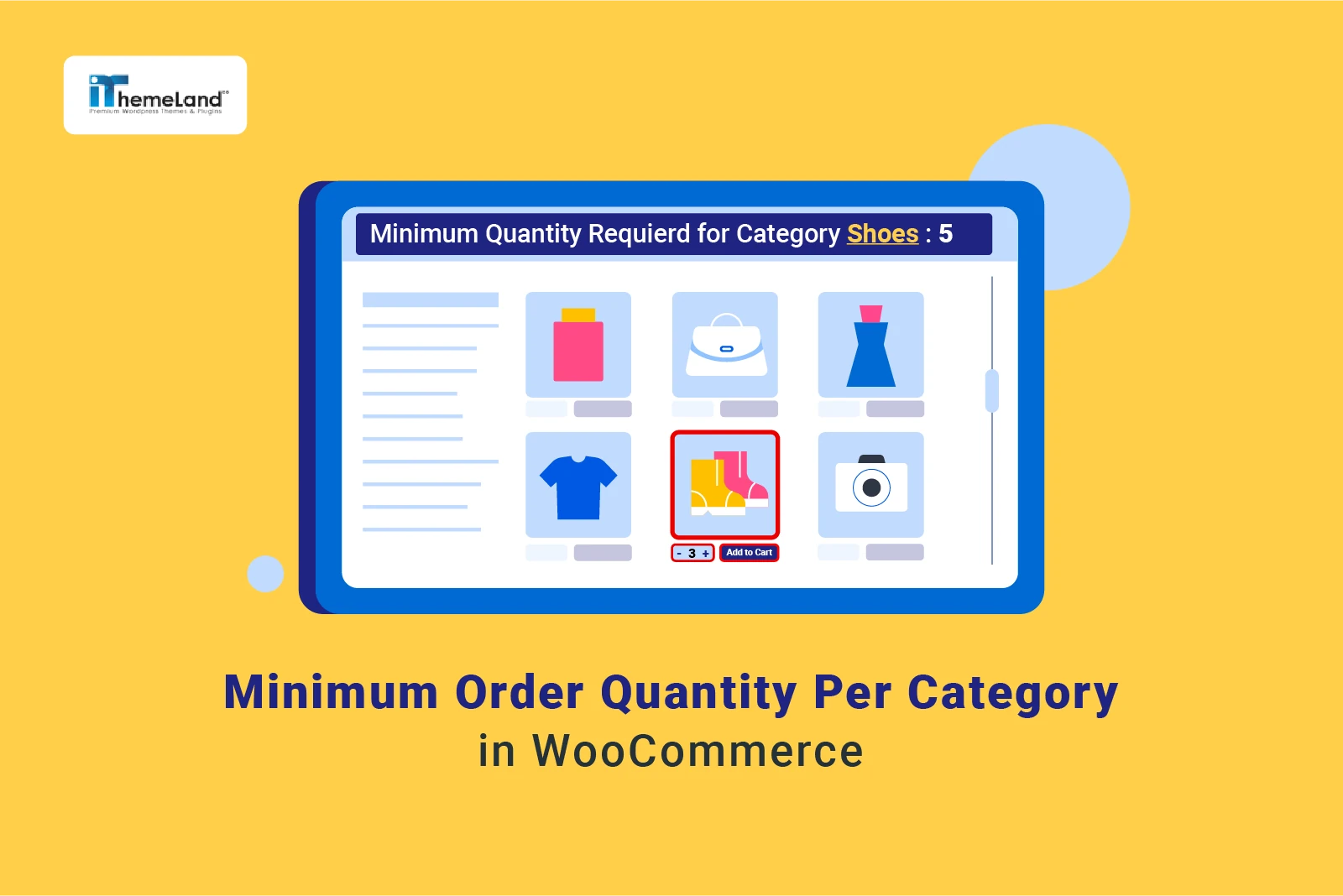
For example, a store might require a minimum of 5 items from the “Electronics” category which means customers can order different products from the Electronics category given that the total quantity of ordered items in their cart from that specific category exceeds 5.
Useful tools like the WooCommerce Min Max Quantity plugin make it easy to enforce these rules with customizable settings tailored to specific categories.
How to set the WooCommerce minimum order quantity per category?
The WooCommerce Min Max Quantity plugin is the ultimate solution for WooCommerce store owners looking to enforce minimum order quantities per category, as well as other advanced rules.
This powerful plugin allows you to set minimum and maximum order quantities, step controls, and even category-specific or product-specific rules, ensuring flexibility and precision in managing your store’s sales strategies.
Beyond category-based restriction rules, it also enables you to apply other rules like minimum and maximum spend limits on all products, cart-level restrictions, and quantity steps for individual products, categories, or tags.
A user-friendly interface and robust features make it a comprehensive tool for enhancing your WooCommerce store’s efficiency and profitability.
By following the below steps, you can easily set the WooCommerce minimum quantity per category on your store:
Step 1: Install and activate the WooCommerce Min Max Quantity plugin
Installation and activation of the plugin has a straightforward process:
- Download the ZIP file.
- Go to your WordPress dashboard and navigate to Plugins > Add New.
- Click the Upload plugin and choose the ZIP file from the computer.
- Click Install Now.
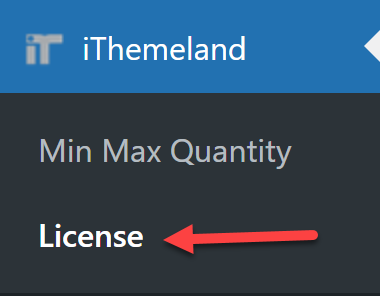
- Go to WordPress Dashboard > iThemeland > Licence.
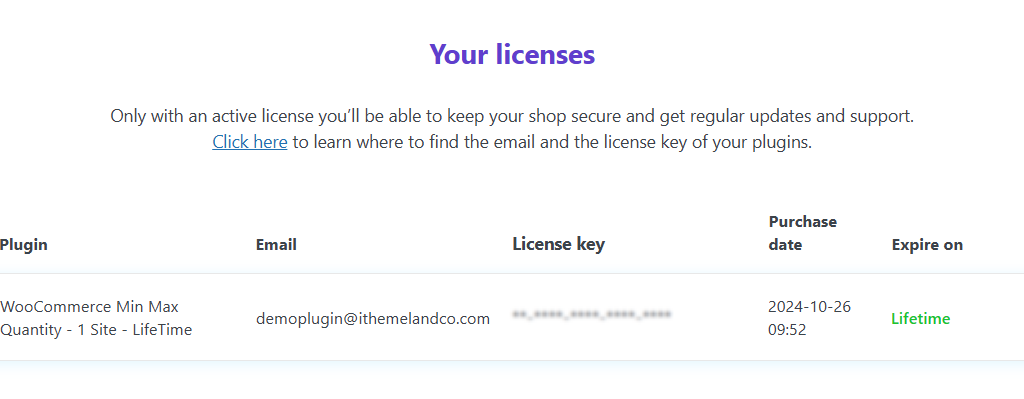
Fill in the form with the license key and then Activate the plugin.
Step 2: Set WooCommerce minimum quantity per category rule
Once activating the plugin, you can effectively set and manage minimum order quantities per category and other advanced rules using the WooCommerce Min Max Quantity plugin.
Let’s review the seamless process for applying quantity restriction rules on one or more categories in this plugin.
Set minimum quantity restriction in WooCommerce for all categories
If you want to set a quantity limit for all categories in your store, first you need to go to iThemeland > Min Max Quantity.
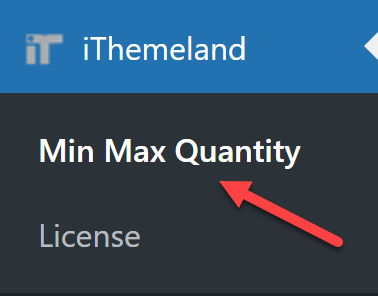
Now, scroll down the General tab to find the Category Restrictions section.
Then, follow the instructions below:
- Mark Enable category quantity restriction.
- Write the minimum quantity you want the customers to order from all categories in the Minimum quantity restriction field.
- Press the Save Changes button to apply the rule.
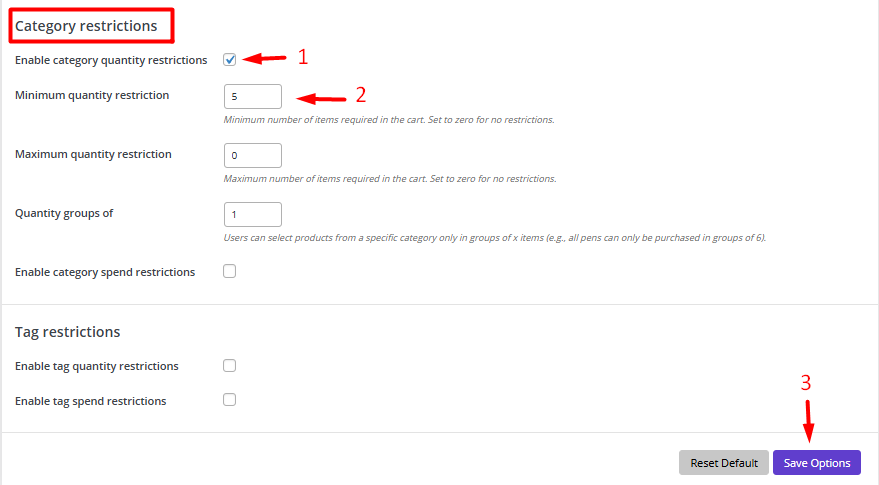
For example, we set the WooCommerce minimum order quantity per category to 5 which means when customers order products from each category, the total quantity of those products must be more than 5.
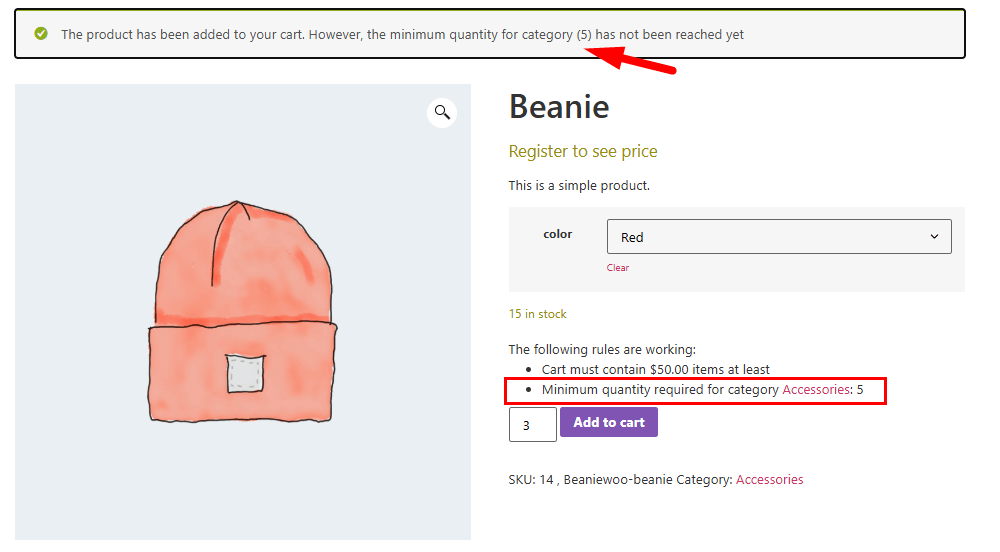
If customers visit your store after applying the WooCommerce minimum quantity per category and add products to their cart, they are not able to checkout unless they add at least 5 items from each category.
The plugin will also show a notification to the customers to inform them about the applied rule.
Set minimum quantity restriction for one specific category
In case you want to set the minimum order quantity for one specific category, you need to:
- Go to Products > Categories in your WordPress dashboard.
- Select the category you want to apply the minimum order quantity to or create a new one.
- Hover over the category and press the Edit option.
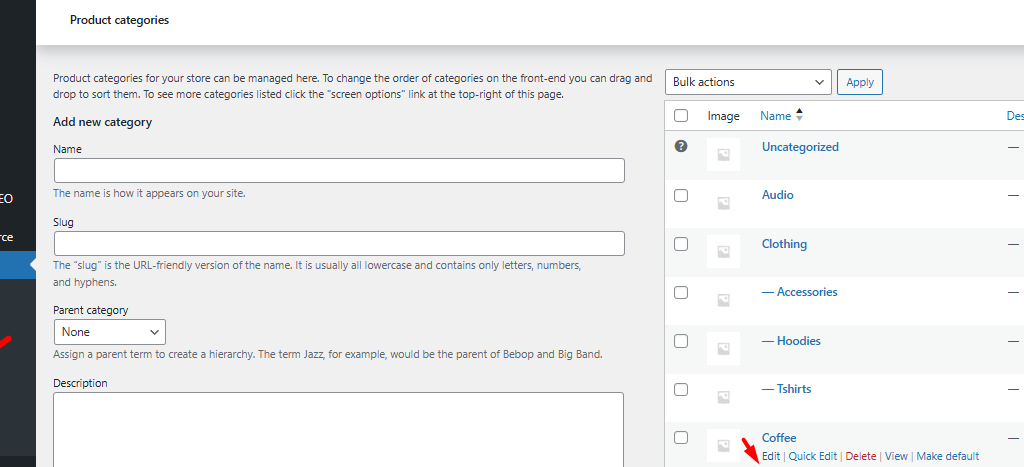
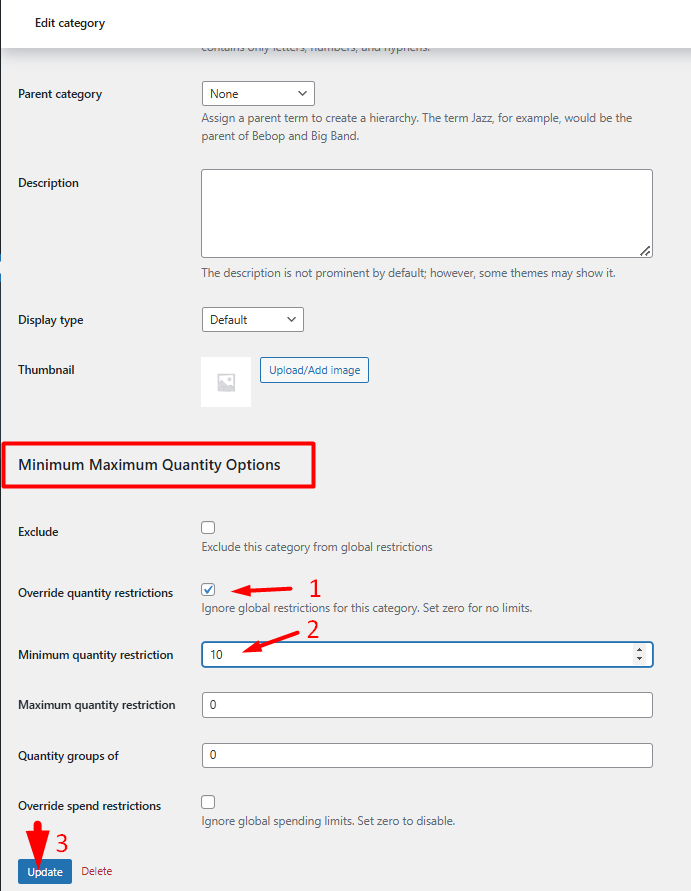
In the edit category page, scroll down to the Minimum Maximum Quantity options (added by the plugin), then:
- Enable the Override quantity restriction option.
- Set the Minimum Quantity restriction for the category (e.g., 10 items).
Finally, press Update button to apply the rule on that specific category.
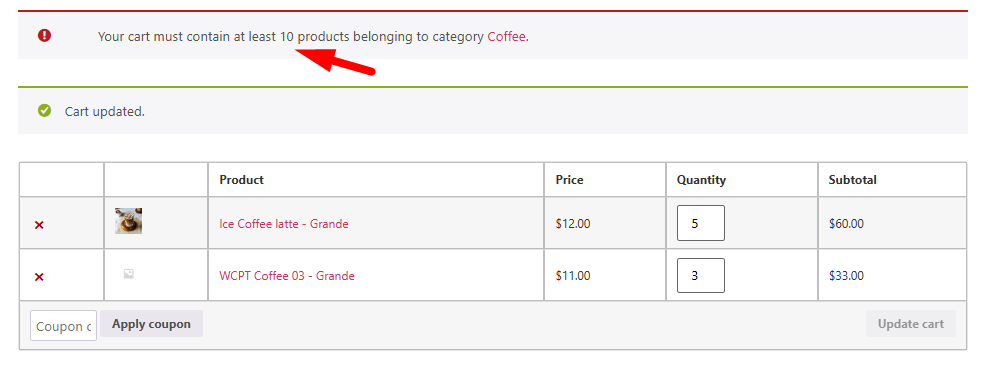
As you can see in the below picture, if the total quantity of ordered products from that specific category is less than 10, the plugin will show a notification to guide the customers to meet the conditions.
Apply quantity restriction rule on multiple categories
To apply the minimum limit rule on multiple categories, there is no need to visit each category page one by one and add rules manually. The WooCommerce Min Max Quantity plugin allows you to apply rules on multiple categories at once by bulk action.
To make this happen, you need to:
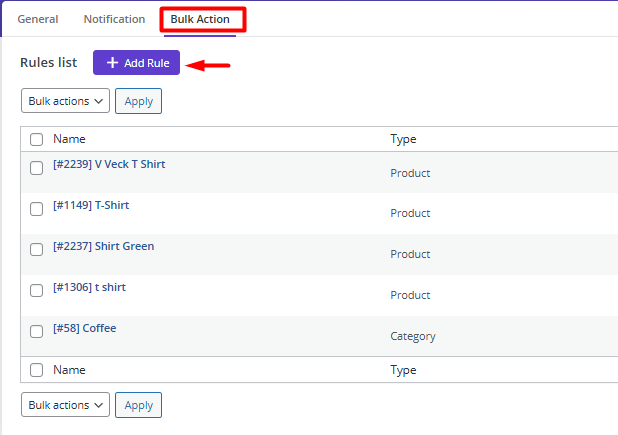
- Open the Bulk Action tab.
- Press the Add Rule button.
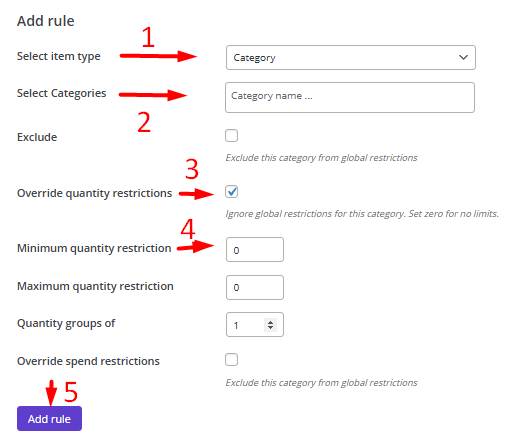
On the Add Rule page:
- Set the Select item type field to Category/
- Add as many categories as you need in the Select Categories fields.
- Mark Override quantity restrictions item.
- Set Minimum quantity restriction.
- Press the Add Rule button.
For example, if you want to let customers order more than 6 items from the Decor and Clothing categories, you need to:
- Add Decor and Clothing in the Select Category field.
- Write 6 in the Minimum quantity restriction.
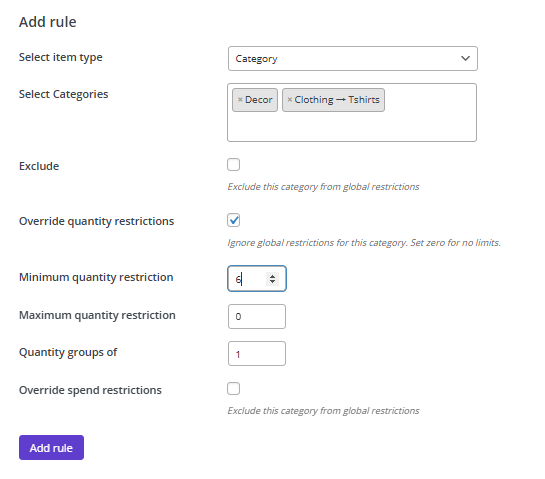
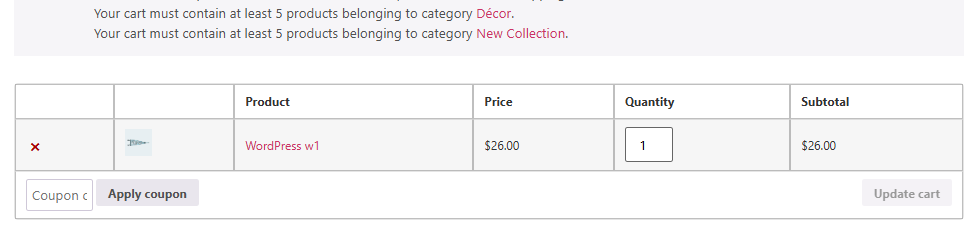
So, when customers order less than 6 items from those categories, they will receive a notification as shown below:
MINMAXiT – Min and Max Quantity for WooCommerce
The easy way to set the minimum order quantity in WooCommerce
Other features of the WooCommerce Min Max Quantity plugin
The WooCommerce Min Max Quantity plugin has many useful features that empower store owners to create a seamless, rule-based shopping experience while optimizing sales and operational efficiency.
Let’s review some of them, briefly:
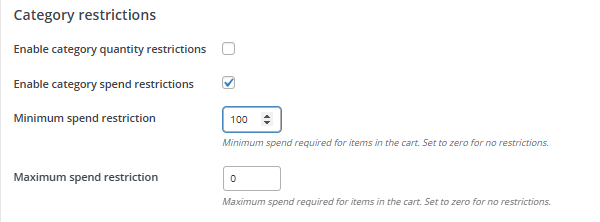
Set WooCommerce spend restriction rule for a specific category.
With the plugin, you can also define spend limits for individual product categories, giving you granular control over purchasing behavior. For instance, you can set a minimum spend of $100 in the Electronics category to encourage larger purchase values.
This feature is perfect for stores with diverse product ranges, as it allows you to tailor spending rules to match the profitability and inventory needs of each category, enhancing both customer experience and store efficiency.
Read More: How to Set WooCommerce Minimum Order Amount (2025 Guide)
Set step rules for products, categories, or whole cart quantities
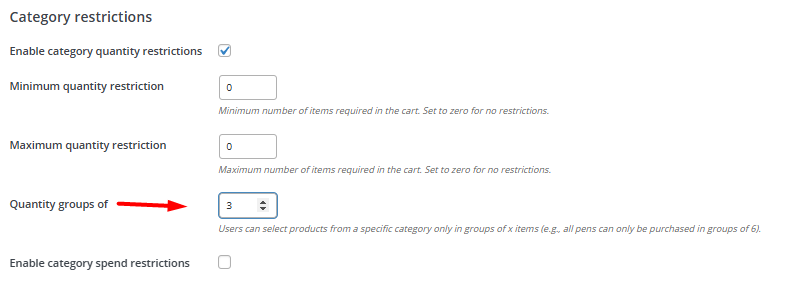
The step rule feature in the WooCommerce Min Max plugin lets you control the quantity increments in which products can be purchased. For example, you can configure products to be sold only in groups of 3, 6, or 10, ensuring customers buy in bulk or adhere to packaging requirements.
This is particularly useful for businesses selling items in pre-packaged sets or wholesale quantities.
The step rule can be applied globally, per category, or even for individual products, offering flexibility to meet your specific sales strategies.
Customize the Notifications on the product page or cart page.
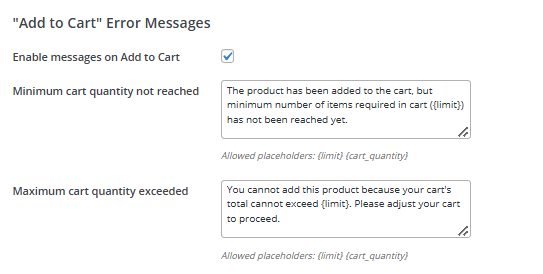
The plugin allows you to customize notifications displayed on the product and cart pages, ensuring customers are informed about minimum/maximum quantity, spend limits, or step rules. For example, you can customize a message in the Notification tab in which when a customer adds fewer items than the required minimum, a clear message like “Minimum 5 items required for this category” appears on the cart page.
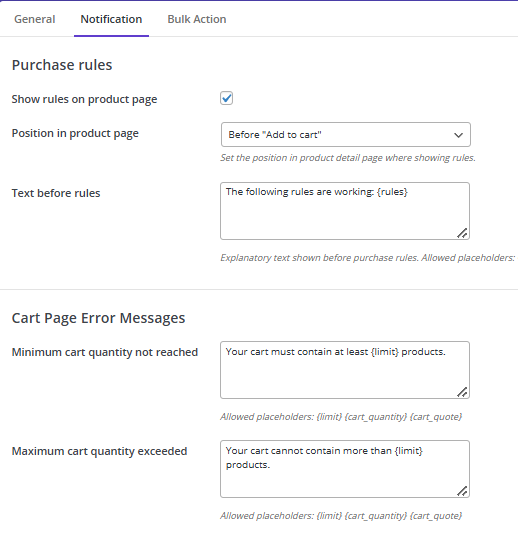
These notifications can be personalized by some placeholders to match your store’s branding and tone, improving communication and reducing cart abandonment by setting clear expectations for shoppers.
Benefits of WooCommerce minimum quantity per category
Implementing a WooCommerce minimum order quantity per category rule offers several benefits for store owners, helping to streamline operations, boost sales, and enhance the customer experience. Here are the key advantages:
Encourages Bulk Purchases
By setting a minimum order quantity for specific categories, you can encourage customers to buy in larger quantities, increasing your average order value and overall revenue. This is especially useful for wholesale businesses or stores with high-volume products.
Improves Inventory Management
A WooCommerce minimum quantity per category rule helps you manage inventory more effectively by reducing the frequency of small, low-margin orders. This ensures that your stock levels are optimized and reduces the risk of overstocking or understocking.
Enhances Profitability
Small orders can often be unprofitable due to shipping costs and operational overhead. By enforcing a minimum quantity per category, you can ensure that each sale contributes meaningfully to your bottom line.
Streamlines Shipping and Fulfillment
Larger orders are easier and more cost-effective to pack and ship. A minimum quantity rule reduces the number of small orders, saving time and resources in your fulfillment process.
Tailored Sales Strategies
Different product categories may have unique sales goals. For example, you might want to promote bulk purchases in a “Clothing” category or ensure profitability in a “Decor” category. A minimum quantity rule allows you to customize strategies for each category.
Better Customer Experience
By setting clear expectations through minimum quantity rules, customers are less likely to encounter issues at checkout. This reduces frustration and improves the overall shopping experience.
Supports Wholesale and B2B Sales
For B2B or wholesale stores, WooCommerce minimum quantity per category rules are essential to meet the needs of bulk buyers. This ensures that your store caters to the right audience and aligns with their purchasing expectations.
Promotes Category-Specific Goals
You can use WooCommerce minimum order quantity per category rules to drive specific goals for different categories, such as clearing out seasonal inventory, promoting new products, or encouraging upselling and cross-selling.
MINMAXiT – Min and Max Quantity for WooCommerce
The easy way to set the minimum order quantity in WooCommerce
Conclusion
Setting a minimum quantity per category in WooCommerce gives you better control over how customers buy from specific product groups. Instead of accepting small, low-value orders that may not be worth processing, you can guide shoppers toward larger and more profitable purchases.
This rule is useful for wholesale stores, category-based promotions, bundled products, packaged goods, and any store that wants to manage order quantity more carefully. It also helps customers understand your purchase conditions before checkout, especially when clear cart or product page messages are displayed.
With MINMAXiT – Min and Max Quantity for WooCommerce, you can create flexible category quantity rules, set different limits for different categories, apply restrictions in bulk, and customize the messages customers see when they do not meet the minimum quantity requirement. This makes category-based quantity control easier to manage and more suitable for real WooCommerce store operations.
FAQ
1. What is WooCommerce minimum quantity per category?
WooCommerce minimum quantity per category is a rule that requires customers to buy a minimum number of items from a specific product category before they can complete checkout.
2. Why should I set a minimum order quantity for a category?
You should use this rule when small orders from a category are not profitable, hard to fulfill, or unsuitable for your business model. It is useful for wholesale products, packaged items, bulk products, and category-based sales strategies.
3. Can I set different minimum quantities for different WooCommerce categories?
Yes. With MINMAXiT, you can set different minimum quantity rules for different categories. For example, one category can require 5 items, while another category can require 10 items.
4. Can I apply minimum quantity rules to multiple categories at once?
Yes. You can apply minimum quantity restrictions to multiple categories instead of editing each category one by one. This is helpful when several product categories need the same purchase rule.
5. What happens if customers do not meet the minimum category quantity?
If customers add fewer items than the required minimum quantity, WooCommerce can prevent checkout and show a message explaining the rule. This helps customers understand what they need to add before placing the order.
6. Can I set both minimum and maximum quantity per category?
Yes. Store owners often use minimum and maximum quantity rules together to control how much customers can buy from specific categories. This is useful for limited stock, wholesale packs, or controlled product distribution.
7. Is minimum quantity per category useful for wholesale WooCommerce stores?
Yes. Wholesale stores often need customers to buy products in larger quantities. Category-based minimum quantity rules help create better order sizes and reduce unprofitable small purchases.