

Introduction
A customer who has spent $1,000 with your store is not in the same relationship with your business as someone placing a first order. High-value customers have already demonstrated trust, returned to buy, or placed larger orders. A well-timed VIP gift gives you a way to recognize that history without turning every loyalty campaign into another percentage discount.
With GIFTiT – Free Gifts for WooCommerce, you can make previous customer spending part of a free-gift rule. Instead of checking only the current cart, the rule can use the customer-value condition Spent Total and an All Time period. That makes it possible to create a simple VIP scenario such as: customers whose lifetime spend reaches at least $1,000 can receive a premium gift.
In this guide, we will build that exact campaign step by step. We will use a Simple Adjustment rule, offer one gift from a dedicated VIP Gifts category, and limit eligibility to customers whose all-time spending is at least $1,000. We will also look at testing, gift selection, common setup mistakes, and ways to plan multiple VIP thresholds without confusing the customer experience.
If you are planning more than a VIP campaign, read our Complete Guide to WooCommerce Free Gifts for a broader overview of free-gift methods, campaign ideas, and practical WooCommerce gift strategies.
Quick Answer: How Can You Reward VIP Customers Based on Lifetime Spend?
Create a new rule in GIFTiT and choose Simple Adjustment. Set the number of gifts in the Get field, then choose the product or category you want VIP customers to receive. In Conditions, add Customer Value → Spent Total, set the period to All Time, choose At Least, and enter your VIP threshold—for example, $1,000. Save the rule and test it with customer accounts whose historical spending falls below and above the threshold.
A practical configuration is: Spent Total → All Time → At Least → $1,000. With one gift configured in the Get section, qualifying customers can receive the VIP reward according to the gift experience you choose.
What Is a Lifetime Spend-Based VIP Gift?
A lifetime spend-based VIP gift is a reward that becomes available because of how much a customer has spent with your store across their purchase history, rather than because the current cart alone reaches a certain value. In GIFTiT, the important distinction is the period attached to the Spent Total condition. For a lifetime-style rule, the period is set to All Time.
| Promotion Type | What It Evaluates | Example |
| Cart-based gift | The current cart or qualifying purchase | Spend $150 in this cart → get a gift |
| Monthly spend gift | Customer spending during the selected month period | Spend $700 this month → get a gift |
| Lifetime spend VIP gift | Customer Spent Total with the All Time period | Spend at least $1,000 all time → get a VIP gift |
| Order-count reward | Number of qualifying previous orders | Reach a specified order count → unlock a reward |
This distinction matters because “VIP” can mean different things to different stores. It simply describes the customer segment that qualifies for the gift because its all-time Spent Total meets the threshold you define.
Why Reward VIP Customers with Free Gifts Instead of Only Discounts?
Discounts can be useful, but they are not the only way to recognize valuable customers. A free gift lets you add something to the order experience while keeping the regular selling price of the customer’s chosen products intact. That can be especially useful when the purpose of the campaign is recognition rather than short-term price reduction.
- Recognize customers who have already created meaningful value for the store.
- Make a high-spend milestone feel more exclusive than a generic sitewide promotion.
- Introduce a premium sample, accessory, or complementary product to proven buyers.
- Create a different reward experience for high-value customers without requiring a coupon code.
- Use the value of the gift to match the importance of the customer segment.
The threshold should come from your own customer data and margins. A $1,000 VIP threshold is only an example for this tutorial; the right figure for a store selling $20 products will be very different from one selling $800 products. WooCommerce customer reporting can help you inspect customer total spend before deciding where a meaningful VIP line should sit.
Read More: Free Gifts vs Discounts: Which Strategy is Better for Your Business?
How to Offer VIP Customer Gifts Based on Lifetime Spend in WooCommerce
We will use one consistent campaign throughout the setup:
| Setting | Tutorial Example |
| VIP requirement | At least $1,000 in all-time spending |
| Method | Simple Adjustment |
| Gift quantity | 1 |
| Gift source | VIP Gifts category |
| Gift experience | Customer chooses the gift |
| Key condition | Spent Total → All Time → At Least → 1000 |
Step 1 – Install GIFTiT and Create a New Rule
Install and activate GIFTiT, then open the rule management area from your WordPress dashboard and click Add Rule. Give the rule a name that makes its purpose obvious to anyone managing the store later.
For this example, use a name such as $1,000 Lifetime Spend VIP Gift. A clear internal name is useful when you later add seasonal gifts, cart-value promotions, category-based campaigns, or additional customer-targeted rules.
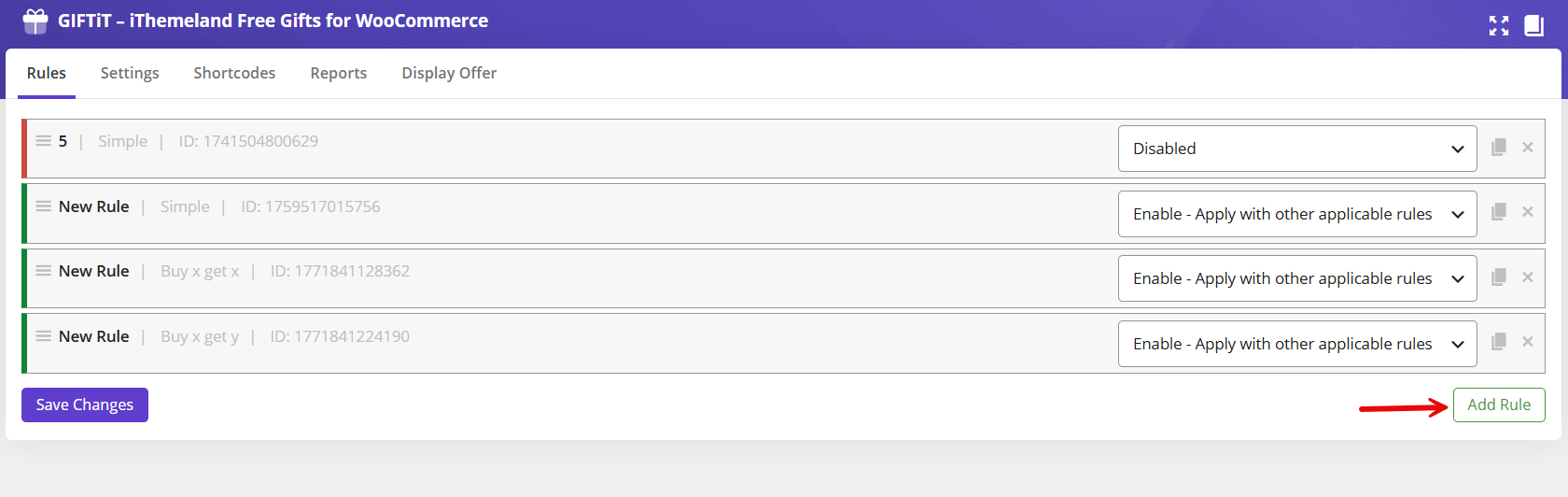
Step 2 – Choose the Simple Adjustment Method
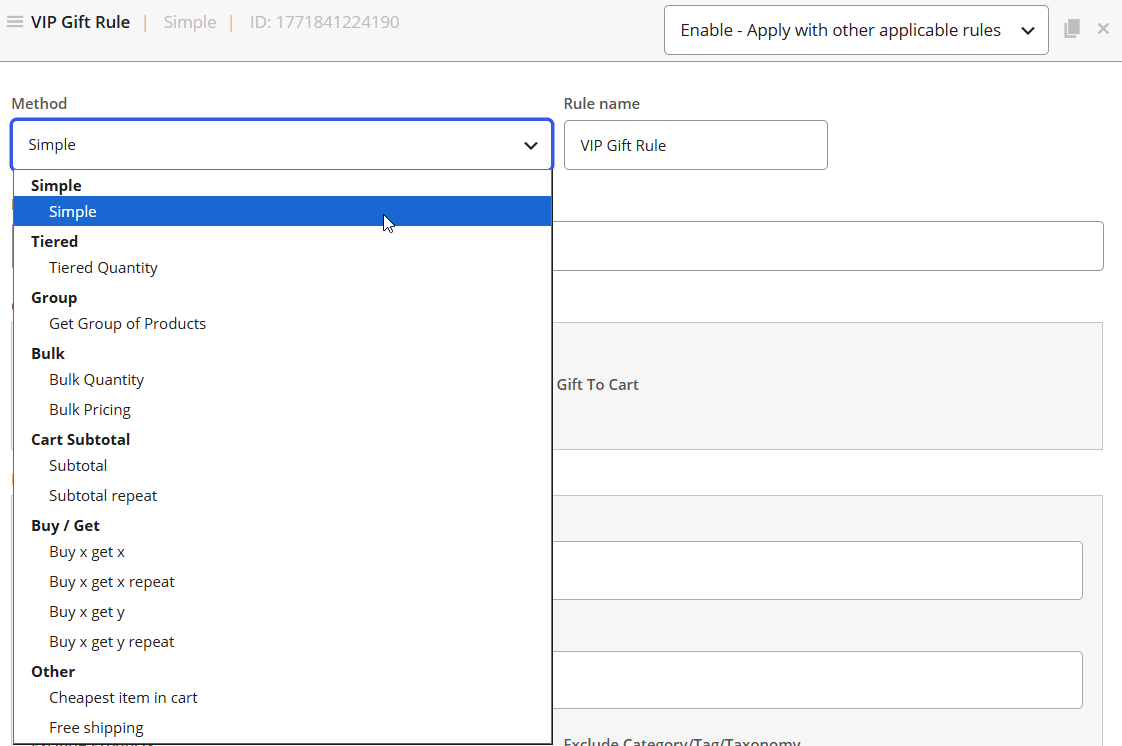
Choose Simple Adjustment in the Method field. This method fits the tutorial because the customer does not need to buy a particular product or category to qualify. The key eligibility requirement will be added later in Conditions using the customer’s Spent Total.
This keeps the rule easy to understand: the Get section defines the reward, while the Conditions section decides which customers are eligible for it.
Step 3 – Set How Many Gifts VIP Customers Can Receive
In Quantities & Settings, set Get to 1. This means the rule offers one gift when the customer meets the VIP condition.
- Get: 1 — one gift is available through this rule.
- Auto Add Gift to Cart: leave it off in our example because we want the customer to choose from the VIP gift selection.
If your campaign is built around one fixed gift, automatic addition may be more convenient. If several premium products are available, leaving Auto Add disabled can make the reward feel more like a VIP choice.
Step 4 – Choose the VIP Gift Products
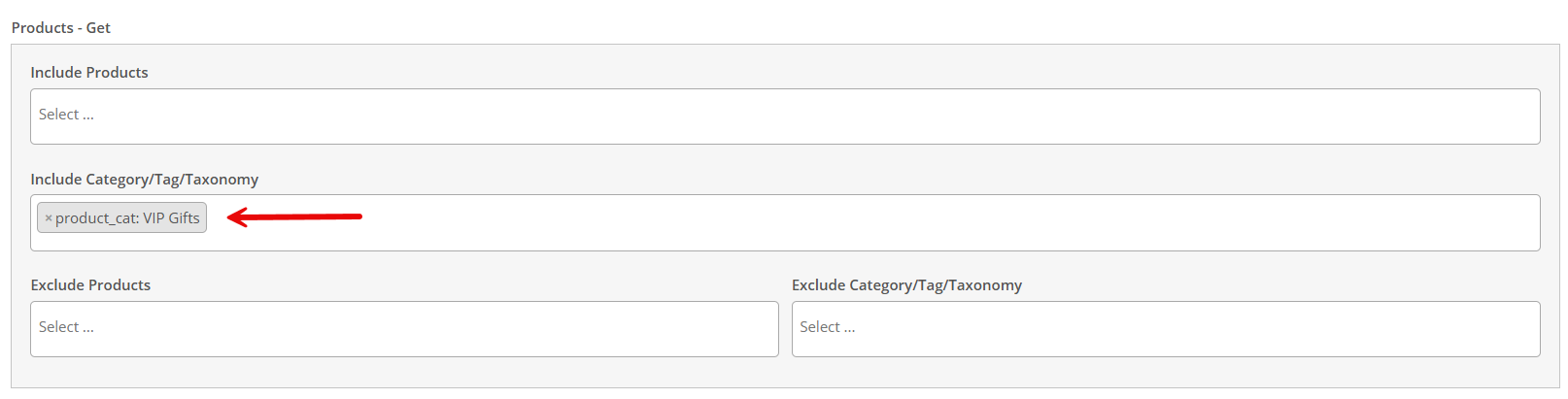
Move to the Get section. GIFTiT lets you define products or categories/tags/taxonomies that can be used as gifts. For this tutorial, imagine that you have created a WooCommerce category called VIP Gifts containing a small curated selection of premium rewards.
- Premium branded mug
- Exclusive T-shirt
- Accessory
- Sample bundle
Add the VIP Gifts category to the relevant Include Category / Tag / Taxonomy field. Keeping VIP rewards in a dedicated category can make campaign maintenance easier because you can change the available selection without rewriting the customer-spend condition.
Step 5 – Add the Lifetime Spend Condition
Now add the condition that turns this general gift into a VIP reward. Open the Conditions section, click Add Condition, and select Spent Total under Customer Value. Then set the period to All Time, choose At Least, and enter 1000.
- Open Conditions and click Add Condition.
- Choose Customer Value → Spent Total.
- Set the period to All Time.
- Choose At Least as the comparison.
- Enter 1000 as the spending threshold.
The completed logic is: Spent Total → All Time → At Least → $1,000. This is the defining configuration for the article. The All Time period is what separates the VIP rule from a campaign based only on spending during the current month.

Step 6 – Save and Test the VIP Gift Rule
Save the rule, then test it with customer histories on both sides of the threshold. Testing a positive case alone is not enough; you also want to confirm that customers below the VIP requirement do not receive the reward.
| Test Customer | All-Time Spend | Expected Result |
| Customer A | $850 | VIP gift should not be available |
| Customer B | $1,250 | VIP gift should be available |
Also verify the selected gift product, cart display, and behavior after changing the cart. If your store has existing high-value customers, test with a staging account or a controlled customer record before publishing the promotion broadly.
GIFTiT – Free Gifts For WooCommerce
The easy way to offer VIP customer gifts based on lifetime spend in WooCommerce
Example: Give a Free Gift After $1,000 in Lifetime Spend
Here is the complete tutorial configuration in one table:
| Setting | Value |
| Method | Simple Adjustment |
| Get | 1 |
| Gift Source | VIP Gifts category |
| Auto Add Gift to Cart | Off |
| Condition | Spent Total |
| Period | All Time |
| Comparison | At Least |
| Amount | $1,000 |
| Result | Eligible customer can receive one VIP gift |
The structure is intentionally simple. The gift itself is configured in Get, while the customer’s historical spending is evaluated in Conditions. That separation makes the rule easier to troubleshoot and adapt later.
Lifetime Spend vs. Current Order Value: What’s the Difference?
Lifetime spend and current order value answer two different questions. A current-order or cart-value promotion asks how much the shopper is buying now. A lifetime-spend VIP rule asks how much the customer has spent across the historical period selected by the condition.
Imagine a returning customer has already spent $950 across previous purchases and is shopping again. A cart-value campaign would evaluate the current basket against its own threshold. The VIP rule in this tutorial instead uses Spent Total with All Time to decide whether the customer belongs in the high-spend segment.
This is why you should not substitute a cart subtotal condition when the campaign promise is based on customer history. The marketing message, condition, and testing plan should all refer to the same measurement.
How to Plan Multiple VIP Gift Tiers
Many stores eventually want more than one high-value segment—for example Silver, Gold, and Platinum. GIFTiT supports customer-value conditions that can be used when designing spend-based gift rules, but tier logic should be planned carefully so a customer who qualifies for a higher threshold does not unintentionally receive every lower-tier reward at the same time.
| Illustrative Tier | Lifetime Spend Milestone | Possible Reward |
| Silver | $500+ | Small branded gift |
| Gold | $1,000+ | Premium product |
| Platinum | $2,500+ | Premium gift bundle |
Treat this table as a campaign-planning example, not a claim that a single built-in “VIP tier” feature automatically manages rank progression. The documented GIFTiT approach is condition-based: you create gift rules and use customer-value criteria such as Spent Total and the appropriate period. Before launching overlapping thresholds, configure and test the exact lower and upper eligibility logic available in your current plugin version.
If your immediate goal is simply to reward all customers once they reach a single VIP threshold, the one-rule $1,000 example is the cleanest starting point.
VIP Gift Ideas Based on Customer Lifetime Value
$500 Lifetime Spend – Small Thank-You Gift
For stores with relatively low average order values, a modest milestone can be enough to identify meaningful repeat customers. A branded accessory, sample, or low-cost complementary product can acknowledge the relationship without making the reward disproportionately expensive.
$1,000 Lifetime Spend – Premium Product
At a higher milestone, the gift can feel more substantial. A premium accessory, full-size product, or exclusive branded item can communicate that the customer has reached a more valuable segment.
$2,500 Lifetime Spend – Premium Gift Bundle
For stores where customers can realistically reach much higher lifetime totals, a bundle can create a stronger moment of recognition. The economics still matter: choose a bundle whose cost is sensible relative to the value and margin generated by the segment.
Beauty Store Example
A high-spending beauty customer could choose a premium sample set or a product from a curated VIP collection. The reward can also introduce products the customer has not tried before.
Fashion Store Example
A fashion retailer might offer an exclusive accessory or limited branded item after the customer reaches a meaningful all-time spending milestone. The reward should feel related to the store rather than like a generic giveaway.
Already Managing VIP Customers with Another Plugin?
You may already be using a membership, loyalty, CRM, or customer-management plugin to decide which customers are VIPs. In that case, you do not necessarily need to recreate your VIP criteria based on lifetime spend inside GIFTiT.
If the other plugin identifies VIP customers by assigning a specific WordPress user role, user capability, or user meta value, you can use that information as a condition for your free gift rule. GIFTiT supports customer conditions based on User Role, User Capability, and User Meta, allowing the gift campaign to work with customer data managed elsewhere on your WooCommerce store.
For example, suppose another plugin assigns the following role when a customer reaches VIP status:
User Role: vip_customer
Instead of asking GIFTiT to calculate the customer’s lifetime spend, you can create the gift rule and add a condition that makes the offer available only to customers with that role.

The same idea can be used when VIP status is stored as user metadata. For example, if another system saves a value such as:
Meta Key: customer_level
Meta Value: vip
you can use the corresponding User Meta condition in GIFTiT to target those customers, provided the VIP plugin stores the status in WordPress user data in a format available to the condition.

Lifetime Spend or Existing VIP Status: Which Should You Use?
| Your Store Setup | Recommended Condition |
| GIFTiT should identify high-value customers | Spent Total → All Time |
| Another plugin assigns a VIP user role | User Role |
| VIP status is stored in user meta | User Meta |
| Another system assigns a WordPress capability | User Capability |
This makes the VIP gift rule much more flexible. Lifetime spend is only one way to identify a VIP customer. If another plugin already handles customer segmentation, GIFTiT can use the resulting WordPress customer data as the eligibility condition instead of duplicating the same logic.
Auto-Add the VIP Gift or Let Customers Choose?
There is no single best experience for every VIP campaign. The choice depends on how many gifts are available and how much control you want to give the customer.
| Approach | Good Fit |
| Auto-add | One fixed VIP gift; minimal interaction |
| Customer choice | Several premium rewards; selection is part of the VIP experience |
For the tutorial campaign, customer choice is the better fit because the Get section uses a VIP Gifts category. If you later switch to one fixed premium product, automatic addition can simplify the flow.
Best Practices for WooCommerce VIP Gift Campaigns
- Set the threshold from real store data rather than copying another store’s VIP number.
- Choose a gift that feels meaningfully better than everyday promotional freebies.
- Keep the reward cost proportional to the value and margin of the customer segment.
- Use a dedicated gift category when customers can choose among several VIP rewards.
- Make the campaign message clear about what qualifies the customer for the reward.
- Test customer histories below, at, and above the threshold before launch.
- Review the threshold periodically as your average order value and customer base change.
WooCommerce customer reporting exposes metrics such as total spend and order count, which can help you understand the distribution of customer value before choosing a threshold. The threshold itself remains a business decision based on your catalog, margins, and customer behavior.
Common Mistakes When Setting Up Lifetime Spend Gifts
Using Current Month Instead of All Time
Spent Total can be paired with different periods. If the campaign is advertised as a lifetime-spend VIP reward, selecting Current Month changes the meaning of the rule. Use All Time for the lifetime-style setup described in this article.
Confusing Cart Value with Customer Spent Total
A cart threshold measures the present purchase. Spent Total under Customer Value measures customer spending for the selected period. Use the metric that matches the promise shown to customers.
Choosing an Arbitrary VIP Threshold
A threshold that is too low may make the reward feel like a general promotion; one that is unrealistically high may never be reached. Review your customer spend distribution and choose a milestone that identifies a genuinely valuable segment for your store.
Offering a Gift That Does Not Feel VIP
The word VIP creates an expectation. A reward that customers regularly see in low-value promotions may not feel like recognition. Use a curated or premium gift that is appropriate for the segment.
Testing Only One Customer Account
Test below, at, and above the threshold. If you create several spend-based rules, also test customers who could satisfy more than one condition so you understand exactly which gifts appear.
GIFTiT – Free Gifts For WooCommerce
The easy way to offer VIP customer gifts based on lifetime spend in WooCommerce
Conclusion
A lifetime-spend gift gives you a straightforward way to recognize customers who have already created significant value for your WooCommerce store. Rather than applying the same promotion to everyone, you can use customer purchase history as the eligibility requirement and reserve a more valuable gift for the people who cross your chosen threshold.
In GIFTiT, the core setup is simple: create a Simple Adjustment rule, define the reward in the Get section, and add Spent Total → All Time → At Least with your VIP amount. For the example in this guide, that amount is $1,000 and the reward is one product from a curated VIP Gifts category.
The most important part is not the example dollar amount; it is matching the threshold and gift to your own store economics. Review customer spending, choose a meaningful milestone, make the reward feel exclusive, and test both qualifying and non-qualifying customer histories before launch. You can build the campaign with GIFTiT – Free Gifts for WooCommerce and adjust the reward strategy as your customer base grows.
VIP lifetime-spend rewards are only one way to use gifting across the customer journey. For more methods, examples, and WooCommerce gift campaign ideas, explore our Complete Guide to WooCommerce Free Gifts.
FAQ
1. Can I offer a free gift based on a customer’s lifetime spend in WooCommerce?
Yes. In GIFTiT, you can create a gift rule and use Customer Value → Spent Total with the All Time period, then set a comparison and spending threshold. The gift is configured separately in the Get section.
2. What does “All Time” mean in the GIFTiT Spent Total condition?
For the setup described in this guide, All Time is the period selected for the customer Spent Total condition. It is used when the rule should evaluate historical customer spending rather than only a current-month spending period.
3. Can I give different gifts to different VIP customer levels?
You can plan separate spend-based gift rules for different customer-value thresholds. If thresholds overlap, test the exact rule logic carefully so higher-spending customers do not receive unintended combinations of lower-tier rewards.
4. Can VIP customers choose their own free gift?
Yes. The Get section can include eligible products or categories. When Auto Add Gift to Cart is not used, you can configure a campaign in which qualifying customers choose from the available gift selection.
5. Can a VIP gift be automatically added to the cart?
GIFTiT includes an Auto Add Gift to Cart option. This is useful when the VIP campaign has a fixed gift and you want to minimize extra customer interaction.
6. What is the difference between lifetime spend and current cart total?
Current cart total relates to what the shopper is buying now. The lifetime-style VIP setup in this article uses Customer Value → Spent Total with the All Time period to evaluate historical customer spending for the rule.