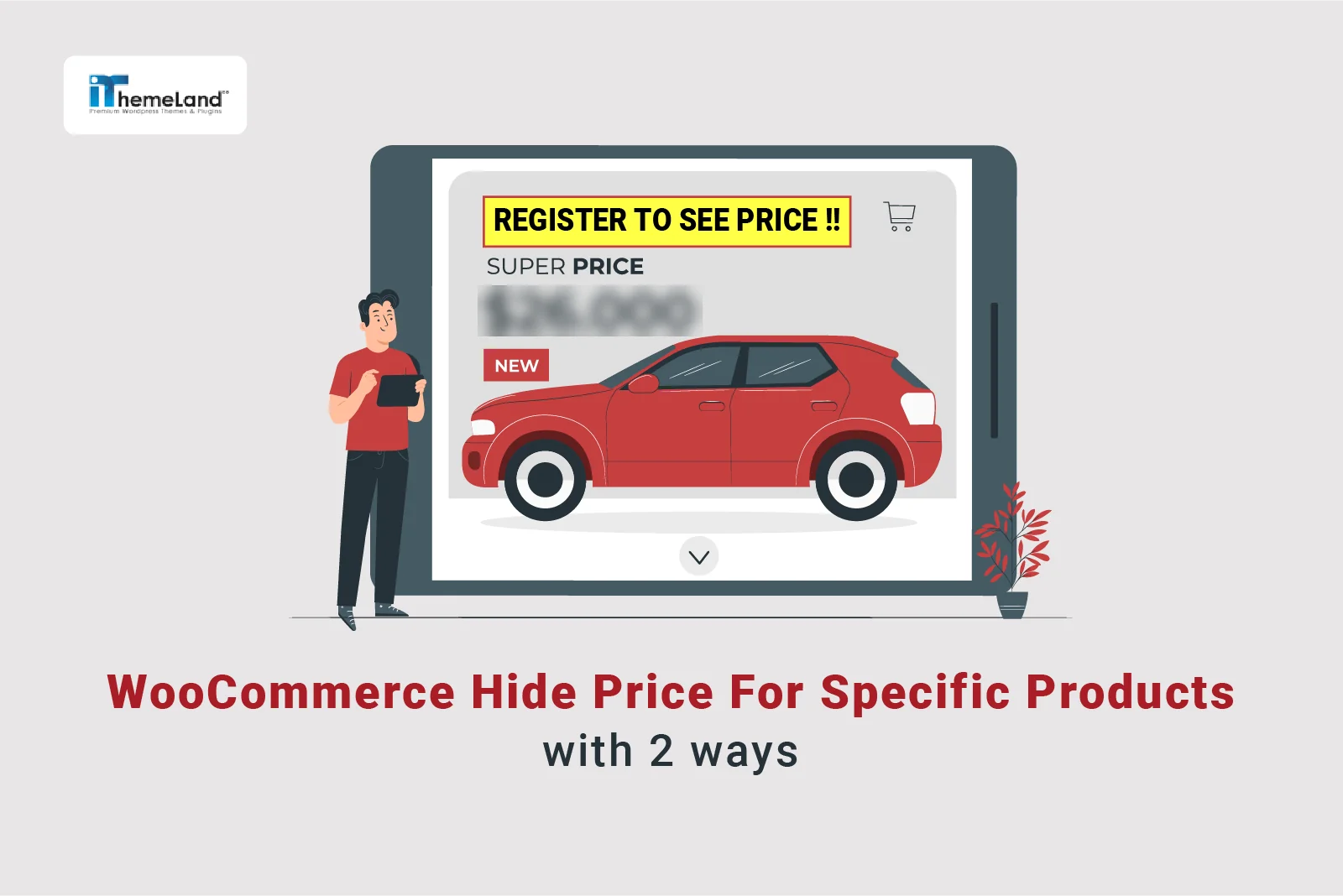

Do you want to hide WooCommerce price for specific products, guest users, selected user roles, or customers who are not logged in? Many store owners use this strategy for B2B stores, wholesale products, custom-priced items, member-only products, quote-based sales, or products that should not show a public price on the shop page.
In this tutorial, you’ll learn how to hide price in WooCommerce using two practical methods: custom code and HIDEPRICEiT – Hide Price & Add to Cart Button for WooCommerce. With this plugin, you can hide product prices, remove the add-to-cart button, replace prices with custom text, and create visibility rules for specific products, guests, user roles, individual customers, and product categories without editing theme files.
What is WooCommerce hide price for specific products?
Hiding the price for a specific product in WooCommerce means that the price of that product is not displayed on the product page, shop page, or any other part of the website where the product is listed.
Instead of showing the price, you might display a message like “Contact Us for Pricing,” “Price Available Upon Request,” or “Login to See Price,” depending on your business needs.
By hiding the product price, businesses can tailor their pricing strategy, improve customer engagement, and maintain flexibility in their sales process.
WooCommerce hide price for specific products programmatically
Inserting code into the functions.php file of your WordPress theme is a common way to add custom functionality to your website. However, it’s important to proceed carefully to avoid breaking your site or causing conflicts. Here are the key considerations before adding cods:
- Backup Your Website: Always create a full backup of your website (files and database) before making any changes. This ensures you can restore your site if something goes wrong.
- Use a Child Theme: If you’re using a custom or third-party theme, modifying the functions.php file directly can cause your changes to be lost when the theme is updated. A child theme ensures your customizations are preserved.
- Ask an expert or use a plugin: If you have no experience in coding, we recommend you ask an expert to insert the code into your website. You can also use the Code snippet plugin to prevent putting your website at risk of making mistakes and getting unintended results.
By taking these precautions, you can safely add custom functionality to your WordPress site by navigating to WordPress Dashboard > Appearance > Theme Editor.
Then, click on the “Theme Functions” file on the right side of the screen.
Now, you can use the following code to easily hide prices of specific products in your online store:
add_filter( ‘WooCommerce_product_get_price’, ‘hide_price_per_product’, 10, 2 );
function hide_price_per_product( $price, $product ) {
$products_where_hide_price = array( 1, 2, 3, 50, 100 ); // IDs of the products.
if ( $product instanceof WC_Product ) {
    $product_id = $product->is_type( ‘variation’ ) ? $product->get_parent_id() : $product->get_id();
} else {
    $product_id = $product;
}

if ( in_array( $product_id, $products_where_hide_price, true ) ) {
    $price = ”;
}

return $price;

}
If you want to hide add to cart button in addition to hiding prices, insert the following code into the Function.php file. Feel free to add the ID of as many products as you need in the yellow highlighted section:
<?php

/* Custom Code to Hide Product Prices for Specified Products
* Place this code in your theme's functions.php file or a custom plugin.
*/

/* Remove price and add-to-cart button for specific products. */

function custom_hide_prices_for_products() {
if ( is_product() ) {
    custom_handle_price_visibility_for_product( get_the_ID() );
}

}

add_action( 'wp', 'custom_hide_prices_for_products' );

/* Modify product display based on product ID.

* @param int $product_id Product ID.*/

function custom_handle_price_visibility_for_product( $product_id ) {
    $hidden_price_product_ids = array( 123, 456, 789 ); // Replace with your product IDs.
    // Check if the current product ID is in the hidden price list.

     if ( in_array( $product_id, $hidden_price_product_ids, true ) ) {
        // Hide price and add-to-cart button.
        add_filter( 'WooCommerce _get_price_html', 'custom_replace_price_with_message', 10, 2 );
        remove_action( 'WooCommerce _single_product_summary', 'WooCommerce _template_single_add_to_cart', 30 );
        remove_action( 'WooCommerce _after_shop_loop_item', 'WooCommerce _template_loop_add_to_cart', 10 );

     } else {

         // Ensure filters and actions are restored for other products.
        remove_filter( 'WooCommerce _get_price_html', 'custom_replace_price_with_message', 10, 2 );
        add_action( 'WooCommerce _single_product_summary', 'WooCommerce _template_single_add_to_cart', 30 );
          add_action( 'WooCommerce _after_shop_loop_item', 'WooCommerce _template_loop_add_to_cart', 10 );

}

}

     add_action( 'WooCommerce _before_shop_loop_item', 'custom_handle_price_visibility_for_product', 5 );

/* Replace product price with a custom message.
*@param string $price Existing price HTML.
* @param object $product Product object.
* @return string Modified price HTML.
*/

function custom_replace_price_with_message( $price, $product ) {
    return '<span style="color: red; font-size: 14px;">Call our office at <strong>123.456.7890</strong> for pricing information.</span>';

}
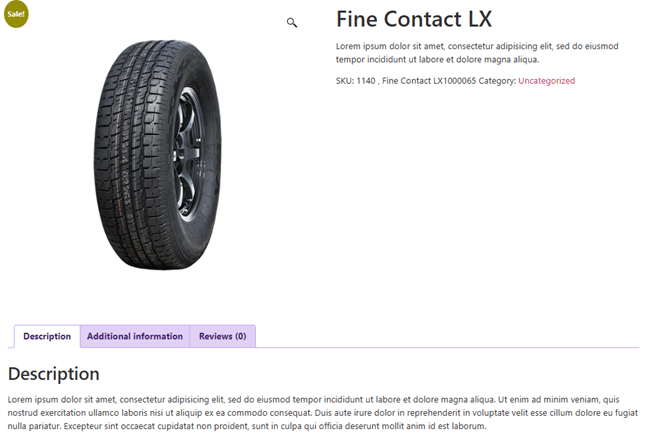
By running this code, the result for the specified products is like below:
WooCommerce hide price for specific products with plugin
The best tool to hide prices and add to cart buttons for specific products or categories is the WooCommerce hide price and add to cart plugin. This lightweight and user-friendly plugin allows store owners to conceal product prices from specific user roles, encouraging them to log in or contact the store for pricing details.
The plugin is easy to configure, supports role-based pricing visibility, and integrates seamlessly with WooCommerce.
With its customizable settings, you can hide prices globally or for specific products or categories, ensuring your targeted audiences can see the prices and order products.
It’s a must-have tool for businesses looking to control price visibility and enhance customer engagement.
To hide prices for specific products in WooCommerce with this powerful plugin, follow the below steps:
Step 1: Install and activate WooCommerce hide price plugin
To install and activate the WooCommerce hide price plugin, download the plugin ZIP file then log in to your WordPress admin dashboard.
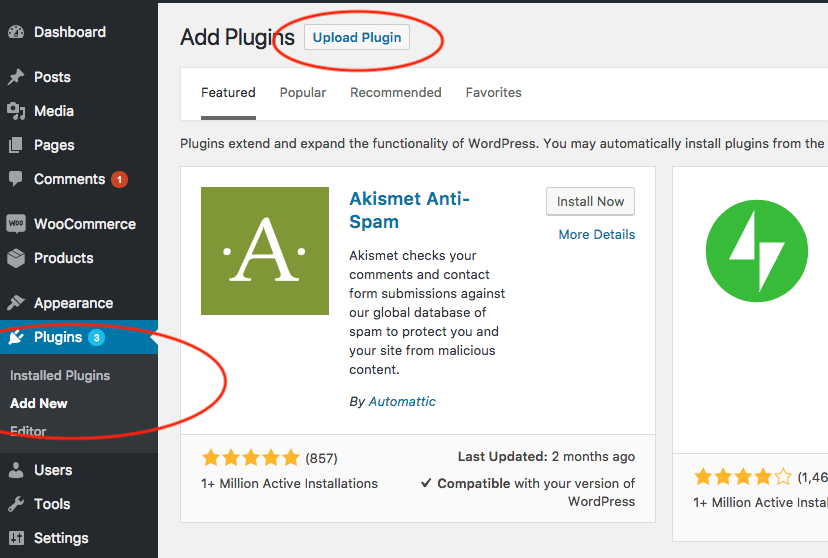
Now, by going to Plugins > Add New and clicking on the Upload Plugin, you can choose the downloaded ZIP file and install it on your website by pressing Install Now button.
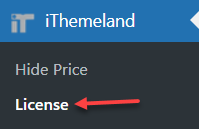
After installation, go to IThemeland > License in your WordPress dashboard.
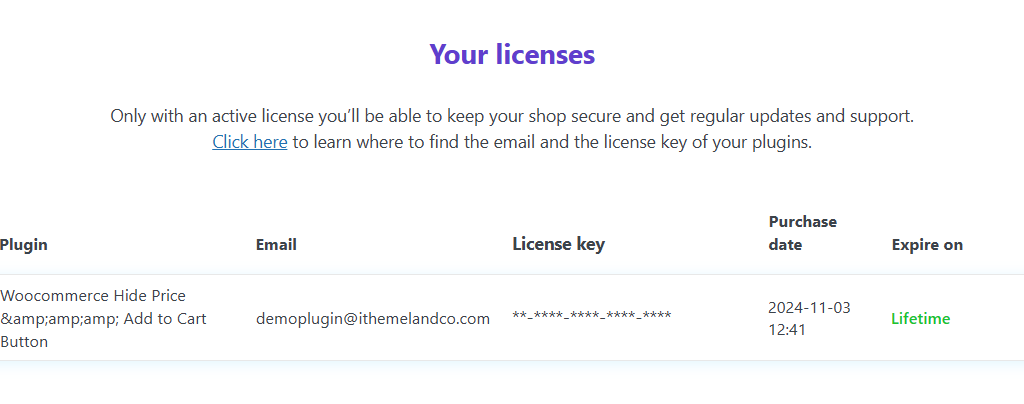
Then insert the license key in the form and activate the plugin.
Step 2: Add rule to hide price for specific products in WooCommerce
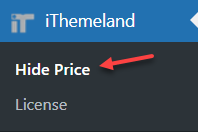
Once you have activated the plugin, you have access to the Add Rule page, by navigating to IThemeland > Hide Price
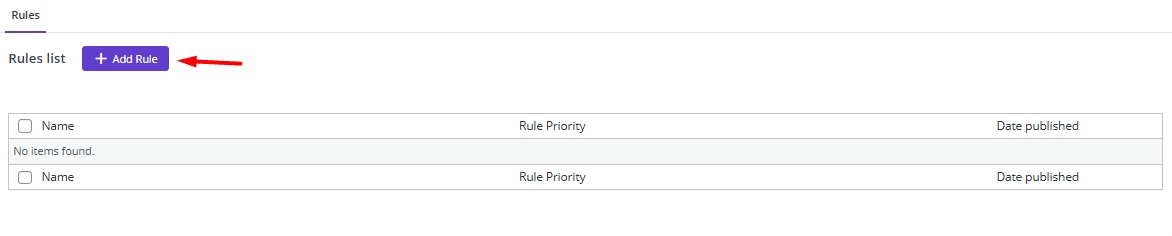
On this page, press the Add Rule button to open the Rule form.
Step 3: Customize the hide price rule in the plugin
You are now ready to create your rule and let WooCommerce hide price for specific products by following the instructions below:
- Write a name for the new rule in the Title field. For example, we wrote Hide price for specific products.
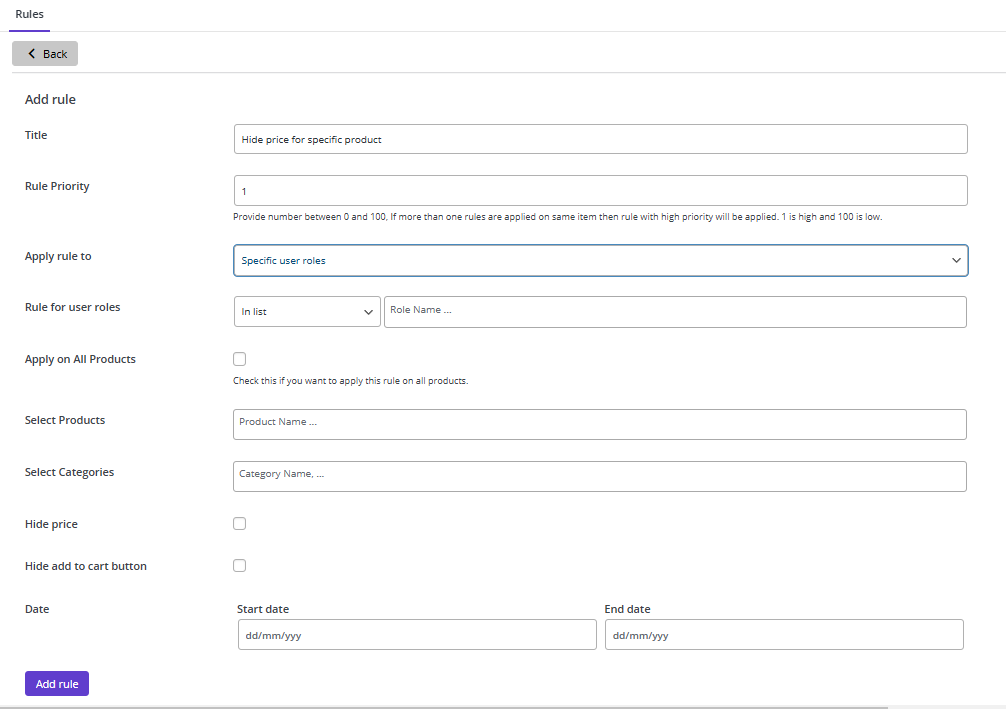
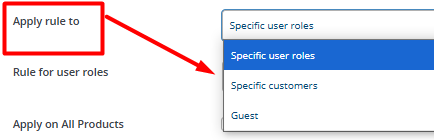
- Choose one of the options from the “Apply rule to” list including:
- Specific user roles: Hide the price for one or more user roles defined in your WordPress website like Manager, Contributor, Retailers, etc.
- Specific customers: Hide the price for one or more customers. You can choose the name that they have registered with on your website from the list.
- Guest: Hide price for guests.
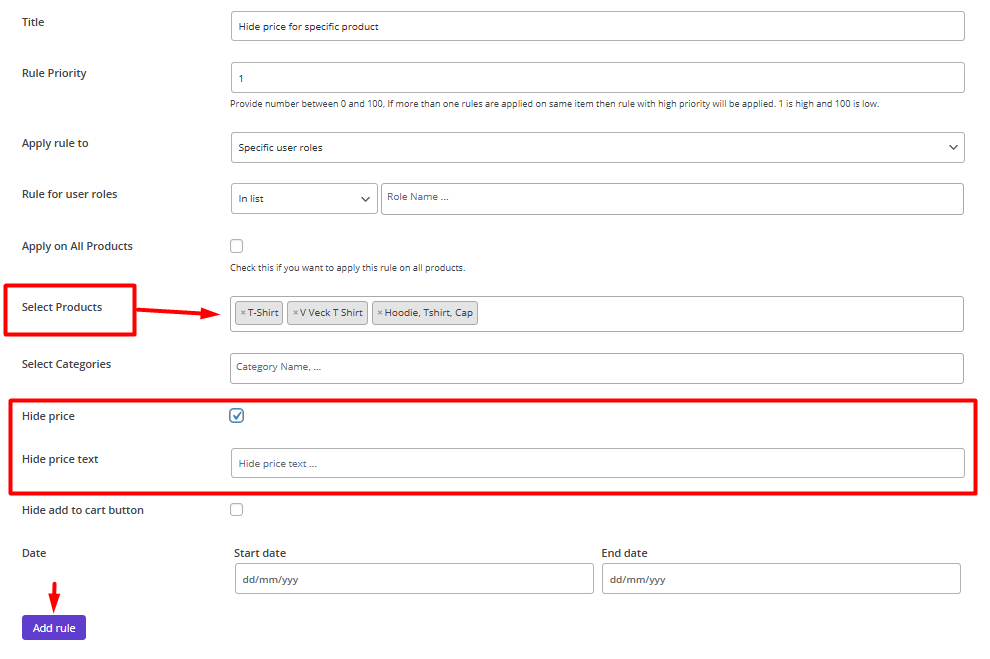
- Select products: In the next field, you can choose the specific products that you want to hide their prices. For example, we added T-shirt, V neck T shirt, and Hoodie from the list.
- Hide price: To hide price in the selected product, you just need to mark this field. By marking this item, the price of the selected products will be removed from the product page, archive page, and shop page.
- Hide price text: If you want to replace the price with a custom message, write the text in the textbox. By inserting a text in this field, the customer will see your message instead of the product price when visiting the product page.
- Press the Add Rule button.
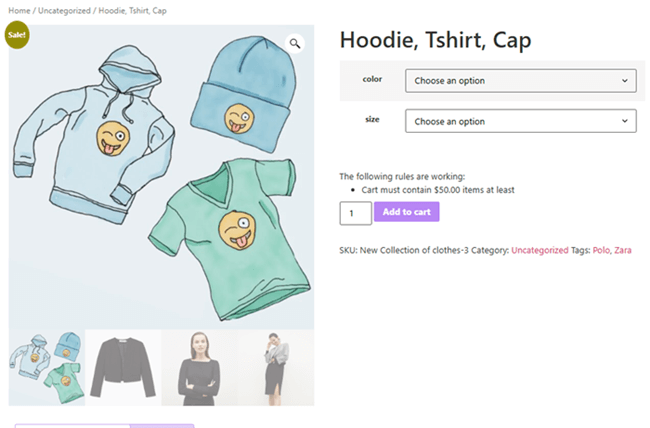
If you just mark hide price in the Rule form, when customers visit the product you have specified in the form, the result looks like below:
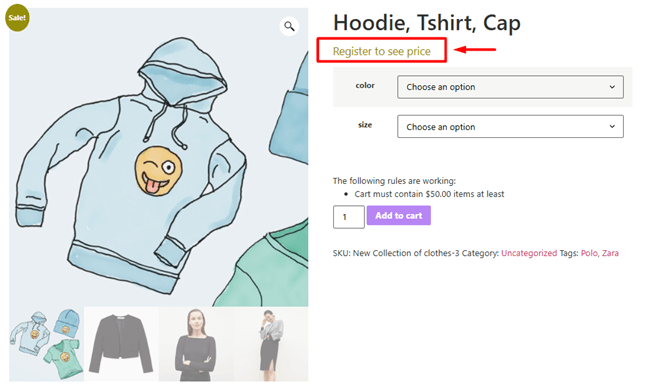
However, if you set a message like “Register to see price”, they will see the product page like this:
Other features of WooCommerce hide price plugin
The WooCommerce hide price plugin is a powerful tool for controlling pricing visibility and enhancing the shopping experience for different types of customers.
Hide prices from non-logged-in users or displaying custom messages that encourage users to log in, sign up, or contact you for more information are some of the amazing options make it particularly beneficial for many online businesses.
Here are some helpful features that can empower owners of membership-based stores, or other stores where pricing is negotiable to apply different rules for controlling the price visibility on their sites:
Hide price for a specific category in WooCommerce
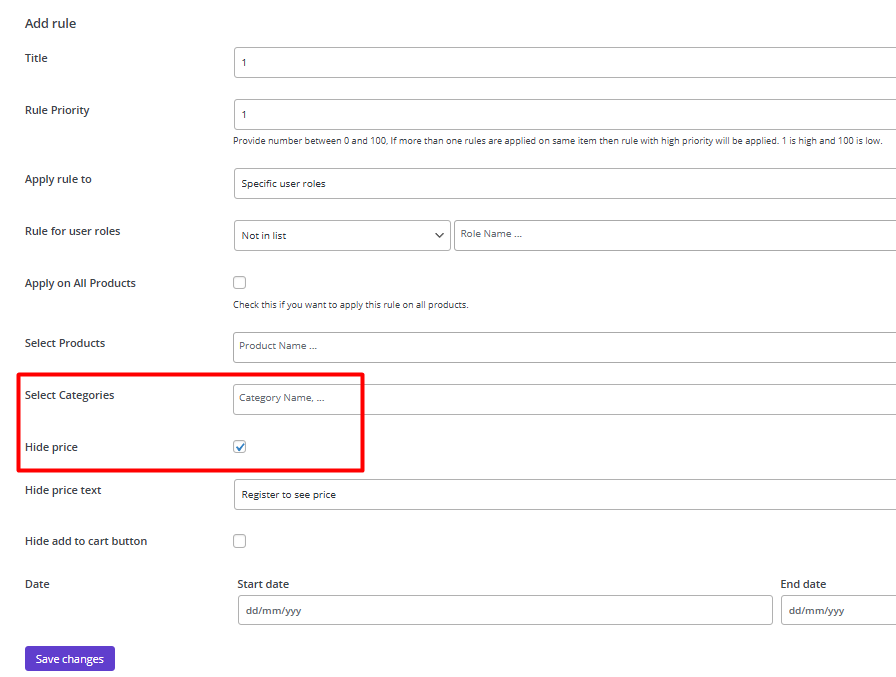
Hide prices for individual categories giving you full control over pricing visibility. In this plugin, you can add as many products as you need in the Select Categories field and apply the Hide price or Hide add to cart button rule on them with one click.
Hide price for all products in WooCommerce
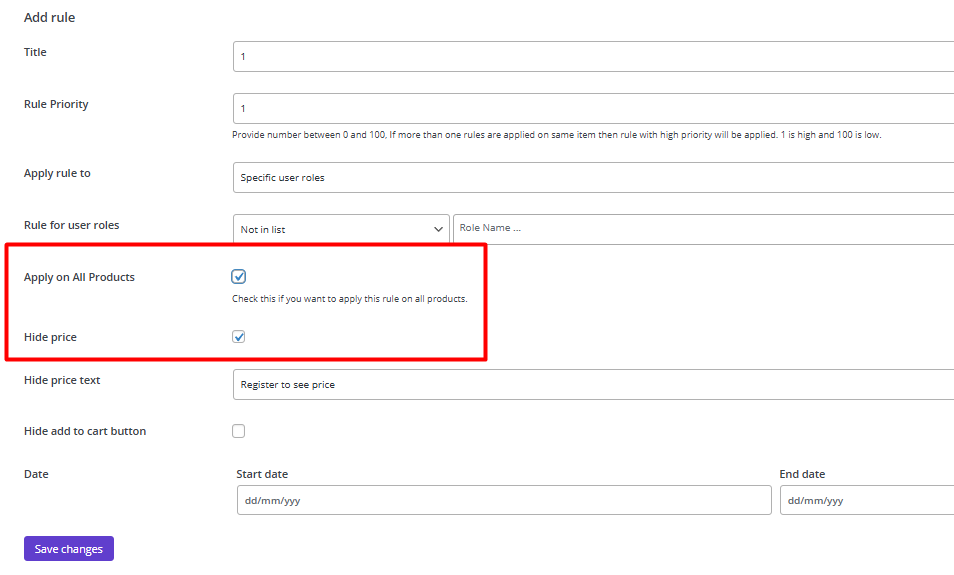
Hiding prices for all products in WooCommerce can be a strategic decision for businesses with unique pricing models, B2B operations, or exclusive membership structures. It allows you to control who sees your prices, protect sensitive information, and encourage customer interaction.
To hide the prices of all products in your store, you just need to mark All products and Hide price fields in the rule form of the plugin as shown below:
HIDEPRICEiT – Hide Price & Add to Cart Button for WooCommerce
The easy way to hide price for specific products in WooCommerce
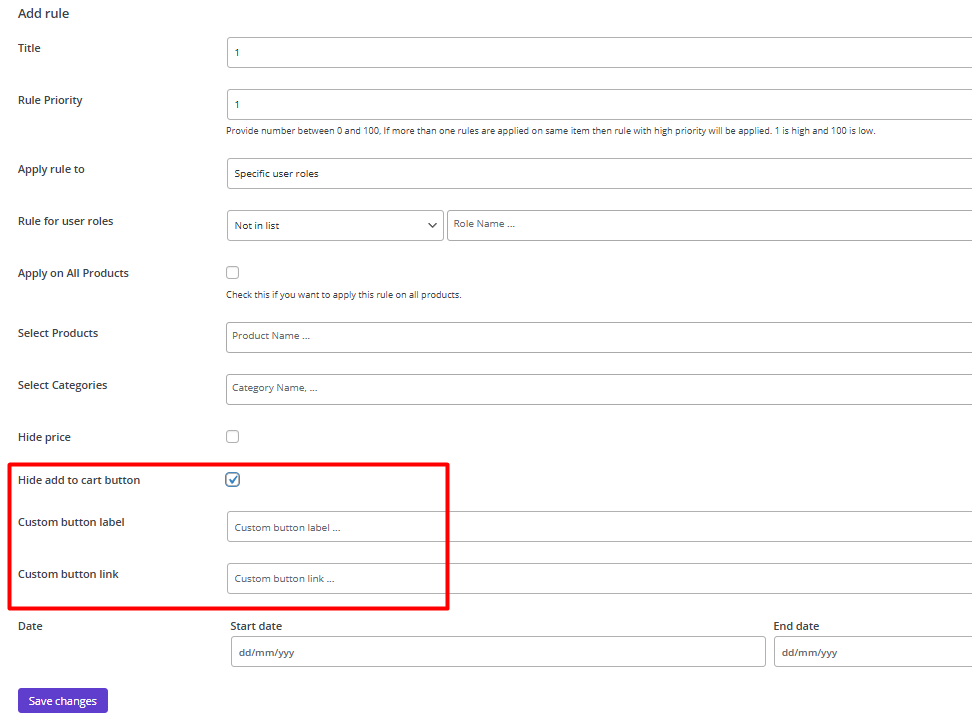
Hide the add to cart button for specific products
Option to hide the “Add to Cart” button along with the price, ensuring users cannot proceed to purchase without logging in or meeting specific criteria.
Read more: How to Hide Add to Cart Button in WooCommerce for Specific Categories
Why WooCommerce hide price for specific products is important?
Hiding the price for a specific product is often done for strategic, operational, or customer engagement reasons. Here are some common reasons:
1. Custom or negotiable pricing:
When the product price is not fixed and depends on customer-specific factors (e.g., customizations, bulk orders, or negotiations) you may need to hide the price in your store.
2. Exclusive or membership-based products:
If you want to make the specific products only available to specific customers (e.g., members, wholesalers, or logged-in users, it is important to hide their prices from other visitors.
3. High-value or luxury items:
For high-value items, businesses may want to encourage direct contact with the customer to discuss pricing and build a relationship.
4. Variable pricing:
If the product price depends on configurations, add-ons, or other variables, the base price is hidden to avoid confusion.
5. Marketing strategy:
Hiding the price can create curiosity and encourage customers to inquire, leading to more engagement.
6. Regulatory or compliance reasons:
Some industries require prices to be disclosed only after certain conditions are met. This scenario is practical mostly for Pharmaceutical or industrial products.
7. Auction or bid-based products:
When the product price is not fixed and will be determined through an auction or bidding process (e.g. Artwork or collectibles), the prices need to be removed from the product page.
Advantages of WooCommerce hide price for specific product
Hiding the price for specific products in WooCommerce can offer several advantages depending on your business model, target audience, and sales strategy. Here are the key benefits of WooCommerce hiding price for Specific Products:
1. Encourages Customer Engagement
Hiding the price encourages customers to contact your business for more information, which can help build a relationship and improve customer engagement. It also allows you to provide personalized pricing or offers based on the customer’s needs, increasing the chances of conversion.
2. Flexibility in Pricing
For products with variable pricing (e.g., custom-made items, bulk orders, or B2B products), hiding the price allows you to provide tailored quotes.
Additionally, You can adjust prices based on market conditions, customer type, or order volume without displaying a fixed price upfront.
3. Creates exclusivity and curiosity
In addition to making the customers feel that the product is more exclusive or high-value (which is important for luxury or premium items), Customers may be more curious about the product and willing to inquire, when the price is hidden. It can lead to increased interest and potential sales.
4. Supports membership or wholesale models
If your store caters to members or wholesale customers, hiding prices from non-members can incentivize sign-ups or logins.
In B2B scenarios, prices are often hidden from the public and only revealed to approved customers or after negotiations.
5. Avoids price comparison
By WooCommerce hide price for specific product, you prevent customers from comparing your product’s price with competitors, which can be useful for unique or high-value items.
In this situation, customers are more likely to focus on the product’s features, quality, or benefits rather than just the price.
6. Compliance with industry standards
In some industries (e.g., pharmaceuticals, industrial equipment, or real estate), displaying prices publicly may not be allowed or appropriate. So, hiding the price aligns with industry practices.
7. Improves sales for complex products
For products with multiple configurations or add-ons, hiding the base price avoids confusion and allows you to provide a detailed quote after understanding the customer’s requirements.
In addition, for expensive or complex products, customers may prefer to discuss pricing and options directly with the seller.
8. Enhances Marketing Strategies
Hiding the price can be a lead generation tactic, encouraging customers to provide their contact information in exchange for pricing details.
When customers contact you for pricing, you have the opportunity to upsell or cross-sell related products or services.
9. Protects margins
By hiding the price of a specific product, you retain control over the final price and can negotiate based on the customer’s budget or order size.
It has many advantages in the competitive markets, for example, prevents competitors from undercutting your pricing strategy.
10. Supports auction or bid-based sales
For products sold through auctions or bidding, WooCommerce hide Price for Specific Products ensures that the final price is determined by the bidding process.
Moreover, for unique or rare items, the price may not be fixed, and hiding it encourages competitive bidding.
Which businesses need to hide prices for specific products?
By hiding the price for a specific product, many businesses can control how and when pricing information is disclosed, tailor their sales approach, and improve customer engagement.
Here are some examples:
- Luxury Goods: A jewelry store hides the price of high-end diamond rings to encourage customers to inquire and receive personalized service.
- Custom-Made Products: A furniture store hides the price for custom tables because the cost depends on materials, size, and design.
- Wholesale/B2B: A wholesale supplier hides prices from the public and only reveals them to approved business customers.
- Membership-Based Store: A fitness equipment store hides prices for non-members, encouraging users to sign up for a membership to access pricing.
- Auction Items: An art gallery hides the price for a rare painting, as it will be sold through an auction.
Conclusion
Learning how to hide WooCommerce price is useful when you want more control over product visibility, private pricing, B2B sales, wholesale access, login-only pricing, or quote-based purchasing. You can use custom code for a simple case, but it becomes harder to manage when you need different rules for products, guests, roles, categories, or custom price messages.
With HIDEPRICEiT – Hide Price & Add to Cart Button for WooCommerce, you can manage WooCommerce hide price rules from one interface. It helps you hide product prices, disable add-to-cart buttons, show messages like “Login to see price” or “Contact us for price,” and control who can see prices across your WooCommerce store.
FAQ
How do I hide price in WooCommerce?
You can hide price in WooCommerce by adding custom code to your theme or by using a dedicated hide price plugin. A plugin is usually easier because it lets you create rules for specific products, guests, user roles, customers, and categories without editing code.
Can I hide WooCommerce price for specific products?
Yes. You can hide WooCommerce price for specific products by selecting the products you want and applying a hide price rule to them. This is useful when only some products need private pricing, quote-based pricing, or login-only visibility.
Can I hide product price in WooCommerce for guest users?
Yes. You can hide product price in WooCommerce for guest users and show prices only after customers log in. This is useful for membership stores, wholesale stores, and B2B websites that do not want public visitors to see prices.
Can I replace WooCommerce prices with custom text?
Yes. You can replace hidden WooCommerce prices with custom text such as “Login to see price,” “Contact us for price,” or “Request a quote.” This helps users understand what to do next instead of seeing an empty price area.
Can I remove the price and add-to-cart button together?
Yes. You can remove the product price and hide the add-to-cart button at the same time. This is useful when customers should contact you, log in, become approved members, or request a quote before purchasing.
Can I hide WooCommerce prices by user role?
Yes. You can hide WooCommerce prices by user role, such as guests, subscribers, wholesale customers, retailers, or any custom role on your WordPress site. This lets you show prices only to the customer groups you choose.
What is the best plugin to hide price for WooCommerce?
The HIDEPRICEiT plugin is a strong option because it supports WooCommerce hide price rules for specific products, guest users, user roles, individual customers, and categories. It also lets you replace hidden prices with custom text and control add-to-cart button visibility.