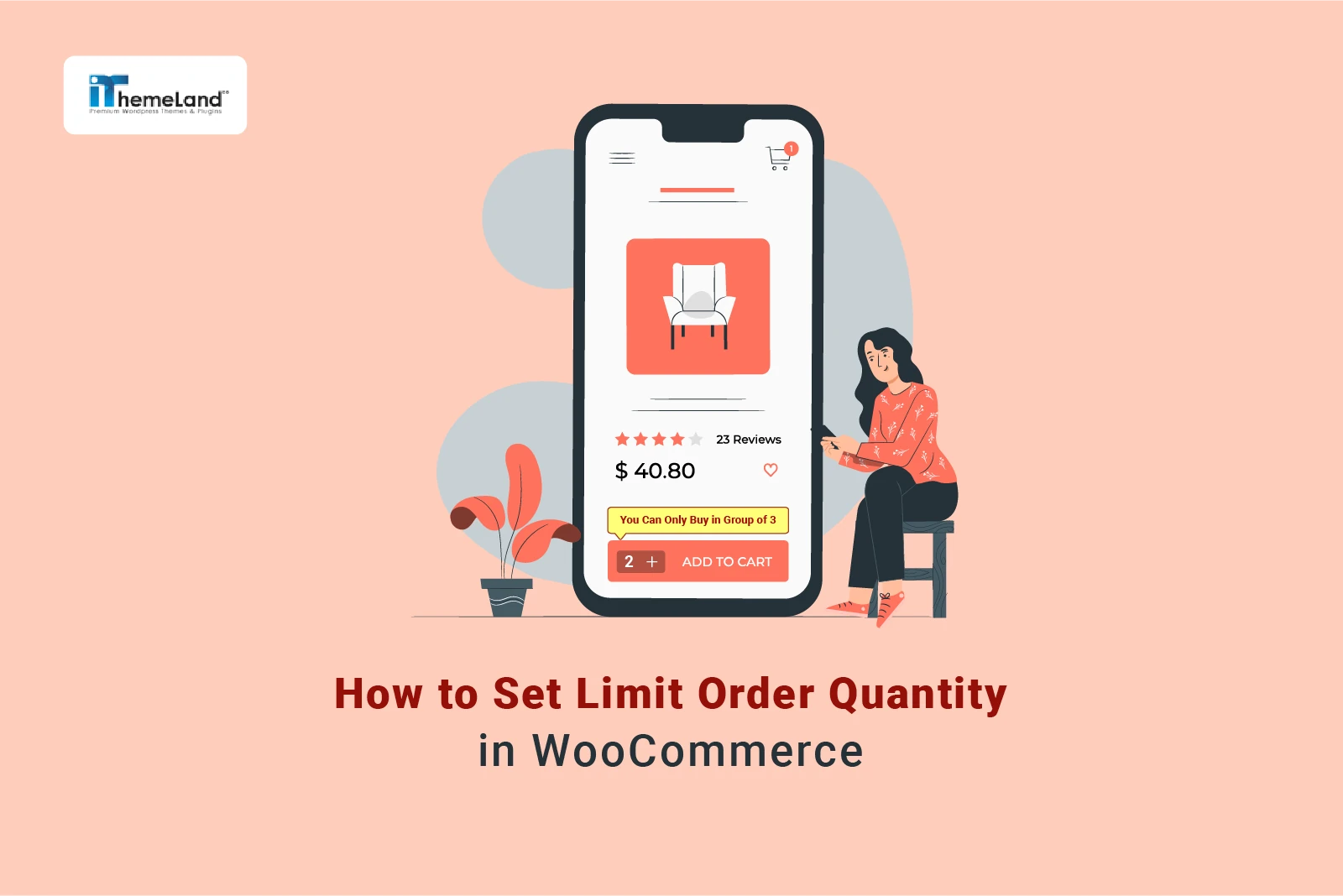

WooCommerce quantity limits help store owners control how many products customers can buy in one order. This is useful for limited stock items, wholesale products, samples, high-demand products, and stores that need better order control.
You may want to set a WooCommerce limit quantity per order, limit cart quantity to 1, apply a minimum order quantity, or create different quantity rules for specific products or categories. These rules help prevent unsuitable orders and improve fulfillment.
In this tutorial, you’ll learn how to set WooCommerce order limits and quantity rules with MINMAXiT – Min and Max Quantity for WooCommerce. We’ll cover minimum quantity, maximum quantity, cart quantity limits, and practical examples for real WooCommerce stores.
Quick Answer:
Setting a WooCommerce limit order quantity helps store owners control how many items customers can buy per order, product, category, or cart. This is useful for wholesale rules, limited-stock products, promotional items, and stores that need to prevent very small or very large orders.
The best no-code option is MINMAXiT – Min and Max Quantity for WooCommerce. After installing it, go to WordPress Dashboard > iThemeland > MINMAXiT, create or enable a quantity restriction rule, choose whether the limit applies to the cart, product, category, or tag, then enter the minimum and maximum quantity values.
This method is more flexible than manual WooCommerce settings because MINMAXiT supports rule-based control, step quantities, category restrictions, and product-specific limits. It helps store owners protect inventory, improve order quality, and guide customers toward profitable purchase quantities.
What is the minimum order quantity?
The Minimum order quantity is the smallest number of items a supplier is willing to sell in a single order. It helps suppliers manage production costs, optimize inventory, and ensure profitability.
It is usually effective for manufacturers or wholesalers that need to encourage distributors and retailers to purchase a large quantity in each order above the specified threshold.
It also prevents buyers from placing small orders and claiming for a full refund as per returning them.
What is the maximum order quantity?
Maximum order quantity limits the amount of items that a customer can purchase in a single order. It is usually effective for manufacturing processes to ensure that all required items in an order are provided and delivered on time.
For example, a customer may be restricted to buying no more than 10 items per order to maintain fair distribution and optimize supply chain efficiency.
It is also useful for stockholders who want to ensure that they can supply all items purchased by the customers in each order.
How to set limit order quantity in the WooCommerce store?
With WooCommerce, customers can order as many items as they need from the online store. It has no default option to set limit order quantity which results in many problems for online businesses such as when customers order small, unprofitable, or low-cost products, when wholesalers receive bulky or unmanageable orders, and more.
If online stores cannot set a quantity order limit, they may face several problems:
- Stockouts: High-demand items may sell out quickly, leaving other customers unable to purchase.
- Inventory Imbalance: Over-purchasing by a few customers can disrupt inventory planning and lead to shortages.
- Scalping/Reselling: Bulk buying by resellers can inflate prices and reduce product availability for genuine buyers.
- Shipping and delivery problems: Sudden large orders can overwhelm fulfillment and logistics systems.
- Customer Dissatisfaction: Limited availability and unfair distribution can frustrate customers and harm the brand’s reputation.
- Revenue Loss: Stockouts and poor customer experiences can lead to lost sales and long-term revenue decline.
To solve these problems, you need to use a PHP code or a plugin to set WooCommerce limit cart quantity. As coding is a technical process that must be done by an expert which is a money and time-consuming way, we recommend you use the WooCommerce Min Max Quantity plugin. The simple and completely flexible interface of this plugin, allows you to effectively control the order quantity in your online store.
Continue reading to learn how to set minimum and maximum order quantity in WooCommerce in 3 simple steps.
Step 1: Install and Activate the WooCommerce Min Max Quantities plugin
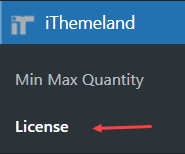
To take benefit from the WooCommerce min max quantity plugin, first, you must install it on your WordPress website and then activate it by navigating to:
WordPress Dashboard > iThemeland > Licence
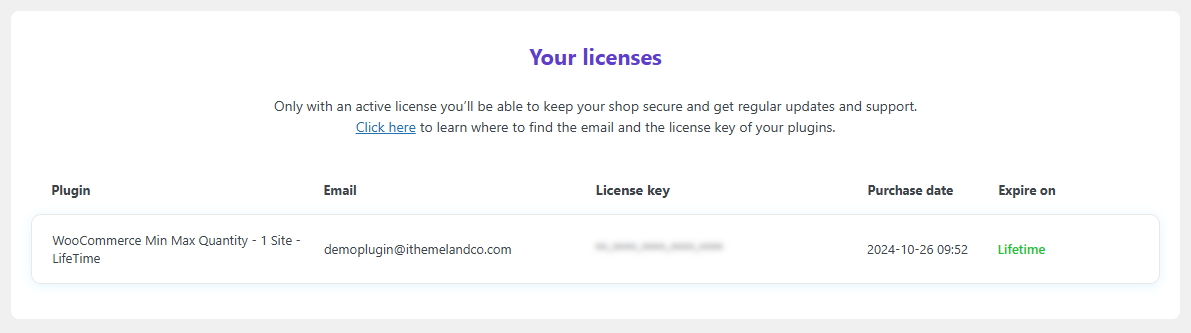
There is no free version available for this plugin. So, you need to purchase it and insert your license key in the form appearing on this License page.
Step 2: Set WooCommerce limit quantity per order rule
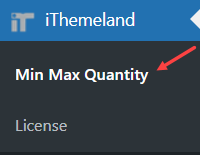
Once activating the plugin, you are ready to use it for setting up WooCommerce limit purchase quantity by clicking on the Min Max Quantity item in the WordPress Dashboard > iThemeland.
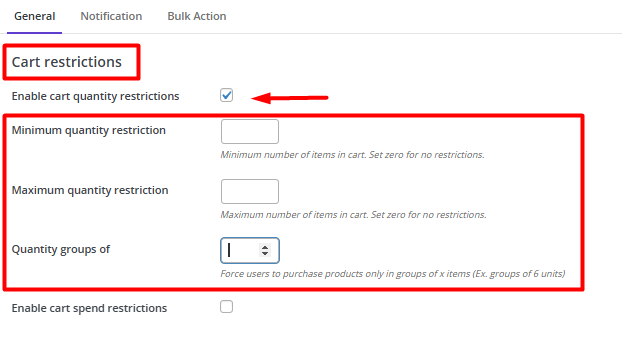
In the General tab, which just appeared on the screen, you can quickly find the Cart Restrictions section and follow the instructions below to set WooCommerce limit order quantity:
- Mark the checkbox in front of Enable cart quantity restrictions.
- Fill in the following fields with the proper number:
- Minimum quantity restriction: This means the total quantity of items in the customer’s cart must not be less than this number.
- Maximum quantity restriction: This means the total quantity of items in the customer’s cart must not exceed more than this number. For example, you can insert 1 in the textbox of this field to set WooCommerce limit cart quantity to 1. In this way, customers can just buy 1 product from your site in each order.
- Quantity group: It means the total quantity of items in the customer’s cart must be in a group of X items. For example, if you insert 4 in the textbox of the Quantity group Of, the customers are forced to order 4, 8, 12, 16, … products from your site.
- Press Save Changes to apply the rule to your online store.
Step 3: Enable Notification for WooCommerce limit cart quantity
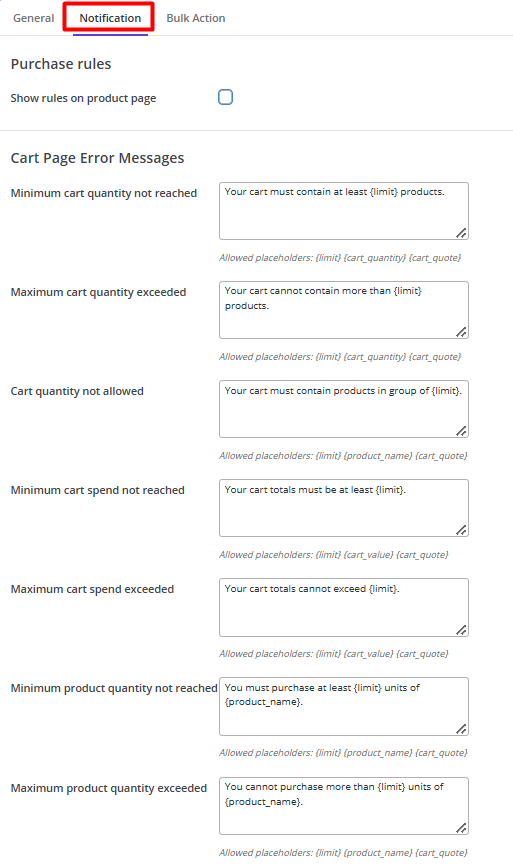
After setting up the WooCommerce limit purchase quantity rule, you can adjust notifications and error messages by going to the Notification tab.
In this tab, you can find options to show messages in the following areas on your website:
- Show rules on the product page.
- Show error messages on the cart page.
- Show add-to-cart action error messages.
You need to enable some options to let customers see related messages. All notifications have a default text; however, you can customize them with your desired message. There are also some placeholders that you can use in the text to better inform customers about the rules. You can find allowed placeholders in the caption of each textbox.
Example 1: How to set the minimum order quantity to 12 in WooCommerce?
Let’s suppose that you want to force customers to purchase more than 12 products from your online shop in each order. To set this, follow the below steps:
- Click the WordPress Dashboard > iThemeland > Min Max Quantity.
- Go to the General tab.
- Mark Enable cart quantity restrictions item.
- Write 12 in the textbox of the Minimum quantity restriction.
- Press Save changes.
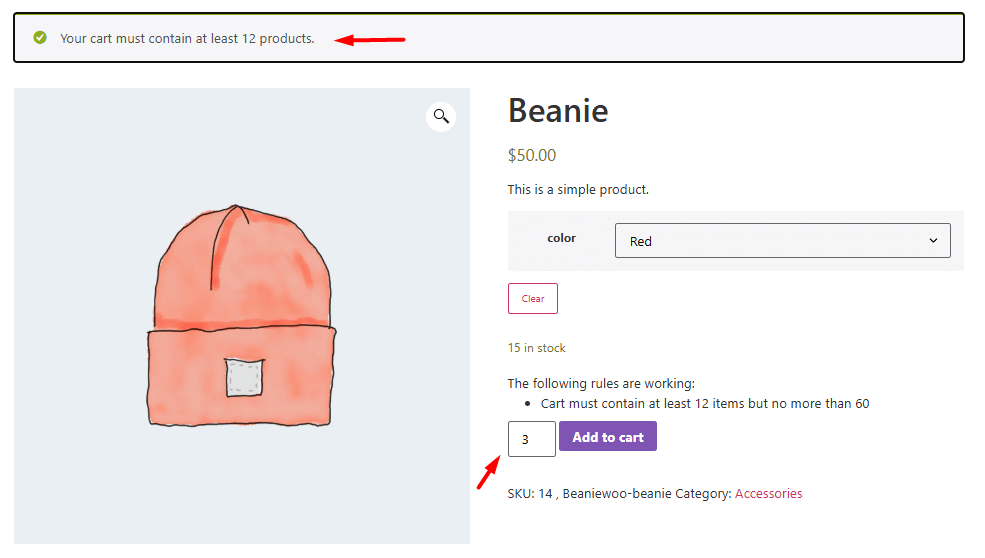
By applying this rule, if customers want to order products less than 12, the WooCommerce min max quantity plugin will show a notification to inform them that customers should order more products to proceed to the checkout page:
MINMAXiT – Min and Max Quantity for WooCommerce
The easy way to set order quantity limits in WooCommerce
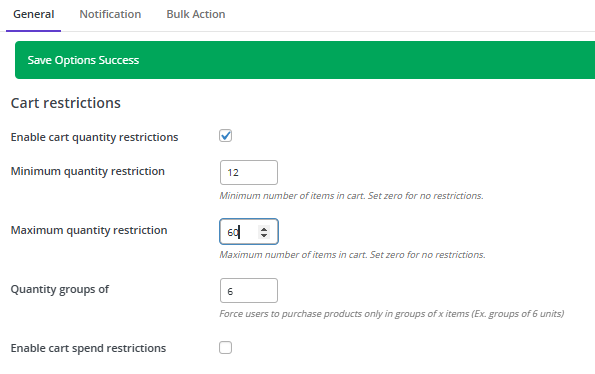
Example 2: Set WooCommerce limit quantity per order (Min: 12, Max: 60, In a group of: 6)
In this example, we want to let customers order products in the range of 12-60. We also need to sell our products in groups of 6. So, we set the rules below:
- Minimum quantity restrictions: 12
- Maximum order quantity: 60
- In group of: 6
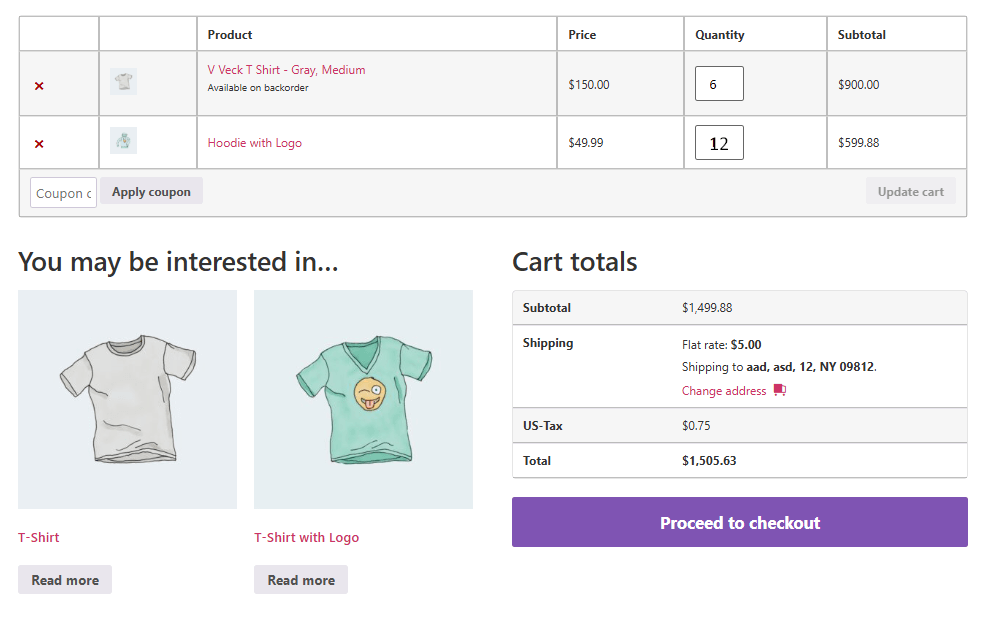
As illustrated below, when a customer orders the right number of products which is in the range of 12-60 and in a group of 60, they can proceed to the checkout page:
However, if there is any contradiction between the quantity ordered by customers and the applied rule, the plugin will show a message. For example, if the customers want to add just 1 product to the cart, the plugin will show a notification like this:
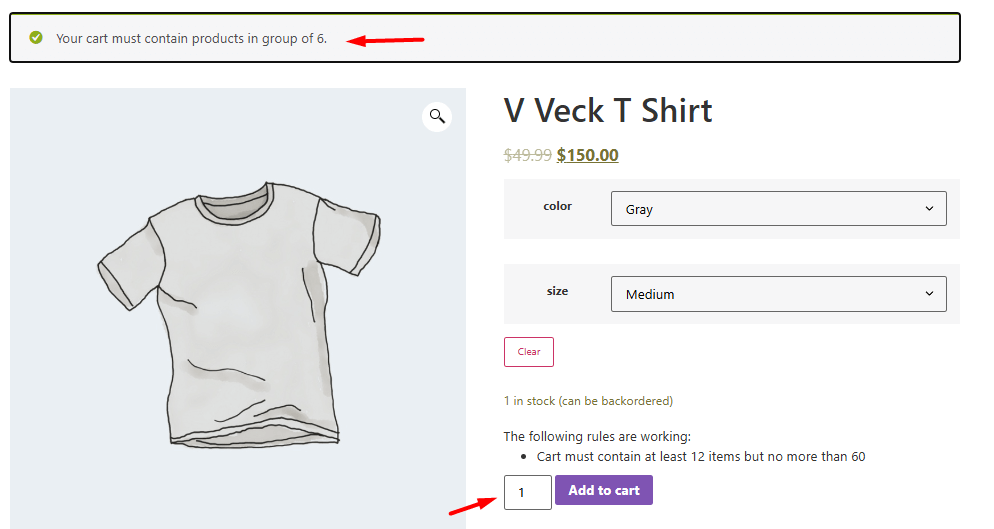
In this situation, customers can see their cart but they are not able to proceed to the checkout. They need to increase the quantity of their orders to reach the minimum threshold and they have to order items in a way that the total quantity is in a group of 6.
For Example, they can order 8 T-shirts with 4 caps, in this way, all the conditions are met as the total quantity of their cart is 12 which is the minimum possible quantity and it is in a group of 6.
Benefits Of Adding WooCommerce Minimum Order Quantity Rules to Your Store
WooCommerce limit quantity per order is an ideal solution for many businesses especially wholesalers and manufacturers that need to encourage customers not to buy products less than or more than a specific amount. Setting limited quantity in WooCommerce has many advantages for your online store. Let’s review some of them:
Ensure every order is profitable
The biggest advantage of WooCommerce limit cart quantity is preventing customers from placing small orders frequently which is not profitable for online stores. When customers are forced to order products in more than a specific quantity, store owners ensure that they can pay the backend costs of supplying or producing products like shipping, raw material, and warehouse storage fees. As a result, small order quantities frequently result in a loss.
Encourage customers to buy more from your online shop
In WooCommerce, the default order quantity limit is set to zero, so customers can buy even one product from your site. However, by adding a WooCommerce limit purchase quantity, you can encourage customers to keep adding products to their cart until they reach the specified threshold which is the profitable level for you.
Conclusion
Setting WooCommerce quantity limits is a practical way to control customer orders and protect your store from stock, fulfillment, or margin problems. The right rule depends on your product type and business model.
Minimum quantity rules can help create more profitable orders, while maximum quantity rules can prevent customers from buying too much of limited stock. Limiting cart quantity to 1 can also be useful for samples, memberships, or one-per-customer offers.
With MINMAXiT – Min and Max Quantity for WooCommerce, you can create flexible quantity limit rules for products, categories, carts, and orders. This gives store owners more control over how customers buy from WooCommerce.
FAQ
1. What is WooCommerce limit quantity per order?
It is a rule that controls the maximum or minimum number of products a customer can buy in a single order.
2. Can I limit WooCommerce cart quantity to 1?
Yes. You can set rules that allow only one item in the cart or limit specific products to one per order.
3. What is WooCommerce minimum order quantity?
Minimum order quantity means customers must buy at least a certain number of items before they can complete checkout.
4. Why should I use WooCommerce quantity limits?
Quantity limits help manage stock, improve profitability, prevent abuse, and guide customers toward suitable order sizes.
5. Can I set different quantity limits for different products?
Yes. You can create product-specific or category-specific quantity rules depending on your store needs.
6. Can MINMAXiT manage WooCommerce order limits?
Yes. The MINMAXiT plugin helps set minimum and maximum quantity rules for WooCommerce orders.