

Running an online store without regular reporting is similar to making financial decisions without checking the numbers. Orders may continue to arrive, revenue may appear healthy, and a few products may look popular. But without a clear reporting routine, it is difficult to know whether the store is genuinely improving, which products create profit, why customers return, or where money is being lost.
WooCommerce gives store owners a useful starting point through its built-in analytics tools. The official WooCommerce Analytics documentation explains that the dashboard is designed to track important store statistics through performance indicators, charts, and leaderboards. For many stores, however, the next stage is not simply collecting more numbers. The real need is to organize those numbers into practical reports that support decisions.
This guide explains the full WooCommerce reporting process in a simple way. It covers revenue, orders, refunds, products, customers, inventory, taxes, coupons, locations, seasonal comparisons, forecasting, and team workflows. It also shows where REPORTiT – Advanced Reporting for WooCommerce can help when a store needs deeper filters, more flexible dashboards, and a clearer reporting routine.
What WooCommerce Reporting and Analytics Really Mean
WooCommerce reporting is the process of turning store activity into information that a manager can use. Every order creates data: the customer, product, quantity, price, discount, tax, shipping method, payment gateway, refund status, location, and time of purchase. Reporting brings these details together so that patterns become visible.
Analytics goes one step further. A report may show that revenue increased last month. Analytics asks why it increased, whether the increase is sustainable, and what should happen next. This difference matters because a store can generate many reports and still make weak decisions if the reports are not connected to a clear question.
| Layer | Example | Business Question |
|---|---|---|
| Raw data | Order value, quantity, customer, date | What happened? |
| Metric | Average order value, refund rate, repeat purchase rate | How large or frequent was it? |
| Comparison | This month vs previous month or previous year | Is performance improving? |
| Insight | Refunds are concentrated in one product line | Why is the result changing? |
| Action | Improve product description, adjust stock, revise a campaign | What should we do next? |
A useful reporting system does not begin with a dashboard. It begins with a question. For a practical overview of how reports support store management, read how reporting helps WooCommerce store managers make smarter decisions:
Read more: How WooCommerce Reporting Help Store Managers to Grow the Bussiness?
Why Store Managers Need a Reporting System
Store managers often spend most of their time on urgent tasks: processing orders, answering customers, updating products, solving shipping issues, and planning promotions. Reporting can feel less urgent because the store continues to work without it. The problem is that small mistakes remain hidden until they become expensive.
- Low-margin products may appear successful because they generate revenue but very little profit.
- A marketing campaign may increase order volume while attracting customers who never return.
- A popular variation may run out of stock while slower variations remain overstocked.
- Refunds may rise gradually and remain unnoticed until reviews and customer satisfaction decline.
- One region may have strong demand but poor delivery performance.
- A discount code may generate sales but reduce margin more than expected.
A structured reporting routine turns these risks into manageable questions. Daily reports help identify urgent issues. Weekly reports show short-term movement. Monthly and quarterly comparisons reveal whether changes are temporary or part of a larger trend. The goal is not to monitor every number at all times. The goal is to review the right metric at the right interval.
| Practical principle A report is useful only when it leads to a decision, a test, or a follow-up question. Avoid collecting dashboards that no one reviews or acts on. |
Built-in WooCommerce Analytics and When Advanced Reporting Helps
WooCommerce includes built-in analytics for common store questions. The official analytics area supports dashboard cards, charts, leaderboards, date ranges, and report sections. The WooCommerce Revenue Report provides insight into store revenue and supports comparison with a previous period or previous year. The WooCommerce Orders Report lists orders and makes it possible to review order activity over time.
Built-in analytics is a sensible starting point. It is usually enough for a new store that needs a general view of sales, orders, products, categories, coupons, and customers. As operations become more complex, store managers often need a more flexible layer on top of the basic reporting workflow.
| When built-in analytics may be enough | When an advanced reporting workflow becomes useful |
|---|---|
| A small catalog with a limited number of products | A large catalog with many categories and variations |
| Simple monthly sales checks | Daily, weekly and seasonal comparisons across multiple metrics |
| One manager reviews reports | Different team members need role-based access and exports |
| Basic product sales questions | Detailed stock, refund, customer and location analysis |
| Occasional manual exports | Scheduled reports and recurring email summaries |
An advanced tool should not replace clear thinking. It should make the analysis easier. REPORTiT – Advanced Reporting for WooCommerce is useful when the store needs deeper filtering, multiple report categories, practical dashboards, and exports that can support regular decision-making.
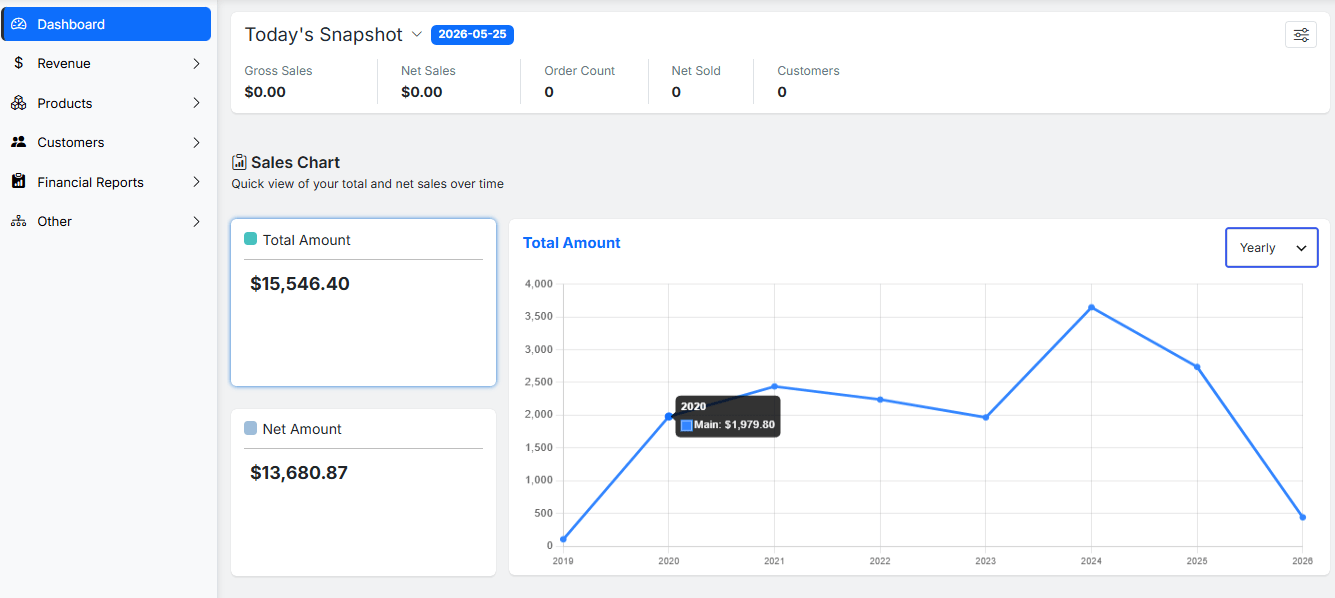
The Essential WooCommerce Reporting Framework
A complete WooCommerce reporting system can be organized into five groups. This framework prevents important areas from being ignored and makes the reporting routine easier to explain to team members.
| Reporting group | Main reports | Typical decisions |
|---|---|---|
| Sales and orders | Revenue, net sales, orders, refunds, payment methods | Budgeting, sales targets, checkout improvements |
| Products and inventory | Products, categories, variations, stock levels | Restocking, merchandising, pricing, promotions |
| Customers | Purchase history, segments, CLV, lifecycle, user roles | Retention, personalization, loyalty campaigns |
| Finance and marketing | Profit, taxes, coupons, campaign results | Margin control, accounting, discount strategy |
| Planning | Location, seasonality, YoY comparisons, forecast | Inventory plans, staffing, campaign calendar |
The sections below explain each group in detail. They are written as a complete overview, but each section also links to a more focused article for readers who need a step-by-step guide.
1. Sales, Revenue, Order and Refund Reports
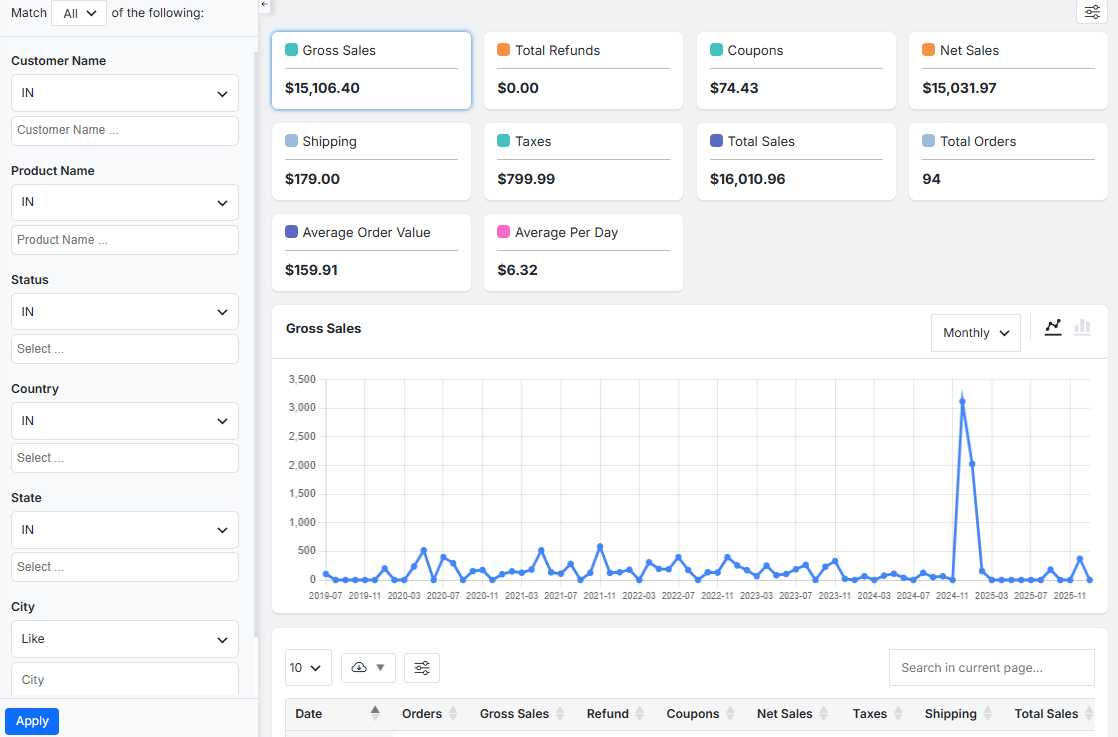
Sales reports are usually the first reports that store managers review. They provide a broad view of activity, but the total sales number should never be interpreted alone. A meaningful sales review compares gross sales, net sales, discounts, refunds, taxes, shipping, order count, and average order value.
Revenue Reports and Sales Tracking
Revenue reports answer a basic question: how much money did the store generate during a selected period? A useful revenue report should separate gross sales from net sales and make it easy to compare periods. This prevents a temporary spike from being mistaken for stable growth.
For a deeper tutorial, review how to track WooCommerce sales and revenue and the guide to creating a sales report in WooCommerce. If your team needs a repeatable morning or end-of-day routine, the article about creating custom daily sales reports in WooCommerce provides a more focused workflow.
Order Reports and Order Status Analysis
Revenue explains the financial outcome, but order reports explain the transactions behind that outcome. Review the number of orders, average order value, items per order, order status, and the time of purchase. A high order count with a low average order value may require a different response from a smaller number of high-value orders.
Order status analysis is also important. A store with a rising number of failed, cancelled, or on-hold orders may have a payment, shipping, inventory, or checkout issue. Use the focused guide to WooCommerce order status reports when you want to investigate these patterns.
Payment Method, Billing and Shipping Reports
Payment reports show how customers prefer to complete their purchases. This is valuable when the store offers multiple gateways, bank transfers, local payment methods, or cash-on-delivery options. A gateway with a high number of failed transactions may require technical review. A method with strong adoption in one region may deserve more visibility during checkout.
The article on WooCommerce payment methods reports explains this analysis in more detail. For operational questions related to customer information, shipping patterns, and address details, see the guide to WooCommerce order billing and shipping reports.
Refund and Cancelled Order Reports
Refunds are not simply a financial adjustment. They are a quality signal. A high refund rate for one item may indicate a weak product description, damaged packaging, unrealistic customer expectations, or a recurring shipping problem. A pattern of cancelled orders may point to payment friction or inventory issues.
Review refunded orders by product, category, customer, date, and reason whenever possible. The article on WooCommerce refunded order reports covers this topic in detail. When the goal is to review performance without allowing cancelled or refunded orders to distort the result, read the guide to custom reports that exclude refunds and cancelled orders.
2. Product, Category, Variation and Inventory Reports
Product analytics connects reporting to merchandising. A store may know its total revenue but still struggle to understand which items deserve more visibility, which variations should be restocked, and which categories are losing momentum. Product reporting provides the detail needed to act.
Product Performance Reports
A WooCommerce product sales report should help you compare quantity sold, net sales, refunds, discounts, order count, and stock status. A product that generates high revenue but also receives many refunds deserves a different response from a product with stable sales and a low return rate.
The guide to WooCommerce product sales reports explains the basic workflow. For a more strategic review, read how advanced reports help you identify best-selling and worst-performing products and how to use advanced reports in product decisions.
Category and Variation Reports
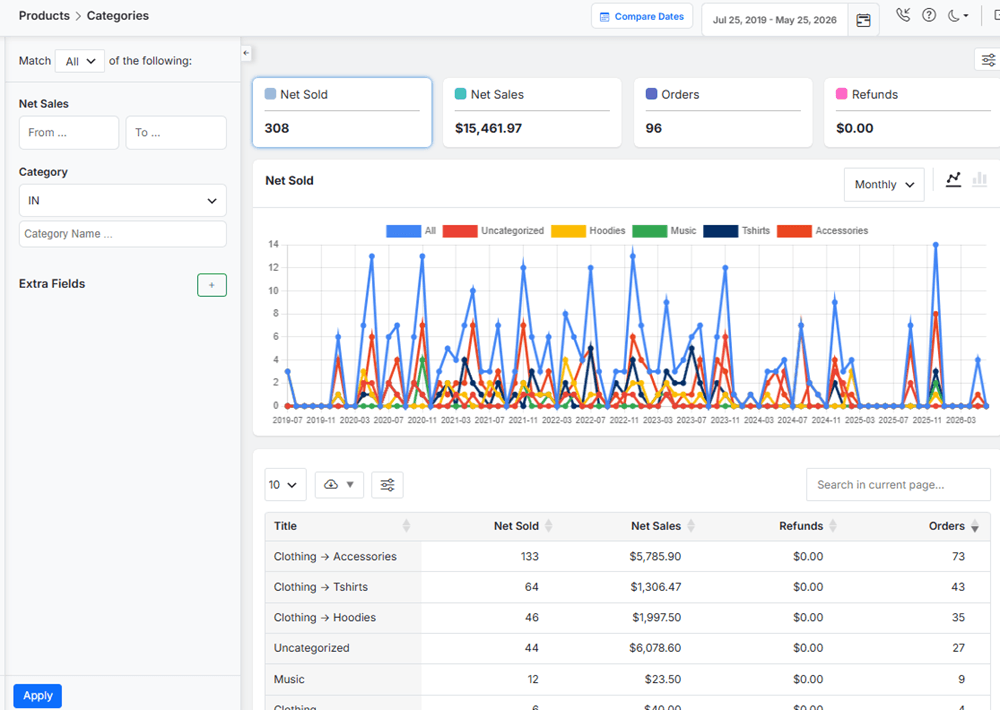
Category reports show whether sales are concentrated in a few product groups or spread across the catalog. This insight helps with homepage merchandising, category page design, paid advertising, and seasonal campaigns. The official WooCommerce Categories Report documentation describes category-level insight based on items sold.
Variation reports are essential for stores that sell sizes, colors, materials, capacities, or other selectable options. A parent product may appear successful while only one variation creates most of the demand. The guides to WooCommerce product category sales reports and product variation reports in WooCommerce provide more detailed examples.
Stock and Inventory Reports
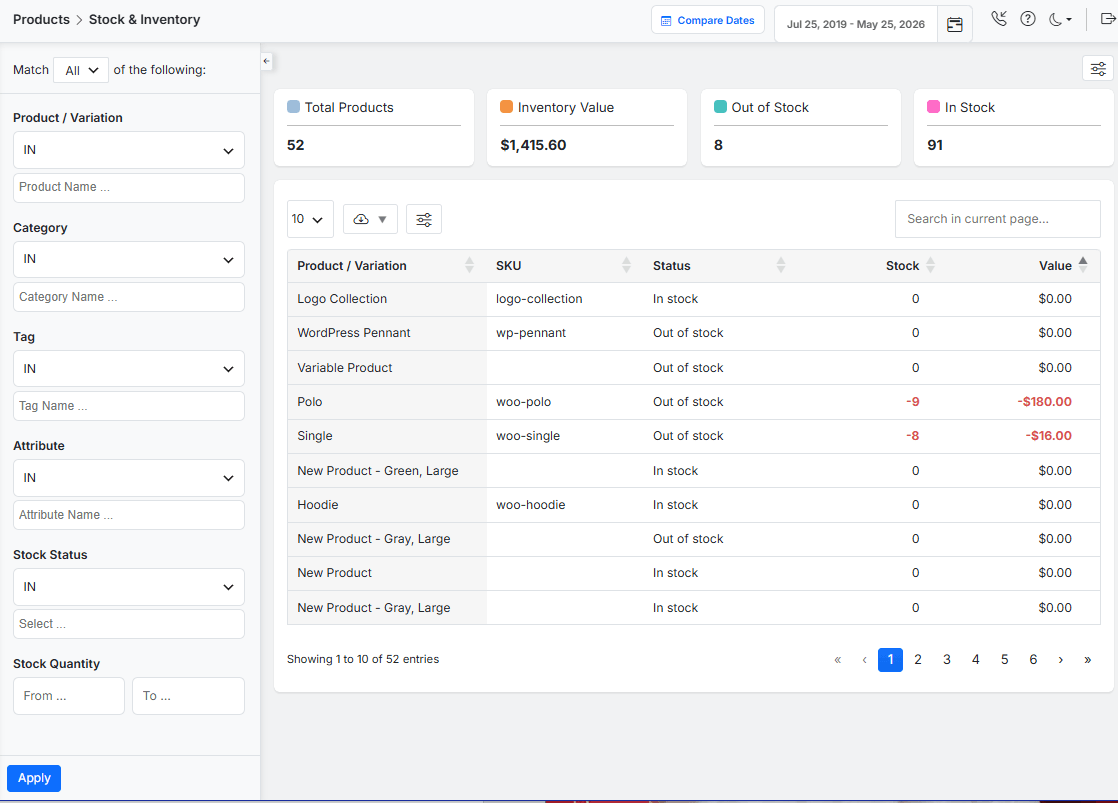
Inventory reports protect revenue and cash flow at the same time. Understocking creates lost sales and disappointed customers. Overstocking ties up money in products that may move slowly. A practical stock review should include current quantity, stock status, low-stock products, out-of-stock items, product value, and sales velocity.
Use the guide to stock reports in WooCommerce for a deeper inventory workflow. Stores that use promotional gifts should also review how to manage free gift inventory with a WooCommerce report plugin, because a campaign can fail if the selected reward runs out unexpectedly.
3. Customer Analytics, Segmentation and Lifetime Value
Sales data explains what customers bought. Customer analytics explains who bought, how often they returned, and how valuable the relationship became over time. This is essential because growth does not come only from acquiring new customers. It also comes from retaining the right customers and serving them more effectively.
Customer Reports and Purchase History
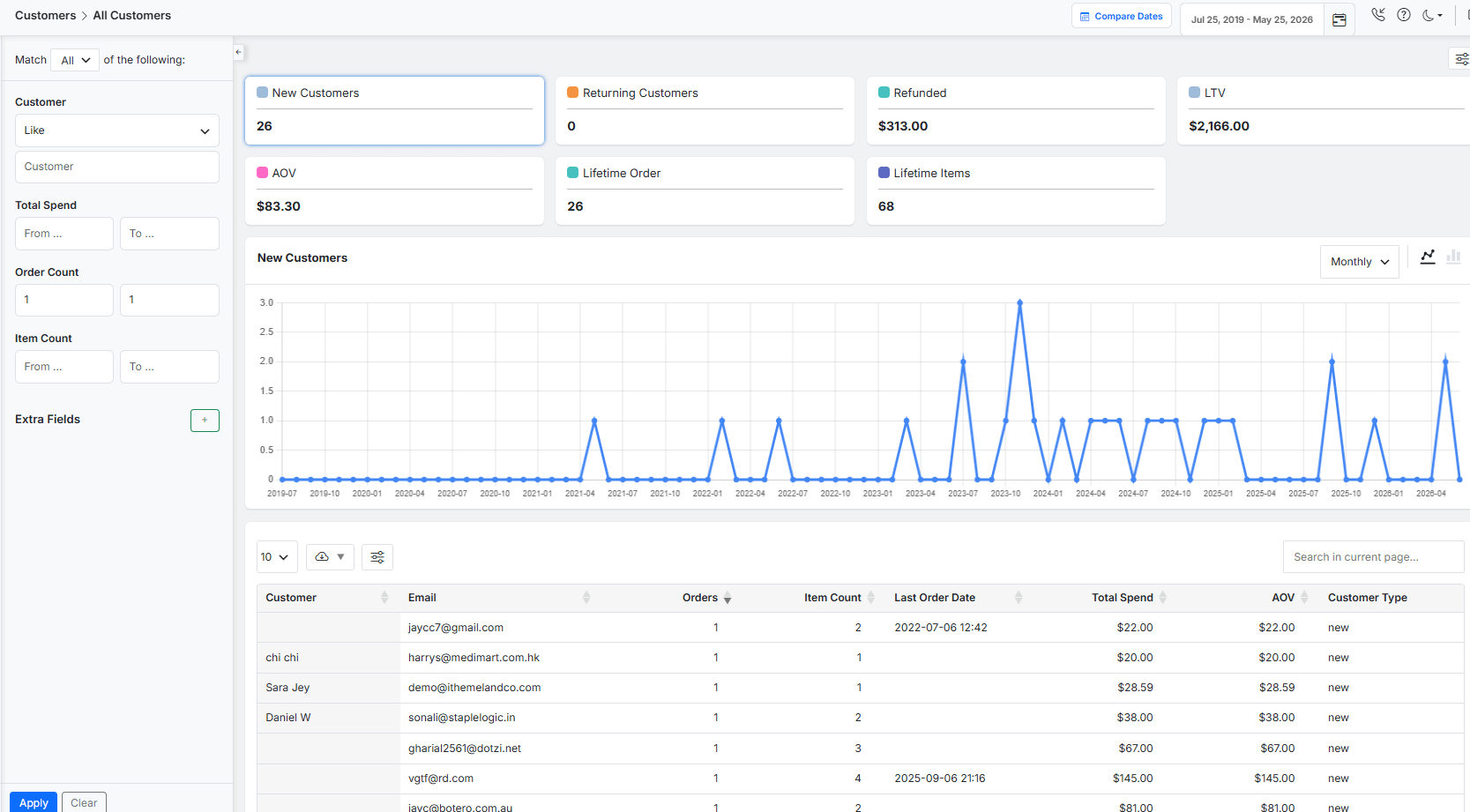
A useful customer report includes order count, total spend, first order date, last order date, average order value, purchased products, and refund activity. The official WooCommerce Customers Report documentation explains that the built-in customer report includes both registered customers and guests and provides insight into where customers live and how they spend money.
For practical examples, review customer reports in WooCommerce and the guide to a WooCommerce customer purchase history report.
Customer Segmentation Reports
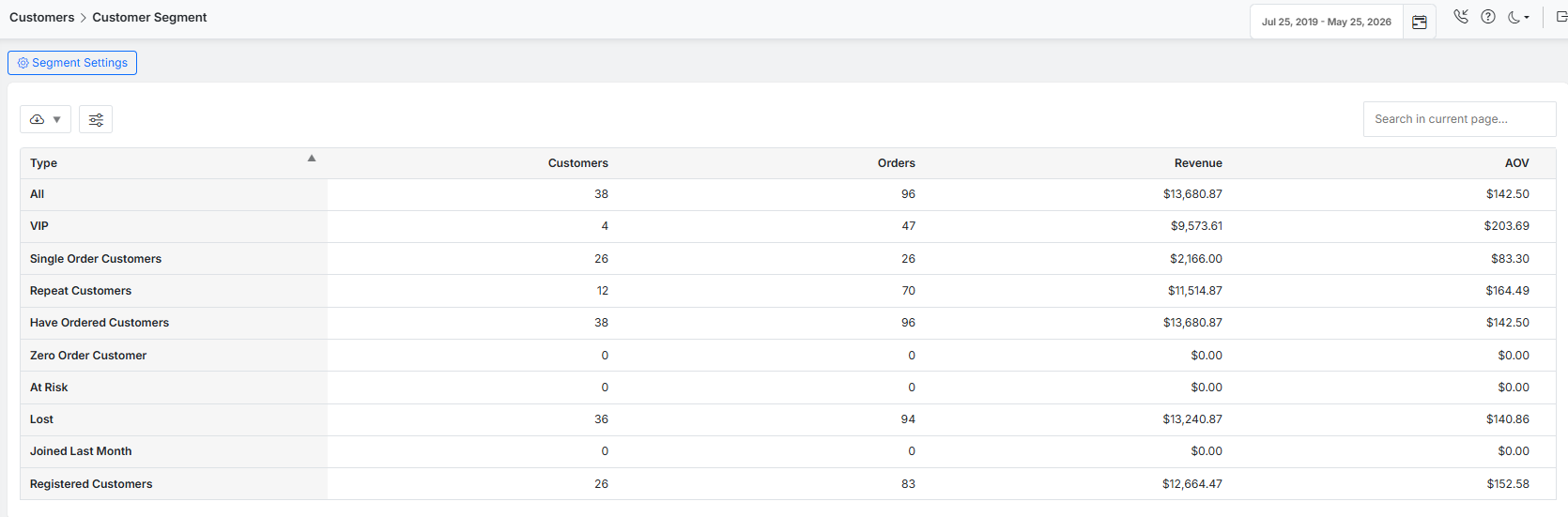
Not every customer should receive the same message. A customer who purchases every month is different from a first-time buyer. A high-value customer is different from a discount-driven shopper. Segmentation makes it possible to design more relevant campaigns and reduce unnecessary discounts.
- New customers: customers who need onboarding and a clear reason to return.
- Returning customers: shoppers who have already shown trust in the store.
- VIP customers: high-value customers who may deserve exclusive service or rewards.
- Single-order customers: buyers who may need a win-back campaign.
- Inactive customers: previous buyers whose purchase activity has declined.
- Role-based customers: wholesale, retail, reseller, or membership groups with different behavior.
The article on customer segmentation reports explains how to use these groups. For role-based stores, the guide to sales reports by user role is also relevant.
Customer Lifetime Value, Lifecycle and Basket Analysis
Customer lifetime value, often shortened to CLV, estimates the value of a customer relationship over time. It is a more useful metric than a single order total because it changes the way marketing costs are evaluated. A customer acquired through a costly campaign may still be profitable if that customer returns several times.
The detailed guide to a customer lifetime value report in WooCommerce explains this metric. To understand retention stages, read about WooCommerce customer lifecycle reports and WooCommerce loyalty customer reports.
Basket analysis adds another layer. It shows which products are frequently purchased together. This information can improve bundles, cross-sells, product recommendations, and post-purchase campaigns. See the guide to customer basket analysis and the article about personalized recommendations with customer data.
4. Financial, Tax, Coupon, Location and Seasonal Reports
The next reporting group connects daily store activity to financial control and long-term planning. These reports are often reviewed less frequently than daily sales reports, but they can have a major impact on profitability.
Profit Reports
Revenue is not the same as profit. A WooCommerce store may generate more sales while earning less money if product costs, discounts, refunds, shipping expenses, payment gateway fees, taxes, and operating costs are not controlled carefully.
A profit report helps store managers understand how much money remains after the real costs of selling products are deducted. This is important because a high-revenue product is not always a high-profit product. For example, an item may sell frequently but generate a low margin because of heavy discounts, expensive shipping, or a high refund rate. Another product may sell fewer units but contribute more profit because its costs are lower and its margin is stronger.
Profit analysis can help store managers answer practical questions such as:
- Which products generate the highest profit margin?
- Which categories bring revenue but reduce overall profitability?
- How much profit is lost because of refunds or discount campaigns?
- Are shipping costs reducing the margin of specific products?
- Which promotions increase sales without damaging profit?
By reviewing profit data regularly, store owners can make better decisions about pricing, discounts, product bundles, inventory planning, and marketing budgets. The guide to a profit report in WooCommerce explains how to track these metrics and identify the products that contribute most to sustainable growth.
Tax Reports
Tax reports help WooCommerce store managers review the taxes collected from customers and organize tax-related data more accurately. These reports are especially useful for stores that sell across multiple regions, states, or countries where tax rates may differ.
A detailed tax report can show:
- Total tax collected during a selected period
- Tax amounts by country, state, or location
- Tax rates applied to different orders
- Shipping taxes
- Order taxes
- Changes in collected taxes over time
This information helps store owners prepare accounting records, review tax obligations, and identify possible inconsistencies. For example, an unexpected increase in tax amounts may indicate a change in order volume, customer location, or tax configuration. A sudden drop may suggest that some orders were processed without the correct tax rules.
Tax reports are also useful when preparing monthly, quarterly, or yearly financial summaries. They make it easier to compare tax data with revenue, refunds, and shipping costs, giving store managers a clearer view of their financial performance.
For a focused workflow, see how to get tax reports in WooCommerce and review the guide to financial reports for accounting and tax workflows.
Coupon and Promotion Reports
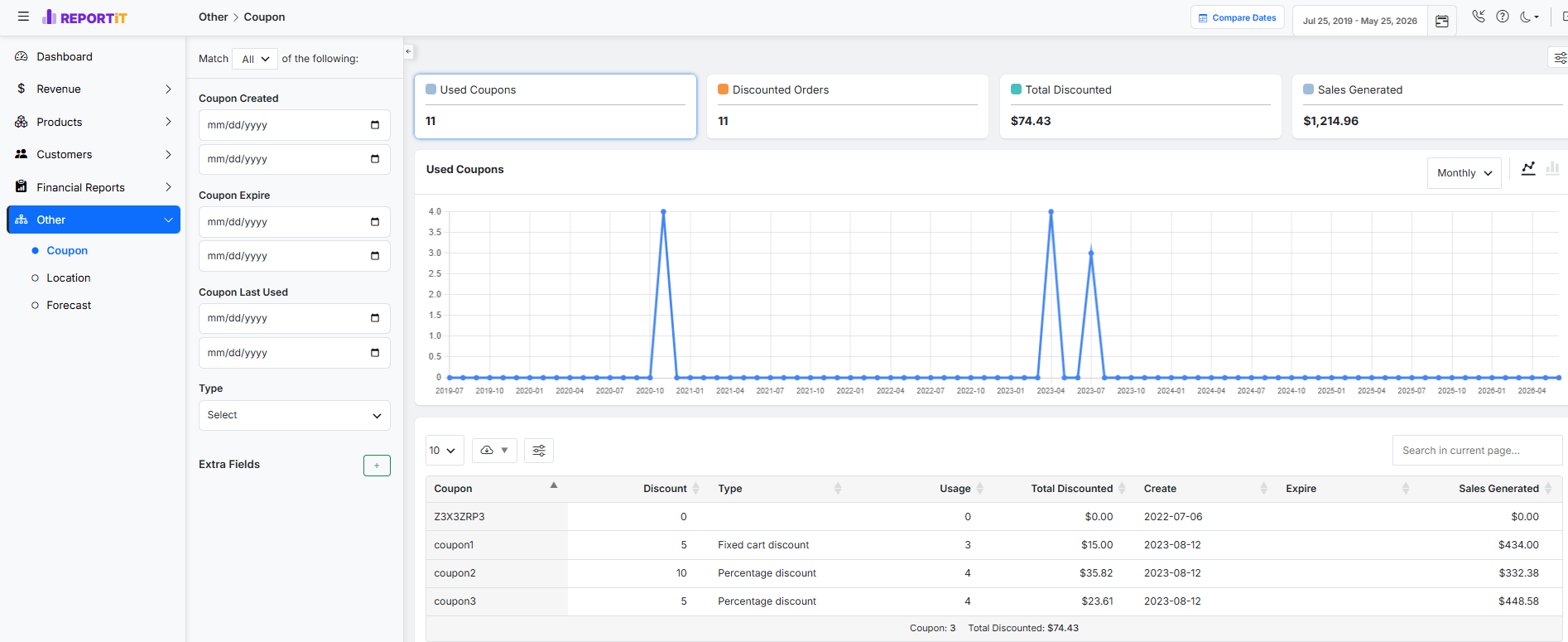
Coupons can increase conversion, encourage a larger basket, or support a seasonal campaign. They can also reduce margin without creating meaningful growth. A coupon report should compare usage, discount amount, order count, net revenue, and customer behavior after redemption.
The official WooCommerce Coupons Report documentation describes the coupon report available under Analytics. For a practical review, read the guide to coupon usage reports in WooCommerce.
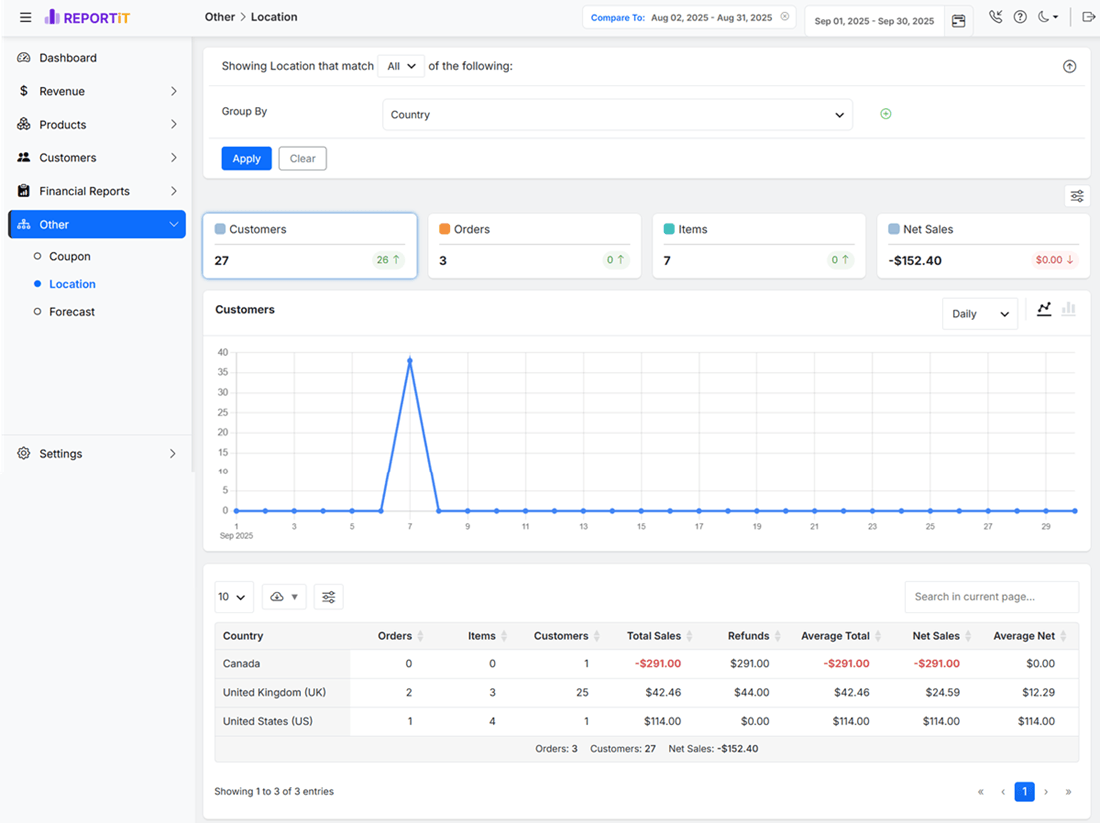
Location-Based Reports
Location reports reveal where demand is strongest and where operations may need attention. Compare sales, order count, average order value, customer count, taxes, refunds, and shipping performance by country, state, or city when that level of detail is available.
These insights can guide local promotions, shipping policies, stock placement, and regional landing pages. The guides to WooCommerce sales by country reports and WooCommerce sales reports by state explain the workflow in more detail.
Seasonal and Year-over-Year Analysis
A month can look successful simply because the store is in a seasonal peak. Comparing the current period only with the previous month may produce a misleading conclusion. A year-over-year comparison is often more useful when demand changes by season, holiday, or event.
The article about seasonal versus year-over-year sales reports explains how to compare periods more carefully. This analysis is especially useful when planning inventory, advertising budgets, and staffing for high-demand months.
5. Forecasting, Dashboards and Reporting Workflows
Historical reports explain what happened. Forecasting uses those patterns to improve future planning. No forecast is perfect, but even a simple forecast can help a store avoid preventable mistakes.
Forecasting Sales and Inventory
Sales forecasts can be built from historical revenue, order volume, product performance, seasonal changes, and campaign plans. Inventory forecasts add stock levels, lead times, and sales velocity. The purpose is not to predict every order. The purpose is to make purchasing and marketing decisions with a clearer view of likely demand.
Building a Useful KPI Dashboard
A dashboard should not contain every available metric. It should show the small group of numbers that help a manager decide where to look next. The right KPI set depends on the store, but a general dashboard can begin with revenue, net sales, order count, average order value, refunds, top products, low-stock products, new customers, returning customers, and coupon usage.
| Review interval | Recommended checks | Main purpose |
|---|---|---|
| Daily | Revenue, orders, failed orders, refunds, urgent stock issues | Catch operational problems quickly |
| Weekly | Product performance, AOV, payment methods, coupon use, customer activity | Adjust campaigns and store operations |
| Monthly | Profit, taxes, segments, CLV, location, inventory turnover | Evaluate business quality, not only volume |
| Quarterly | YoY comparison, seasonal plan, forecast, category structure | Plan budgets, stock and growth priorities |
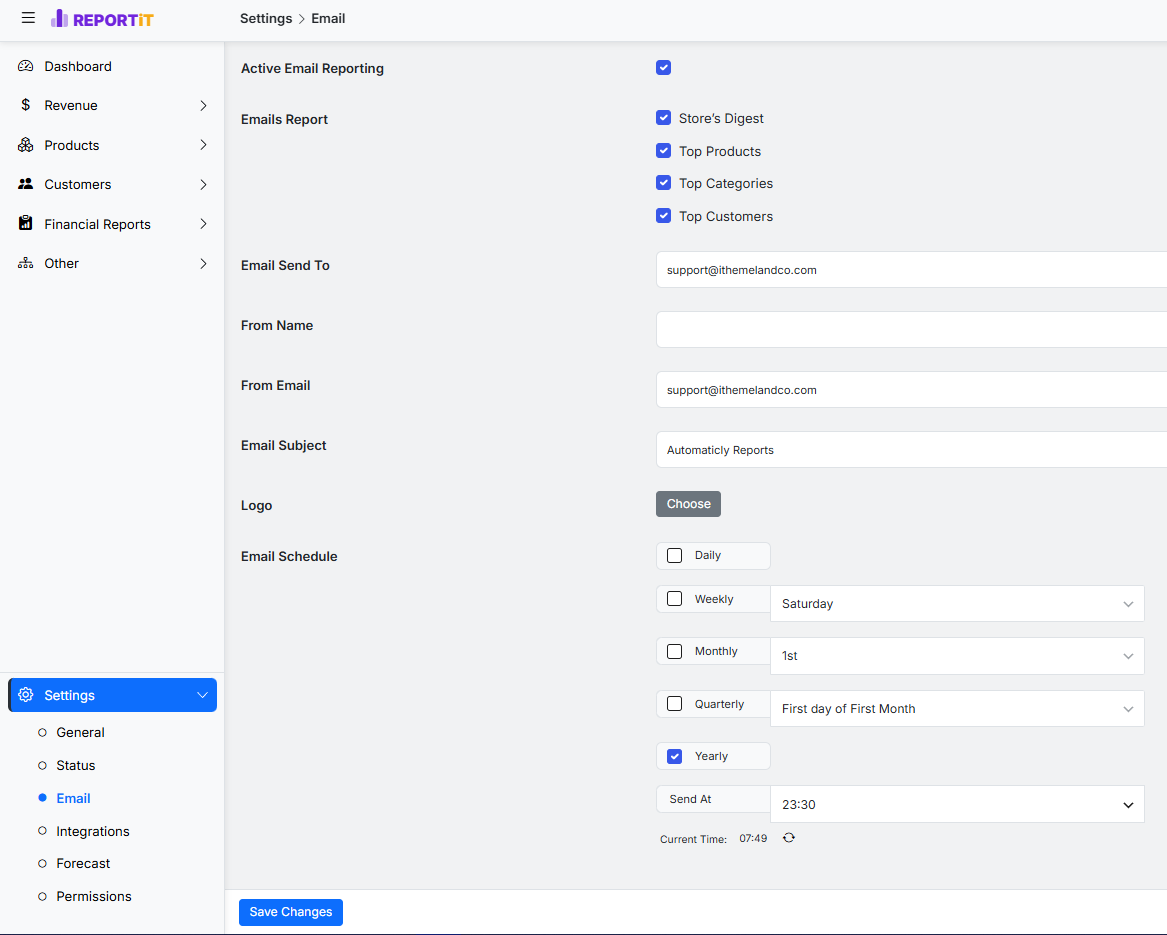
Exporting, Emailing and Sharing Reports
Reports become more useful when the right people receive them on a predictable schedule. A store manager may need a daily summary, while an accountant needs monthly tax and revenue data. A marketing manager may need campaign and coupon reports. A purchasing team may need low-stock and product performance reports.
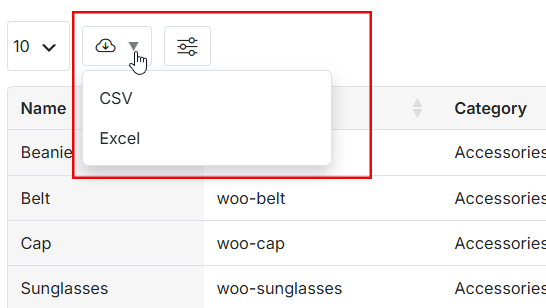
For a focused tutorial, read how to create a sales report email in WooCommerce. Exports are also useful for deeper spreadsheet analysis, accounting workflows, and internal presentations.
Turn Reports into an Action Plan
A reporting routine becomes valuable when it changes what the team does next. This is where many stores struggle. They collect charts, export spreadsheets, and discuss numbers in meetings, but the findings are not converted into a clear owner, deadline, and follow-up check. A simple action plan prevents that problem.
Begin each reporting review with one business question. For example: Why did net sales decline in the last seven days? Which products created the increase in refunds? Which category generated the strongest margin during the seasonal campaign? Why did average order value improve while the number of orders declined? Each question should lead to a short investigation, not an open-ended search through every available metric.
- Write down the question before opening the dashboard.
- Select the report and date range that match the question.
- Compare the result with a relevant baseline, such as the previous period or the same period last year.
- Identify the most likely cause and check whether another report supports that conclusion.
- Assign one action to a specific person or team.
- Set a follow-up date and review whether the action changed the result.
For example, imagine that a weekly product report shows a sharp decline in net sales for a popular item. A stock report reveals that the main variation was unavailable for four days. The correct response is not to increase advertising. The correct response is to restock the variation, improve low-stock monitoring, and review the report again after the product is available. Connecting reports in this way prevents the team from solving the wrong problem.
Assign Owners to Important KPIs
Not every KPI belongs to the same person. Revenue may be reviewed by the store manager. Refunds may need attention from customer service and operations. Stock reports may belong to the purchasing team. Coupon reports may be reviewed by marketing. Tax and profit reports may require an accountant or finance manager. Assigning ownership makes the reporting system more reliable because each number has a clear audience.
| KPI or report | Suggested owner | Typical follow-up action |
|---|---|---|
| Revenue and net sales | Store manager | Review performance against target and investigate unusual changes |
| Failed, cancelled and refunded orders | Operations or customer service | Check payment, delivery, product quality and customer feedback |
| Product and variation performance | Merchandising or catalog manager | Adjust visibility, pricing, stock and promotions |
| Low-stock and out-of-stock products | Purchasing or inventory manager | Restock, revise reorder points and review supplier lead time |
| Customer segments and CLV | Marketing or CRM manager | Create retention, loyalty and win-back campaigns |
| Coupon performance | Marketing manager | Compare redemption, revenue and margin before extending a campaign |
| Tax and profit reports | Finance or accounting | Validate calculations, prepare records and monitor margin |
A store does not need a large team to use this approach. In a small business, one person may own several KPIs. The important point is to make the responsibility explicit. When the reporting process has an owner and a follow-up date, data becomes part of store management rather than a separate administrative task.
How to Create Advanced WooCommerce Reports with REPORTiT
A comprehensive reporting guide should explain the subject first and the tool second. Once the reporting questions are clear, REPORTiT – Advanced Reporting for WooCommerce can be used as the practical layer for organizing advanced store reports.
REPORTiT groups reports into clear categories such as revenue, orders, products, customers, financial reports, coupons, locations, and forecasts. This makes it easier to move from a dashboard overview to a focused report without building a separate spreadsheet every time.
Install and Activate the Plugin
Download the plugin package and keep the license information available. In the WordPress admin area, go to Plugins > Add New > Upload Plugin, select the ZIP file, install it, and activate it. WordPress provides an official guide to managing plugins for administrators who need more information about activation, updates, and plugin management.
Begin with a Business Question
Before opening a report, write down the question. Examples include: Which products caused the increase in revenue? Are refunds concentrated in one category? Which customers are most valuable? Which payment method creates the most failed orders? Which region should receive a localized campaign?
Starting with a question makes the report easier to configure and reduces the temptation to browse metrics without a clear purpose.
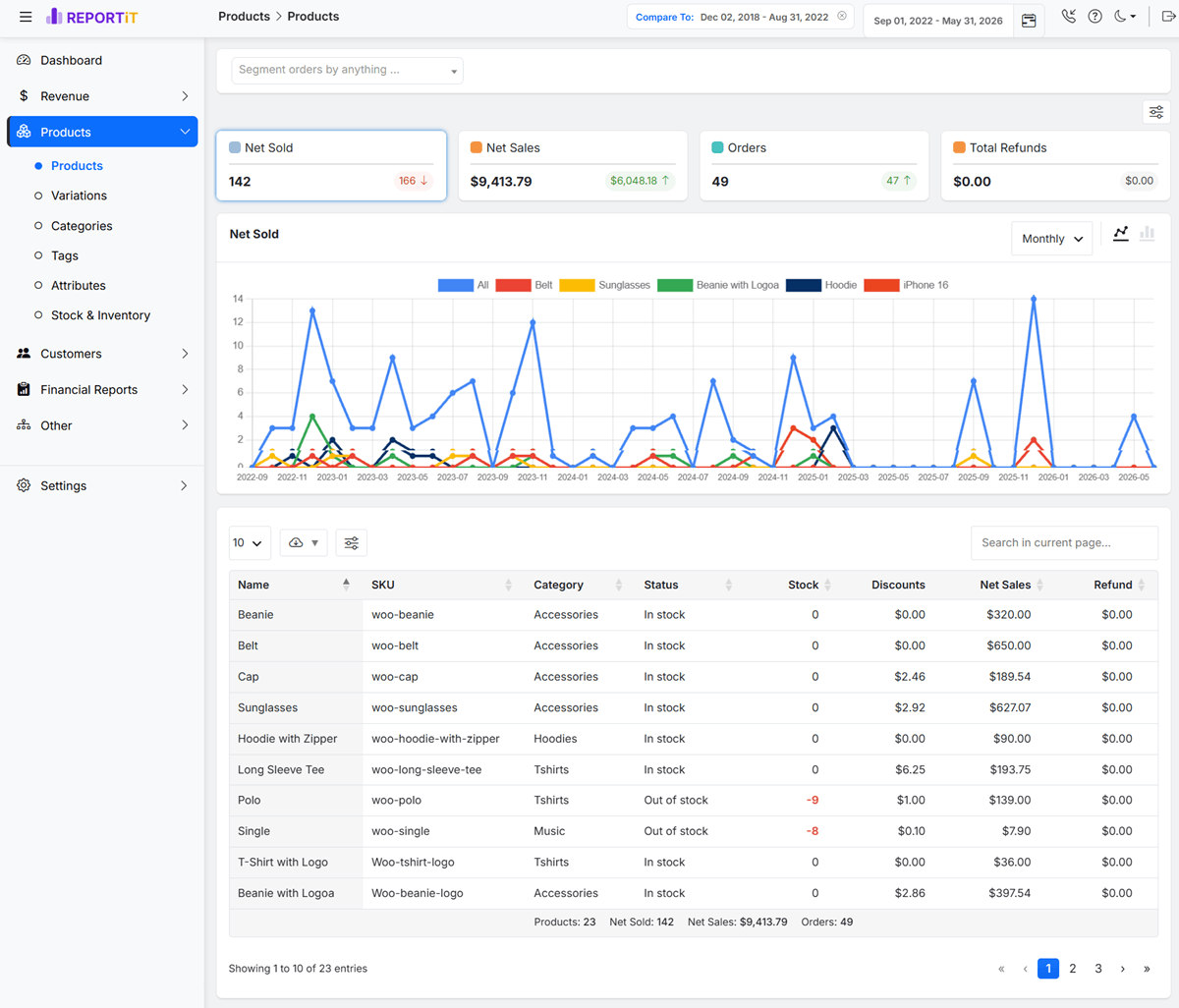
Select the Relevant Report and Filters
Choose the report category that matches the question. Then apply the smallest set of useful filters: date range, product, category, customer, order status, country, state, city, coupon, payment method, or other available fields. Filters should simplify the analysis, not make it harder to explain.
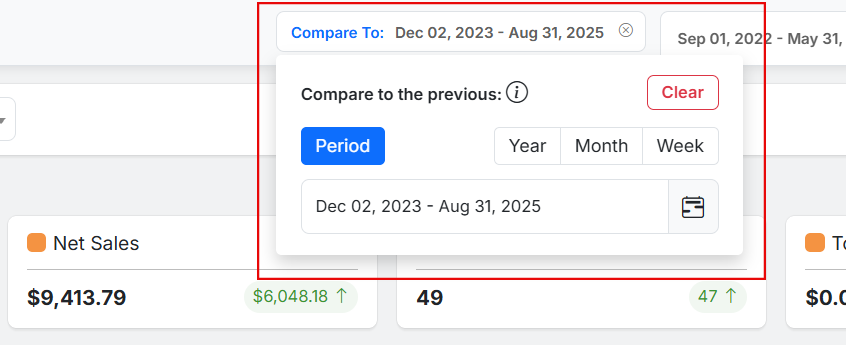
Compare Periods Before Making a Decision
A single period is rarely enough. Compare the selected range with the previous period, the same period last year, or a campaign baseline. If the store changed prices, launched a promotion, or experienced a stock issue, note that context before interpreting the chart.
Export or Share the Result
When the analysis affects more than one team member, export the report or schedule an email summary. Add a short note that explains the question, the finding, and the next action. This prevents the report from becoming an attachment that no one uses.
| A simple reporting note Question: Why did net sales decline last week? Finding: Two high-volume products were out of stock for four days. Action: Restock the products, add low-stock monitoring, and review the inventory report next Monday. |
REPORTiT Plugin Add ons & Integrations
Add ons extend the basic features of WooCommerce advanced reporting plugin to cover advanced needs.
Role & Permission Based Reporting
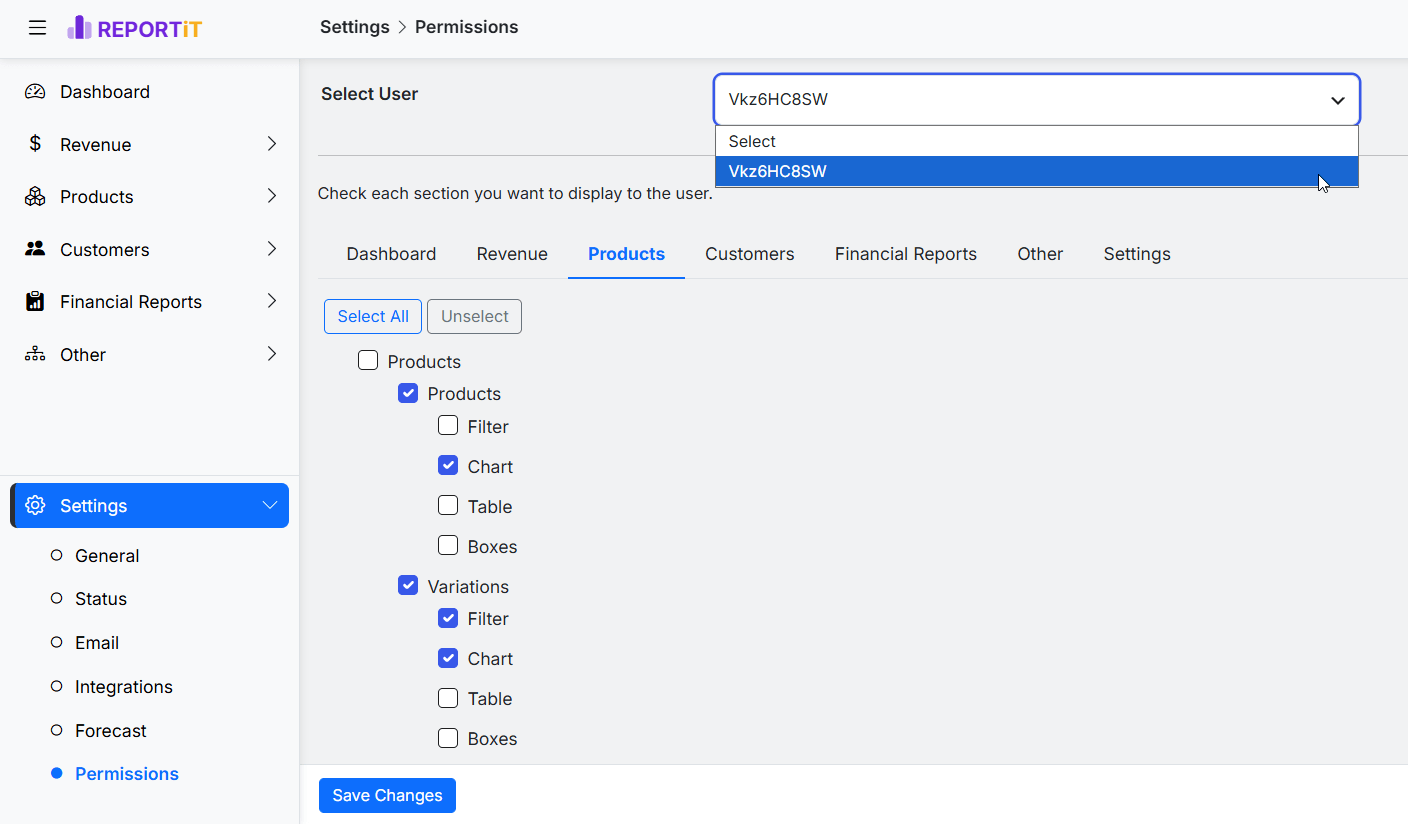
By activating REPORTiT Permissions Addon, you can control which user roles (admin, manager, cashier) can view or edit specific reports. For example, give inventory reports to warehouse staff but restrict profit reports to executives.
Brand Reporting Add ons
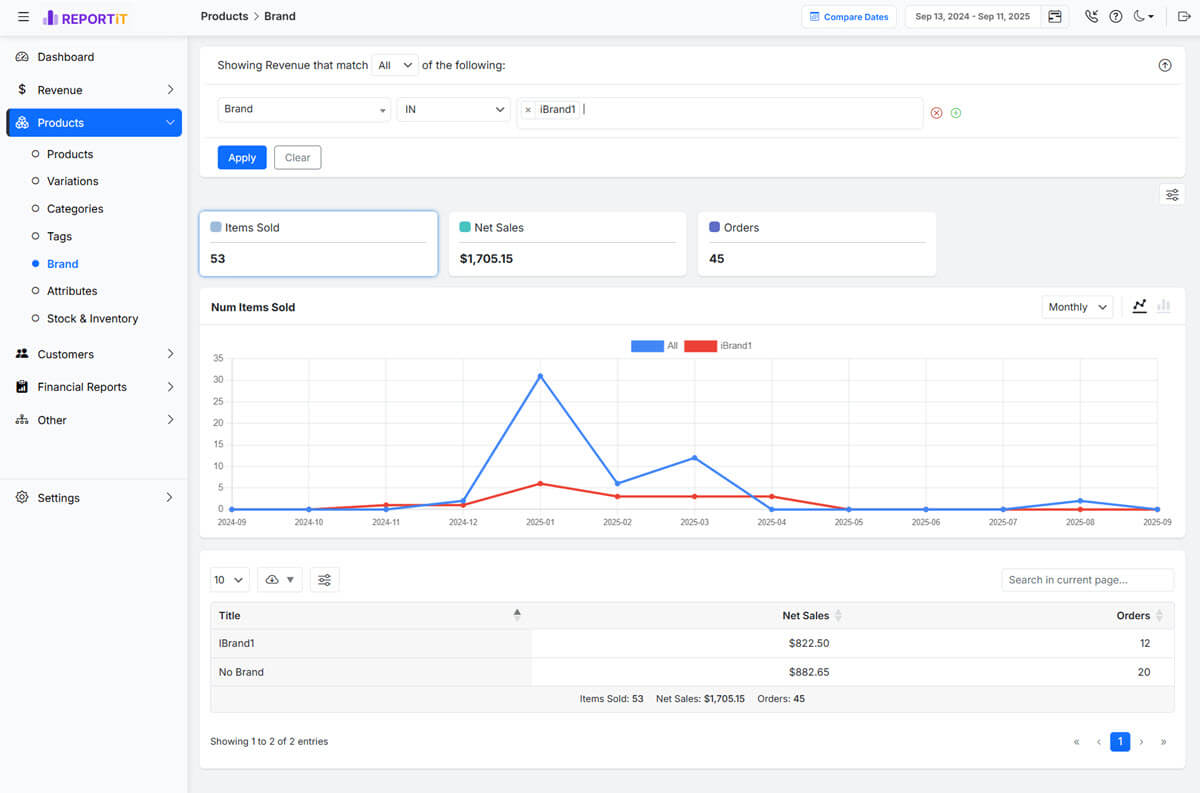
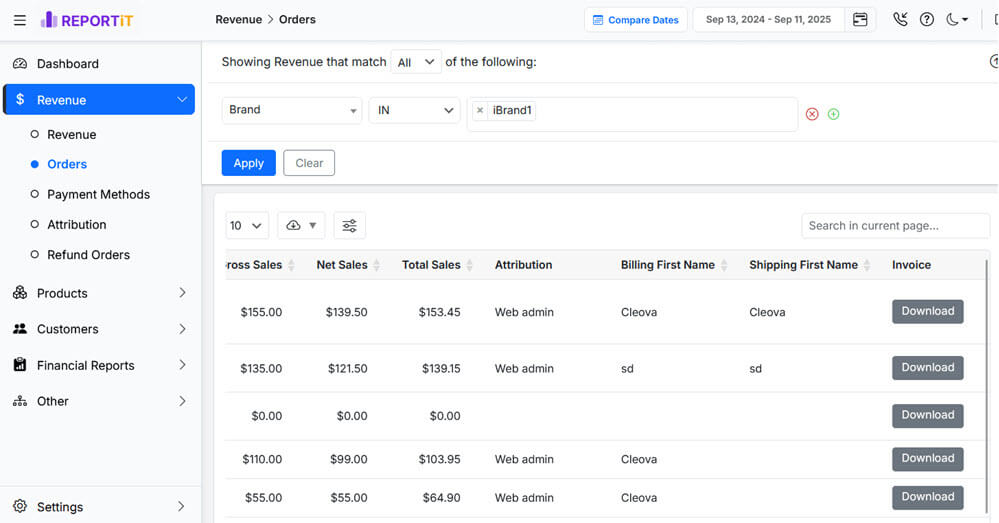
For multi brand stores, brand specific reports show performance by brand, including sales, refunds, and profit per brand owner or supplier. Activating the REPORTiT Brand Addon also adds an option to filter reports based on brands or generate custom brand reports.
PDF Invoice & Financial Integrations
Generate professional invoices directly from your WooCommerce order reports with the REPORTiT Invoice Generator add-on. Create branded PDF invoices in seconds, customize them with your store details, and download or share them instantly with customers—all without leaving your reporting dashboard.
Common WooCommerce Reporting Mistakes
Reports improve decisions only when they are interpreted carefully. The most common errors are usually simple, but they can lead to poor conclusions. The detailed guide to WooCommerce report analysis mistakes provides additional examples.
| Mistake | Why it causes problems | Better approach |
|---|---|---|
| Looking only at gross revenue | Discounts, refunds and costs may be hidden | Compare gross sales, net sales, refunds and profit |
| Comparing the wrong periods | Seasonality can create false conclusions | Use previous-period and year-over-year comparisons |
| Ignoring order status | Failed and cancelled orders may distort assumptions | Review completed, failed, cancelled and refunded orders separately |
| Treating all customers the same | High-value and inactive customers need different actions | Use customer segments, CLV and lifecycle reports |
| Promoting products without checking stock | A successful campaign can create stockouts | Review inventory before and during promotions |
| Collecting reports without actions | Dashboards become passive documents | Attach each report to an owner, decision or test |
Conclusion: Turn WooCommerce Data into Better Store Decisions
WooCommerce reporting is not a task that should be completed only when something goes wrong. It is a regular management process. Revenue reports show whether sales are improving. Order and refund reports explain the quality of those sales. Product and inventory reports guide restocking and merchandising. Customer analytics supports retention and personalization. Financial, coupon, location, seasonal, and forecast reports connect daily operations to long-term planning.
The most effective reporting system is not necessarily the one with the largest number of dashboards. It is the one that helps the team answer important questions consistently. Begin with a small reporting routine, compare the right periods, document the finding, and assign an action.When a store needs more detailed filters, clearer dashboards, exports, and a structured way to review advanced reports, REPORTiT – Advanced Reporting for WooCommerce can provide the practical reporting layer. Used correctly, it helps turn WooCommerce data into a repeatable decision-making process rather than a collection of disconnected numbers.
FAQ
What is WooCommerce reporting?
WooCommerce reporting is the process of reviewing store data such as revenue, orders, products, customers, inventory, taxes, coupons, and locations so that managers can make better business decisions.
Does WooCommerce include built-in analytics?
Yes. WooCommerce includes built-in analytics for common store questions. It is a useful starting point for reviewing revenue, orders, products, categories, coupons, and customers.
What is the difference between WooCommerce reports and analytics?
A report shows the numbers. Analytics interprets those numbers, compares them with other periods, and connects them to a business decision.
Which WooCommerce reports should I review every day?
Most stores should begin with revenue, net sales, order count, failed orders, refunds, and urgent stock issues. The exact list depends on the size and complexity of the store.
How often should I review customer reports?
A basic customer review can be completed weekly, while a deeper analysis of segments, lifetime value, and retention is usually more useful on a monthly or quarterly basis.
How can I identify best-selling products in WooCommerce?
Use product sales reports to compare quantity sold, revenue, net sales, refunds, and stock status. Review both top products and weak performers before changing your merchandising or inventory plan.
Why should I compare seasonal and year-over-year reports?
Seasonal comparisons help separate genuine growth from temporary demand. A holiday month should often be compared with the same period in the previous year, not only with the previous month.
Can WooCommerce reports help reduce refunds?
Yes. Refund reports can reveal products, categories, locations, or periods with unusually high return activity. This helps the team investigate product quality, descriptions, packaging, shipping, or checkout issues.
What is REPORTiT – Advanced Reporting for WooCommerce?
REPORTiT is a reporting plugin that helps store managers organize advanced WooCommerce reports, use filters, compare data, and create a clearer reporting workflow across revenue, products, customers, finance, coupons, locations, and forecasts.
When should I use an advanced WooCommerce reporting plugin?
An advanced plugin becomes useful when built-in reports no longer answer your questions efficiently, especially when the store needs deeper filtering, recurring exports, multiple report categories, or a more structured team workflow.
Can I export and email WooCommerce reports?
Yes. Exporting and emailing reports is useful when managers, accountants, marketers, or purchasing teams need a recurring summary or a spreadsheet for further review.
Where can I find more reporting tutorials?
The resource section below links to detailed articles about revenue, customers, stock, refunds, coupons, tax reports, location analysis, CLV, and other WooCommerce reporting topics.
For more focused questions, review the article about common WooCommerce report FAQs.