

Managing a WooCommerce store becomes more demanding as the catalog grows. Editing five products is simple. Editing five hundred products before a seasonal campaign is not. A store manager may need to update prices, stock levels, product categories, descriptions, images, SKUs, backorder settings, custom fields, or variations across a large group of products. Opening every product page separately turns a routine task into hours of repetitive work.
Product management is not only an administrative responsibility. It affects the accuracy of search results, the clarity of category pages, the reliability of inventory information, and the customer’s ability to place an order without confusion. A missing image can reduce trust. A duplicated product can create SEO problems. An incorrect variation price can cause lost revenue or customer complaints.
WooCommerce includes a basic bulk editor for common changes, and this is enough for some small stores. As operations become more complex, managers usually need stronger filters, better control over variations, safer price updates, scheduling, export tools, and a clear way to review changes before applying them. This guide explains the full process in practical terms. It also links to focused tutorials when a specific task needs a step-by-step walkthrough.
Why Product Management Matters in WooCommerce
A well-organized catalog is easier to sell from and easier to maintain. Customers should see the right title, image, price, stock status, and variation options. Store teams should be able to find the correct products quickly and update them without affecting unrelated items. This sounds straightforward until the catalog includes thousands of products, multiple suppliers, seasonal collections, or frequent promotional campaigns.
Consider a fashion store preparing for a weekend sale. The manager needs to reduce the regular price of selected jackets by 15%, apply a fixed sale price to older shoes, mark unavailable sizes as out of stock, and move winter products into a clearance category. If each item is edited manually, the team may spend a full working day on the task. There is also a higher chance of missing products or applying a discount to the wrong variation.
Bulk editing solves this problem by turning repeated actions into controlled operations. A manager can filter the required products, check the result, apply a specific change, and verify the outcome. For a comparison of the available tools, review the guide to the best WooCommerce bulk edit plugins.
| Common catalog problem | Possible effect | Better management response |
| Old prices remain active after a campaign | Margin loss or customer complaints | Schedule the price change and verify the affected products |
| Duplicate products appear after an import | Confusing search results and weaker SEO | Filter, review, and remove duplicate entries |
| Stock quantity is not updated for variations | Customers order unavailable sizes or colors | Manage stock at product and variation level |
| Products remain in the wrong category | Poor browsing experience and weak merchandising | Bulk add or remove category assignments |
| Images and descriptions are inconsistent | Lower trust and weaker conversion | Update content in planned batches |
| Practical principle Bulk editing should reduce repetitive work, not reduce control. Always begin with a clear filter, review the selected products, and keep a recent backup before applying a large update. |
What Is WooCommerce Bulk Editing?
WooCommerce bulk editing is the process of changing the same field, or a group of related fields, for several products at the same time. A bulk update may be simple, such as changing the status of twenty products from Draft to Published. It may also be more advanced, such as increasing selected prices by a percentage, replacing images for a category, or updating stock quantities for product variations.
The main benefit is consistency. Instead of repeating the same action across separate product screens, the manager defines the target group once and applies the change in a controlled way. This is useful for product launches, supplier updates, seasonal promotions, inventory corrections, catalog cleanup, and large migrations.
Best Ways to Bulk Edit WooCommerce Products
There is no single bulk editing method that works for every WooCommerce store. The right choice depends on the number of products, the type of change, the technical skills of the team, and how often the task needs to be repeated.
For example, changing the category of 20 products is a simple task. Updating prices, stock values, tags, images, and variations across several thousand products requires a more structured workflow.
The most common methods are the default WooCommerce editor, CSV import, direct SQL queries, and bulk editing plugins.
| Method | Best For | Main Advantages | Main Limitations |
| Default WooCommerce editor | Small and occasional updates | Already available in WooCommerce, simple to use, no extra setup | Limited fields, basic filters, not efficient for complex updates |
| CSV import | Large one-time updates and catalog migrations | Useful for editing many products in a spreadsheet, suitable for imports and exports | Requires careful file preparation, mistakes can affect many products |
| SQL queries | Highly technical database updates | Fast for specific database-level changes | Risky for non-technical users, difficult to reverse, may affect related data |
| Bulk editing plugins | Regular catalog management and complex updates | Advanced filters, formula-based changes, variation management, scheduling, safer workflows | Requires plugin setup and a clear editing process |
Default WooCommerce Bulk Editing
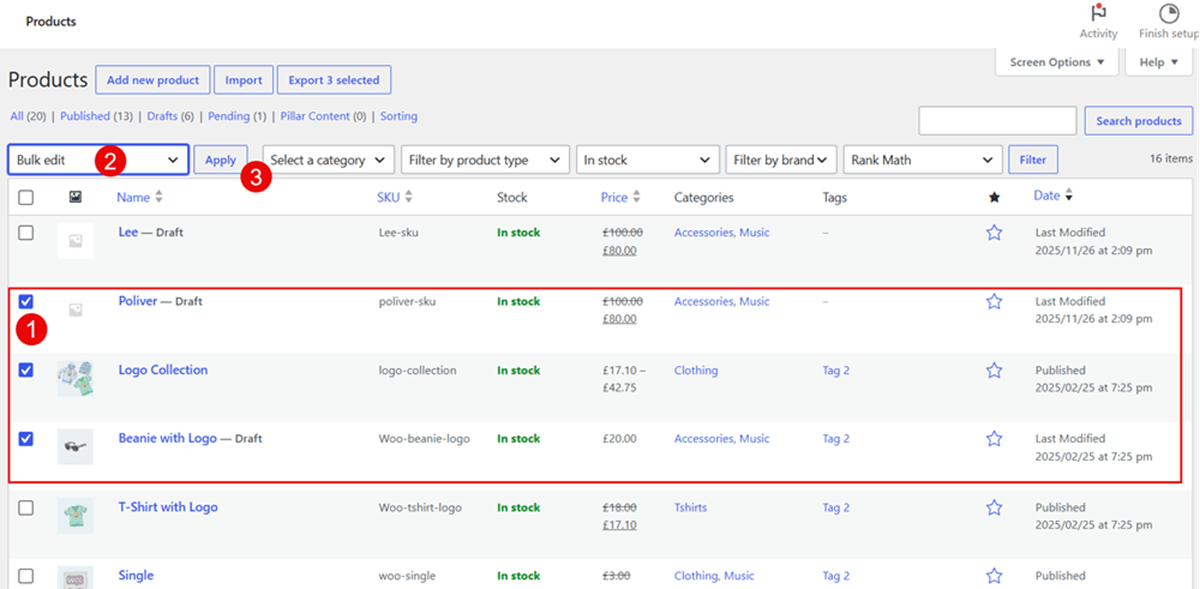
WooCommerce includes a basic bulk editing tool in the Products area. Store managers can select several products, choose Edit from the Bulk Actions menu, and update common fields such as categories, status, price, sale price, stock status, and visibility.
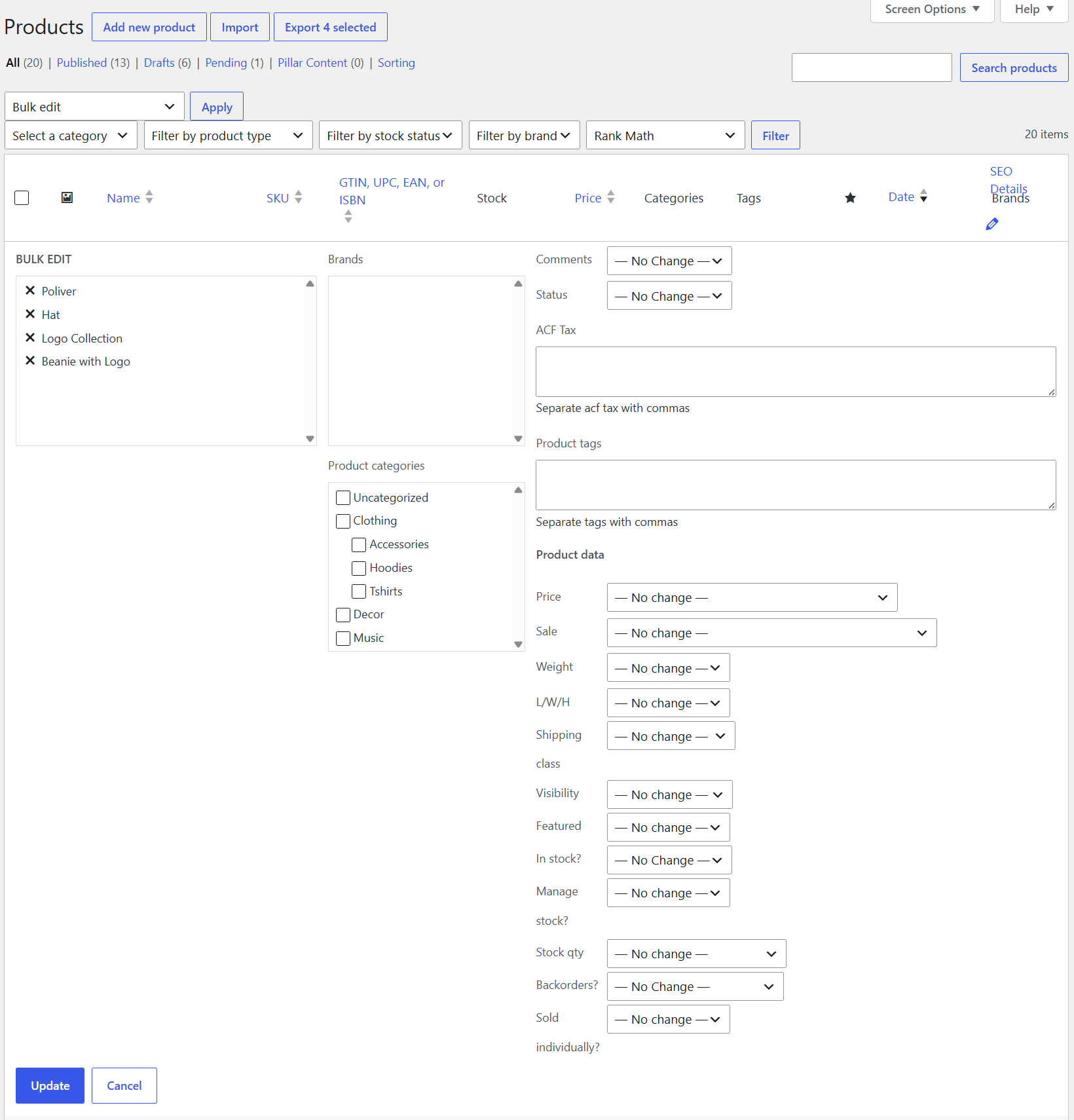
This option is suitable when the catalog is small and the requested change is simple. A store manager who wants to move 15 discontinued items to a clearance category may not need an additional tool.
The limitation appears when the task becomes more detailed. The default editor does not provide the flexible filters, formula-based updates, advanced variation controls, or scheduling options needed for larger catalogs.
CSV Import
CSV files are useful when the store needs a large one-time update. A spreadsheet makes it easier to review hundreds of rows before importing the changes.
For example, imagine that a supplier sends a new price list for 2,000 products. The store manager can export the catalog, update the relevant price column, review the spreadsheet, and import the revised file.
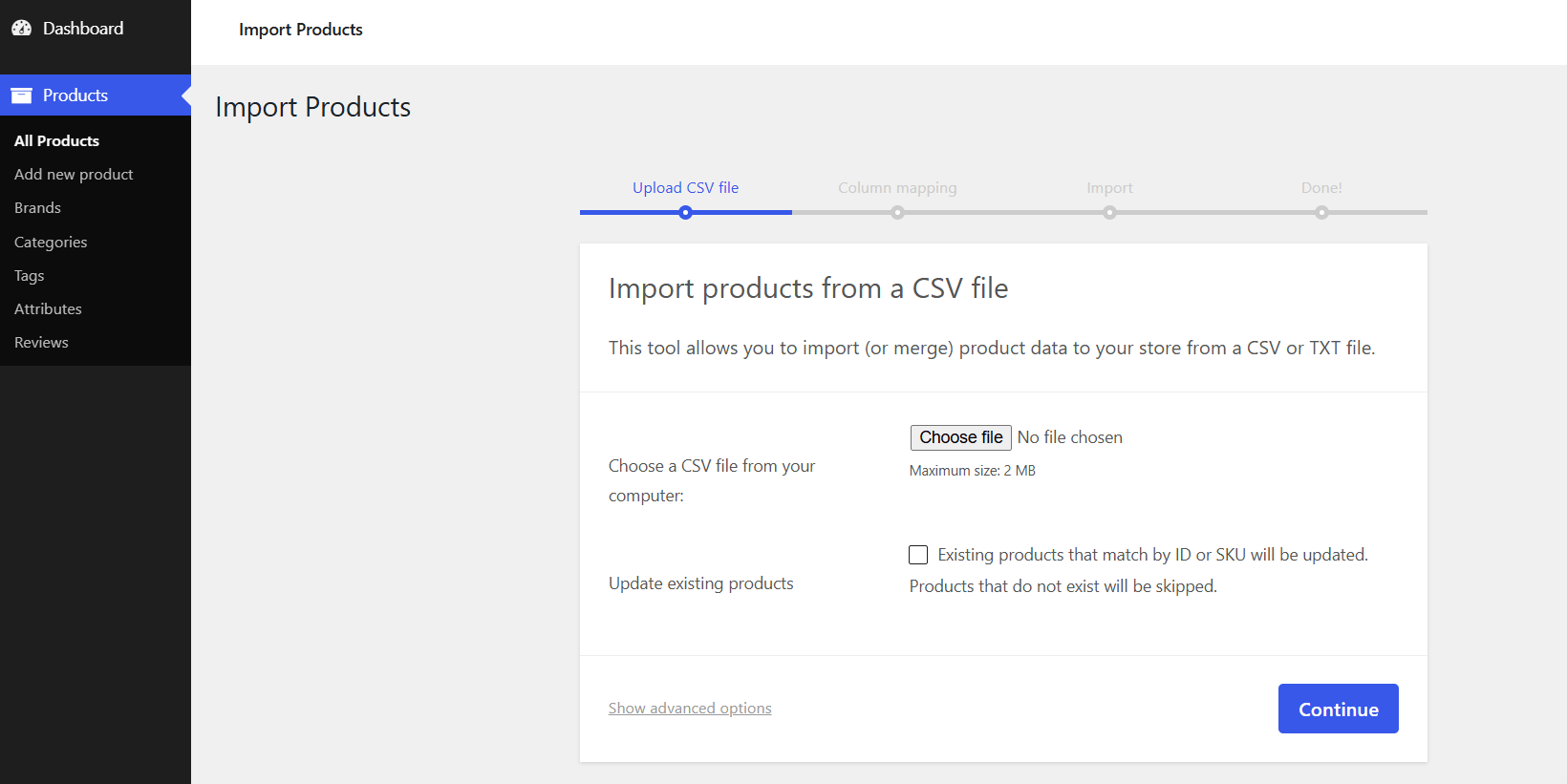
CSV import is practical, but it requires careful preparation. A missing SKU, incorrect column mapping, or accidental overwrite can create problems across the catalog. It is always better to test the file on a small group of products before running the final import.
SQL Queries
Direct SQL queries can update product data at the database level. This method may be fast, but it should only be used by developers or experienced technical teams.
WooCommerce product information is not always stored in a single database table. Prices, stock values, attributes, variations, and taxonomies may depend on several connected records. A poorly written query can update the wrong values or leave inconsistent data behind.
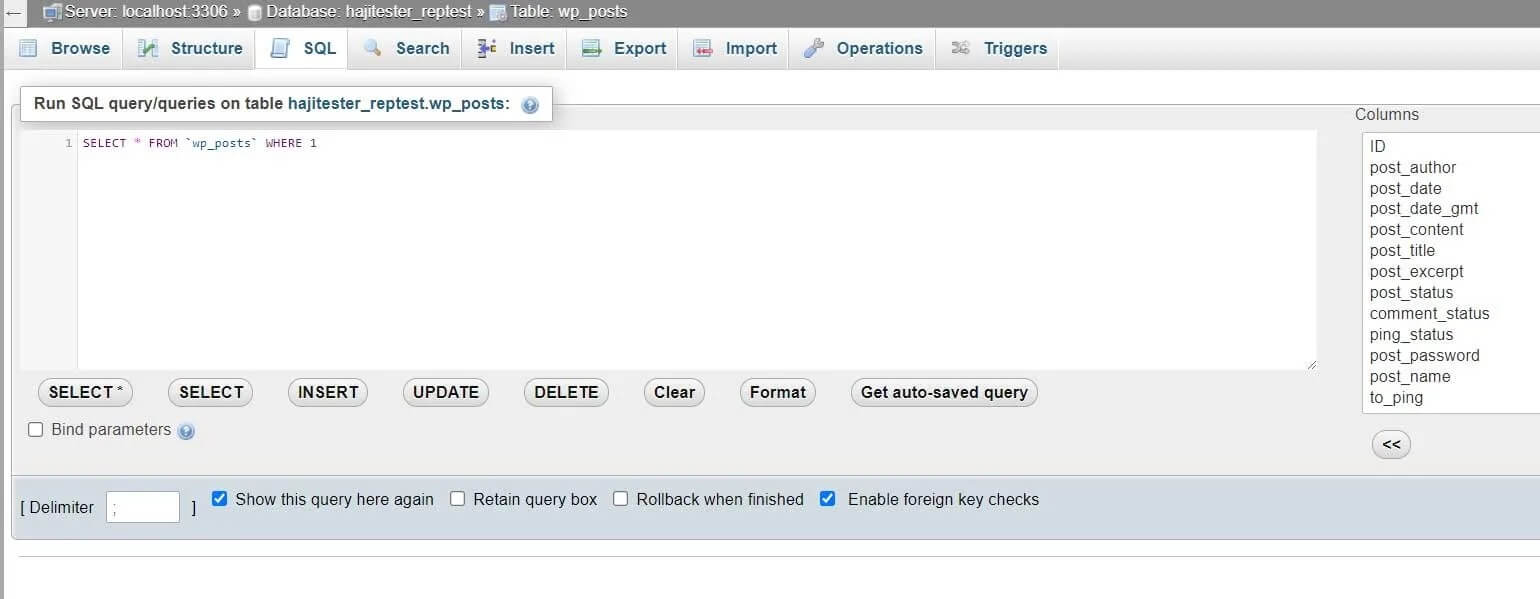
For store managers, SQL should be treated as a specialist option rather than the standard solution for routine catalog work.
Bulk Editing Plugins
A dedicated WooCommerce bulk product editor is usually the most practical option for stores that need frequent updates. These tools make it easier to filter products, select the correct records, apply changes, review the result, and repeat the process when necessary.
A store manager may need to:
- Increase prices for one supplier by 10%
- Change the sale price of products in a seasonal category
- Update stock quantities for selected SKUs
- Replace outdated tags
- Edit variation prices
- Schedule a promotion
- Move products between categories
- Update descriptions or product images
A bulk editing plugin brings these tasks into a more manageable workflow.
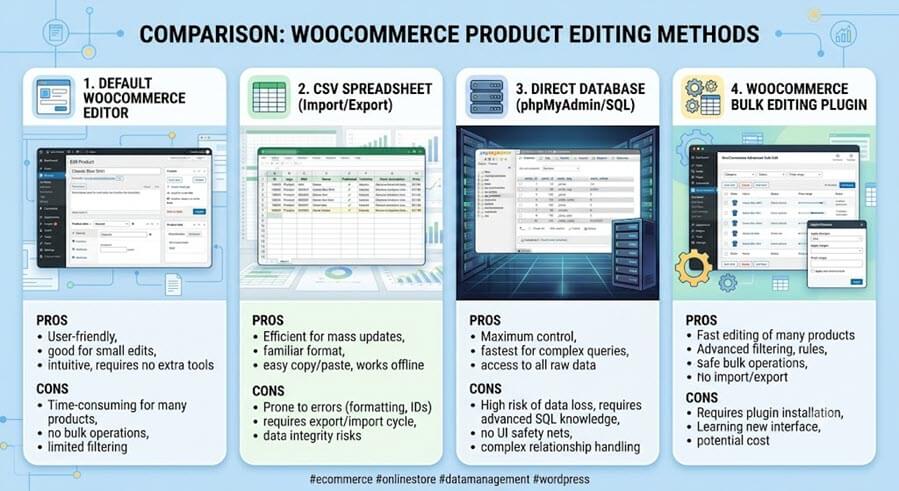
The best bulk editing method depends on catalog size, update complexity, and the technical skills of the team.
Built-in WooCommerce Editing Limitations
WooCommerce provides a built-in bulk editing option from Products > All Products. After selecting multiple products, choose Edit from the Bulk actions menu and click Apply. The default editor supports common fields such as categories, tags, status, prices, shipping information, visibility, featured status, stock settings, and backorders. The official WooCommerce bulk editing documentation explains the available fields and the basic workflow.
This built-in method is useful for small, occasional updates. Its limitations become more visible when the catalog grows. Filtering is relatively basic. Detailed variation management is limited. Complex formulas, scheduling, advanced custom fields, and careful review of thousands of records usually require a more flexible workflow.
| Built-in editing is often enough when | An advanced bulk editor becomes useful when |
| The catalog is small | The store manages hundreds or thousands of products |
| The update affects a few simple products | The update affects variable products or specific variations |
| A fixed price or status change is required | The team needs formulas, filters, scheduling, or history |
| Updates are occasional | Catalog changes are part of daily operations |
| One manager handles the catalog | Several teams need a repeatable workflow |
Benefits of Advanced Bulk Editing Plugins
An advanced bulk editor should make product management faster while preserving accuracy. Useful features include detailed filters, spreadsheet-style tables, inline editing, variation support, formula-based updates, history or undo tools, scheduled changes, column profiles, and export options. The purpose is not to add complexity. The purpose is to let the store manager narrow the target group and complete the update with fewer manual steps.
For example, a store may need to update only published products in the Shoes category with stock below five units and a regular price above $80. A flexible filter form makes this possible. The team can review the filtered products in a table before changing stock status, price, or category assignments.
Managing Thousands of WooCommerce Products Efficiently
Large catalogs need a routine. Divide updates into smaller operational groups: pricing, stock, catalog structure, product content, visibility, and maintenance. Use saved filters for recurring tasks. Make large changes outside peak hours. Keep a backup. Test an operation on a small group before applying it across the full catalog. These steps become more important as the number of products and variations increases.
The Essential WooCommerce Bulk Editing Framework
A complete WooCommerce bulk editing system can be divided into six groups. This structure helps store managers choose the correct tool and prevents unrelated tasks from being mixed together.
| Editing group | Typical fields | Common business decision |
| Catalog structure | Categories, tags, taxonomies, attributes | Improve navigation and product organization |
| Pricing and promotions | Regular price, sale price, variation price, schedule | Prepare campaigns without harming margin |
| Inventory and availability | SKU, stock quantity, stock status, backorders, product status | Keep the storefront accurate and fulfilment reliable |
| Variable products | Attributes, variation combinations, variation stock, variation prices | Manage size, color, style, or material options |
| Content and media | Descriptions, short descriptions, images, galleries, custom fields | Maintain consistent product pages |
| Visibility & Status | Visibility, status | Catalog visibility and product status |
1. Categories, Attributes and Taxonomies
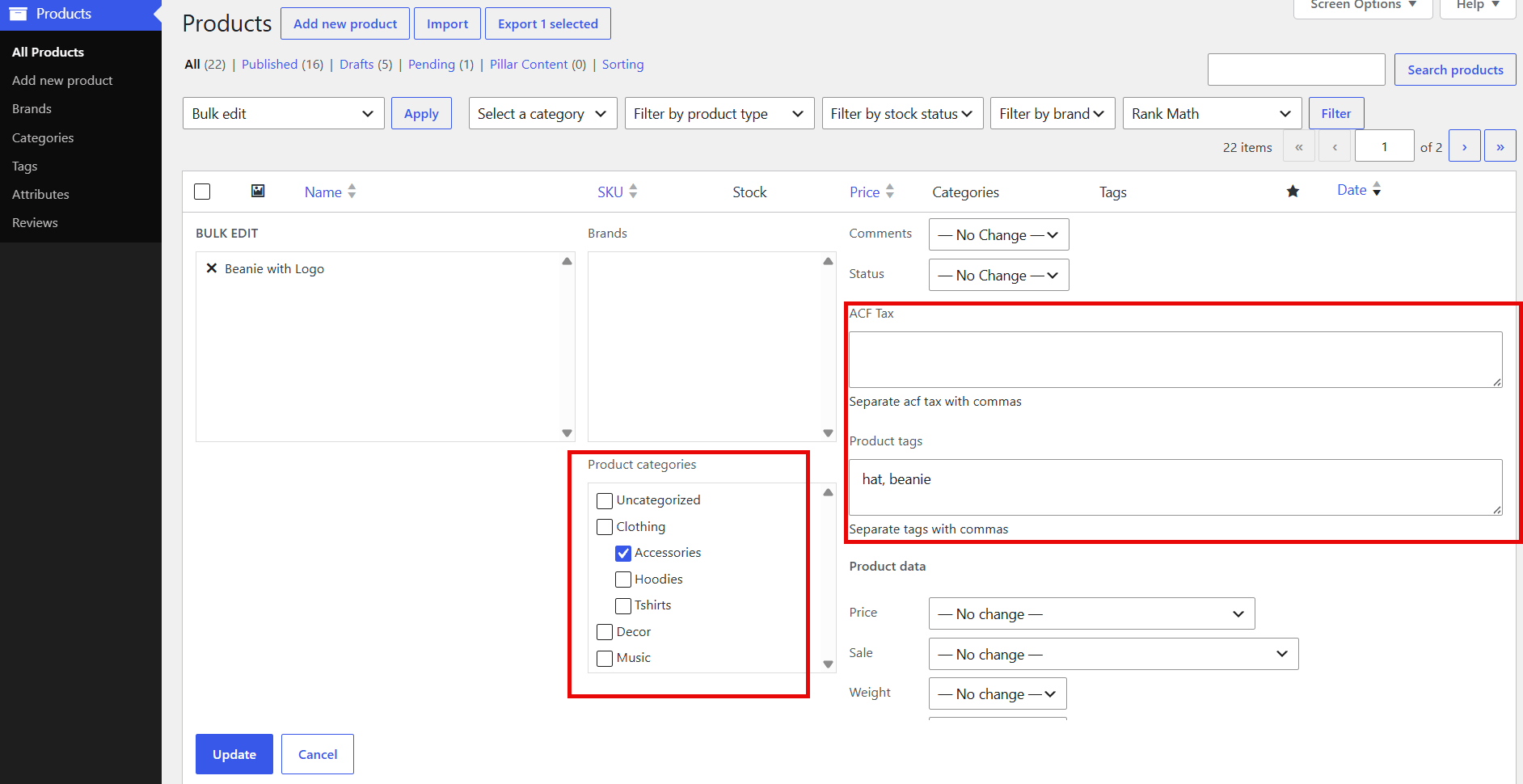
Product structure affects both store navigation and variation management. Categories help customers browse. Attributes such as size, color, material, or brand support filters and product variations. Taxonomies create additional ways to organize products. When these fields are inconsistent, search and merchandising become harder to manage.
Bulk Edit Product Attributes
Attributes should be updated with a clear purpose. A clothing store may add a Material attribute to a new collection or assign a missing Size term to selected products. A furniture store may standardize the Finish attribute after importing data from different suppliers. The guide to bulk editing WooCommerce product attributes explains the available options.
Bulk Edit Product Categories
Category assignments change as the store grows. A product may need to move from New Arrivals to Clearance, join a seasonal collection, or appear in more than one browsing path. For simple updates, WooCommerce provides basic category editing. For more targeted workflows, use the guide to bulk editing WooCommerce product categories.
Manage WooCommerce Taxonomies
Taxonomies can support more detailed catalog structures, especially when the store works with brands, collections, product types, or custom labels. The articles on bulk editing WooCommerce product taxonomies and listing WooCommerce products by taxonomy explain how taxonomies can support filtering and product management.
2. Pricing and Promotions
Pricing updates are among the most common bulk-editing tasks. Supplier costs change, seasonal campaigns start and end, and older products move into clearance. A safe pricing workflow begins with the right product filter and ends with a review of the affected products.
Bulk Update Regular Prices
Price updates are among the most common reasons to use a WooCommerce bulk editor. Supplier costs change, exchange rates move, shipping expenses rise, and product positioning evolves. A manager may need to increase a selected group by a fixed amount or apply a percentage-based adjustment.
For step-by-step examples, see the guide to bulk editing WooCommerce product prices. A store selling imported electronics may filter one supplier’s products and increase regular prices by 7 percent, while leaving locally sourced items unchanged. This is safer than applying a global increase to the full catalog.
Before updating prices, separate the business question from the technical action. Is the goal to preserve margin, respond to a supplier increase, clear slow stock, or prepare a campaign? A clear goal makes it easier to choose the correct products and verify the result.
Bulk Edit Sale Prices
Sale prices require additional care because customers see them immediately. The article on bulk editing WooCommerce sale prices explains how to update sale prices for simple and variable products. A useful workflow is to filter the campaign category, confirm regular prices, set the sale rule, and review a sample before publishing.
Example: a cosmetics store wants a 15 percent weekend discount on selected skincare products, but not on newly launched items. The team should filter the eligible products first, exclude the new-arrival category, and apply the sale calculation only to the remaining group.
Formula-Based Price Updates
Formula-based updates are useful when one fixed value does not work for every product. A store may increase a group of regular prices by 12%, subtract $10 from sale prices, or round updated values to a consistent format. The guide to editing WooCommerce product prices by formula shows how to handle these changes with more control.
Schedule Bulk Price Changes
Campaigns become easier to manage when price changes can start and end automatically. For Black Friday, a store may want sale prices to become active at midnight and return to normal after the weekend. The guide to scheduling bulk price changes in WooCommerce covers this workflow.
Scheduled editing reduces late-night manual work and lowers the risk of forgetting to restore prices after a promotion. It is still important to test the rule on a small product group and confirm the time zone used by the store.
| Pricing task | Example | Recommended control |
| Increase regular prices | Add 8% to selected accessories | Filter by category and supplier before applying the formula |
| Launch a sale | Set discounted prices for older shoes | Exclude new products and low-stock items |
| End a campaign | Restore previous prices on Monday morning | Schedule the update and verify the result |
| Clean inconsistent prices | Round values after a formula update | Test the formula on a small group first |
3. Inventory, Availability and Product Status
Inventory data must be accurate enough for both customers and internal teams. When stock is wrong, the store may accept orders it cannot fulfill or hide products that are actually available. Bulk stock management is especially important for stores that receive frequent supplier updates or sell products with many variations.
Bulk Stock Management
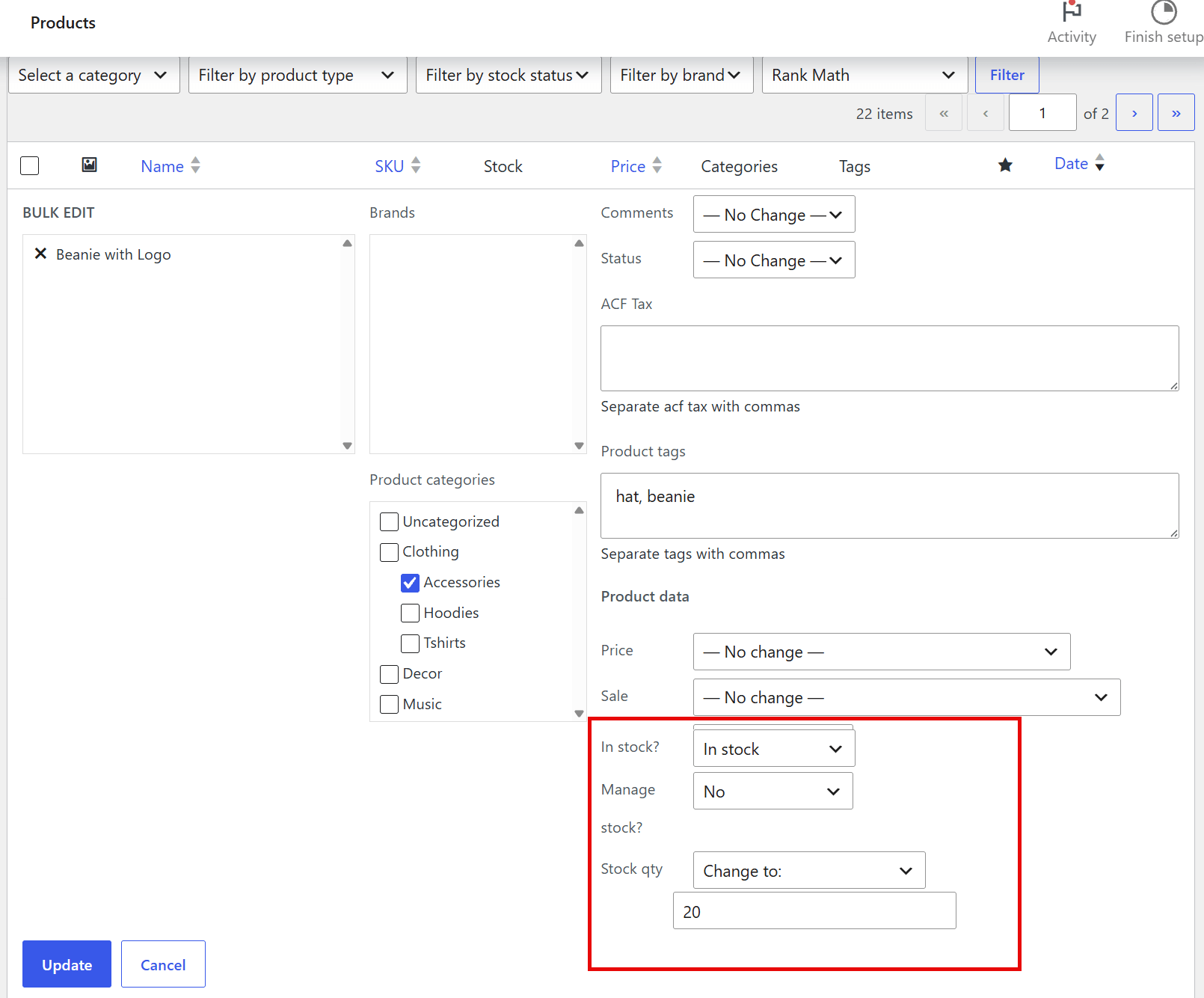
Inventory data should reflect reality. When stock numbers are wrong, customers may purchase unavailable items or miss products that are actually ready to ship. Bulk stock management is useful after warehouse counts, supplier deliveries, migration projects, and seasonal restocking.
The tutorial on bulk editing product stock in WooCommerce explains how to update quantities and stock-related fields for multiple products. Consider a sports store receiving a shipment of 240 items from one supplier. Instead of editing each product page, the manager can filter by supplier or SKU range, update the quantities, and then verify the resulting stock status.
Stock quantity and stock status are related but not identical. A product may have a quantity of zero and remain available for backorder. Another product may be hidden or marked out of stock intentionally. Review the business rule before changing both fields together.
Bulk Edit Backorders
Backorders are useful when incoming inventory is reliable and customers are willing to wait. They are risky when delivery dates are uncertain. The guide to bulk editing WooCommerce backorder settings shows how to enable or disable this option for selected products.
Example: a bicycle-parts store expects a confirmed shipment of brake pads next Tuesday. Backorders may be appropriate for those SKUs. The same setting should not be enabled for discontinued helmets with no supplier confirmation.
Updating Seasonal Inventory in Bulk
Seasonal inventory updates usually involve more than quantity. A store may need to adjust stock status, move products into a seasonal category, schedule prices, update images, and hide products after the season ends. Plan these steps as one workflow rather than separate emergency tasks. The tutorial on seasonal product updates provides a useful reference.
Bulk Edit SKU Values
SKUs support inventory control, supplier communication, fulfilment, and reporting. Duplicated or inconsistent SKUs create avoidable confusion. For practical methods, read the guide to bulk editing WooCommerce SKUs.
A useful SKU update often follows a pattern. For example, a store may add a supplier prefix to imported items or replace an outdated warehouse code. Before applying the change, export a backup and check that the new values remain unique.
4. WooCommerce Bulk Variations
Variable products are one of the main reasons store managers outgrow the default editor. A single T-shirt may include five sizes and six colors. That creates thirty possible combinations before stock, price, images, and SKUs are considered. A larger catalog can contain thousands of variation rows.
The complete guide to bulk editing WooCommerce product variations explains how to filter variable products, manage attributes, create combinations, and update variation data. It is useful for stores selling clothing, shoes, electronics, furniture, or any product with selectable options.
Bulk Edit Variation Prices
Variation prices may need to change independently. A larger size may cost more, or a specific color may move into clearance. Before updating prices, filter the relevant variations and verify the parent product, attribute values, and current price. The tutorial on bulk editing WooCommerce variation prices explains the workflow in detail.
Bulk Editing Variable Products
Variation management includes more than price. Managers may need to update stock, SKU, status, images, descriptions, shipping data, or attributes for a defined group of variations. The guide to bulk editing product variations in WooCommerce provides a practical starting point for stores with complex catalogs.
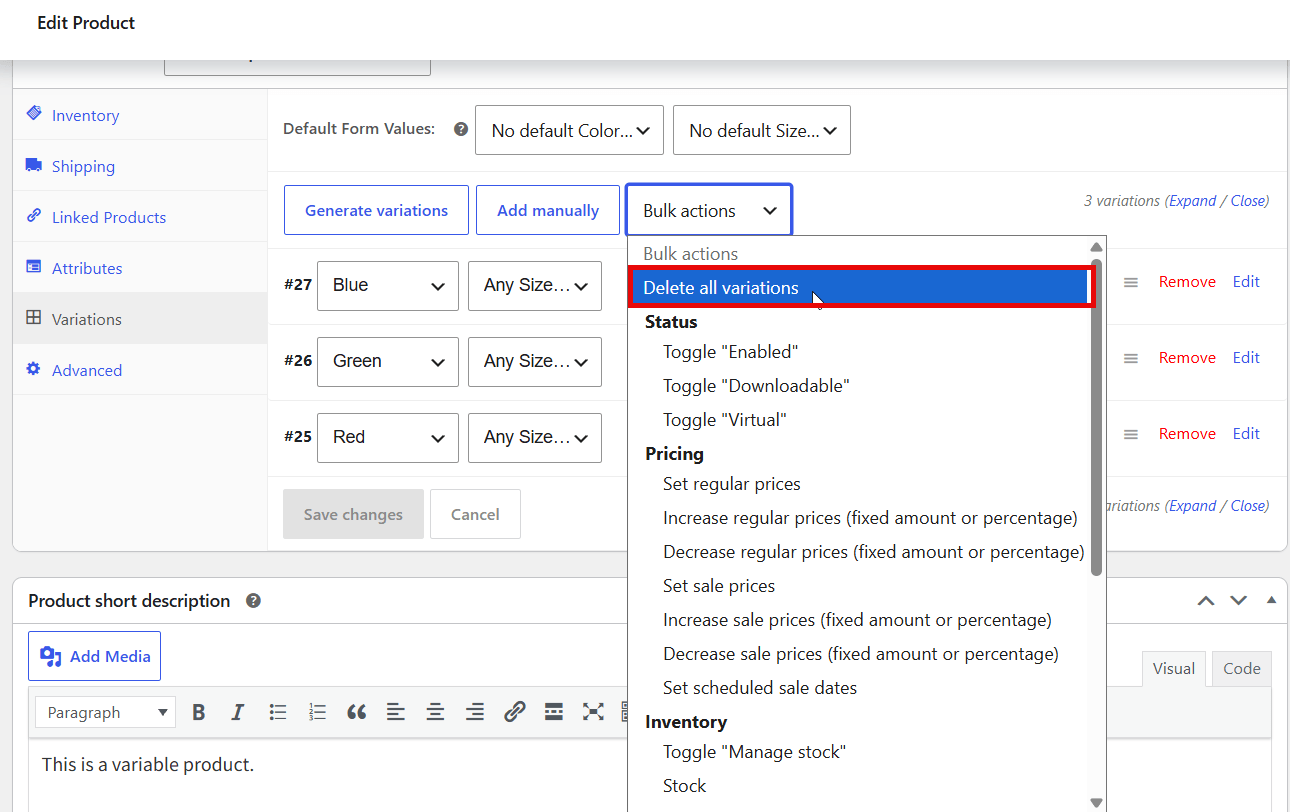
Bulk Deleting Variations
Unused variations should be removed carefully. A store may discontinue a color, stop selling a size, or clean outdated combinations created during an import. Before deleting anything, export the affected products or create a backup. Then filter the exact variations and review the selection. Read the guide to bulk deleting WooCommerce variations before making a permanent change.
| Variation task | Example | Main risk to check |
| Change variation prices | Increase XL sizes by $4 | Applying the change to every size by mistake |
| Update variation stock | Mark red shoes in size 42 as out of stock | Changing the parent product only |
| Delete unused variations | Remove a discontinued color | Deleting combinations still used by active products |
5. Product Content, Images and Custom Fields
Product data is not limited to price and stock. Titles, descriptions, images, custom fields, and SKUs affect customer trust, search visibility, internal workflows, and integrations with other systems. These fields often need coordinated updates after a rebrand, a supplier change, or a large import.
Bulk Edit Product Descriptions
Descriptions affect search visibility, product clarity, and conversion. They also become inconsistent over time. A store may need to replace an outdated warranty sentence, add a delivery note, update a seasonal message, or correct a repeated formatting error.
WooCommerce does not offer a convenient default method for editing descriptions across a large group. The tutorial on bulk editing WooCommerce product descriptions and short descriptions explains how to handle these updates efficiently.
Example: an appliance store changes its standard warranty from twelve to eighteen months. The manager can filter the affected brand and replace the outdated sentence in product descriptions. A careful find-and-replace rule is safer than overwriting the full description field.
Bulk Update Product Images and Galleries
Images are another high-effort task. A store may want to assign new seasonal thumbnails, remove outdated gallery images, or update the featured image for a product line. The guide to bulk editing WooCommerce product images and galleries covers these cases.
When working with images, verify a sample before applying the operation to the full group. A mistaken image replacement is highly visible and can affect customer trust immediately.
Bulk Edit Product Custom Fields
Many stores rely on custom fields added by themes, ACF, or other plugins. These fields may store supplier codes, fabric details, technical specifications, labels, or internal notes. The guide to bulk editing WooCommerce product custom fields explains how to manage these non-standard values.
Custom fields deserve extra caution because they are not always visible on the storefront. A wrong value may remain unnoticed until it affects a filter, a template, or an integration. Always test the result on several products and confirm how the field is used.
6. WooCommerce Product Visibility & Status Management
Not every product should be visible at all times. Some products are drafts, some are waiting for stock, some are part of a private campaign, and some should remain searchable but not appear in catalog pages. Status and visibility settings give managers more control over the storefront.
Bulk Edit Product Status
Product status is useful during launches and cleanup projects. A manager may publish a prepared collection, move outdated products to Draft, or archive items that need review. Read the guide to bulk editing WooCommerce product status for a focused workflow.
Manage Catalog Visibility
Catalog visibility controls where a product appears. A product may be visible in both search and catalog pages, search only, catalog only, or hidden. This is useful for private links, special bundles, and products that should not appear in normal browsing. See how to bulk edit product visibility status in WooCommerce.
WooCommerce Product Import, Export & Duplication
Import, export, and duplication tools save time when products move between stores or share a common structure. They also create risks when teams do not review the data before publishing it. Duplicate SKUs, broken image URLs, incorrect category assignments, and repeated products often begin with a rushed import.
Export WooCommerce Products
Exports are useful before a major update, during migrations, and when product data needs to be reviewed in a spreadsheet. Images require special attention because an export usually includes image URLs rather than the physical files.
Export Products with Variations & Images
Variable products require a more careful export. The relationship between parent products, variations, attributes, and images must remain clear. If the catalog includes variable products, use the focused guide to exporting WooCommerce variable products.
Export WooCommerce Products With Images
Exports are useful for migration, backup, spreadsheet editing, and catalog review. The tutorial on exporting WooCommerce products with images compares WordPress export, WooCommerce CSV export, and a more flexible plugin workflow.
For a migration project, make sure the exported file includes the image URLs and that the destination store can access them. For a backup, store the CSV file together with a note describing the export date and the product group included.
Duplicate WooCommerce Products
Duplication is useful when new products share a similar structure. A furniture store may duplicate a chair product before creating a version with a different fabric. A cosmetics store may duplicate a product and update the size, images, price, and SKU. The guide to duplicating WooCommerce products explains the available methods.
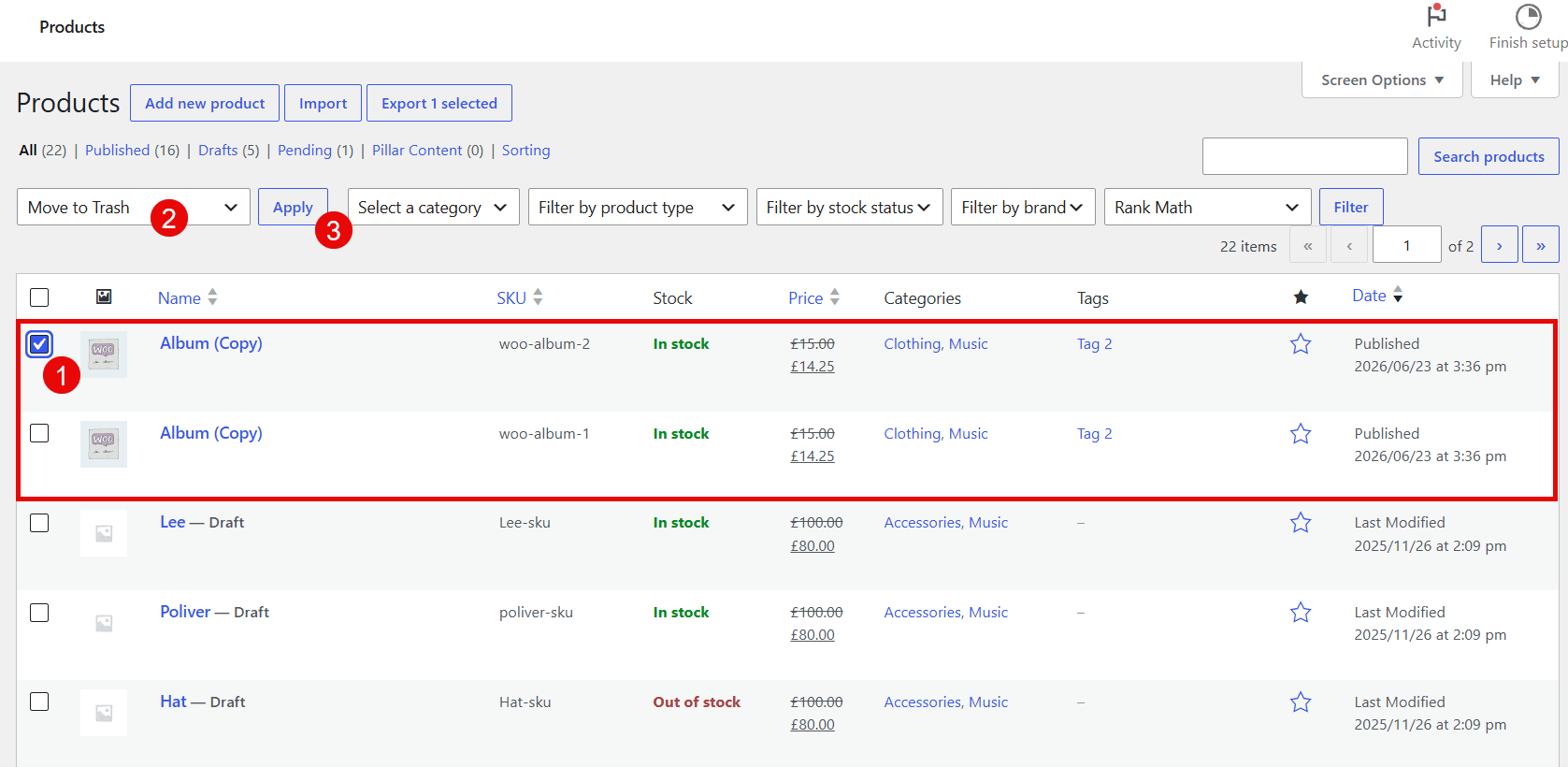
Remove Duplicate WooCommerce Products
Unplanned duplicates are different. They often appear after an import, sync issue, or migration. They confuse customers and make catalog management harder. Filter the products by exact title, description, or another reliable field, review the publication date, and decide whether the older or newer version should remain. Read the complete guide to finding and removing duplicate WooCommerce products.
WooCommerce Product Cleanup & Maintenance
A clean catalog is easier to manage and easier for customers to trust. Maintenance is not a single annual task. It is a recurring workflow that removes outdated entries, checks categories and attributes, reviews visibility, and verifies that scheduled updates were completed correctly.
Delete All WooCommerce Products
Deleting all products is a high-risk operation. It may be necessary when resetting a test store, rebuilding a catalog, or correcting a failed migration. Before doing this, export the products, create a database backup, and confirm whether orders or integrations depend on the existing product IDs. The guide to deleting all products in WooCommerce safely explains the available approaches.
Remove Product Attributes in Bulk
Old or incorrect attributes can create clutter and variation conflicts. Removing them manually is slow when hundreds of products are affected. Before deleting an attribute, check whether it is used for active variations and keep a backup. The focused tutorial on bulk deleting WooCommerce product attributes covers safe SQL and plugin-based approaches.
Remove Products from Categories
Removing a category assignment is different from deleting the product. This distinction matters during catalog cleanup. For example, after a summer campaign ends, the manager may remove sandals from the Summer Deals category while keeping the products available in their main category. Read how to bulk remove products from a WooCommerce category.
Schedule Bulk Maintenance Updates
Scheduled bulk operations are helpful when updates should run outside business hours or at a specific campaign time. A manager may schedule a price change, hide expired products, move items into a seasonal category, or restore catalog settings after a promotion. See the overview of scheduled bulk editing processes.
Maintaining Clean Product Catalogs
Set a monthly maintenance routine. Review draft products, out-of-stock items, duplicate entries, unused attributes, old categories, missing images, inconsistent SKUs, and expired sale prices. Large stores should assign responsibility to a specific team member and keep a short record of each bulk operation.
Adding Products Efficiently in WooCommerce
Bulk editing is only one part of product management. Growing stores also need a reliable way to add new items. The right method depends on the number of products, the quality of the supplier data, and whether the products are simple or variable.
Adding WooCommerce Products Quickly
For a small catalog, creating a product manually is useful because it helps the manager understand the basic fields: title, description, product type, price, inventory, shipping, attributes, images, and categories. The tutorial on adding a product in WooCommerce explains the standard process.
When the store needs to add many products, manual entry becomes inefficient. A bulk upload or creation workflow can save time, especially when the products share similar fields. Review the guide to quickly bulk adding products to WooCommerce.
Advanced WooCommerce Product Management Strategies
Managing Enterprise-Level WooCommerce Stores
Large-scale product management depends on filtering, batching, and review. Avoid loading or editing the entire catalog when the task affects only one supplier, category, or product type. Break the work into smaller operations and verify each result. The article about supporting large-scale online shops with a product bulk editor explains why this approach matters when stores manage thousands of products.
Automating Repetitive Product Tasks
Automation is useful for predictable tasks: campaign price changes, seasonal visibility rules, category moves, regular stock updates, and maintenance operations. The goal is not to automate every decision. The goal is to remove repetitive steps while keeping the final review in human hands.
Reducing Product Management Workload
A strong operational routine uses three layers. First, define the business goal. Second, filter the exact products. Third, review the result before applying the change. This reduces accidental updates and keeps the workload manageable even when the catalog becomes large.
Improving Operational Efficiency
Store managers should measure the result of bulk editing in practical terms: hours saved, fewer catalog errors, faster campaign preparation, more accurate stock, and fewer emergency fixes. A tool is valuable when it makes routine work easier to complete and easier to verify.
| Workflow step | Question to ask | Example |
| Define the goal | What business problem are we solving? | Prepare a weekend sale for older jackets |
| Filter products | Which exact items should change? | Published jackets in the Clearance category with stock above 10 |
| Test the update | Can we apply the rule to a small group first? | Increase prices on five sample products |
| Apply in batches | Should the operation be split into smaller groups? | Update each supplier separately |
| Verify the storefront | Did the result appear correctly for customers? | Check category pages, product pages, and variations |
| Keep a record | Can the team explain what changed and when? | Save the filter, date, rule, and reviewer name |
How an Advanced WooCommerce Bulk Product Editor Helps
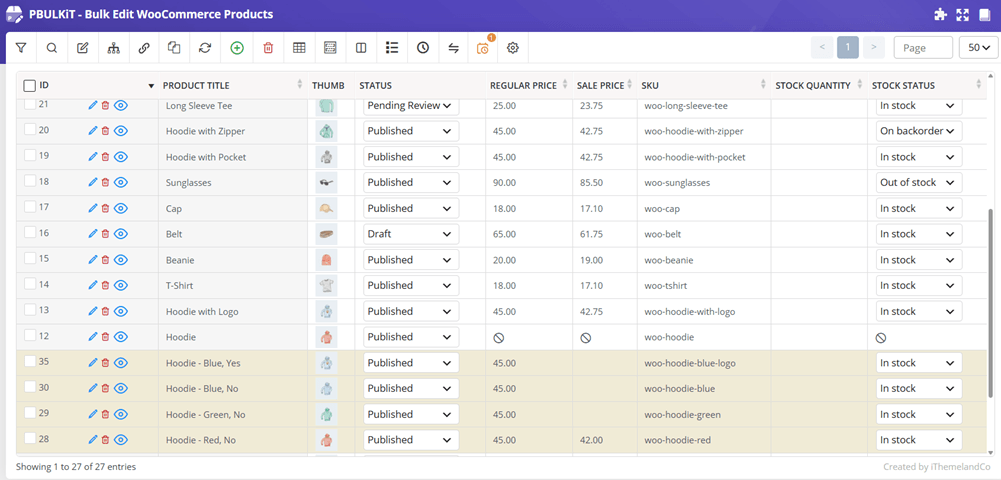
An advanced editor becomes valuable when bulk editing is part of daily store operations rather than an occasional task. PBULKiT – Bulk Edit WooCommerce Products is designed around a product table, filtering tools, bulk-edit forms, inline editing, bind editing, variation management, history, and scheduled changes. It supports a wider set of product fields than the default screen and is intended for large-catalog workflows.
The correct way to use a plugin is not to apply larger edits more aggressively. It is to make large edits easier to understand. A strong product editor should help the manager answer three questions before saving: which products are selected, which field is changing, and what result should appear after the update?
1- Start With Filters
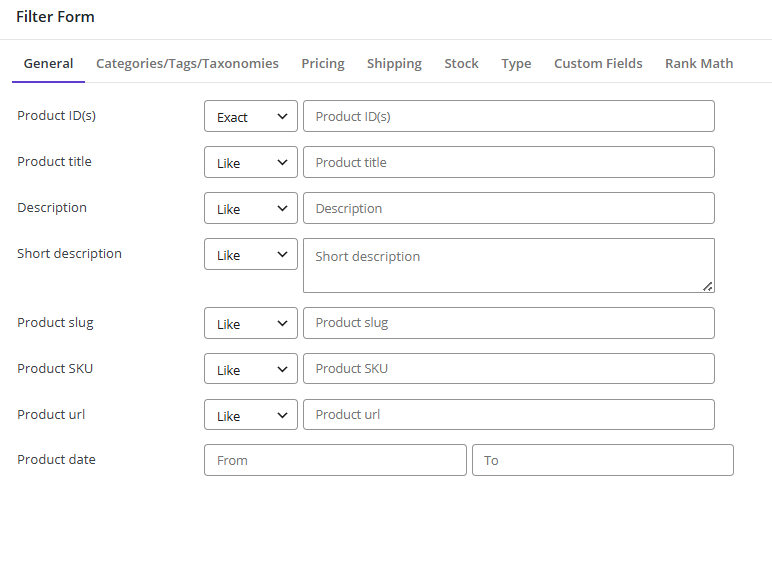
Before editing, the advanced Filter Form in PBulkiT allows you to narrow the list by category, price, stock, status, type, attribute, date, custom field, or another relevant condition.
It is designed with a user-friendly layout dividing all WooCommerce fields into seven tabs to help you easily find your target.
In the General tab, you can filter the products by their ID, Title, Description, SKU or Published date.
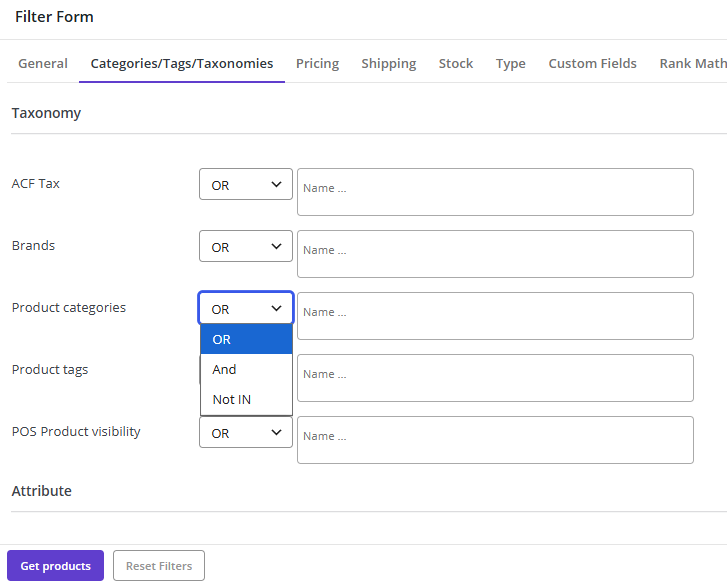
The most useful tab is Categories/Tags/Taxonomies enabling users to narrow down the list of products based on one or more categories or attributes.
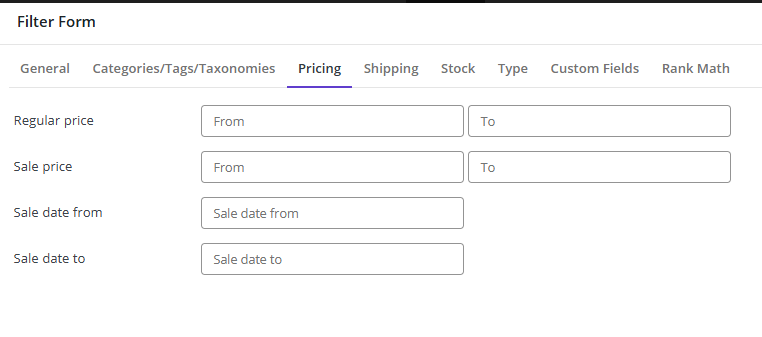
If you want to restrict the products list based on their Regular or Sale prices, easily find the related option in the Pricing tab.
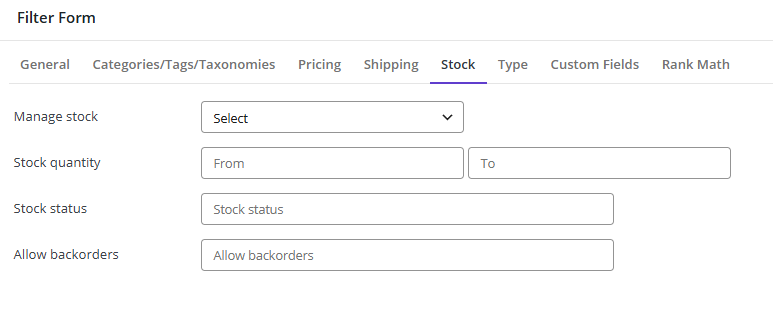
Filtering products by Stock quantity or Stock status is available in the Stock tab.
The other useful tabs include:
Shipping: To filter products by all shipping items such as Customer Name, Address, Payment method, etc.
Type: To restrict the products list by products type like Physical, Downloadable, Virtual, etc.
Custom field: To filter products based on the Meta fields you have already added to the plugin
2- Choose the Right Editing Method
One you have filtered the products, there are many different ways to Bulk Edit their features:
| Editing method | When to use it | Example |
| Bulk Edit Form | The same rule applies to many products | Increase selected regular prices by 6 percent |
| Inline Edit | A few cells need individual corrections | Fix two SKUs and one incorrect title |
| Bind Edit | One table edit should be copied to selected products | Set the same stock status across a group |
| Variation Manager | Variable products need structured updates | Remove an unavailable color-size combination |
| Scheduled Edit | A change must start or end later | Launch a weekend sale automatically |
2-1- Bulk Edit products
To use Bulk Edit Form, first you need to select some products in the table then press the Bulk Edit button on the toolbar.
In this form, you can click on any tab to see the relevant fields as we described in the filter form.
To make bulk editing easier for you, many operators are designed for each field.
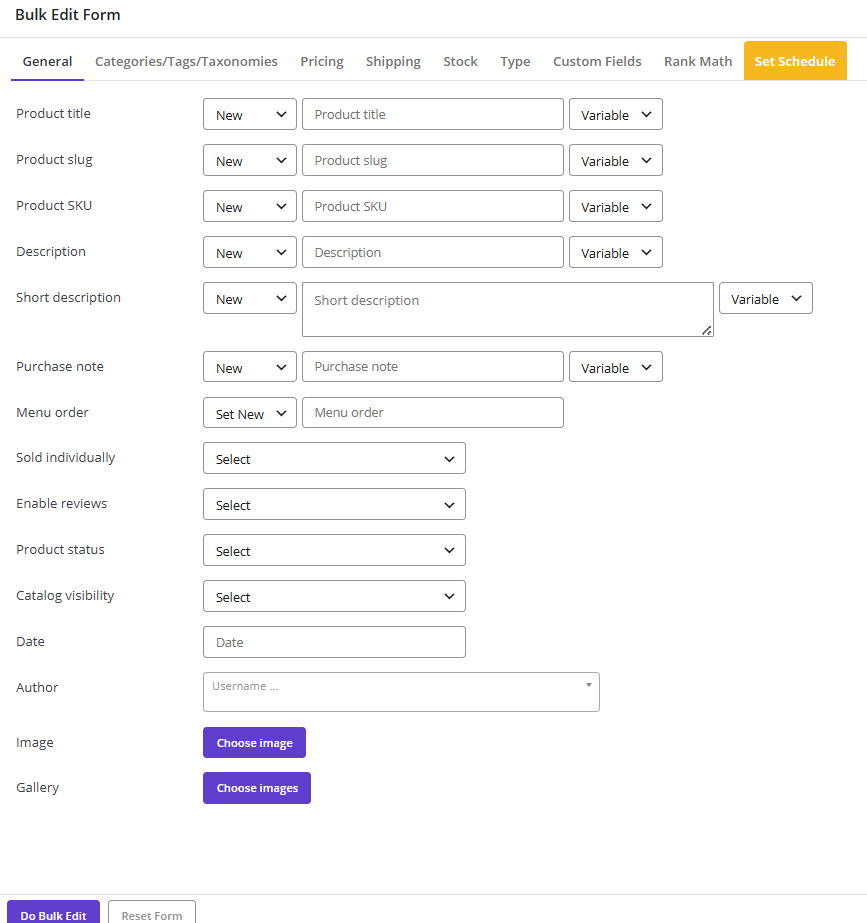
For example, in the Pricing tab, you can Bulk change the regular price by choosing one of the following operators:
- Set new
- Clear Value
- Formula
- Increase / Decrease by value or percentage
- Increase by value or percentage (From sale price)
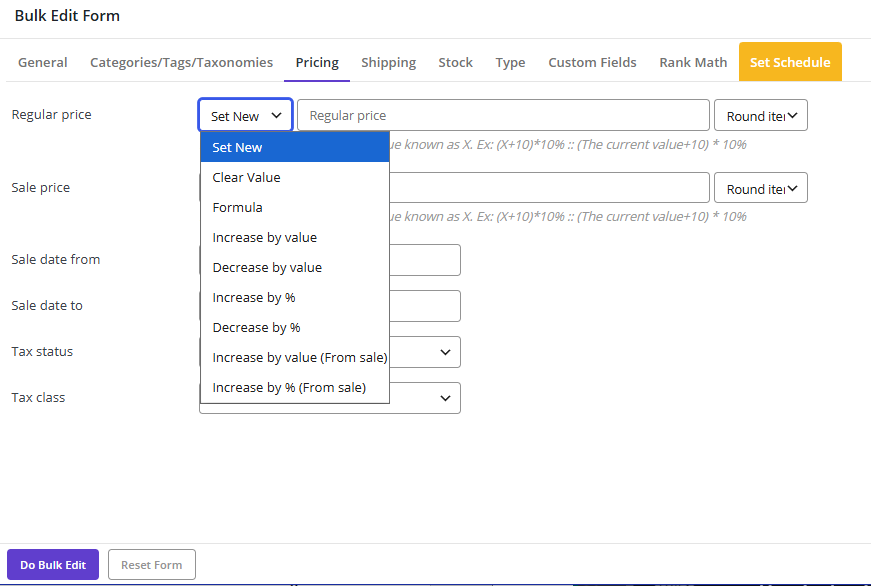
The Bulk Edit form allows you to apply combined edit on multiple products at the same time.
2-2- Inline Edit One single product
Inline editing is the fastest way to change one parameter directly in the product table. To make the parameter visible in the table, first you need to mark the targeted field in the Column Manager form.
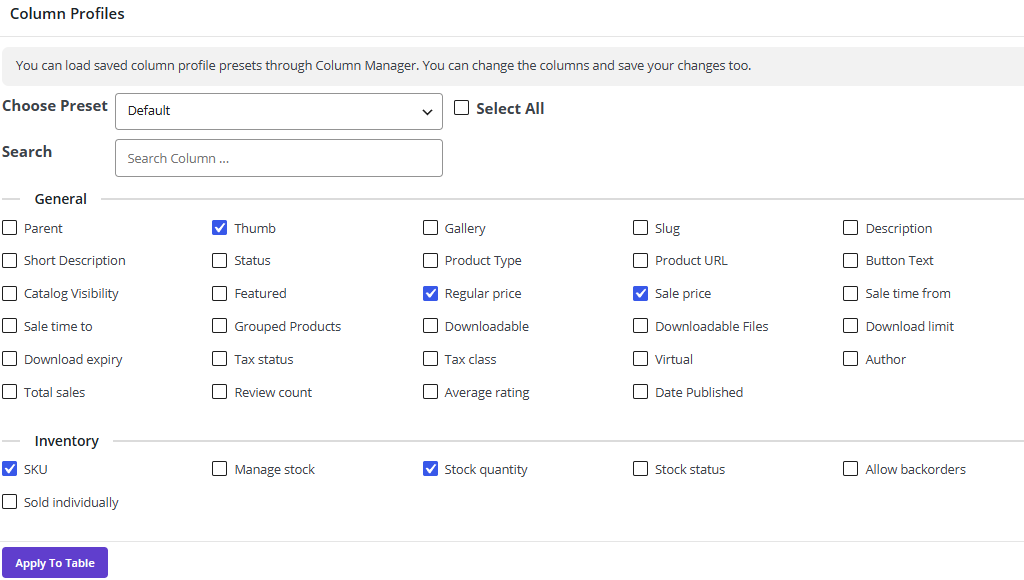
Then you can use Quick Search to quickly find the right product for editing.

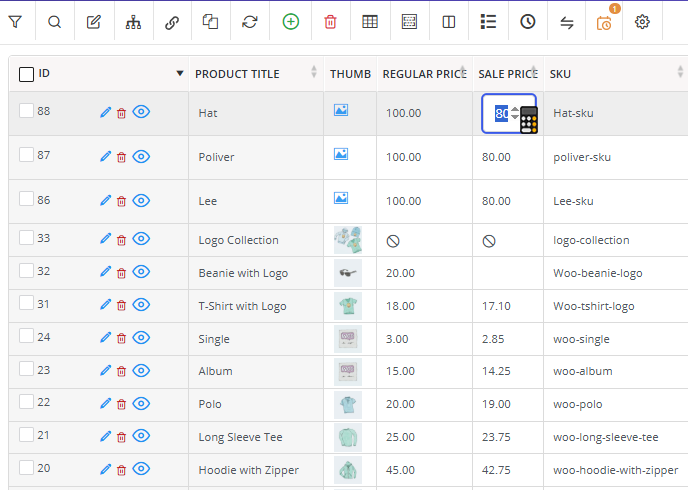
Now, you can easily click on the cell and change the value in a few seconds.
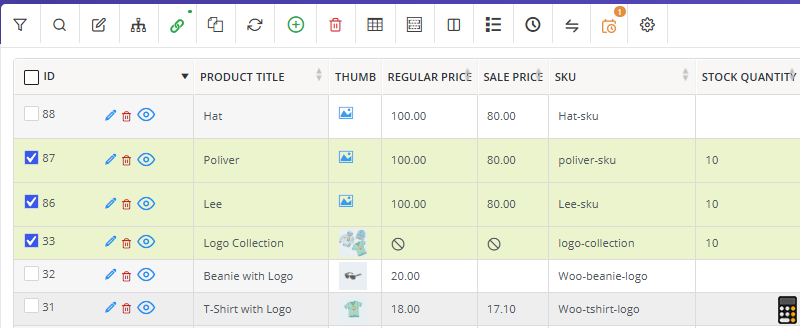
For example, you can add Sale Price column to the table, find Hat by searching the title and change it’s Sale price to $80 directly in the table:
2-3- Bind Edit multiple products
Bind editing is perfect when you aim to bulk change one single field of multiple products at once. Just like Inline Edit, you can add the necessary column to the table, then follow the instruction below:
- Click on the Bind Edit option on the toolbar
- Mark the targeted products in the table
- Click in the targeted field of one of the products and make the necessary change
- Press Enter button
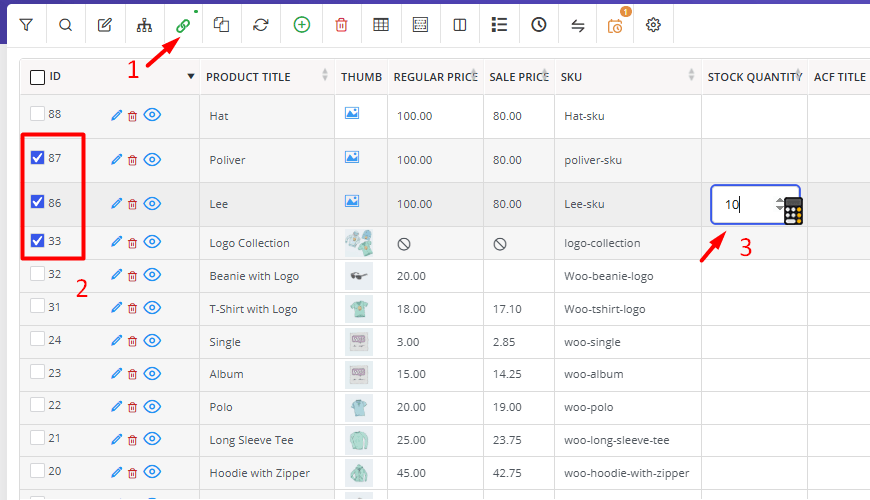
After a few seconds, your changes will be applied on all products automatically.
2-4- Bulk edit Variations
If you want to bulk edit variable products, the easiest way is to make all variations visible in the table by pressing Show Variations option in the toolbar.
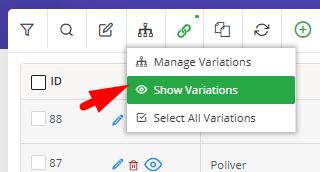
Now, you can mark your targeted variations very fast and use Bulk Edit form or Bind Editing to apply your preferred changes.
For example, we have changes the regular price of some variations by bind editing in the below example:
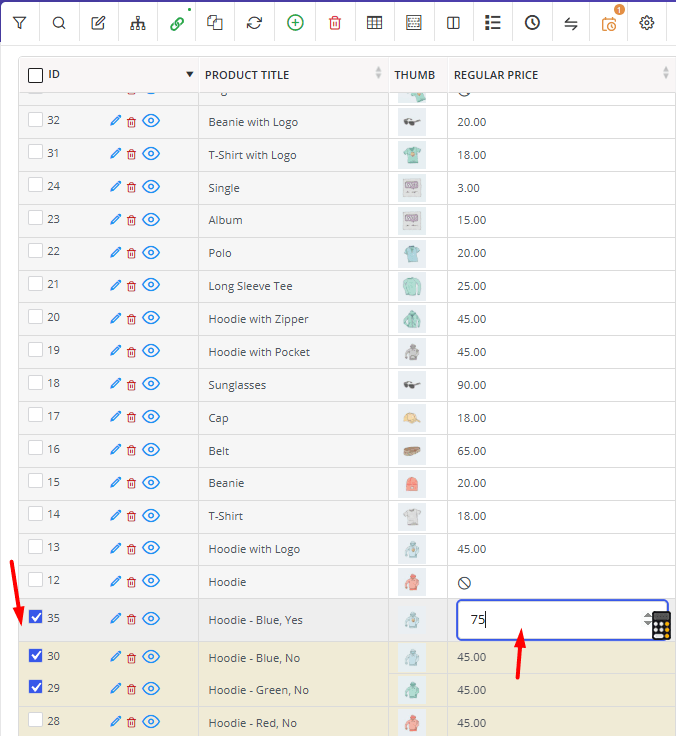
And the result is exactly as we expected.

2-5- Scheduled Edit
The PBULKiT plugin provides schedule changes to help you apply bulk edits automatically at a specific date and time. This feature is useful for promotions, sales campaigns, and seasonal updates.

View, edit, or cancel scheduled bulk edits from a single dashboard, giving you full control over upcoming product changes.
2-6- Bulk Edit Product Custom Fields
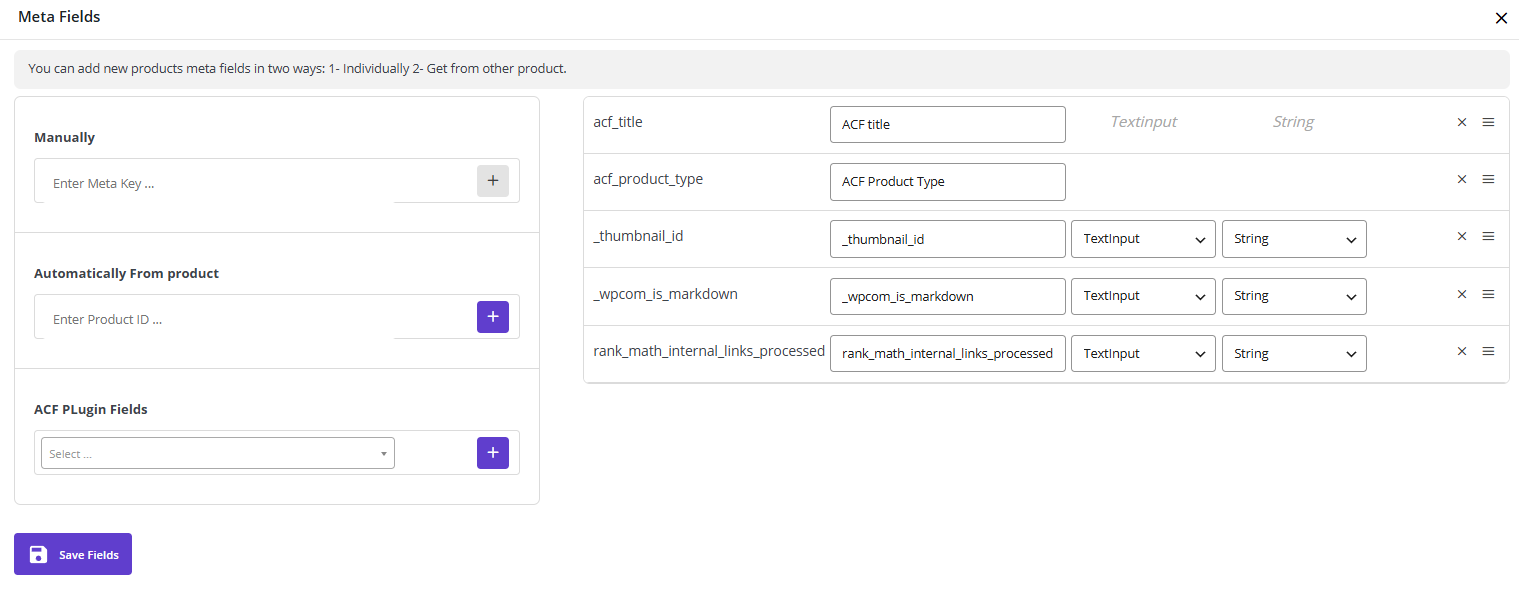
One of the amazing features of the PBULKiT is the ability to manage products meta data in the plugin. You can easily use manual or automated ways to make some or all of the custom fields available in the Bulk Edit and Filter forms.
Other PBULKiT Plugin Features
Beyond its core features, the PBULKiT plugin offers a variety of advanced capabilities that provide greater flexibility and efficiency when managing your store. The following sections introduce these additional features and explain how they can help simplify your daily workflow and improve productivity.
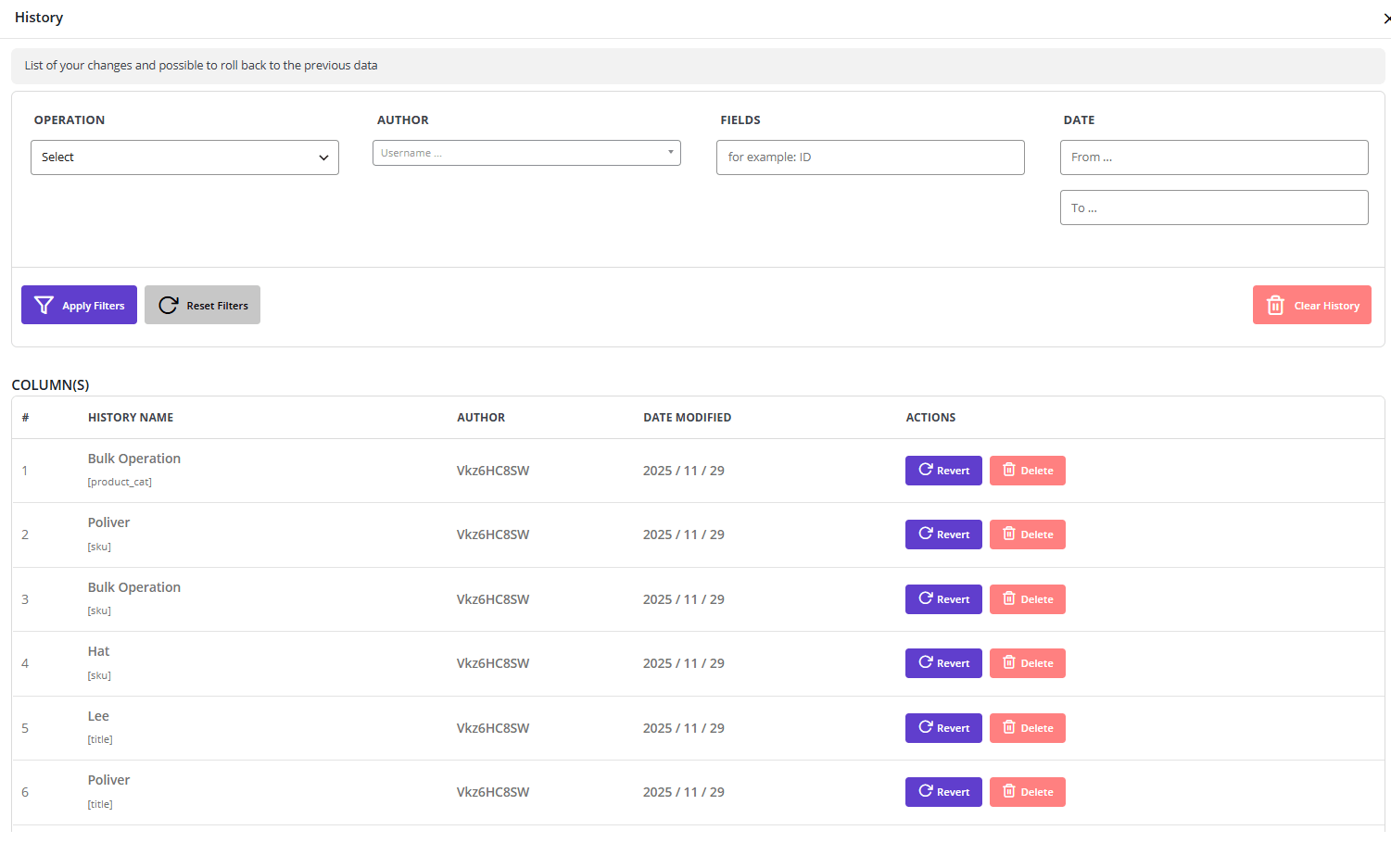
History / Undo Bulk Actions
In this amazing tool, you have access to the history log to review previous operations and restore product data if an update was applied incorrectly.
Duplicate multiple products
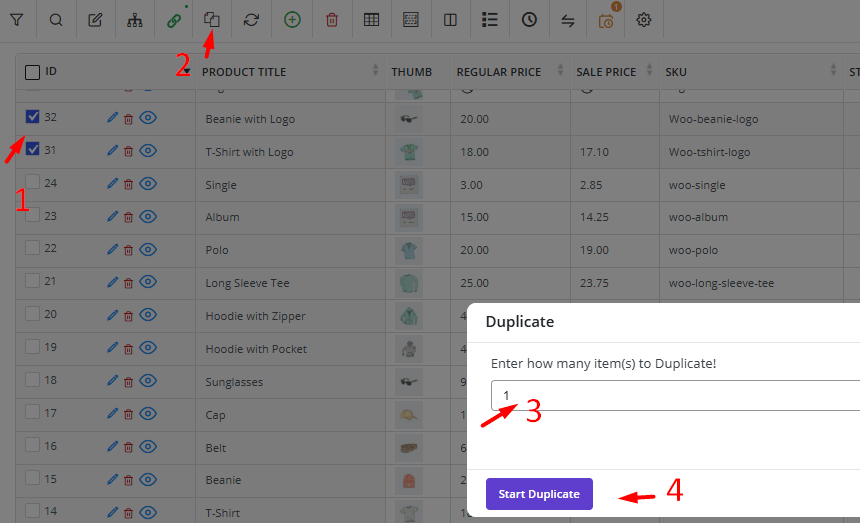
In the PBULKiT, you can create a copy of an existing product very fast:
- Select your preferred products in the table
- Click on the Duplicate tool
- Specify how many times you want to duplicate the selected products
- Press Start Duplicate Button
This helps speed up product creation when adding similar items to your store.
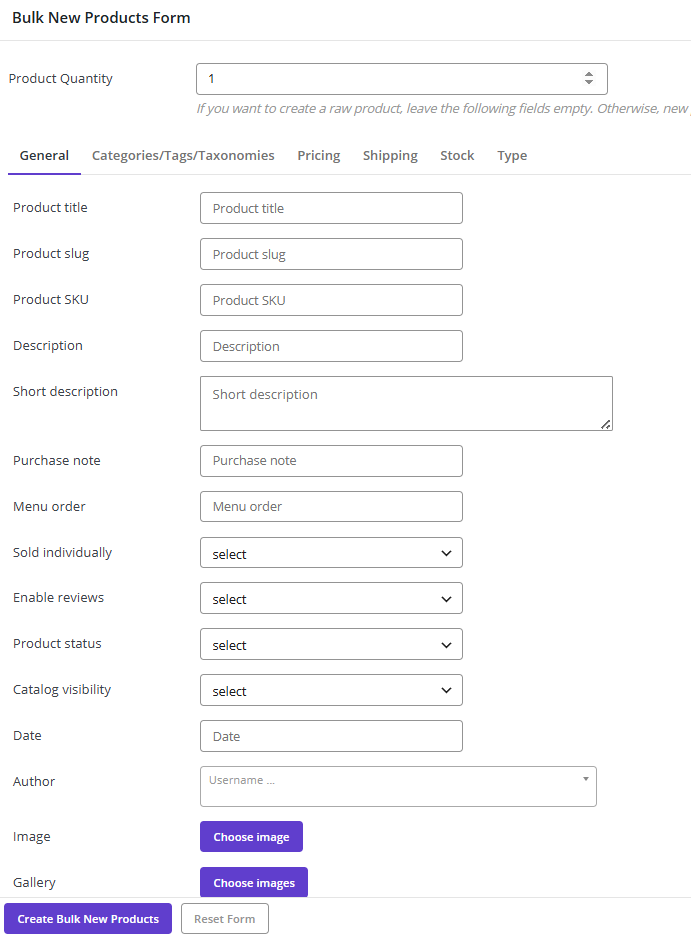
Bulk Add new products
The Bulk Add feature of the plugin is amazing for creating multiple products at once, significantly reducing the time required to populate large product catalogs.
Common Bulk Editing Scenarios
Bulk editing becomes easier to understand when it is connected to real store-management tasks. Most teams do not begin with a technical question such as “Which database field should we edit?” They begin with an operational problem.
The following examples show how common bulk editing scenarios appear in day-to-day WooCommerce management.
| Scenario | Example Store Situation | Recommended Action | Important Check Before Applying |
| Increase all prices by 10% | Supplier costs increased across a product group | Apply a percentage-based price increase | Review rounding rules and test a small sample |
| Add a Black Friday discount | Selected categories need a temporary sale price | Set sale prices and schedule the promotion period | Confirm start and end dates |
| Move products to a new category | A new catalog structure has been created | Add or replace categories in bulk | Check whether old categories should remain |
| Replace product tags | Old seasonal or campaign tags are no longer useful | Remove outdated tags and add new tags | Review filtered products before saving |
| Update all SKUs | A supplier introduced a new SKU format | Replace or revise SKUs in bulk | Ensure that every SKU remains unique |
Increase All Prices by 10%
A furniture store may receive a new supplier price list that affects an entire product range. Editing each product separately would take too long and increase the chance of mistakes.
The safer workflow is to filter the relevant products, select a percentage-based price operator, enter 10%, and review several sample products before applying the full update.
The store manager should also decide how prices should be rounded. For example, a product priced at $149 may become $163.90, while the store may prefer a rounded price such as $164 or $165.
For a detailed walkthrough, read how to bulk edit WooCommerce product prices.
Add a Black Friday Discount
A clothing store may want to apply a 20% discount to jackets, shoes, and accessories during Black Friday weekend.
The manager should first filter the relevant categories, confirm that products already on sale are handled correctly, and set both the discounted price and the promotion dates. Scheduling matters because a sale price that remains active after the campaign ends can reduce margins unnecessarily.
For more details, review the guide to scheduling bulk price changes in WooCommerce.
Move Products to a New Category
Catalog structure changes over time. A store may create a new category called Home Office and move selected desks, chairs, and lighting products into it.
Before applying the change, the manager should decide whether to append the new category or replace the existing categories. This difference matters. Appending keeps the old structure, while replacing categories may remove useful navigation paths.
For a focused workflow, see how to bulk edit WooCommerce product categories.
Replace Product Tags
Tags are often added during campaigns and then forgotten. A store may still have tags such as summer-sale-2024, old-arrival, or supplier-a-clearance long after they are useful.
A practical cleanup process includes filtering the affected products, removing outdated tags, adding the new tags, and checking several product pages after the update.
Taxonomy cleanup is not only an administrative task. Clean tags and categories make filtering, navigation, and future catalog management easier.
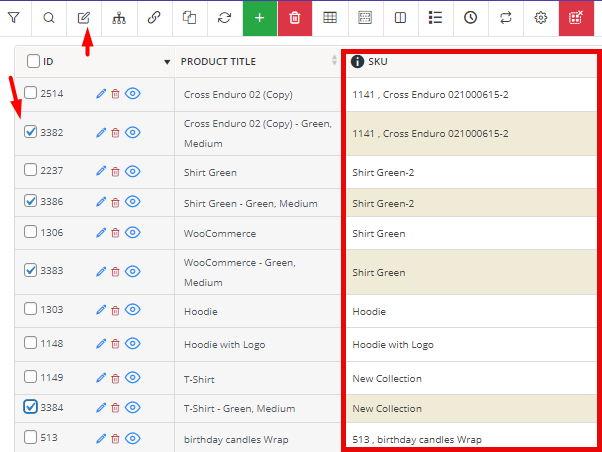
Update All SKUs
SKU updates are common when stores change suppliers, merge product catalogs, or introduce a new internal coding system.
For example, a cosmetics store may replace old SKUs such as LIP-01 with a structured format such as COS-LIP-RED-001.
This task requires extra care because duplicate SKUs can create confusion in stock management, order processing, and integrations with external systems. The team should export the current SKU list before applying any large update.
For practical instructions, read the guide to bulk editing WooCommerce product SKUs.
Bulk Editing for Large WooCommerce Stores
Bulk editing becomes more demanding when a WooCommerce store contains 10,000 products or more. At that scale, the problem is not only the number of fields that need to be changed. Performance, database workload, server resources, and the reliability of the editing process also matter.
A small store can update a few dozen products in one operation without noticing any delay. A large store may experience time-out errors, interrupted processes, or incomplete updates if the same approach is used for thousands of records.
Managing 10,000+ Products
Large catalogs require a more controlled workflow. Instead of sending one very large update request, the data can be divided into smaller groups and processed in a queue.
For example, imagine a store with 12,000 home-decoration products. The team wants to append a new Decor category to every uncategorized item.
A safer process is:
- Filter the uncategorized products.
- Select the products that need the update.
- Choose the category field.
- Select an append operation rather than replacing existing categories.
- Apply the update in smaller queued batches.
- Review the result after processing is complete.
This approach reduces the chance of interrupted operations and makes large updates easier to manage.
Performance
Performance becomes an important factor when product data is processed in large volumes. A time-out error may stop the update before all records are changed. This creates a difficult situation because the store manager must identify which products were updated and which records still need attention.
Background processing can make the workflow more reliable. Instead of forcing the manager to keep one screen open until the operation is complete, the update continues while other WordPress tasks remain available.
For a detailed example of background processing, queued updates, and large-catalog workflows, read how a WooCommerce bulk product editor can support large-scale online shops.
Common WooCommerce Bulk Editing Mistakes
Bulk editing saves time, but it also increases the impact of a mistake. A single incorrect rule can affect hundreds of products. The safest workflow is simple: filter carefully, preview the result, test on a small group, keep a backup, and review the storefront afterward.
| Mistake | Why it causes problems | Better approach |
| Editing products without a backup | A large update may be difficult to reverse | Create a recent database backup and export critical product data |
| Using a broad filter | Unrelated products may receive the same update | Narrow the selection by category, status, supplier, price, or SKU |
| Updating the parent product only | Variation-level prices or stock may remain wrong | Check whether the operation should target products, variations, or both |
| Applying an incorrect price formula | Margins may fall or prices may become inconsistent | Test the formula on a small group and review the result |
| Deleting items permanently too early | The team loses an easy recovery option | Move items to trash first when practical |
| Ignoring category and taxonomy cleanup | Customers struggle to browse the catalog | Schedule recurring catalog-maintenance checks |
| Skipping storefront verification | The admin table looks correct, but customers may see errors | Review a sample of product pages and category pages after the update |
Conclusion
WooCommerce product management becomes easier when the store treats bulk editing as a planned process rather than an emergency shortcut. The goal is not simply to change more products at once. The goal is to make accurate changes with less repetitive work.
Begin with a business question. Filter the exact products or variations. Apply the smallest useful update. Review the result. Keep a backup for high-risk changes. Build recurring routines for stock, prices, categories, attributes, content, and maintenance. This approach helps store managers prepare campaigns faster, keep inventory more accurate, and maintain a catalog that customers can trust.
FAQ
Can I bulk edit products in WooCommerce without a plugin?
Yes. WooCommerce includes a built-in bulk editor under Products > All Products. It is useful for common updates such as status, categories, tags, prices, visibility, stock settings, and backorders. Advanced plugins become useful when you need stronger filters, scheduling, history, custom fields, or detailed variation management.
How do I bulk edit WooCommerce product prices?
Select or filter the required products, choose the price field, and decide whether the update should set a new value, increase the existing value, decrease it, or apply a percentage formula. Test the rule on a small group before applying it to a large catalog.
Can I bulk edit WooCommerce variations?
Yes. Variation-level editing is useful for prices, stock, SKUs, attributes, and other fields. The important point is to filter the exact variations and confirm that the operation should not affect every option under the parent product.
How do I bulk remove products from a category?
Filter the products assigned to the category, select the required items, and remove the category assignment without deleting the products. This is useful after seasonal campaigns and merchandising changes.
Can I schedule WooCommerce bulk updates?
Yes, with a suitable bulk-editing workflow. Scheduling is especially useful for campaign prices, seasonal catalog changes, and maintenance operations that should run outside peak hours.
What should I do before deleting all products?
Create a database backup, export the catalog, review integrations, and confirm whether existing orders depend on the product IDs. Use permanent deletion only when the store-management plan clearly requires it.
How often should a store review its product catalog?
The right interval depends on the catalog size and sales volume. Many stores benefit from weekly stock and pricing checks, monthly catalog cleanup, and a dedicated review before and after seasonal campaigns.