

Woocommerce reports exclude refunds can directly influence how efficiently a WooCommerce store attracts customers, supports purchasing decisions, and turns everyday store activity into measurable growth. The topic is not only about applying a single tactic. It is about understanding the customer need, choosing a practical workflow, and using the right metrics to decide whether the strategy is actually working.
Gross order totals can create a misleading picture when reports include refunded, failed, or cancelled orders. Store managers need a clear method for filtering order statuses and reviewing net results before making inventory, marketing, or forecasting decisions.
In this guide, store owners will learn how to approach WooCommerce reports exclude refunds step by step and apply the ideas more efficiently with REPORTiT – Advanced Reporting for WooCommerce. The goal is to measure actual sales performance without overstating revenue through refunded or cancelled orders. The article should give readers enough context to choose a suitable approach, avoid common mistakes, and move from a general idea to a repeatable WooCommerce workflow.
Excluding cancelled and refunded orders can make performance analysis more reliable. Guide to WooCommerce reports offers a broader view of the available metrics.
Quick Answer:
To create accurate WooCommerce reports, refunded and cancelled orders should be excluded when the goal is to measure real sales performance. Otherwise, revenue, order count, and average order value can be misleading. The article explains how to do this with WooCommerce analytics and more effectively with REPORTiT – Advanced Reporting for WooCommerce.
To create the report in REPORTiT, after installing the plugin, go to WordPress Dashboard > iThemeland > REPORTiT, open the revenue or orders report, select the date range, and use the Filter Form. Set the order status filter to exclude Refunded and Cancelled, then apply the filter and review the visual charts and table data.
This gives store managers a cleaner view of completed or meaningful orders. REPORTiT plugin is more practical than basic WooCommerce analytics when you need advanced filters, customizable columns, charts, and exportable reports for financial or marketing decisions.
Understanding Order Status Impact on WooCommerce Reports
Order statuses in WooCommerce are used to track the lifecycle of each purchase. Reviewing the Status allows managers to follow every purchase from initial checkout to final fulfillment.
The most common statutes in WooCommerce are:
- Processing,
- Completed,
- On Hold,
- Cancelled,
- And Refunded
If no filters are applied on WooCommerce revenue reports, the tools automatically include refunded and cancelled orders in aggregated metrics like total sales, order count, and average order value. This means that data is not effective for evaluating sales performance because a portion of sales amount was never actually earned.
To have accurate performance evaluations resulting in strong budgeting decisions, you need to exclude refunded and cancelled orders and pay attention to the sales report data based on completed and meaningful transactions.
Creating Custom Reports Without Refunds and Cancellations in WooCommerce
Finding a trustable solution for generating WooCommerce sales reports is the most challenge of store managers. If you are managing a small business or you are at the early stage of managing an online store, the built in analytics of WooCommerce can meet the requirements. However, when your store grows, you need to rely on an advanced reporting plugin.
In the following sections, we’ll examine how to create custom reports that exclude refunds and cancelled orders with WooCommerce analytics and REPORTiT plugin as one of the best solutions for generating WooCommerce custom sales reports.
Using Advanced WooCommerce Reporting (REPORTiT) Plugin
REPORTiT – Advanced Reporting for WooCommerce is designed for store owners who need a comprehensive tool for precise control over their data. This all in one solution provides deep filtering, customizable visualizations, and accurate financial insights compared to default WooCommerce analytics.
Below we walk you through a step-by-step guide to show you how to create a custom report that excludes refunded and cancelled orders using the REPORTiT plugin.
Step 1: Install and Activate the Plugin
The first step is to download the ZIP file and install it from your WordPress dashboard. Once activated, the plugin adds the iThemeland menu to the dashboard and you can click on the REPORTiT submenu to open the main page of the plugin.
Step 2: Navigate to the Orders Revenue Dashboard
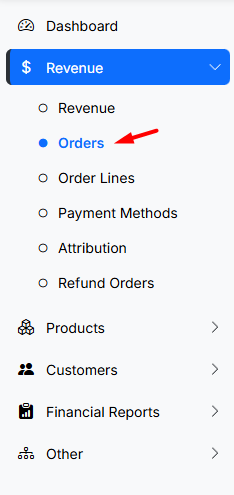
In the main menu and navigate to Revenue > Orders. This is the most important report for tracking sales performance based on order status.
Step 3: Select the Desired Date Range
Next, choose the time period you want to analyze. You can select from predefined presets such as Today, Last 7 Days, Last 30 Days, or This Month, or you can manually define a custom range using the calendar.
Selecting the correct date range is essential for comparing campaigns, seasonal trends, or specific promotional periods.
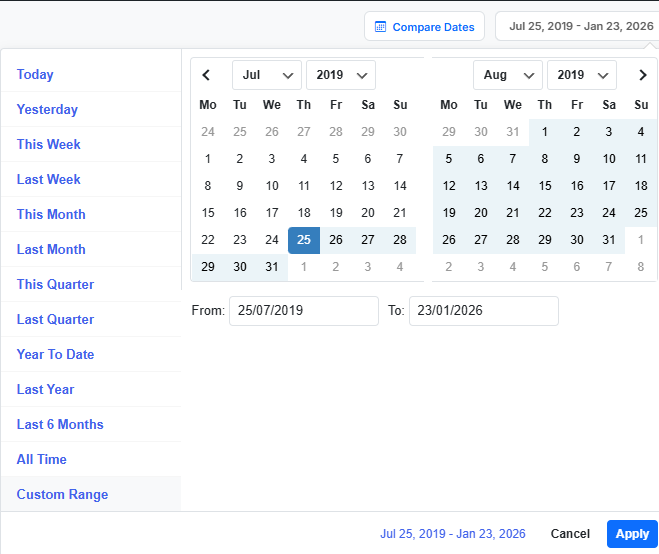
By applying the date range, you can see an overview of your store’s performance along with powerful filtering and visualization tools.
Step 4: Exclude Refunded and Cancelled Orders by Status
To create custom reports that exclude refunds and cancelled orders in WooCommerce report plugin, you need to use the Filter Form. In this form, follow the below instructions:
- Locate the Status field
- Set the condition to Is not,
- Select Refunded and Cancelled.
Apply this filter to ensure that any order which did not result in a successful sale is completely removed from the report.
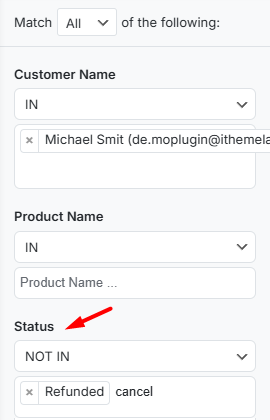
So, the sales report analysis becomes significantly cleaner and more reliable.
Read more: How to Get WooCommerce Refunded Order Reports (3 Easy Methods)
Step 5: Analyze the Visual Report Section
After filtering, you can see key metrics in the form of cards and interactive charts at the first part of the report.
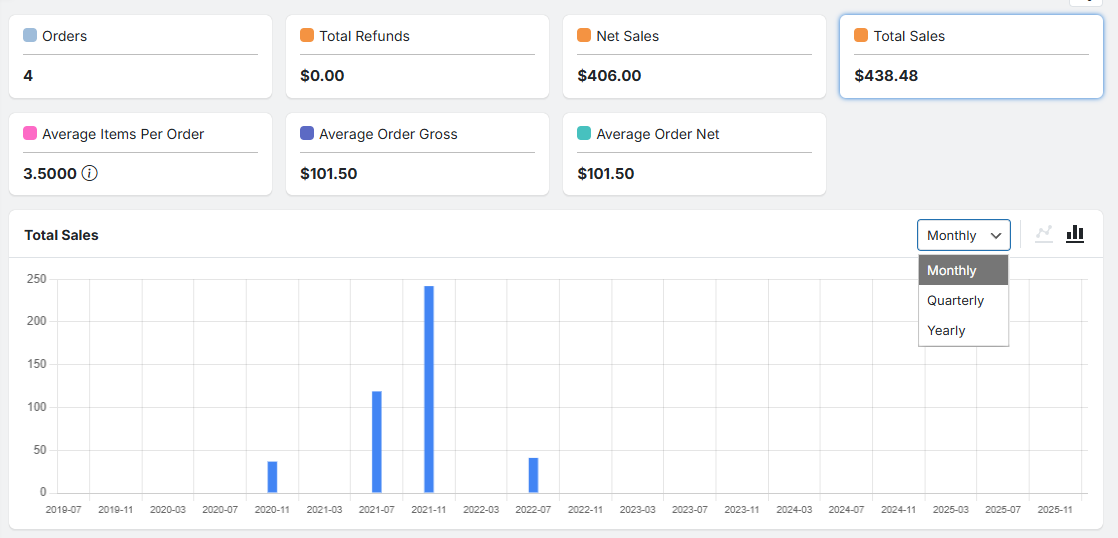
To evaluate the sales performance, you can click on each cart like Net Sales, Total Sales, or Average Items Per Order to visualize the date in the chart below.
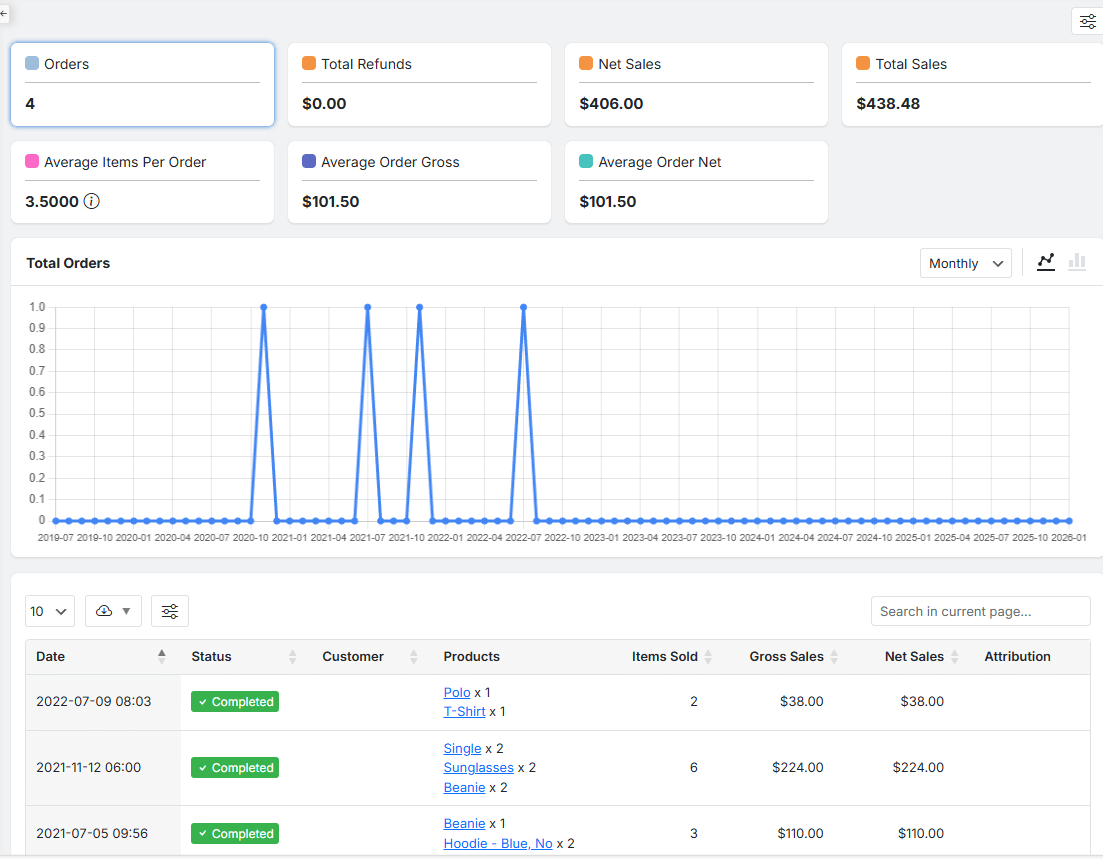
It is possible to switch between bar and line charts depending on your preference. You can also adjust the time scale to better understand trends over days, weeks, or months.
REPORTiT – Advanced WooCommerce Reporting
Maximize your store’s potential with accurate WooCommerce reporting that filters out the noise of refunds and cancellations.
Step 6: Review the Detailed Tabular Report
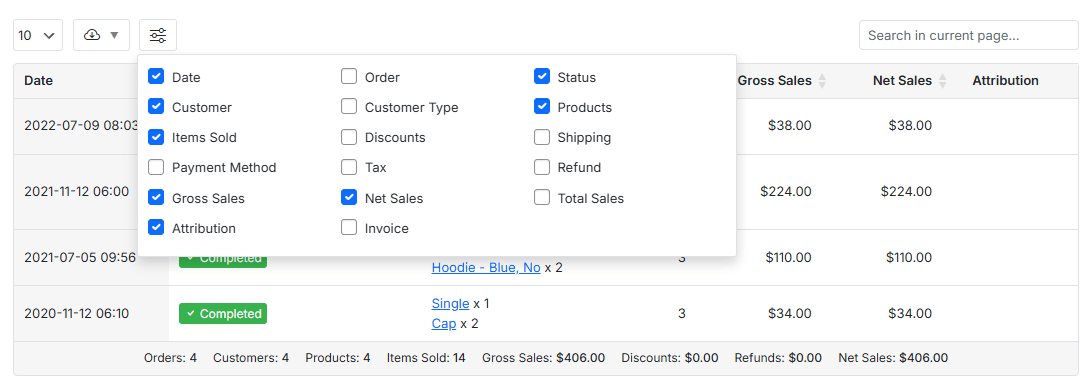
Below the charts, there is a detailed table that breaks down the most important data row by row. The table usually includes the following columns:
Because refunded and cancelled orders are excluded, the Status column will only show meaningful values such as Completed or On Hold.
Store owners looking for in-depth analysis, auditing sales, and understanding how individual customers and products contribute to revenue, can analyze this report precisely.
By generating custom reports that exclude refunds and cancelled orders in WooCommerce, they are able to:
- Evaluate real sales performance,
- Measure campaign effectiveness,
- Optimize inventory planning,
- And make informed pricing decisions
Using Default WooCommerce Analytics Plugin
The built-in analytical tool of WooCommerce is a basic solution to create custom reports that exclude refunds and cancelled orders. Although it has limited capabilities compared to the REPORTiT, it suits the requirements of smaller stores or users who need only basic reporting.
Step 1: Open the Orders Analytics Section
From your WordPress dashboard, navigate to Analytics > Orders. This section provides a high-level overview of order performance, including revenue, order count, and trends over time.
Step 2: Set the Date Range
To ensure the report reflects the period you want to analyze, at the top of the analytics screen, find the data picker and set your desired date range with preset options or the built in calendar.
Step 3: Filter report
The next step is applying the filters. To create custom reports that exclude refunds and cancelled orders in WooCommerce default analytics, try to:
Open the Show dropdown list and choose Advanced Filters
- Press Add a filter option.
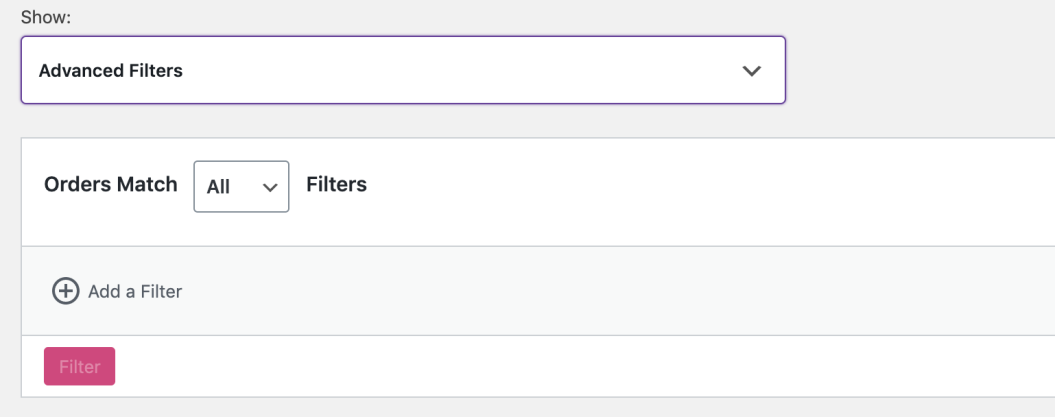
- Choose Order Status from the list
- Set the first field to Not in.
- And add Cancelled and Refunded to the next field.
- Apply the filter by pressing the Filter button.

Step 4: Review the Filtered Report
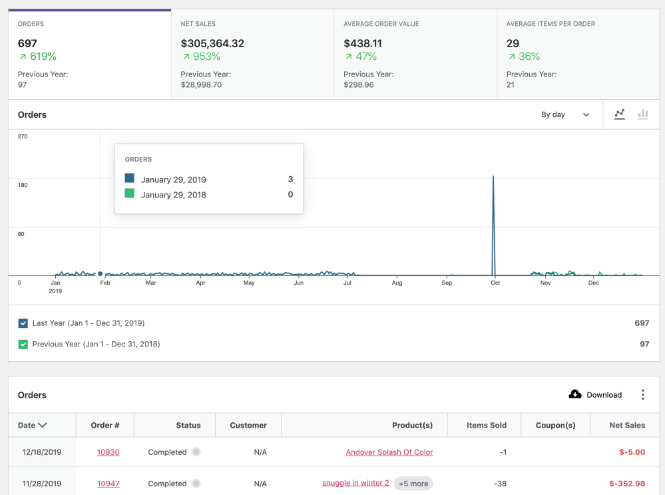
Once filtered, you can review your order totals and revenue by excluding refunded or cancelled orders. While this provides a clearer picture than unfiltered reports, the insights remain relatively basic.
Limitations of WooCommerce Analytics
The main drawback of WooCommerce Analytics are:
- Lack of advanced customization: You have no options for customizing the table report like adding or removing columns or sort the data.
- Filters are limited: You are not able to filter data by deeper metrics such as attribution and segmentation
For growing stores, these limitations often enforce store owners to use a more advanced reporting solution like REPORTiT.
Key Differences Between Reporting Methods
| Feature | WooCommerce Analytics | Advanced Reporting (REPORTiT) |
|---|---|---|
| Excluding refunded and cancelled orders | Yes | Yes |
| Custom filters | Limited | Advanced |
| Charts and visualizations | Basic | Fully customizable |
| Revenue accuracy | Medium | High |
| Best for | Small stores | Growing and professional stores |
REPORTiT – Advanced WooCommerce Reporting
Maximize your store’s potential with accurate WooCommerce reporting that filters out the noise of refunds and cancellations.
Conclusion
A successful approach to WooCommerce reports exclude refunds begins with a clear objective. Store owners should decide what they want to improve, choose a manageable workflow, and review the result with the right metrics. This makes it easier to identify which changes create a real business benefit and which ones only add complexity.
The next step is to start with one practical use case, apply the strategy carefully, and compare the outcome with a reliable baseline. As the store grows, the process can become more detailed through better segmentation, clearer reporting, and more consistent execution. This gradual approach helps teams measure actual sales performance without overstating revenue through refunded or cancelled orders.
For WooCommerce store owners who want to manage this process more efficiently, REPORTiT – Advanced Reporting for WooCommerce provides a focused way to apply the recommendations discussed in this article. By using a purpose-built workflow, store managers can spend less time on repetitive setup and more time improving the customer experience and the business result.
To strengthen the rest of your reporting process, refer to the complete reporting framework.
FAQ
1. Which WooCommerce reports should store managers review regularly?
A useful reporting routine usually includes sales, product performance, customers, order statuses, refunds, campaigns, and trend comparisons. The right mix depends on the decisions the store needs to make.
2. Why should reports be filtered by date range and order status?
Date ranges create a fair comparison, while order-status filters prevent refunded, cancelled, or failed orders from distorting the results. This is important when reviewing net performance.
3. How often should WooCommerce reports be reviewed?
Operational reports may be checked weekly, while broader trend, customer, and year-over-year comparisons can be reviewed monthly or around major campaigns.
4. What is the difference between revenue and useful performance data?
Revenue shows the total value of sales, but it does not explain margin, refunds, repeat purchases, product mix, or campaign quality. Useful decisions require a wider set of metrics.
5. Can WooCommerce reporting help with marketing decisions?
Yes. Reports can show which campaigns, products, and customer segments create stronger results, making it easier to allocate budget and improve future promotions.
6. What does REPORTiT – Advanced Reporting for WooCommerce add?
REPORTiT – Advanced Reporting for WooCommerce helps store owners analyze sales, customers, products, and orders with more flexible reporting views for practical business decisions.