
Introduction
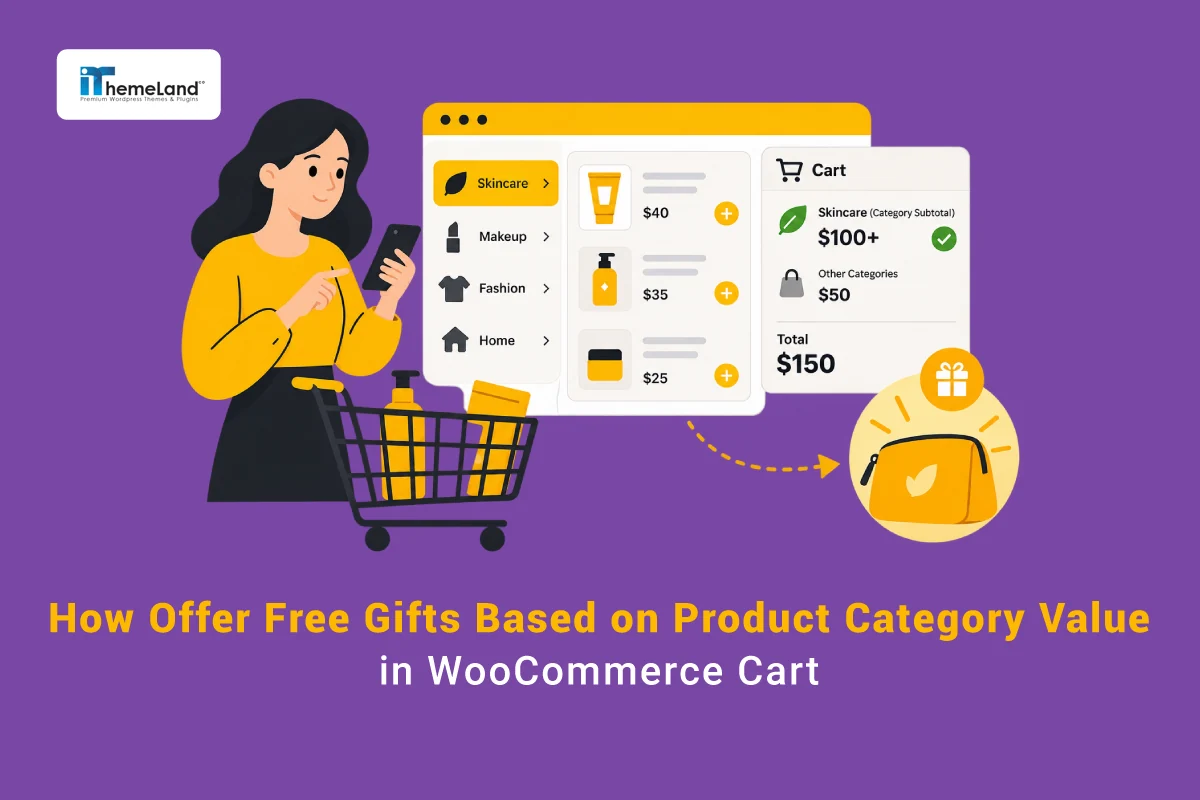
A cart can easily reach a high total without containing enough value from the product group you actually want to promote. Imagine a customer has $150 in the cart, but only $80 comes from the Skincare category. If your campaign promises a free Beauty Bag after the customer adds $100 worth of Skincare products, that shopper should not qualify yet—even though the overall cart total is already above $100.
This is where a category-specific cart value condition becomes useful. With GIFTiT – Free Gifts for WooCommerce, you can create a free-gift rule and make eligibility depend on the subtotal of products from a selected WooCommerce category. Products from other categories can remain in the cart, but their value does not have to count toward the threshold you set for the promotion.
In this tutorial, we will build one complete example from start to finish: add at least $100 worth of products from the Skincare category to the current cart and unlock one free Beauty Bag. The walkthrough uses GIFTiT Pro conditions, including the category-specific cart subtotal condition shown in the rule builder.
If you are planning a broader promotion strategy with several types of gifts, thresholds, BOGO offers, and customer conditions, see the Complete Guide to WooCommerce Free Gifts for the bigger picture. This article stays focused on one question: how to calculate the qualifying value from a specific product category in the customer’s current cart.
Quick Answer: How Do You Offer a Free Gift Based on Category Value in the Cart?
Create a free-gift rule in GIFTiT, define the gift, and then add a condition from Cart Items – Subtotal. Choose “Cart item subtotal – Categories,” select the WooCommerce category you want to measure, choose “at least,” and enter the required value. For example, select Skincare and set the value to 100. The gift becomes eligible when the subtotal of qualifying Skincare products in the current cart reaches at least $100.
The important point is that this condition is not the same as the total cart value. If a shopper has $80 of Skincare products and $70 of Clothing products, the cart total is $150, but the qualifying Skincare value is still only $80. The $100 category threshold has not been reached.
What Is a Category Cart Value Free Gift?
A category cart value promotion calculates how much of the current cart belongs to a selected WooCommerce product category and uses that subtotal as the trigger for a free gift. It is useful when the business goal is to increase spending inside one product group rather than increase the cart total in general.
| Current Cart | Skincare Value | Total Cart | Gift? |
| $100 Skincare | $100 | $100 | Yes |
| $70 Skincare + $50 Clothing | $70 | $120 | No |
| $110 Skincare + $40 Clothing | $110 | $150 | Yes |
| $150 Clothing | $0 | $150 | No |
The second row is the most important example. A store-wide subtotal rule could treat the $120 cart as qualified, but a category subtotal rule does not. Only $70 belongs to Skincare, so the customer still needs another $30 of qualifying Skincare products before the gift becomes available.
This gives the store more control over what the promotion is actually encouraging. Instead of rewarding any combination of products, the rule directs more of the customer’s spend toward the category selected in the campaign.
Category Cart Value vs. Total Cart Value
Both campaign types use a monetary threshold, but they answer different merchandising questions.
| Rule Type | What Is Measured | Example |
| Total Cart Value | The value of the eligible cart as a whole | Spend $100 anywhere in the store and get a gift |
| Category Cart Value | The subtotal of products from a selected category | Add $100 of Skincare products and get a gift |
Use a total cart threshold when you mainly want to increase overall order value. Use a category cart value threshold when the campaign is designed to move customers toward a particular collection, product group, seasonal range, or higher-margin category.
For example, a customer could have $200 in the cart and still fail a $100 Coffee Beans category condition if only $45 of the cart belongs to Coffee Beans. Conversely, a customer with exactly $100 of qualifying Coffee Beans can unlock the gift even if there are no other products in the cart.
How to Offer a Free Gift Based on Category Cart Value with GIFTiT
We will use the same scenario throughout the setup so every field has a clear purpose.
| Rule Setting | Example |
| Campaign | Add $100 of Skincare products to the cart |
| Qualifying Category | Skincare |
| Minimum Category Value | $100 |
| Gift | Beauty Bag |
| Gift Quantity | 1 |
| Condition | Cart item subtotal – Categories |
Step 1 – Install and Activate GIFTiT
Install and activate GIFTiT on your WooCommerce store. Because this tutorial relies on an advanced category subtotal condition, make sure the GIFTiT Pro functionality required for the rule is active before you begin.
After activation, go to WordPress Dashboard > iThemeland > GIFTiT > Rules / Settings. This is the area where you can create and manage free-gift rules.

Step 2 – Create a New Free Gift Rule
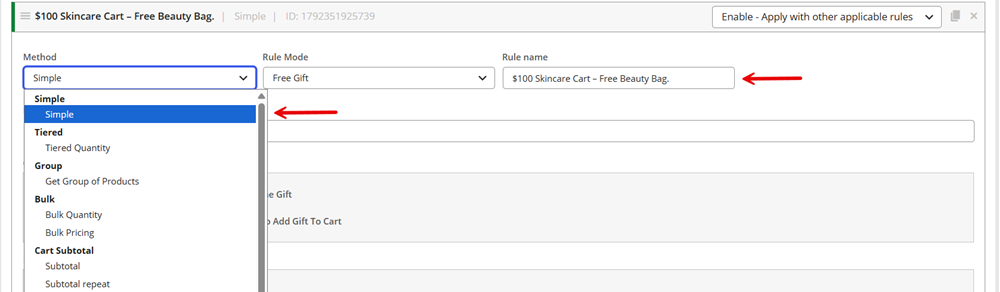
Click Add Rule and give the campaign a descriptive internal name. For this example, use something such as “$100 Skincare Cart – Free Beauty Bag.” A descriptive name makes the rule easier to identify later when the store has several subtotal, BOGO, seasonal, or customer-specific campaigns running at the same time.
Choose the gift method that fits the campaign. For this walkthrough, keep the method simple so the category subtotal condition remains the main trigger. GIFTiT supports multiple gift methods, and this type of condition is not conceptually limited to only one promotional structure; the method should match how you want the gift to be awarded.
The key distinction is that the method defines the promotion structure, while the condition determines whether the current cart is eligible. In this tutorial, eligibility depends on having at least $100 of Skincare products in the cart.
Step 3 – Set the Gift Quantity and Behavior
Open Quantities & Settings and set the gift quantity to one. The customer should receive one Beauty Bag after meeting the $100 Skincare threshold.
- Get: 1
- Same Gift: use it when the campaign should consistently provide the same gift.
- Auto Add Gift to Cart: configure this according to whether the gift should be added automatically or presented for selection.
Read More: How to Automatically Add Free Gifts to WooCommerce Cart
If the campaign offers only one specific gift, automatic delivery can reduce friction. If several eligible gifts are available, leaving automatic addition disabled can allow the customer to choose, depending on the rest of your rule configuration.

Step 4 – Select the Free Gift
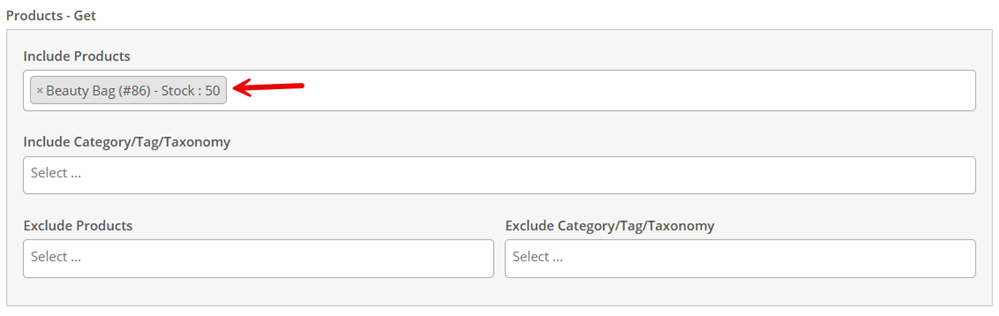
In the Get section, choose the Beauty Bag as the product the customer can receive. The qualifying category and the gift do not need to be the same product group. In this example, Skincare products create eligibility, while the Beauty Bag is the reward.
This separation is useful for cross-selling and product discovery. A fashion store might use Jackets as the qualifying category and give a Scarf. A coffee store might use Coffee Beans as the qualifying category and give a Mug. The qualifying purchase and the free product can support different merchandising goals.
Step 5 – Add the Category Cart Value Condition
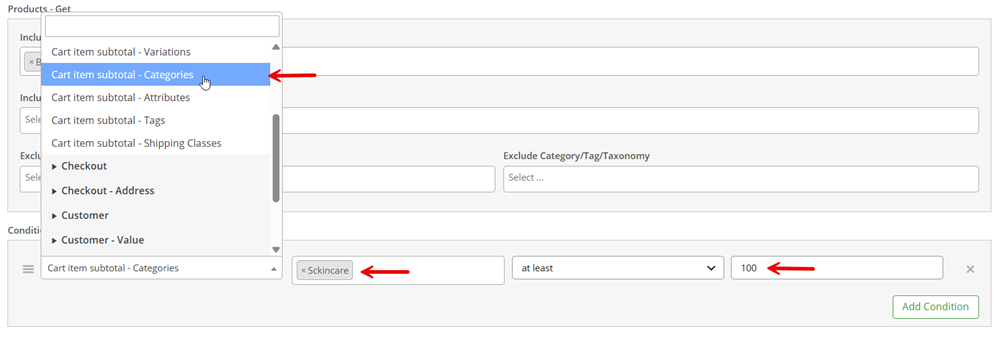
Now configure the condition that makes this campaign category-specific. Open the Conditions section and click Add Condition. In the first selector, open Cart Items – Subtotal and choose “Cart item subtotal – Categories.”
- Click Add Condition.
- Open Cart Items – Subtotal.
- Choose Cart item subtotal – Categories.
- Select Skincare as the qualifying category.
- Choose at least as the comparison.
- Enter 100 as the required category subtotal.
The completed condition means: the subtotal of products from the Skincare category in the current cart must be at least $100. Products outside Skincare can still be in the cart, but they do not help the Skincare subtotal reach this threshold.
For example, suppose the cart contains $80 of Skincare products and $70 of Clothing products. The total cart value is $150, but the Skincare subtotal is only $80. The customer should not qualify yet. Once another $20 or more of qualifying Skincare products is added, the category subtotal reaches $100 and the gift can become available.
This is the central difference between this campaign and a general subtotal promotion. The rule is designed to increase value inside the selected category, not simply to reward a large cart.
GIFTiT – Free Gifts For WooCommerce
The easy way to offer free gifts based on category cart value in WooCommerce
Step 6 – Save the Rule and Test the Storefront Result
Save the rule, make sure it is enabled, and test it with several carts. Do not test only the exact qualifying case. Mixed-category carts are especially important because they confirm that products outside the selected category are not accidentally counted toward the threshold.
| Test Cart | Expected Result |
| $80 Skincare | No Gift |
| $100 Skincare | Gift |
| $80 Skincare + $70 Clothing | No Gift |
| $120 Skincare + $30 Clothing | Gift |
| $150 Clothing | No Gift |
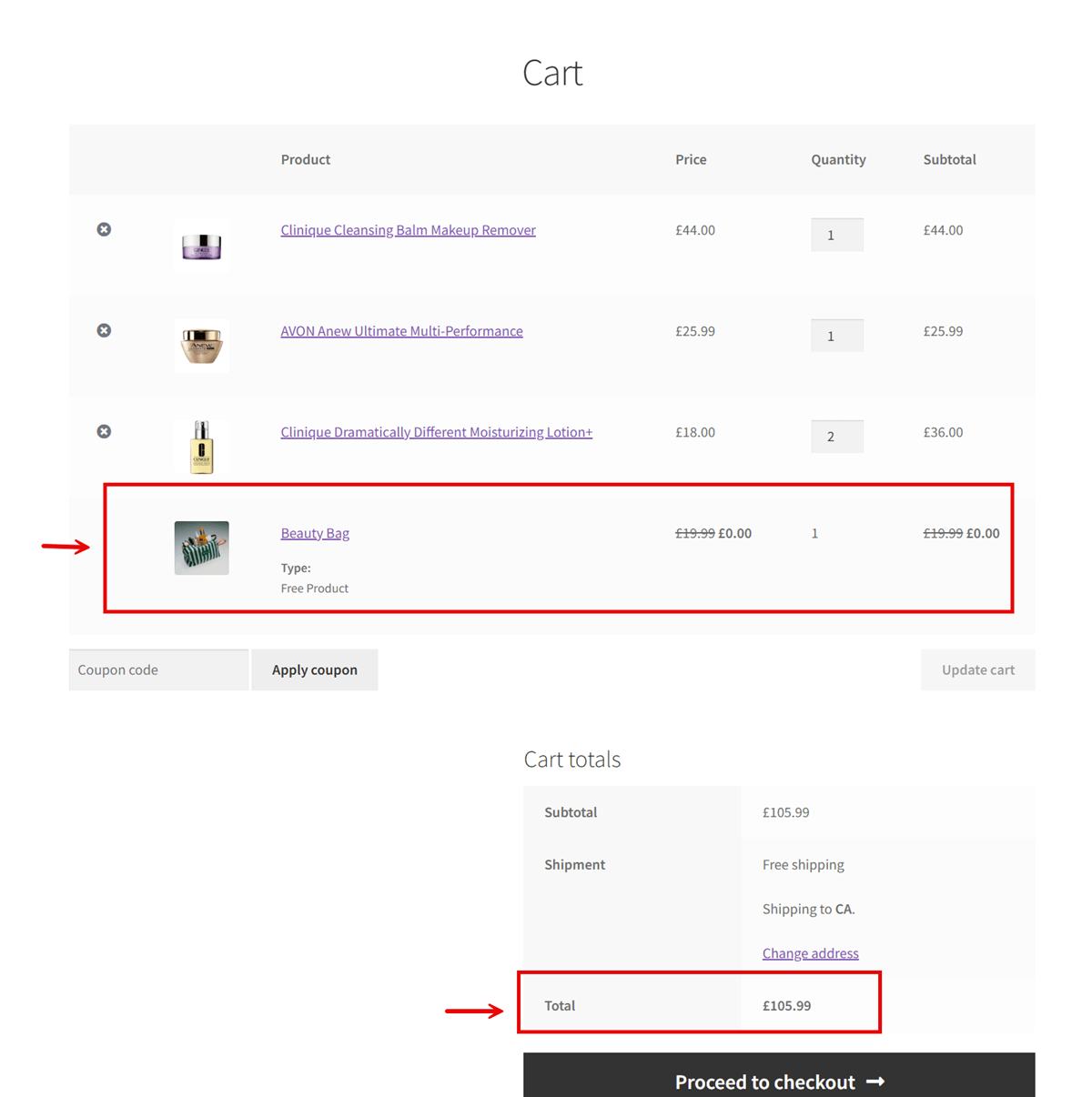
After confirming the rule logic, check the customer-facing experience in the cart or gift interface. Verify that the Beauty Bag appears only after the qualifying category subtotal reaches $100, that its price is handled as a free gift, and that removing Skincare products below the threshold removes or disables the eligibility as expected.
Why Use Category Cart Value Instead of a Store-Wide Threshold?
A store-wide threshold is useful when the main objective is to raise average order value. A category-specific threshold is more targeted: it encourages customers to spend more inside the product group the store wants to promote.
- Increase sales in a specific product category without requiring every product in the cart to belong to that category.
- Support a new collection or category launch by creating a reason to explore more products from that range.
- Encourage higher spend in categories with stronger margins or strategic importance.
- Create seasonal campaigns around categories such as Holiday Gifts, Summer Accessories, or Gardening.
- Pair a qualifying category with a complementary free product to support cross-selling.
- Avoid rewarding unrelated cart value when the campaign budget is intended to promote one category.
Practical Category Cart Value Gift Examples
The same rule structure can be adapted to many industries. The threshold and gift should reflect the typical order value, product margins, and the role of the qualifying category.
| Industry | Example Campaign |
| Fashion | Add $150 of Jackets to the cart → Get a free scarf |
| Coffee | Add $60 of Coffee Beans to the cart → Get a free mug |
| Electronics | Add $250 of Laptop Accessories → Get a free cleaning kit |
| Pet Supplies | Add $80 of Dog Food → Get free treats |
| Books | Add $50 of Children’s Books → Get a free activity book |
| Home & Garden | Add $120 of Gardening Products → Get a free tool set |
These campaigns share the same logic even though the industries are different: only the value contributed by the qualifying category should determine whether the gift is unlocked. A shopper can add other products to the cart, but those products should not replace the required category spend.
Category Cart Value vs. Category Quantity
Value and quantity conditions can look similar from a marketing perspective, but they measure different things. A category value rule asks how much money the customer currently has in the cart from the selected category. A category quantity rule asks how many qualifying items are in the cart.
| Condition Type | Example | What Matters |
| Category Value | Add $100 of Coffee products → Get a gift | The subtotal value of qualifying products |
| Category Quantity | Add 3 Coffee products → Get a gift | The number of qualifying products |
This distinction matters when product prices vary. Three inexpensive products might satisfy a quantity rule but remain far below a $100 value threshold. Conversely, one premium product could satisfy a value rule while failing a three-item quantity rule. For that reason, category quantity deserves its own campaign setup rather than being mixed into this tutorial.
Current Category Cart Value vs. Previous Category Spending
GIFTiT also includes purchase-history conditions, so it is important not to confuse current-cart value with previous customer spending.
| Condition | What It Checks | Use Case |
| Cart item subtotal – Categories | Value from selected categories in the current cart | Add $100 of Skincare now and get a gift |
| Value purchased – Categories | Value previously purchased from selected categories | Reward customers based on historical category spending |
This article uses “Cart item subtotal – Categories.” The condition is about what is in the cart now. If the goal is to reward a customer because they previously spent a certain amount on a category, that is a different purchase-history campaign and should use the relevant historical value condition instead.
Best Practices for Category-Based Cart Value Gifts
- Set a threshold that makes financial sense for the gift. The qualifying category spend should support the cost of the reward and the campaign objective.
- Choose a gift that feels connected to the qualifying category. Complementary products and samples usually make the offer easier to understand.
- State the category requirement clearly. “Add $100 of Skincare products” is more accurate than a generic “Spend $100 and get a gift.”
- Test mixed carts. A cart containing both qualifying and non-qualifying categories is the best way to confirm the condition is measuring the intended subtotal.
- Review products assigned to multiple categories. Make sure your category structure matches the way you expect the promotion to calculate eligibility.
- Use a defined campaign period when the offer is tied to a launch, season, or limited promotion.
- Keep the threshold easy to understand and, where possible, show customers how close they are to unlocking the gift.
Common Mistakes to Avoid
Category subtotal rules are straightforward once the qualifying value is clear, but several configuration and messaging mistakes can make the promotion confusing. Check these points before publishing the campaign.
Using Total Cart Value Instead of Category Subtotal
The most common mistake is building or describing the campaign as though the overall cart value controls eligibility. If the offer is meant to promote Skincare, the condition should evaluate the Skincare subtotal rather than the total value of every product in the cart. A $150 cart does not qualify for a $100 Skincare threshold when only $80 comes from Skincare.
Assuming Products from Other Categories Count Toward the Threshold
Products outside the selected category can remain in the cart, but they should not be treated as progress toward the category-specific amount. This distinction needs to be reflected both in the rule configuration and in the promotion copy. Otherwise, customers may expect a gift based on the overall cart total.
Selecting the Wrong Category in the Condition
Check the category selected in “Cart item subtotal – Categories” carefully, especially when the store has similarly named parent and child categories. The rule can be configured correctly in every other respect and still produce the wrong audience if the wrong category is selected.
Forgetting to Test Mixed Carts
Testing only a cart that contains Skincare products does not prove that the category calculation is isolated correctly. Always test a mixed cart—for example, $80 Skincare plus $70 Clothing—to confirm that the non-qualifying category does not push the rule over the $100 threshold.
Setting an Unprofitable Threshold
A free gift should add perceived value without undermining the economics of the campaign. If the gift cost is high relative to the required category spend, the promotion may increase sales while reducing margin more than intended. Set the threshold with the gift cost, category margin, and typical order value in mind.
Making the Requirement Unclear to Customers
A message such as “Spend $100 and get a free gift” is too broad when only one category counts. Use precise copy such as “Add $100 worth of Skincare products to your cart and get a free Beauty Bag.” The customer should understand which products move them closer to the reward.
GIFTiT – Free Gifts For WooCommerce
The easy way to offer free gifts based on category cart value in WooCommerce
Conclusion
A category cart value rule gives you more control than a general cart subtotal promotion because it rewards spending in the product group you actually want to grow. In the example from this guide, the customer needs at least $100 of Skincare products in the current cart before the free Beauty Bag becomes available. Clothing, accessories, or other products can increase the overall cart total, but they do not replace the required Skincare value.
With GIFTiT – Free Gifts for WooCommerce, you can build this campaign by selecting the gift, setting its quantity, and adding “Cart item subtotal – Categories” as the eligibility condition. Test both qualifying and mixed-category carts before launch so the storefront behavior matches the promotion you advertise.
For more ways to structure gift campaigns around cart value, products, customers, and other conditions, continue with the Complete Guide to WooCommerce Free Gifts.
FAQ
1. Can I offer a free gift when customers add $100 from a specific category to their WooCommerce cart?
Yes. In GIFTiT, use the “Cart item subtotal – Categories” condition, select the qualifying category, choose “at least,” and enter 100. The rule then evaluates the subtotal of products from that category in the current cart.
2. Does the total WooCommerce cart value count toward the category threshold?
No, not when the rule is based specifically on the category subtotal. A cart can have a total value above the threshold and still fail the condition if the selected category has not reached the required amount.
3. Can products from other categories contribute to the required amount?
They can remain in the cart, but their value should not contribute to the subtotal of the category selected in the condition. For example, $80 of Skincare plus $70 of Clothing does not satisfy a $100 Skincare threshold.
4. Can I select multiple WooCommerce categories for the same rule?
The category selector can be used to define the category targets supported by the rule configuration. When using more than one category, verify the resulting logic with test carts so the selected categories are evaluated in the way your campaign promises to customers.
5. Can the free gift come from a different category?
Yes. The qualifying category and the gift are separate parts of the rule. A customer can qualify by adding products from one category and receive a gift product from another category, which is useful for complementary promotions and cross-selling.
6. What is the difference between Cart item subtotal – Categories and Value purchased – Categories?
“Cart item subtotal – Categories” checks the value of selected categories in the customer’s current cart. “Value purchased – Categories” belongs to purchase-history logic and is used when eligibility depends on what the customer purchased previously. This tutorial uses the current-cart condition.