
Introduction
A category-based free gift is a practical way to promote an entire group of products without creating a separate rule for every item. For example, a fashion store can offer a free pair of socks when a customer buys two products from the Accessories category, while a beauty store can give away a sample when shoppers purchase from Skincare. The qualifying products can change over time, but the promotion can continue to follow the category.
WooCommerce does not provide a flexible category-based gift rule system by default. To build this type of promotion without custom code, you can use GIFTiT – Free Gifts for WooCommerce. It lets you define what customers need to buy, which products or categories qualify, what they can receive as a gift, and whether the gift should be added automatically or selected by the customer.
In this tutorial, we will create one clear example from start to finish: buy 2 products from the Accessories category and get 1 free product from the Music category. Once you understand this setup, you can adapt the same structure to fashion, cosmetics, electronics, food, seasonal collections, clearance categories, and many other WooCommerce campaigns.
Looking for a broader overview of gift promotions, campaign types, and setup strategies? Read our Complete Guide to WooCommerce Free Gifts
Quick Answer: How Do You Give a Free Gift for a WooCommerce Product Category?
To offer a free gift based on a WooCommerce product category, create a gift rule in GIFTiT and choose a method such as Buy X Get Y. Set the Buy and Get quantities, then use the Product-Buy section to choose Product Category, select in list, and add the category or categories that should trigger the offer. In the Get section, select the specific product or category customers can receive for free. Finally, choose whether the gift is added automatically or selected by the customer, save the rule, and test it in the cart.
For example, you can set Buy = 2, Get = 1, select Accessories as the qualifying category, and select Music as the gift category. When a customer adds two qualifying Accessories products to the cart, the gift becomes available according to the rule.
What Is a Category-Based Free Gift in WooCommerce?
A category-based free gift promotion makes a customer eligible for a gift when their cart contains products from one or more specified WooCommerce categories. Instead of targeting a single SKU, the rule targets the category membership of the purchased products.
| Customer Buys From | Example Free Gift |
| Shoes | Socks |
| Skincare | Sample product |
| Coffee | Mug |
| Laptop Accessories | Mouse pad |
| Holiday Collection | Seasonal gift |
Two parts of the rule should be kept separate. The qualifying category is the category customers must buy from. The gift product or gift category defines what they receive after qualifying. In GIFTiT, these are configured in different areas of the rule: Product-Buy controls the qualifying purchase, while the Get section controls the available gifts.
That distinction gives you more flexibility. A customer might buy from Accessories and receive a product from Music, or buy from Skincare and receive a sample from a dedicated Gifts category. The purchased category and the gift category do not have to be the same.
How to Offer a Free Gift Based on Product Category in WooCommerce
We will use the following campaign throughout the tutorial so every setting has a clear purpose:
| Rule Setting | Example |
| Promotion | Buy 2 qualifying products and get 1 free gift |
| Qualifying category | Accessories |
| Gift category | Music |
| Gift quantity | 1 |
| Gift experience | Customer chooses the gift |
Step 1 – Install GIFTiT – Free Gifts for WooCommerce
First, install and activate GIFTiT on your WooCommerce store. After activation, open the plugin’s rule management area from the WordPress dashboard. The rule builder is where you define the promotion method, quantities, qualifying products, gift products, and any additional conditions.
If you want to review the plugin before configuring the campaign, visit the GIFTiT product page or the GIFTiT documentation.
Step 2 – Create a New Free Gift Rule
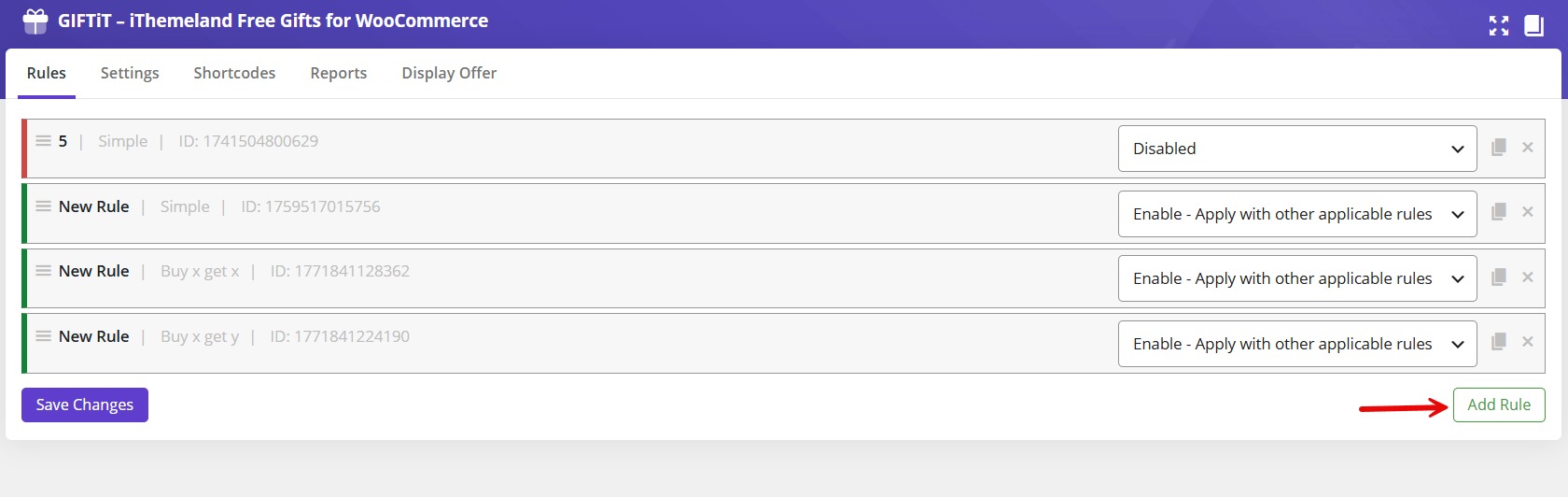
Open the GIFTiT Rules area and click Add Rule. Give the rule a descriptive name so it is easy to identify later. For this example, a name such as Accessories Category – Free Music Gift immediately tells a store manager what the campaign does.
Clear rule names become more useful as your store accumulates seasonal promotions, customer-specific campaigns, subtotal gifts, BOGO offers, and other rules. A descriptive internal name also makes troubleshooting easier when several promotions are active at the same time.
Step 3 – Choose the Free Gift Method
Select Buy X Get Y as the gift method. This method is appropriate when the products customers purchase and the products they receive as gifts are different. In our example, Accessories products trigger the promotion, while the free product comes from the Music category.
If your broader campaign requires a repeating structure—for example, one gift for every two qualifying items—you can use the corresponding repeat method where appropriate.
Read More: How to Set Up WooCommerce Buy X Get Y Free Offers.
Step 4 – Set the Buy and Get Quantities
In the Quantities & Settings section, set Buy to 2 and Get to 1. This tells GIFTiT that the customer must have two qualifying items before one gift becomes available.
- Buy: 2 — the number of qualifying products required.
- Get: 1 — the number of free gifts available after qualification.
- Auto Add Gift to Cart: leave it disabled for this example so customers can choose a gift.
The quantity requirement and category selection work together. Simply adding any two products to the cart should not trigger this rule; the qualifying quantity must come from the category defined in the next step.

GIFTiT – Free Gifts For WooCommerce
The easy way to offer free gifts based on product categories in WooCommerce
Step 5 – Select the Qualifying Product Category
Now define which purchases count toward the rule. In the Product-Buy section, click Add Products. Choose Product Category from the first selector, choose in list as the comparison, and then select Accessories in the selection field.
- Open the Product-Buy section.
- Click Add Products.
- Choose Product Category.
- Choose in list.
- Search for and select Accessories.
This is the key setting for a category-based campaign. Rather than manually adding every product in Accessories, the rule uses the WooCommerce category as the qualifying group. You can also select more than one category when the same promotion should apply to several product groups.
For example, a fashion store could include both Accessories and Bags in the same rule. The important point is to keep the selection aligned with the campaign message shown to customers. If the storefront says “Buy 2 Accessories and get a free gift,” the qualifying rule should not silently include unrelated categories.

Step 6 – Choose the Free Gift Products
Next, move to the Get section. This area determines what the customer is allowed to receive after meeting the purchase requirement. GIFTiT can use specific products or a category as the source of the gift selection.
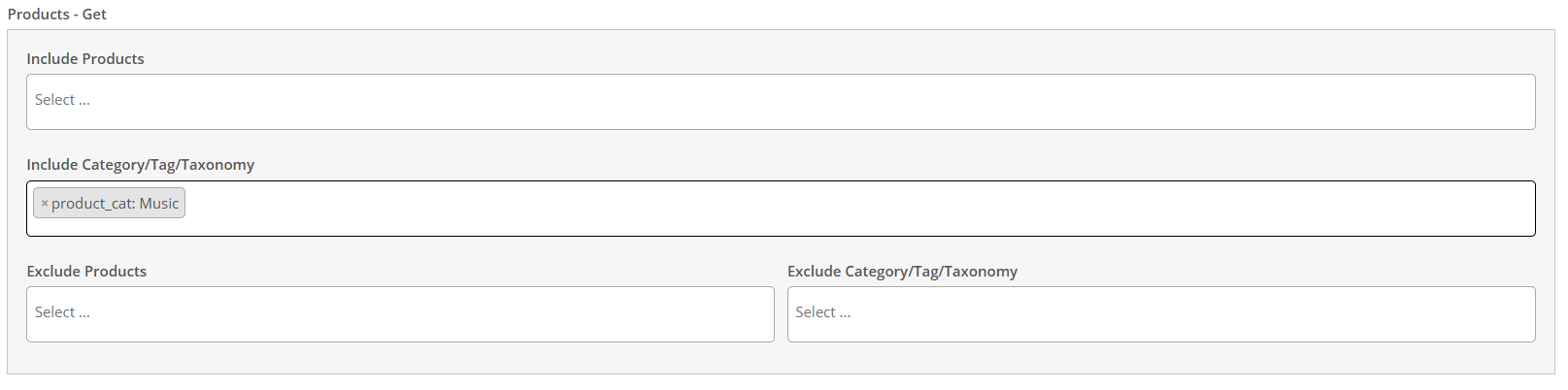
For our example, add Music to the Include Category / Tag / Taxonomy field. The result is straightforward: the customer buys two qualifying Accessories products and can choose one eligible product from the Music category as a free gift.
Using a gift category is especially useful when you want to give shoppers a choice. Instead of maintaining one fixed gift, you can create a curated category containing the products that are currently available for the campaign. When inventory or seasonal priorities change, you can manage that collection through WooCommerce.
You can also use a specific product instead of an entire category. That approach works well when every eligible customer should receive exactly the same sample, accessory, promotional item, or bonus product.
Step 7 – Decide Whether to Auto-Add the Gift or Let Customers Choose
The next decision affects the customer experience. If Auto Add Gift to Cart is enabled, GIFTiT can add the configured gift automatically when the customer qualifies. If it is disabled, the customer can choose from the eligible gift products presented by the promotion.
| Gift Experience | Best Used When |
| Auto-add gift | There is one clear gift and you want the lowest-friction experience. |
| Customer chooses | Several gift options are available and choice is part of the promotion’s value. |
For our Accessories-to-Music example, leave Auto Add disabled because the Music category can contain multiple eligible gifts. Giving the shopper a choice makes sense when the options differ in style, format, or preference.
If your campaign has only one fixed gift, automatic addition can reduce extra clicks.
Read More: How to Auto Add Free Gifts to Cart in WooCommerce?
Step 8 – Add Extra Conditions if Needed
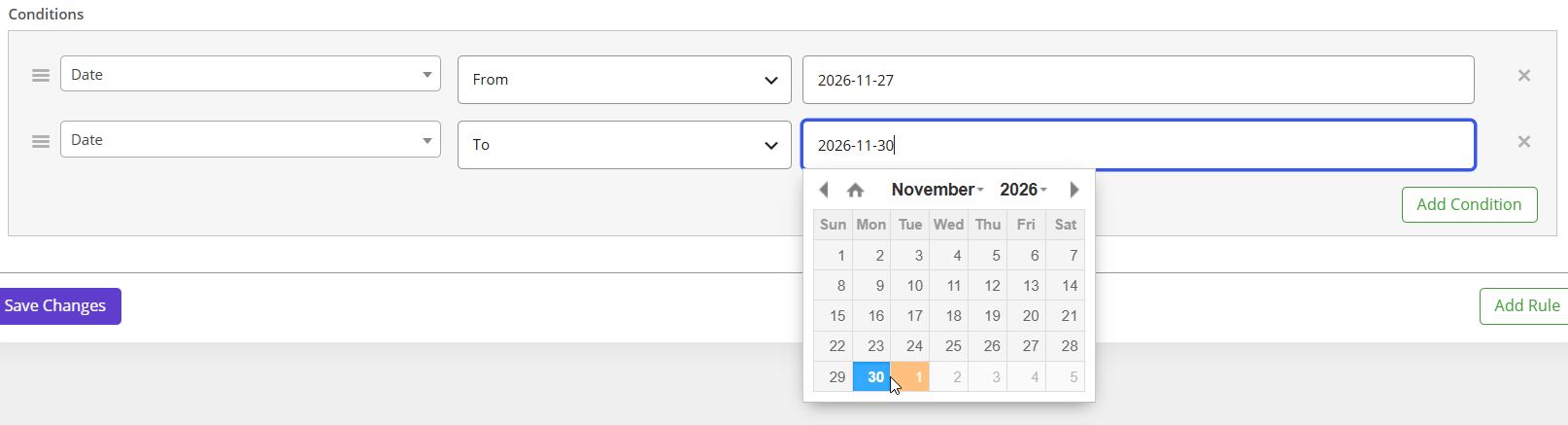
The category itself can be the central requirement, but you can make the campaign more specific by adding conditions. This is useful when a category gift should run only during a particular promotion rather than all year.
- Run the category gift only on selected days.
- Limit the promotion to a campaign period such as Black Friday or Christmas.
- Combine the purchase rule with relevant customer conditions.
- Use additional cart or customer criteria when the campaign requires tighter targeting.
Keep these conditions purposeful. If the marketing message is simple, the rule should be simple too. Too many hidden requirements can create a poor experience because customers may believe they qualify while an unseen condition prevents the gift from appearing.
Step 9 – Save the Rule and Test the Promotion
Click Save Changes to activate the configuration. Before promoting the offer publicly, test it as a customer. A short cart test can reveal category, quantity, gift availability, or display issues before they affect real orders.
- Add a product outside the Accessories category. The gift should not become available because of that product alone.
- Add one Accessories product. The Buy = 2 requirement should not yet be complete.
- Add a second qualifying Accessories product. The free gift should now become available.
- Choose an eligible Music product as the gift and confirm that it is treated correctly in the cart.
- Remove one qualifying Accessories item and confirm that the cart no longer satisfies the rule.
Also test variable products and mixed carts if they are common in your store. The goal is to confirm that the campaign follows the rule customers were promised, not merely that a gift appears once during a basic test.
Example: Buy 2 Products from a Category and Get 1 Free Gift
Here is the complete configuration from the tutorial in one place:
| Setting | Configuration |
| Method | Buy X Get Y |
| Buy | 2 |
| Get | 1 |
| Product-Buy type | Product Category |
| Comparison | in list |
| Qualifying category | Accessories |
| Gift source | Music category |
| Auto Add Gift to Cart | Off |
| Customer result | Buy 2 Accessories products → choose 1 eligible Music product for free |
This example illustrates why category rules are useful. You do not need to build separate promotions for every qualifying Accessories product. The rule can cover the category, while the Get section independently controls the products available as gifts.
More Category-Based Free Gift Campaign Ideas
The same setup can support many merchandising goals. The best combinations usually connect the qualifying category with a gift that feels relevant to the purchase.
Fashion Store: Buy from Jackets, Get a Free Accessory
A fashion retailer can encourage sales from a higher-value Jackets category by offering an accessory as the gift. The gift could come from a curated promotional category containing scarves, socks, or small add-ons. This keeps the offer relevant without discounting the jacket itself.
Beauty Store: Buy 2 Skincare Products, Get a Free Sample
A skincare category is a natural place for product discovery. Customers who buy two qualifying products could choose a sample from a dedicated Samples category. The gift can introduce another product line while preserving the regular prices of the main products.
Electronics Store: Buy from Laptops, Get a Free Accessory
For higher-ticket categories such as laptops, a low-cost complementary accessory can create extra perceived value. A mouse pad, cable organizer, or other compatible add-on can be placed in a gift category and offered when the qualifying purchase is made.
Coffee Store: Buy 3 Coffee Products, Get a Free Mug
Consumable products are well suited to quantity-based category offers. A store can require three products from Coffee and offer a mug as the gift. If the mug is the only gift, Auto Add can simplify the experience; if several mug designs are available, customer selection may be more appealing.
Seasonal Store: Buy from a Holiday Collection, Choose a Seasonal Gift
A seasonal category can become the trigger for a limited-time gift campaign. Combine the category rule with an appropriate date condition, then offer gifts from a separate seasonal gift category. After the campaign ends, the rule can be disabled without changing the underlying product catalog.
Product Category vs. Specific Product Free Gift Rules
Category targeting is not always better than product targeting; the right choice depends on how broad the promotion should be.
| Rule Type | Best For | Example |
| Product Category | Promotions covering a related group of products | Buy 2 Accessories → get a free gift |
| Specific Product | A tightly targeted campaign around one item | Buy Product A → get Product B free |
| Multiple Categories | Broader seasonal or merchandising campaigns | Buy from Accessories or Bags → get a gift |
Use a category when the promotion should remain manageable as products are added or removed from that group. Use a specific product when the campaign is intentionally tied to one SKU.
Best Practices for Category-Based Free Gift Promotions
- Choose a relevant gift. A complementary product makes the promotion easier to understand and can introduce customers to another part of your catalog.
- Keep the qualification message simple. Tell customers exactly which category qualifies and how many products they need to buy.
- Protect your margin. Consider the cost of the gift in relation to the additional revenue or merchandising goal the promotion is designed to create.
- Use a curated gift category when offering a choice. This gives you a practical way to control which items are available without exposing unrelated products.
- Test mixed carts. Make sure products outside the qualifying category do not accidentally satisfy the quantity requirement.
- Check the campaign after catalog changes. If products move between categories, confirm that the rule still matches your intended promotion.
- Use additional conditions only when they support a clear campaign requirement, such as a limited promotional period.
If you are planning a larger free-gift strategy with several promotion types, you can also review WooCommerce Free Gift Products With Purchase for additional examples beyond category targeting.
GIFTiT – Free Gifts For WooCommerce
The easy way to offer free gifts based on product categories in WooCommerce
Conclusion
A product-category rule is one of the most practical ways to run a focused free-gift campaign in WooCommerce. Instead of maintaining a long list of individual qualifying products, you can define the category customers need to buy from and let the promotion follow that product group.
The setup becomes especially flexible when the qualifying category and gift source are kept separate. In the example from this guide, two products from Accessories unlock one free product from Music. The same structure can be adapted to Skincare and Samples, Jackets and Accessories, Coffee and Mugs, or any other combination that makes sense for your catalog.
With GIFTiT – Free Gifts for WooCommerce, you can create the rule from the WordPress dashboard, define the qualifying category in Product-Buy, choose the gift products in the Get section, control quantities, decide whether the gift is automatic or customer-selected, and add extra conditions when needed. Before launching, test the promotion with qualifying and non-qualifying carts so the customer experience matches the offer you advertise.
Category-based offers are just one of many ways to use gifts to encourage purchases. For more promotion ideas, methods, and practical examples, explore our Complete Guide to WooCommerce Free Gifts.
FAQ
1. Can I offer a free gift when customers buy from a specific WooCommerce category?
Yes. In GIFTiT, you can use the Product-Buy section to choose Product Category, select the appropriate comparison, and add the category that should qualify for the promotion. You can then define the gift separately in the Get section.
2. Can I select multiple product categories for the same free gift rule?
Yes. The Product-Buy setup can be used to select qualifying categories for the rule. This is useful when one promotion should cover several related product groups rather than a single category.
3. Can the free gift come from a different product category?
Yes. The qualifying purchase and the gift source are configured separately. For example, customers can buy from the Accessories category and receive an eligible product from the Music category as their free gift.
4. Can customers choose their free gift from a category?
Yes. You can include a category in the Get section so eligible products from that category can be offered as gifts. When Auto Add Gift to Cart is not enabled, the promotion can allow the customer to choose from the available gift options.
5. Can a free gift be added to the cart automatically?
Yes. GIFTiT includes an Auto Add Gift to Cart option. This is most useful when the campaign has a clear gift that should be added without asking the customer to make another selection.
6. Can I combine a product category rule with other gift conditions?
Yes. The Conditions section can be used to add extra requirements to a gift rule, such as campaign timing or other supported cart and customer criteria. Use additional conditions only when they are part of the promotion you intend to communicate to shoppers.