
Learning how to edit pages in WordPress is easy when you only need to update one page. But when your website has many posts, pages, or custom post types, editing each item manually can take a lot of time. This becomes especially difficult when you need to change post or page text in WordPress, update categories, change authors, edit status, or apply the same changes to multiple items.
WordPress includes a basic bulk edit option for posts and pages. It can help you update simple fields like status, author, categories, tags, and comments. However, it is limited when you want to edit multiple post pages, update content fields, change titles, manage custom fields, or filter specific posts before editing.In this tutorial, you’ll learn how to edit posts in WordPress, how to edit pages in WordPress, and how to bulk update multiple posts and pages using both the default WordPress bulk action feature and WPBULKiT – Bulk Edit WordPress Posts / Pages. This helps you save time, reduce repetitive work, and manage large WordPress content libraries more efficiently.
Quick Answer:
Bulk editing WordPress posts and pages is useful when you need to update many content items at once. The default WordPress editor can handle simple changes such as status, categories, or author, but it is limited when you need advanced filtering or detailed field updates.
For a faster workflow, use WPBULKiT – Bulk Edit WordPress Posts and Pages. After installing it, go to WordPress Dashboard > iThemeland > WPBULKiT, use the Filter Form to find posts or pages by title, author, date, category, tag, status, or custom fields, then select the matching items in the table.
Open Bulk Edit to update fields such as status, author, categories, tags, publish date, excerpt, featured image, or other post details. WPBULKiT plugin is more practical than the default editor because it gives content managers advanced search, inline editing, and bulk updates in one place.
What is bulk action in WordPress and how to do it?
Bulk action is the process of editing the data or value of multiple posts or pages simultaneously. By performing bulk actions, there is no need to open the posts or pages one by one and change their data. This is a very useful feature for saving time and effort needed for posts or pages management.
To bulk edit posts or pages by default options of WordPress, you need to follow three below steps:
- Increase the number of posts / pages displayed in one page.
- Mark those posts or pages you need to bulk edit their values and apply.
- Specify those values you need to be bulk edited.
Let ‘s see how we can do them on WordPress together.
Step 1: Increase the number of posts / pages
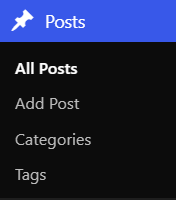
Navigate to the below address to see the list of posts/pages on your website:
WordPress dashboard > posts / pages > All posts / pages
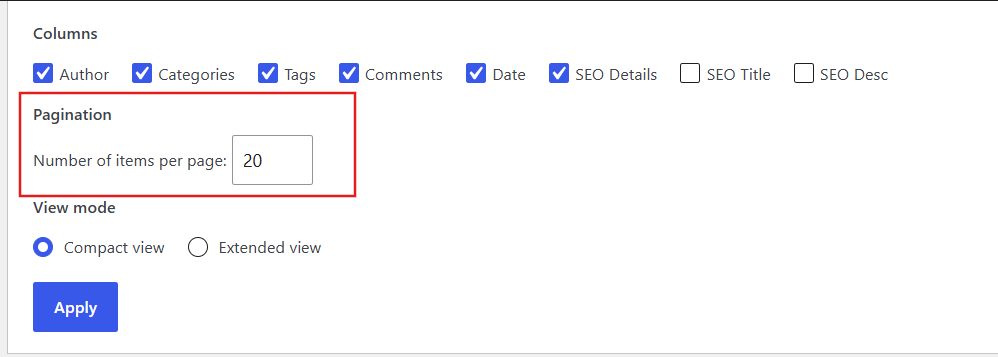
On the top right of the screen, click on “screen options” and increase the number of posts/pages in the pagination field as you can see in the below picture:
Step 2: Mark the posts/ pages
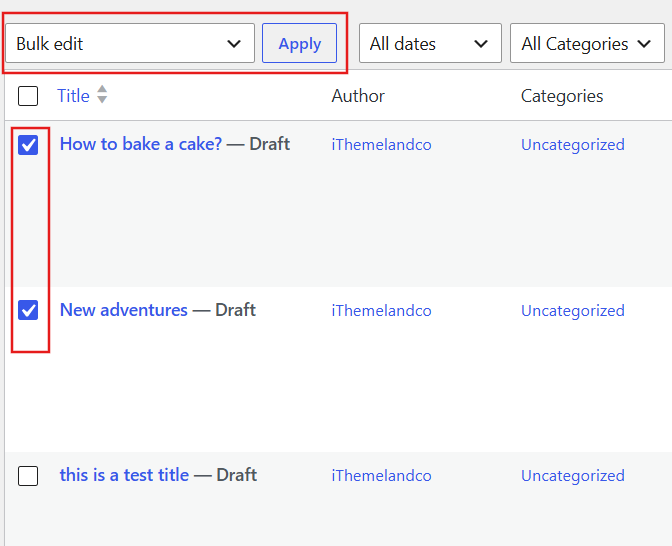
When you changed the number of items per page, mark the proper posts or pages you need to be bulk edited in the list, open the combo box of “Bulk action” on the top of the list and choose the “Edit” option then click on “Apply” button:
Step 3: Choose the values to be bulk edited
Bulk Edit Posts
The below items will be shown on the screen as soon as you mark the posts and click on “Apply“:
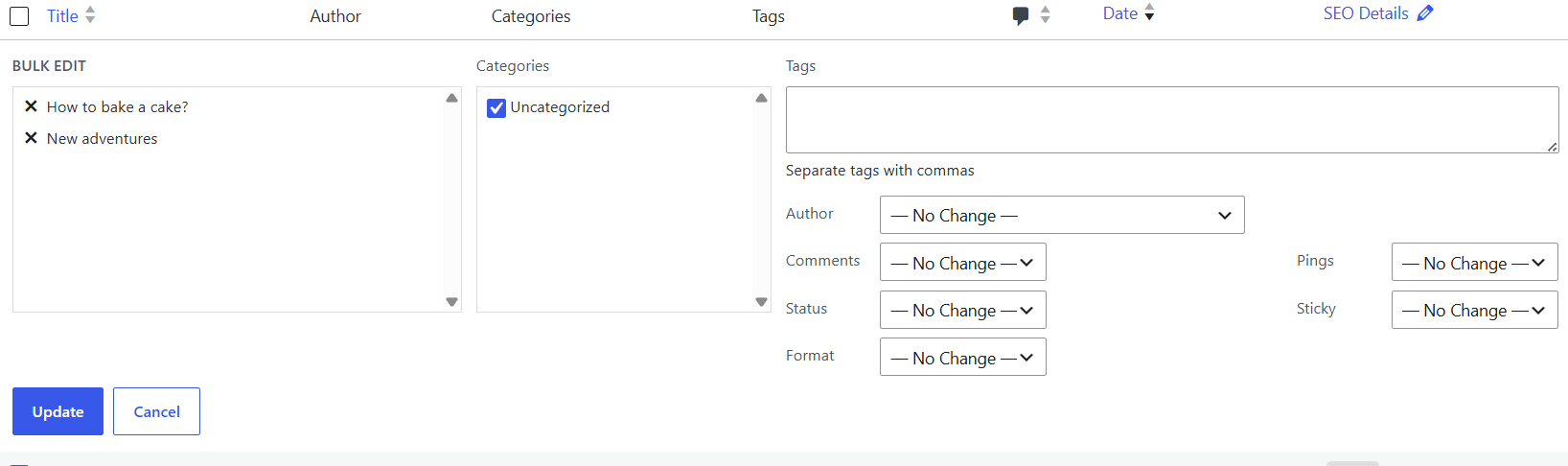
You can make changes to them as illustrated in the below pictures, so those changes will be applied to all posts you have marked:
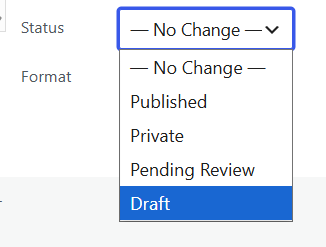
Status:
It is possible to assign one of the below items to the status of those selected posts:
Categories:
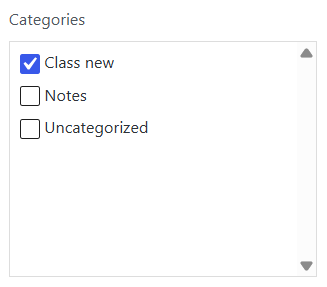
All categories you have added to the WordPress display here and you can mark one or more of them to be assigned to your marked posts:
Tags:
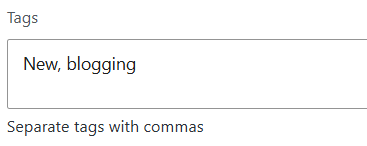
You can type as many tags as you need in the text box and WordPress will assign all of them to those posts you have marked:
Comments:
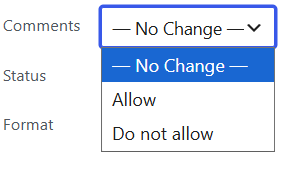
In this part, you can choose to receive comments or not from the readers of your marked posts:
Author:
Assigning different authors that their Email or username has been registered on WordPress is also possible for the selected posts.
Bulk edit pages
The below items will be shown on the screen as soon as you mark the pages and click on apply:
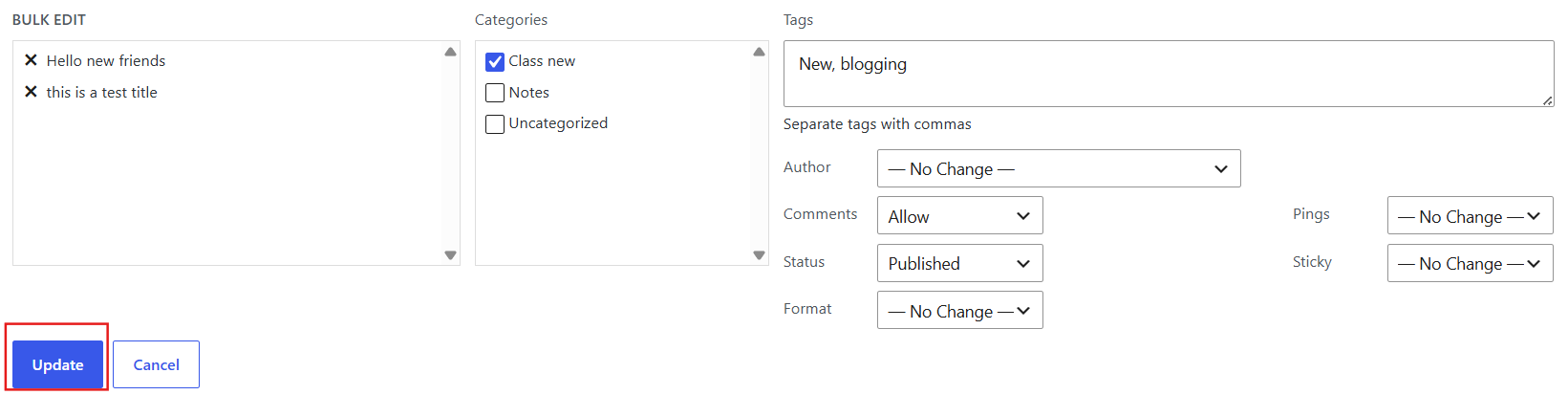
As we mentioned above, there are some limited data that you can directly perform bulk action on them without using any plugin on WordPress.
So, let’s introduce you WordPress bulk posts editing plugin as one of the most powerful plugins enabling you to do bulk actions on every single data related to your posts.
What can I bulk edit by WordPress bulk post editing plugin?
WordPress bulk posts editing plugin is the best solution for helping website managers to bulk edit any feature of multiple posts and custom posts robustly and flexibly. You can become a professional manager by WordPress Bulk posts editing plugin and doing bulk actions on your desired posts in a few seconds by using the user-friendly interface of this plugin.
WordPress bulk post editing plugin facilitates changing multiple post features by designing a simple interface including:
Post table
As soon as installation and activation of this plugin on your website, you have access to a customizable post table with different columns as shown below:
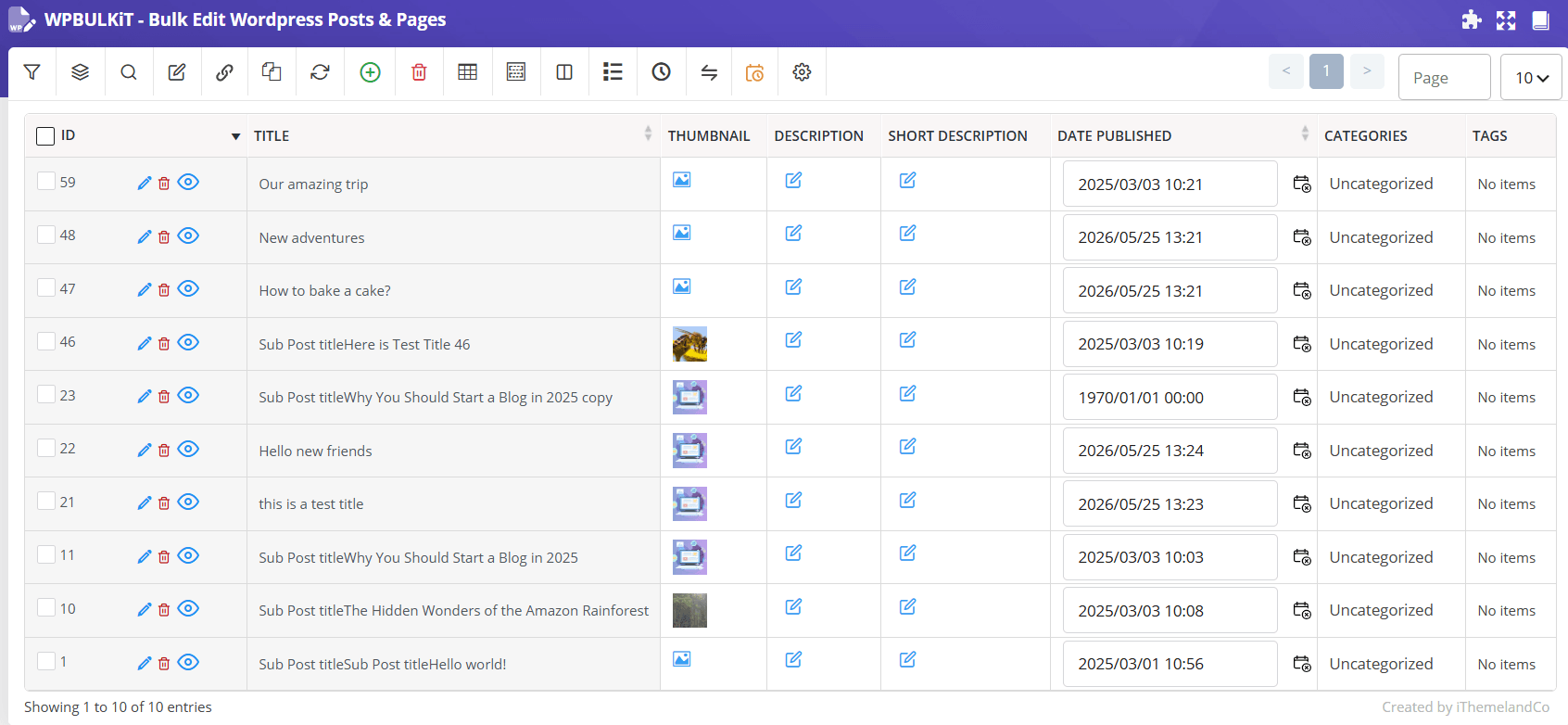
You can increase the number of posts displaying on one page and choose which columns to be displayed on the table by using the “column profile” form illustrated below:
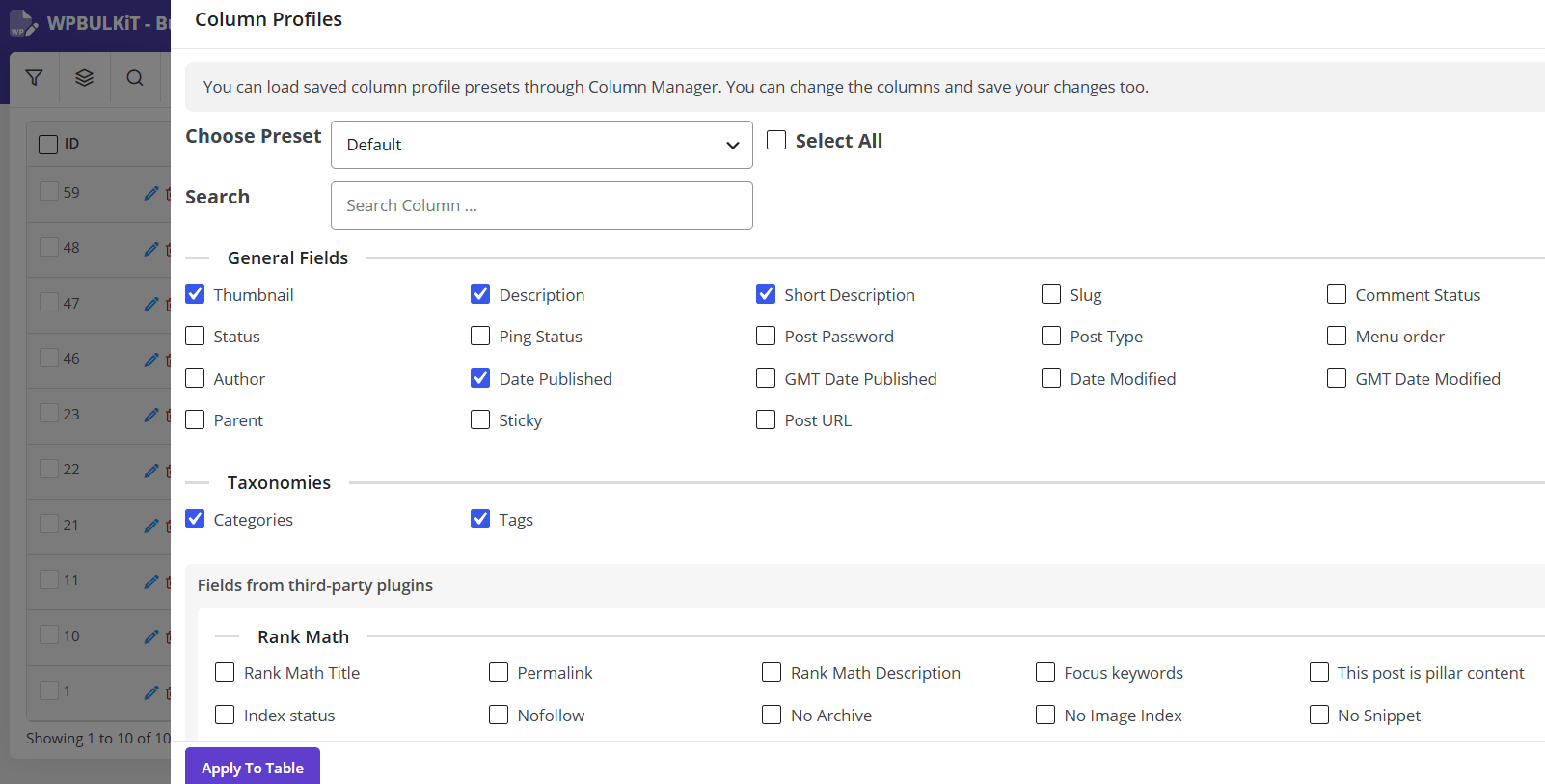
You can also add/ remove as many columns as you need to be displayed on the post table by marking/unmarking them.
Quick search
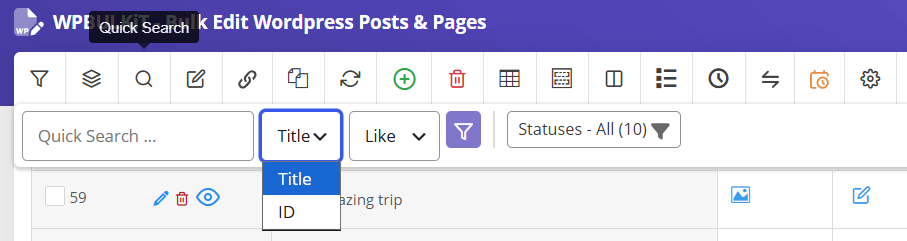
Quick search box designed on this plugin enables you to quickly find your desired posts according to their titles or IDs and do bulk actions on them in less than a few seconds.
Filter form
Filter form includes all fields related to the posts divided into some different tabs to allow you to filter your desired posts to bulk edit their features precisely.
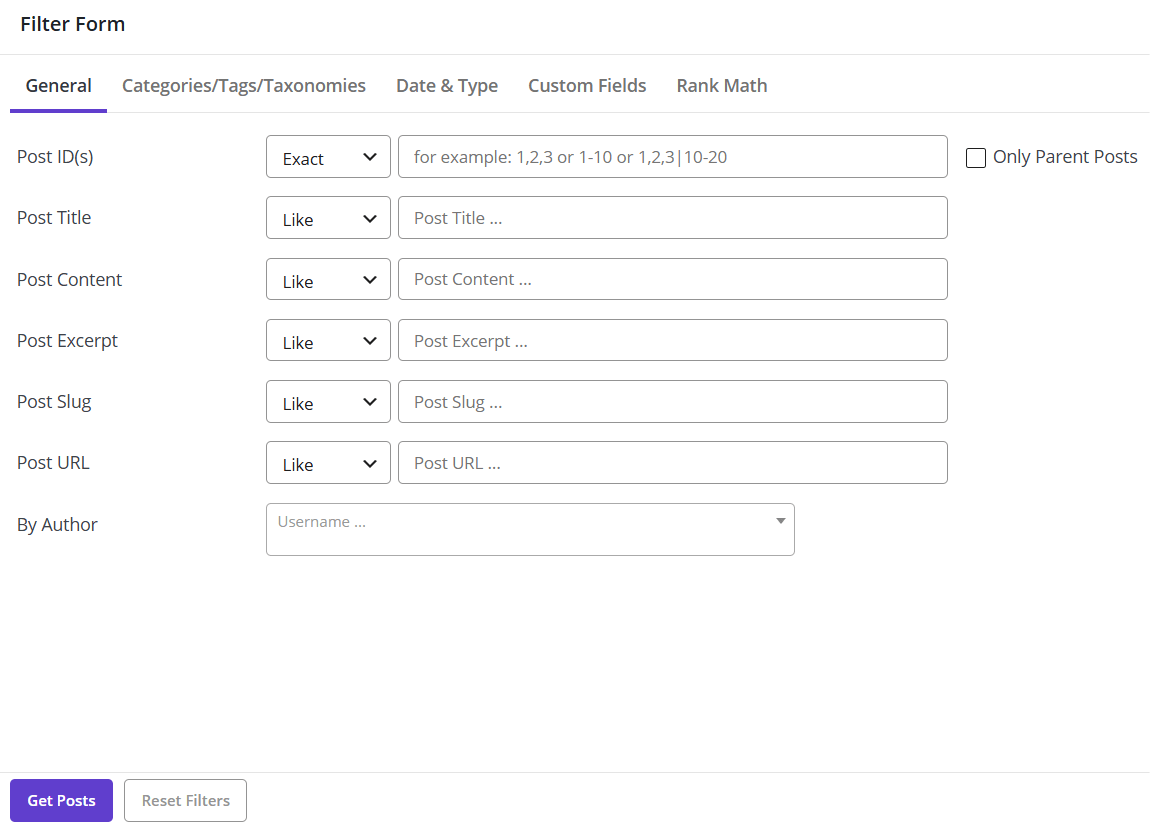
All fields and meta fields have been listed in the filter form of this plugin such as:
- Date of publishing.
- Author.
- Post link.
- Post type.
- The post Category.
- Post tag.
- Post taxonomy.
- Featured image.
- Post attributes.
- Custom fields.
- Title of post.
- Description of post.
- Sticky post.
And so on.
Bulk edit form
Bulk edit form is your magic wound for doing bulk edit actions in a few seconds. After filtering your desired posts, you can find all fields related to them in the bulk edit form and change, remove, add or replace any data to make changes according to your requirements on the selected posts.
The most important fields assigned to a post that is also available in WordPress Bulk post editing plugin are:
- Categories / Taxonomies / Tags.
- Date & Type.
- Custom fields.
- Post title.
- Post slug.
- The Post password.
- Post description.
- Post short description.
- Full content.
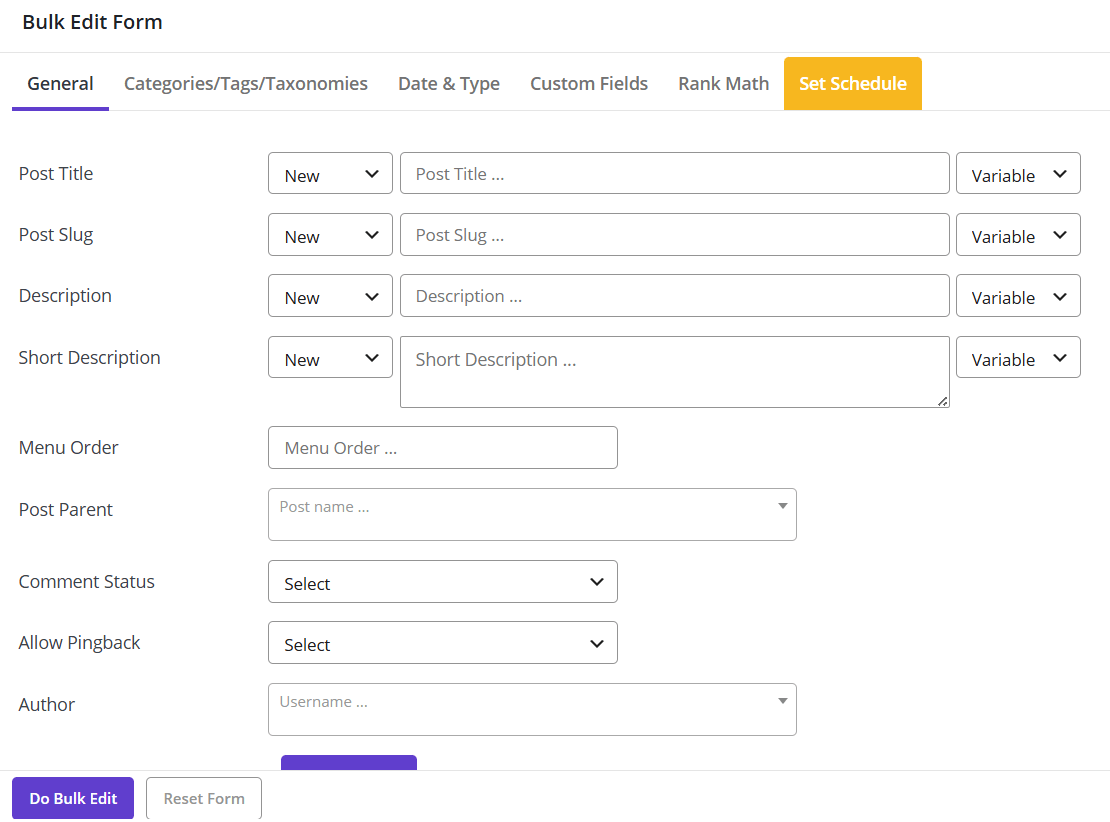
In addition to above mentioned, there are also so many other fields provided in this plugin to make bulk editing of post features more convenient for post managers.
The amazing point about the bulk edit form of this plugin is that various forms of combo boxes or condition boxes with useful features are designed for each field that enables you to bulk edit the data for multi posts or custom posts in less than a few minutes.
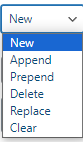
For example, to facilities bulk actions on different values, the below options are available in the condition boxes:
- Append: To add some values to the end of field values.
- Replace: To replace current value of the field with new values.
- Delete: To remove some values from the field.
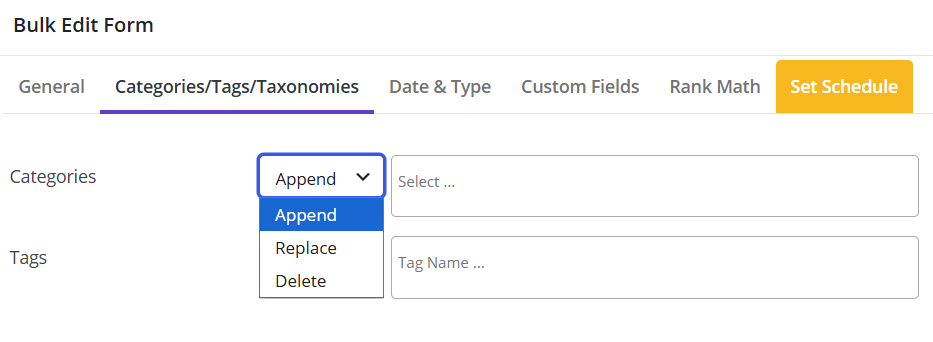
We will show these options in some examples to better understand the functionality of this plugin.
Bind edit posts
Bind edit option is a great solution for changing multiple data of post fields especially when you just want to edit one field for multiposts.
To use this option, you can filter the custom posts you want to be bulk edited and then add the appropriate columns to the post table to make changes to them directly from the table.
Inline edit
Inline editing is another way for making changes on different fields very fast and easy on the columns of post tables. By getting help from this feature, you can edit the value of any columns displayed on the post table with just one click.
Add / delete multiple posts
Separate buttons have been designed on this plugin to let you multi-add or multi delete posts just by one click.
How to bulk edit fields by WordPress bulk post editing plugin?
The process of bulk editing is really easy by using WordPress bulk post editing plugin in two simple steps:
Step one: Filter your desired posts
It is so convenient to filter posts / custom posts you want to change their fields by one of the following methods in this:
- Using filter form.
- Using quick search.
You can also mark the posts for bulk editing directly on the post table.
Step Two: Bulk edit the value of marked posts
You can change the value of multi-post fields at the same time in this plugin by using one of the below methods:
- Using Bulk edit form.
- Use from bind editing method.
- Using inline edit option.
All three methods are absolutely straightforward and you may feel satisfied after getting familiar with them.
Let’s get familiar with them by making some examples.
- Bulk editing tags and category data by bulk editing
Bulk edit post or custom post category is one of the easiest tasks in WordPress Bulk posts Editing Plugin.
As we mentioned above, you can use filter form or quick search to choose the proper posts, then by opening the bulk edit form and clicking on “Categories/ Tags / Taxonomies” tab, you can observe that the below options have been designed in front of each field to help you bulk editing them very quickly:
Condition box
In the condition Box, you have access to the options mentioned above including “Append”, “Replace”, “Delete”.
- Append:
By selecting this option, as many categories as chosen will be added to the post categories.
- Replace:
By applying this action, the new categories selected in the bulk edit form will be replaced by the older ones.
- Delete:
This option helps post managers to bulk edit as many categories as they need from the posts.
Select box
All categories that you added to WordPress are listed here and you can choose to apply action on any of them.
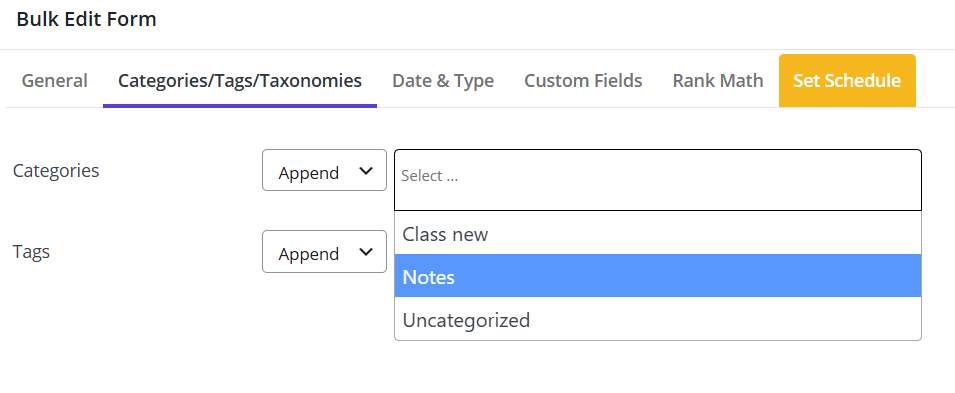
To get access to the bulk edit form in this plugin, follow below steps:
- Go to WordPress dashboard > Pro bulk bundle > WP posts.
- Click on “Bulk Edit” button in the main page.
- Bulk title changes by bind editing
Bind edit posts in WordPress bulk post editing plugin is sometimes much easier than using Bulk edit form. Because in bind editing, you can directly change any post features from the post table and see the result immediately.
This is also a good option when you need to change some features of all posts which are listed on one page at the same time.
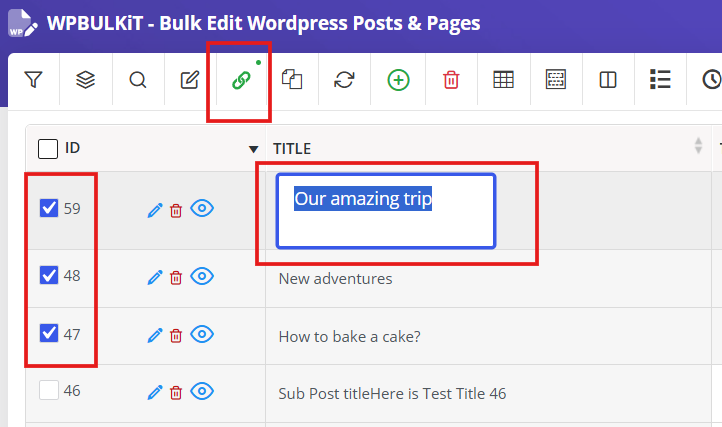
To change multiple post titles by bind editing, at first you need to filter the proper posts then you have to add the title column to the post table by using the “Column Profile” form.
Finally, you can bind edit the filtered posts in the table of WordPress bulk post-editing plugin as below:
- Mark “Bind Edit” option designed on the top of the main page.
- Mark the checkbox next to “ID” to select all posts in this page.
- Click on one of the selected post titles and change its value.
- Type any text you want and press Enter.
In less than a second, the titles of all selected posts will be changed and your text will appear in front of them.
- Bulk meta descriptions and full content changes by inline edit
Inline edit post full description/meta description is a feature in the WordPress Bulk post-editing plugin which enables you to edit the content of any post displayed in the post table.
You can Inline edit post full description/meta description in three easy and quick steps:
Step 1: Add description and meta description columns
As we mentioned above, adding new columns to the post table could be easily done by using the “Column Profile” form in this plugin.
To have access to this form, you need to click on the “Column Profile” button on the main page of this plugin.
Then, you can mark “Description” and “Short Description” columns and add them to the post table by clicking on “Apply to Table”.
After adding description and meta description columns, the content button will be appeared in front of each post.
Step 2: Inline edit description directly in the post table
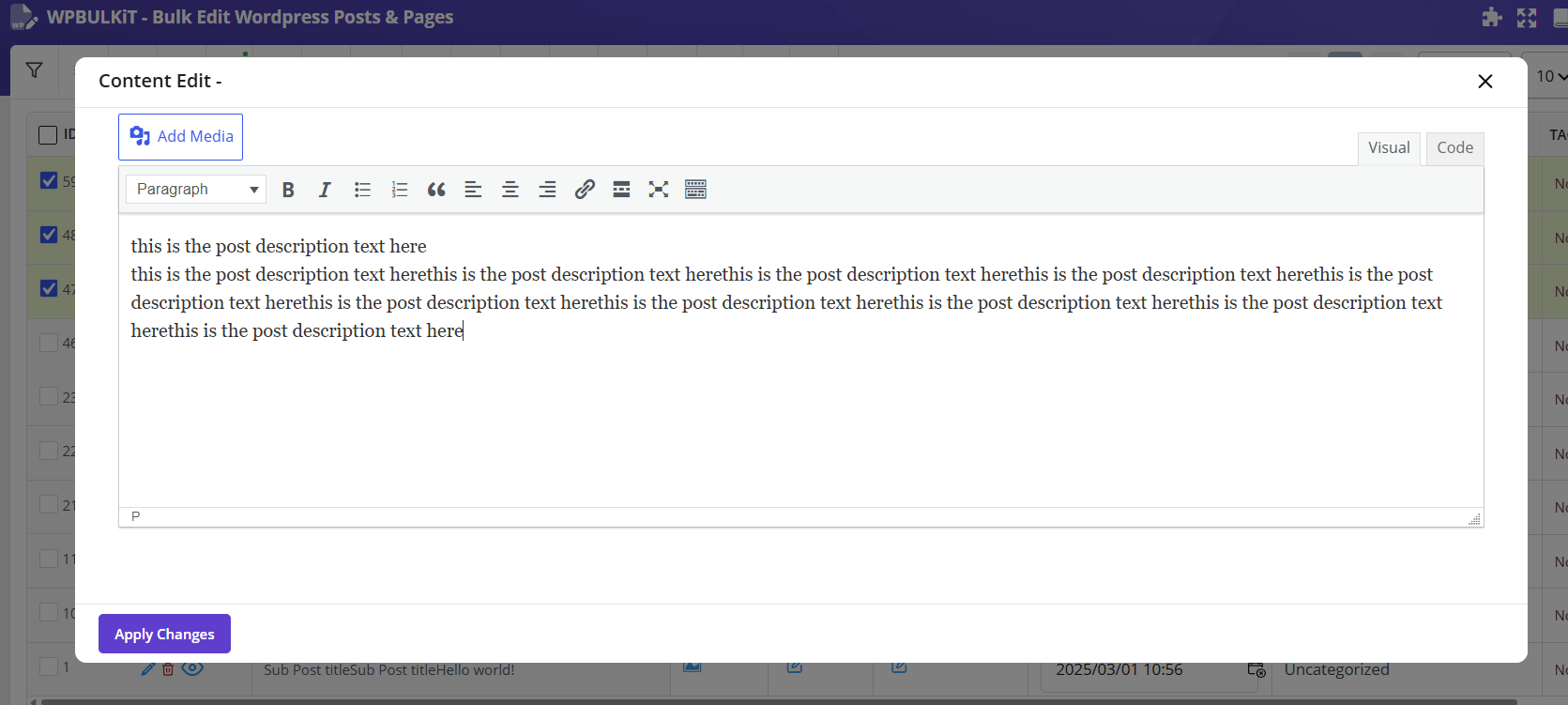
To inline edit description/meta description of any post or custom post, you just need to click on its “Content” button in the post table to edit its content in the new pop-up appeared on the screen:
As you can see in the below picture, the whole content written for that post is available here to be edited. In this new pop-up, you have access to WordPress editor
Step 3: Inline edit short description directly in the post table
Inline edit short description is exactly the same as description. To change the content of short description you need to follow below steps:
- Click on “Content” button in front of the post you want to edit its short description.
- In the new pop-up, make any changes you need by using text tools.
- Click on “Apply Changes”.
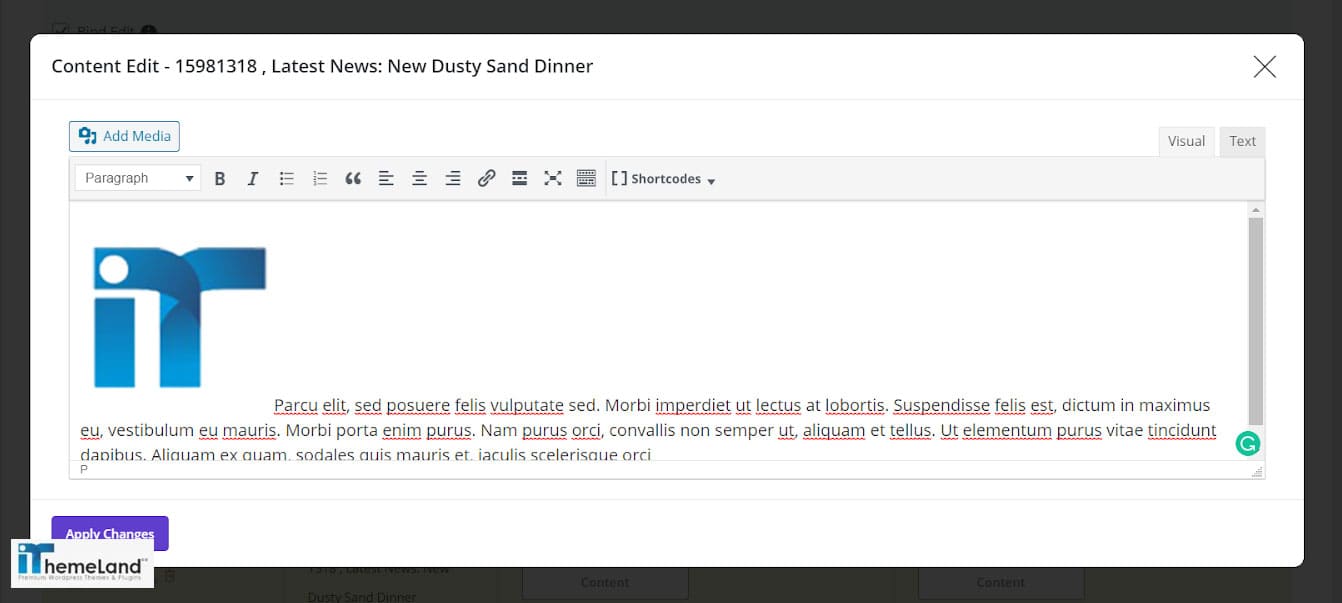
You can even add a new picture by clicking on Insert into the post:
Bulk adding a bunch of posts by duplicating
Duplicate posts in WordPress bulk post editing plugin could be done just by one click as a specific button has been designed for duplicating posts at the main page to make it more convenient for post managers.
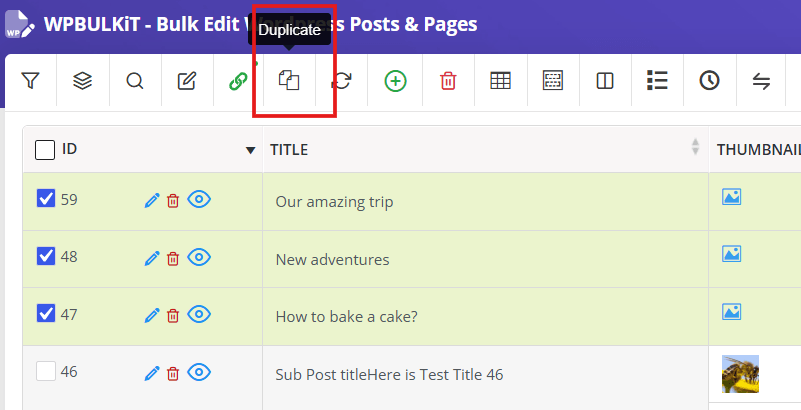
However, this button would not appear on the main page unless you select one or more posts to be duplicated.
As shown below, after selecting one or more posts, “Duplicate” button will be appeared at the top right of the main page:
Before using the duplicate button, you can also use filter form or quick search to find the posts you need to be duplicated and then mark them to use this option.
As soon as clicking on this button, a pop-up will appear to enable you to specify how many times you need the selected posts to be duplicated.
You can either type a number or use the up / down button in this form to increase/decrease the duplicate number.
For example, we typed 5 which means the selected posts must be duplicated 5 times:
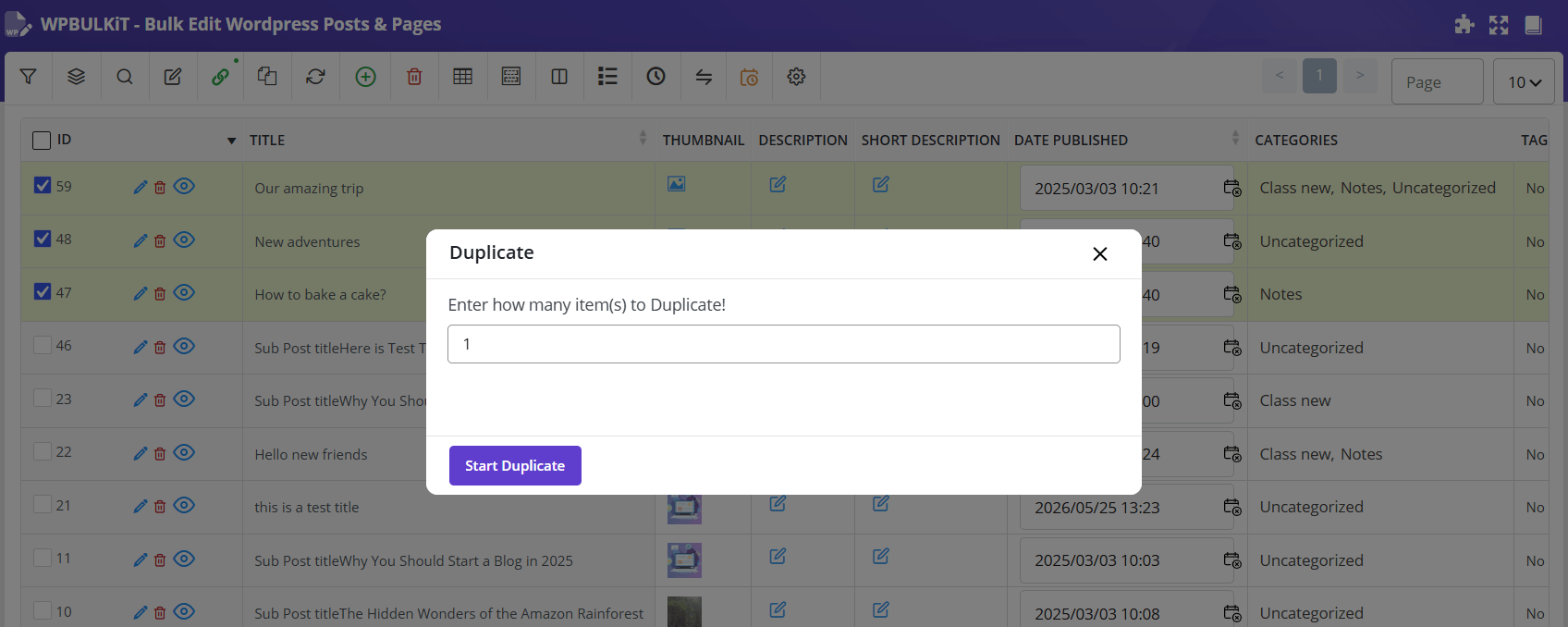
After clicking in “Start Duplicate”, it is obvious that the selected posts will be duplicated 5 times as you expected.
After duplicating, you can bulk edit the duplicated posts fields by using the bulk edit form or bind edit option of this plugin.
How to bulk edit pages in WordPress?
Bulk edit pages in WordPress is the same as bulk edit posts in the WordPress posts/pages edit plugin. The only difference is displaying the pages in the table instead of posts by following the below instructions:
- Press the Post Type tool on the toolbar.
- Open the Select post type dropdown.
- Choose Page from the list to instruct the plugin show pages in the table.
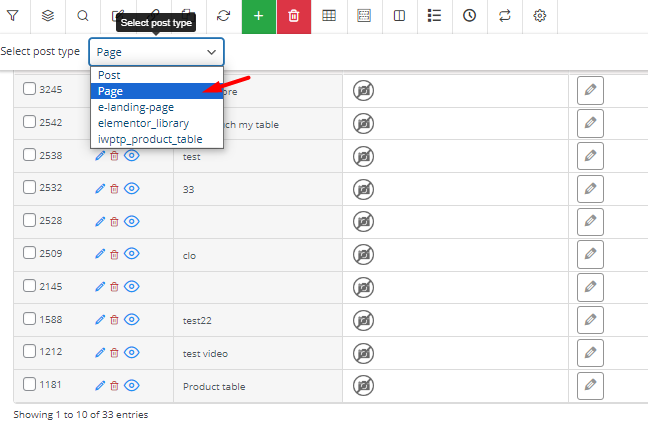
When you see a list of all WordPress pages in the table, it is possible to use Filter Form, Bulk Edit form, or Bind Edit tool as we described for bulk edit WordPress posts.
For example, if you open the Bulk Edit form after selecting some pages in the table, you can make changes on all WordPress fields which are divided into three tabs, including:
- General
- Date & Type
- Custom fields
To help you easily find the WordPress page fields for bulk editing, let’s review the items in each tab:
WordPress page general fields
Post Title: You can use this field to bulk edit page titles in WordPress. By this field, you can Append, Prepend, Replace, or Clear the title of selected WordPress pages.
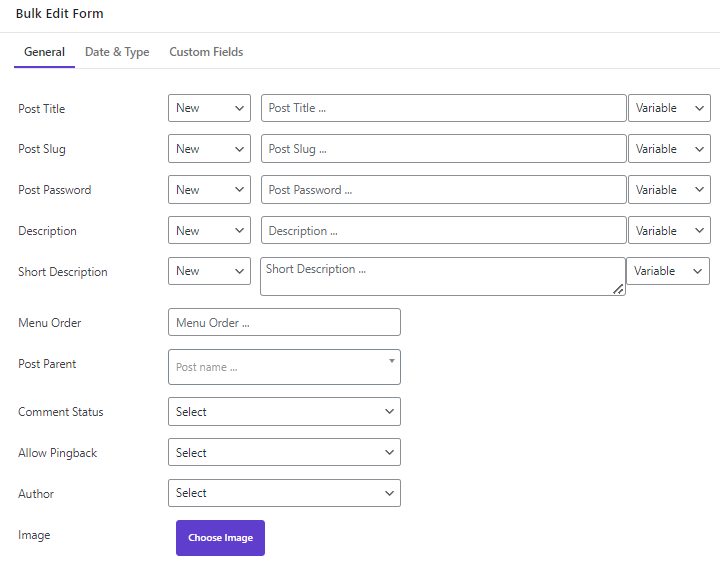
Post slug: If you want to bulk edit the WordPress page slug, you can use this field.
Post password: If you want to assign passwords to some WordPress pages or change their current passwords, use this field.
Description: This field allows you to Append, Prepend, Delete, Replace, or Clear the WordPress page content.
Short description: This field allows you to Append, Prepend, Delete, Replace, or Clear the WordPress page short description.
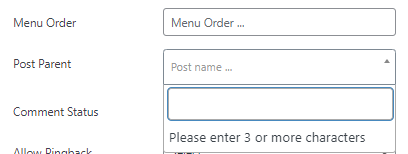
Menu Order: This is useful when you want to use WordPress bulk actions for changing the menu order of selected pages.
Post Parent: You can add one page in this field to be assigned as a parent page to the selected pages.
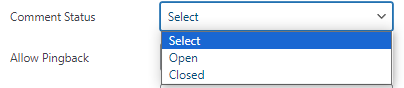
Comment status: You can bulk enable/disable receiving comments on the selected WordPress pages.
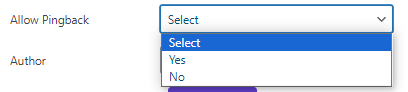
Allow pingback: This field is useful when you want to bulk edit WordPress pages pingback.
Author: This is a good option when you want to change the WordPress page author in bulk. All authors are listed in this field and you can choose one of them to change the author of selected pages.
Image: Bulk actions WordPress pages featured image is easily possible in this field. You can simply choose one image from the WordPress media liberary to be used as the featured image of the page.
WordPress page date & type fields
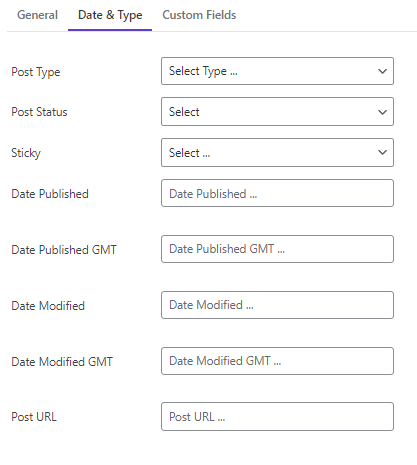
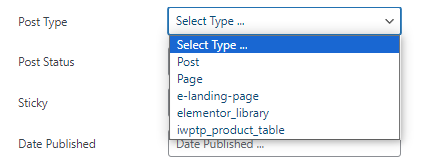
Post type: The items in this field allow you to change post type for example convert the selected pages to post or custom post at once.
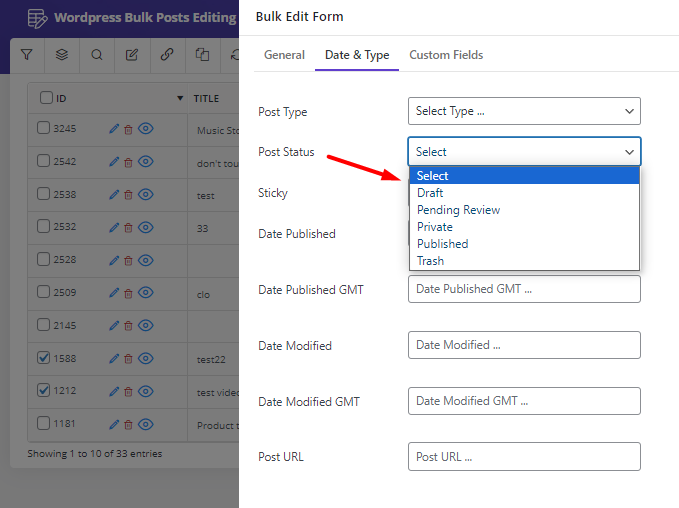
Post status: By using this field you can choose one of the statuses like draft, pending review, private, etc, to edit selected WordPress pages status.
Date published/Modified (GMT): For bulk editing published date or modified date of selected WordPress pages, you can simply use the built-in calendar of this field.
Post URL: This is a very good option when you need to bulk change the page URL and set a custom page address for the selected pages.
WordPress page custom fieldsIf you have already added some custom fields to WordPress pages, you can import them to the WordPress posts bulk editing plugin. Then you can see all of them in the Custom fields tab of Bulk Edit form and use any of them for bulk edit WordPress pages.
Conclusion
Editing posts and pages in WordPress is simple when you are working with a small website. You can open each post or page, update the content, and save the changes manually. But when your website grows, this process becomes slow and repetitive, especially if you need to update many posts or pages at the same time.
The default WordPress bulk edit feature is useful for basic changes like status, author, categories, tags, and comments. But if you need to change post or page text in WordPress, edit multiple custom fields, filter specific content, or manage WordPress multiple post pages from one place, you need a more flexible workflow.
With WPBULKiT – Bulk Edit WordPress Posts / Pages, you can filter posts and pages, select the exact items you want to update, edit fields in bulk, use inline editing, and manage content changes faster. This makes it a practical solution for bloggers, content managers, developers, and website owners who regularly update WordPress posts and pages.
FAQ
1. How do I edit pages in WordPress?
To edit pages in WordPress, go to Pages > All Pages, choose the page you want to update, click Edit, make your changes, and then click Update. This is the normal method for editing one page at a time.
2. How do I edit posts in WordPress?
To edit posts in WordPress, go to Posts > All Posts, open the post you want to change, update the title, content, category, tags, author, or status, and then save the changes.
3. How can I change post or page text in WordPress?
You can change post or page text in WordPress by opening the post or page editor and editing the content directly. If you need to update text across many posts or pages, WPBULKiT plugin can make the process faster.
4. Can I bulk edit WordPress posts and pages?
Yes. WordPress has a default bulk edit option that lets you update selected posts or pages together. You can change basic fields such as status, author, categories, tags, and comments without opening each item separately.
5. What are WordPress multiple post pages?
WordPress multiple post pages usually refers to managing or editing many posts and pages from the WordPress dashboard. For large websites, bulk editing tools help update these items faster than manual editing.
6. Can I bulk update page status in WordPress?
Yes. You can select multiple pages from Pages > All Pages, choose Edit from the bulk actions menu, and change their status. This is useful when you want to publish, draft, or update several pages at once.
7. What is the easiest way to edit many WordPress posts?
The easiest way depends on the type of change. For simple updates, the default WordPress bulk edit feature may be enough. For advanced edits, filtering, inline editing, or changing more fields, WPBULKiT is more practical.
8. Can I edit custom post types in bulk?
Yes. Custom post types can be edited in bulk if your tool supports them. This is useful for websites with portfolios, directories, products, events, listings, or other custom content types.