

Update seasonal products in bulk can directly influence how efficiently a WooCommerce store attracts customers, supports purchasing decisions, and turns everyday store activity into measurable growth. The topic is not only about applying a single tactic. It is about understanding the customer need, choosing a practical workflow, and using the right metrics to decide whether the strategy is actually working.
Seasonal campaigns often require several updates at once: pricing, sale dates, stock, categories, visibility, and promotional labels. Editing products individually increases the risk of inconsistent data and makes it harder to reverse changes after the campaign.
In this guide, store owners will learn how to approach update seasonal products in bulk step by step and apply the ideas more efficiently with PBULKiT – Bulk Edit WooCommerce Products. The goal is to prepare seasonal catalog changes faster while keeping product data consistent. The article should give readers enough context to choose a suitable approach, avoid common mistakes, and move from a general idea to a repeatable WooCommerce workflow.
Seasonal transitions are much smoother when you have a solid mass-edit plan. The guide to WooCommerce bulk editing offers helpful context for large stores.
Quick Answer:
Seasonal product updates usually involve changing prices, sale prices, stock, categories, tags, descriptions, images, status, or visibility for many products at once. Doing this manually can take a long time, so the better workflow is to use PBULKiT – Bulk Edit WooCommerce Products.
To update seasonal products, go to WordPress Dashboard > iThemeland > PBULKiT, use the Filter Form to find products by category, tag, product type, stock status, or current price, and then open Bulk Edit. Choose the fields that need seasonal changes, such as sale price, stock, category, product status, or short description, and apply the update.
This method is useful for holidays, clearance periods, Black Friday, summer sales, or limited-time collections. PBULKiT plugin helps store managers prepare and update seasonal products quickly while keeping control over which products are affected.
The Importance of Updating Seasonal Products in Bulk
Keeping your product catalog fresh and aligned with seasonal trends is essential for driving sales and staying competitive.
Managing seasonal inventory is crucial for eCommerce businesses to stay relevant, meet customer demand, and maximize sales during peak periods.
Updating seasonal inventory efficiently requires a structured approach to ensure accuracy, save time, and maintain a seamless shopping experience.
Whether you need to adjust holiday promotions, refresh summer collections, or prepare for back-to-school sales, seasonal product management tools help update seasonal products efficiently without requiring manual changes to each item.
Understanding Bulk Product Updates
Bulk seasonal product updates enable online stores to modify multiple product listings simultaneously instead of editing them one by one. This essential e-commerce function enables quick adjustments to prices, descriptions, inventory levels, and SEO elements across hundreds or thousands of products at once.
Particularly valuable for seasonal changes and promotions, bulk updates save significant time while ensuring consistency and reducing manual errors across your entire catalog.
Modern e-commerce platforms and specialized tools have transformed bulk editing into a strategic capability rather than just a convenience feature.
Advanced solutions now offer scheduled updates, conditional changes, and integration with inventory systems, helping businesses maintain accurate, up-to-date product information with minimal effort.
By automating seasonal product updates, retailers gain the agility to respond to market demands quickly while optimizing operations – a critical advantage in today’s fast-paced digital marketplace.
Below, we break down the 5 essential steps for bulk seasonal product updates, with detailed explanations on how to update seasonal products in bulk effectively—especially when using tools like WooCommerce Products Bulk Edit.
Read more: WordPress Bulk Actions: Edit WordPress Posts Faster in 3 Easy Ways
Step 1: Identifying Seasonal Products in Your Catalog
Before making bulk changes, you must first pinpoint which products are seasonal and require updates. This may include:
- Holiday-specific items (e.g., Christmas decorations, Valentine’s Day gifts)
- Weather-dependent products (e.g., winter coats, summer swimwear)
- Time-sensitive promotions (e.g., back-to-school supplies, Black Friday deals)
How to do it efficiently?
- Generate inventory reports to identify products with seasonal sales patterns.
- Consider product lifecycle management—archive outdated seasonal items to avoid clutter.
Step 2: Preparing Product Data for Bulk Updates
Once you’ve identified seasonal products, organize and clean your data before applying bulk changes. This prevents errors and ensures consistency.
Key tasks include:
- Standardizing product names & descriptions (e.g., adding “Summer 2024” to relevant items).
- Updating pricing & discounts (seasonal sales, tiered pricing).
- Adjusting inventory levels (stock quantities, pre-orders for high-demand items).
- Setting correct categories & tags (for better navigation and SEO).
Step 3: Choosing Tools or Platforms for Bulk Editing
Manually updating hundreds or thousands of products can be time-consuming and prone to errors.
That’s where seasonal product management tools come in—allowing merchants to update seasonal products in bulk efficiently, saving time while maintaining accuracy.
One of the most powerful solutions for WooCommerce stores is the WooCommerce products bulk edit plugin, which enables store owners to automate seasonal product updates with ease.
This plugin simplifies bulk seasonal product updates by allowing mass modifications to prices, categories, tags, stock levels, and more—all from a single dashboard.
Why the WooCommerce products Bulk Edit plugin?
- No coding required—update hundreds of products at once.
- Filter & edit selectively (e.g., change only “Winter 2023” tagged items).
- Automate product updates in advance for seasonal rollouts.
Step 4: Executing Bulk Updates Quickly and Efficiently
Now, it’s time to update the product catalog quickly in bulk by following the steps below:
1: Install the WooCommerce products bulk editing plugin
To begin bulk editing seasonal products in WooCommerce, you’ll first need to install the WooCommerce bulk products editing plugin. This involves downloading the plugin as a ZIP file from a trusted source (either the WordPress plugin repository or a third-party developer). Once downloaded, navigate to your WordPress admin dashboard, go to Plugins > Add New, and upload the ZIP file to install the plugin.
Then for activation, you need to return WordPress Dashboard and open iThemeland menu just appeared. Here, you can find License option enable you to activate the plugin by inserting license key in the activation form.
PBULKiT – Bulk Edit WooCommerce Products
The easy way to update seasonal products in bulk
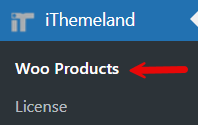
Once activated, it’s time to click on the Woo Products option in the iThemeland menu to have access to all tools for Update Seasonal Products in Bulk.
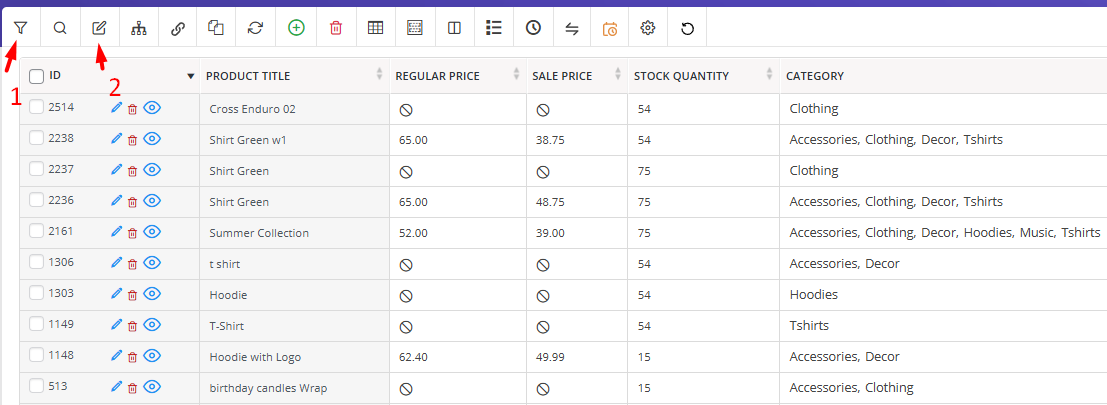
In the main page of the plugin, you can see a comprehensive toolbar with a list of products in a table, allowing you to save significant time for update the products catalog quickly compared to manual edits.
Let’s review how to quickly update seasonal products in bulk with the Filter (1) and Bulk Edit (2) Tools.
2: Filter products by category
To use the filtering system of the plugin, simply choose the Filter icon from the toolbar to open the Filter Form.
This powerful form supports all WooCommerce fields, allowing you to isolate all relevant products at once, whether you’re preparing for a seasonal sale, updating inventory, or modifying pricing structures for a particular product line.
In the Categories/Tags/Taxonomies tab, you can filter specific categories like Clothing and Accessories to ensure you only edit the intended products without affecting others in your store.
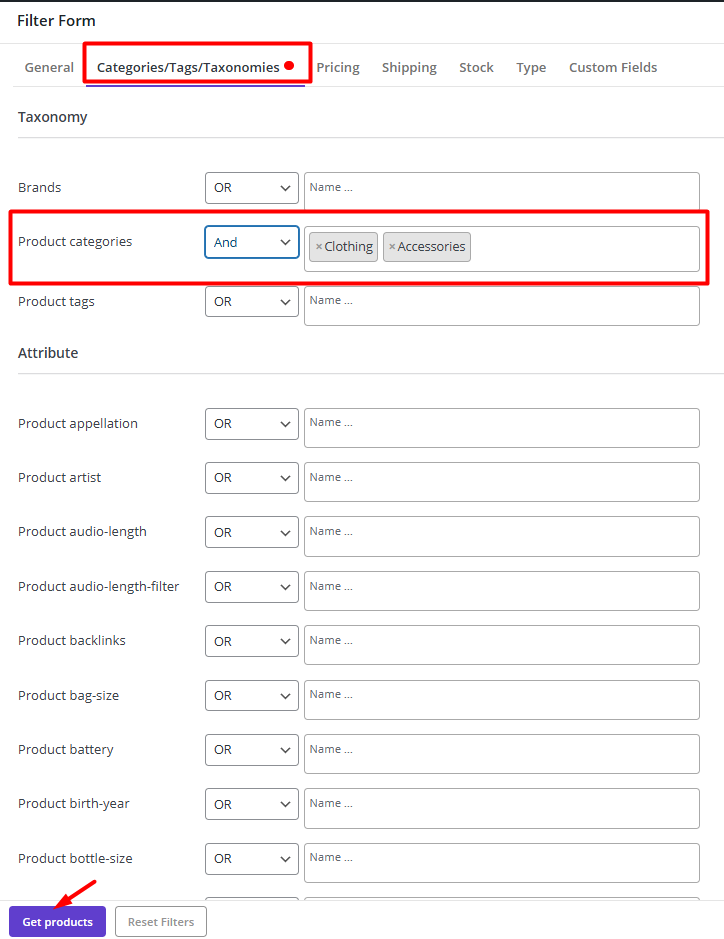
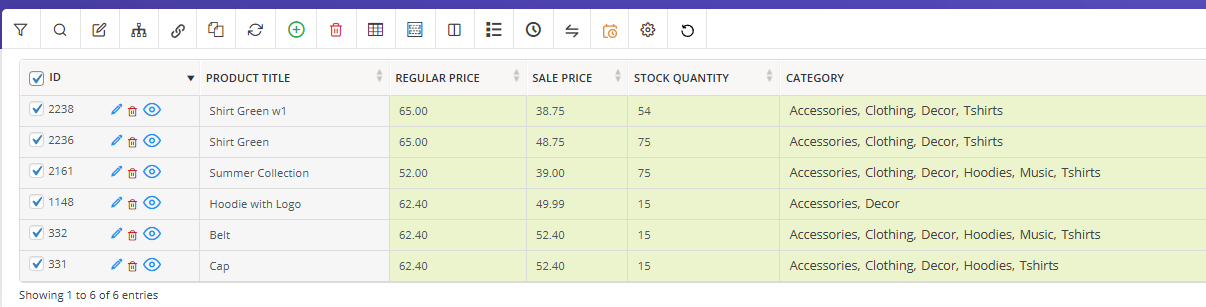
Simply, click on the Get Products button to filter the intended categories in the table. Now, you are ready to use the Bulk Edit form to update seasonal products efficiently.
3: Select all and update fields
With your filtered products displayed, use the “Select All” function to choose every item in the table.
Then click on the Bulk Edit icon of the toolbar to open the Bulk Edit form.
The bulk editor presents various editable fields, including regular price, sale price, inventory status, and promotional date ranges. This centralized editing interface allows you to implement sweeping changes across all selected products, such as:
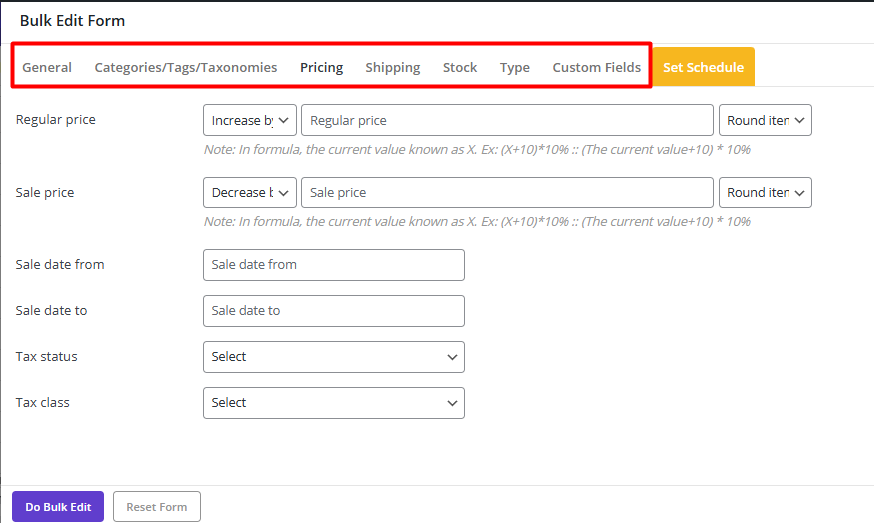
- Bulk changing stock quantity of Clothing and Accessories items in the Stock tab.
- Adjusting prices for a storewide sale, or setting seasonal discount periods in the Pricing tab.
- Or making bulk changes to any custom fields you have already added to the WooCommerce products
All required updates to seasonal products in bulk can happen through a single, unified dashboard.
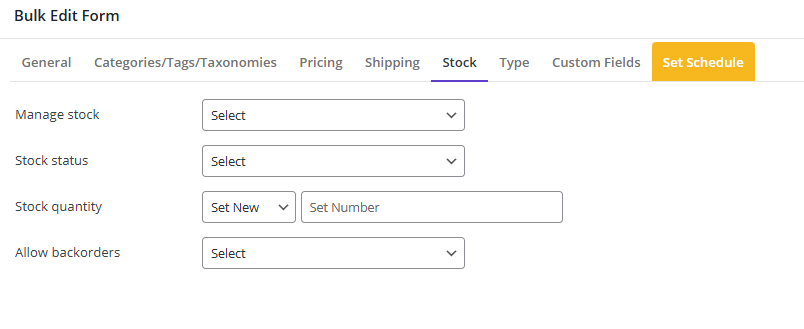
In front of each tab, you can find varius options streamlining the process of bulk editing based on your purpose.
For example, if you need to bulk update regular prices of seasonal products, the following actions are designed to help you easily do your task:
- New
- Increase by % or Value
- Increase by % or Value from sale price
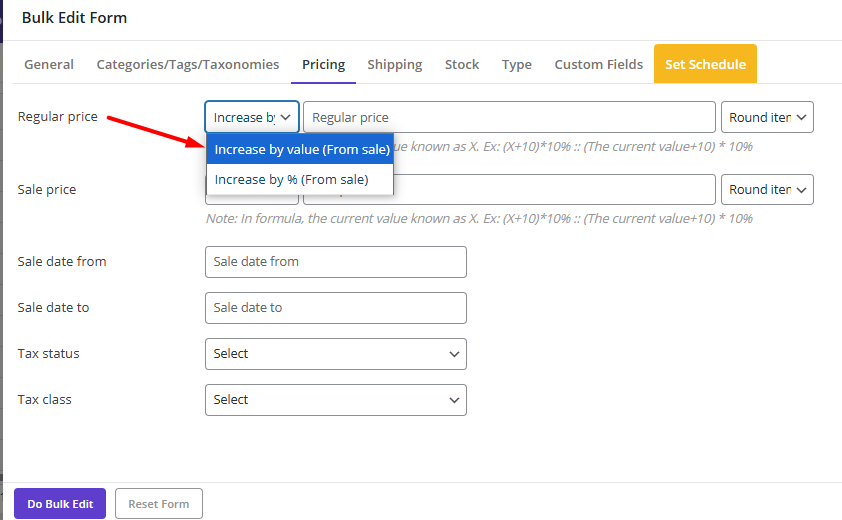
These actions are available for Sale Price as well.
Let’s suppose that you want to decrease the sale prices of all seasonal products by 20 unit, from the Regular price.
To make this happen, you just need to:
- Set the Operator field in front of Sale Price field to Decrease by value from regular.
- Write 20 in the text box.
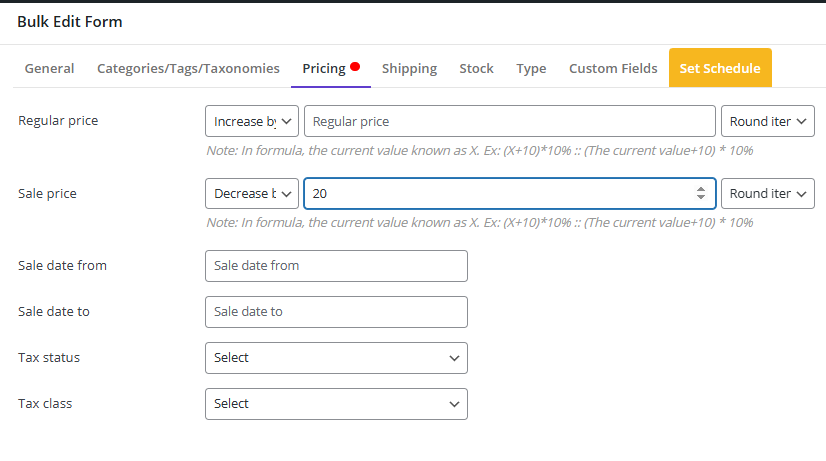
– Press the Do bulk edit button to apply the changes.
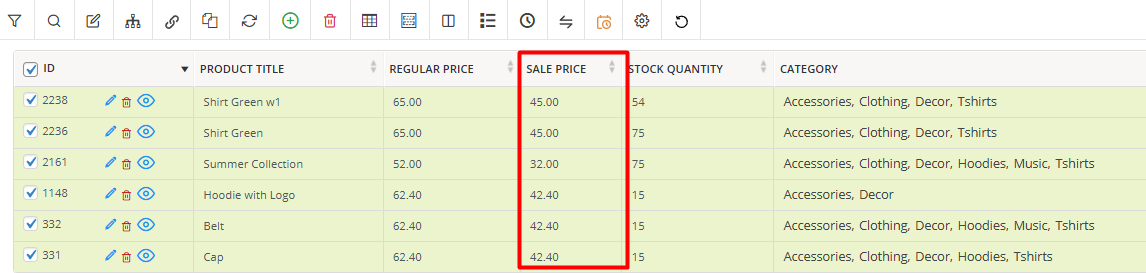
Read more: How to Bulk Edit Price and Sale Price in WooCommerce for Simple and Variable Products
4: Set Schedule and Apply changes with one click
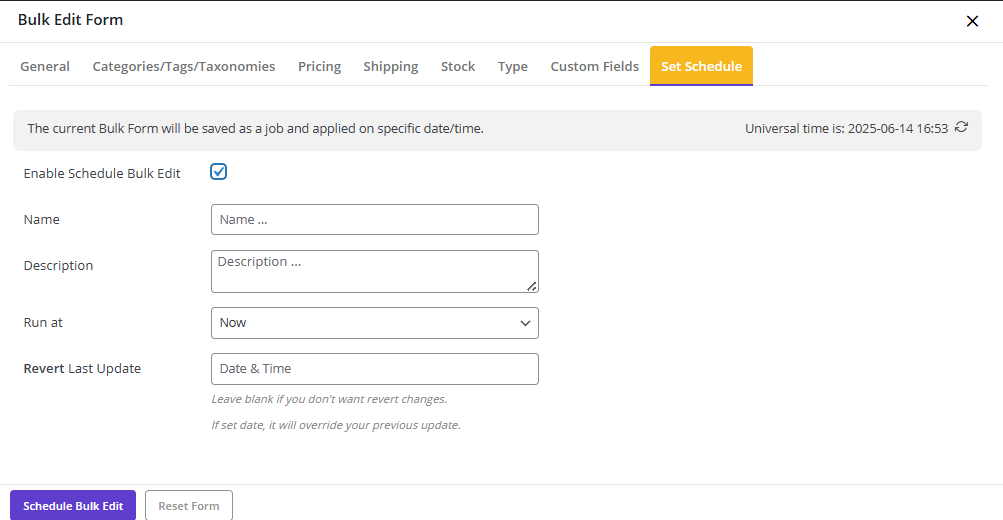
The plugin’s scheduling feature lets you prepare changes in advance and set exact dates/times for them to take effect automatically.
Once all your bulk edits are configured, simply review the changes and click the Set Schedule tab to specify the exact date and time for applying changes in the future.
This eliminates the need for manual entry on individual product pages, ensuring consistent updates across hundreds of products while preventing human error. The entire process from filtering to final updating seasonal products in bulk can often be completed in under a minute, revolutionizing your inventory management workflow.
5: Verifying and Testing Updates
Mistakes in bulk edits can be costly. Always double-check:
- Preview changes before going live.
- Check frontend display (prices, images, availability).
- Test checkout functionality for updated products.
- Monitor inventory sync (ensure stock levels are accurate).
Best Practices for Managing Seasonal Product Changes
Update seasonal products in bulk is crucial for maintaining sales momentum, reducing operational headaches, and delivering a seamless customer experience.
Below are proven best practices to manage seasonal inventory efficiently—whether you’re preparing for holiday rushes, summer sales, or limited-time promotions.
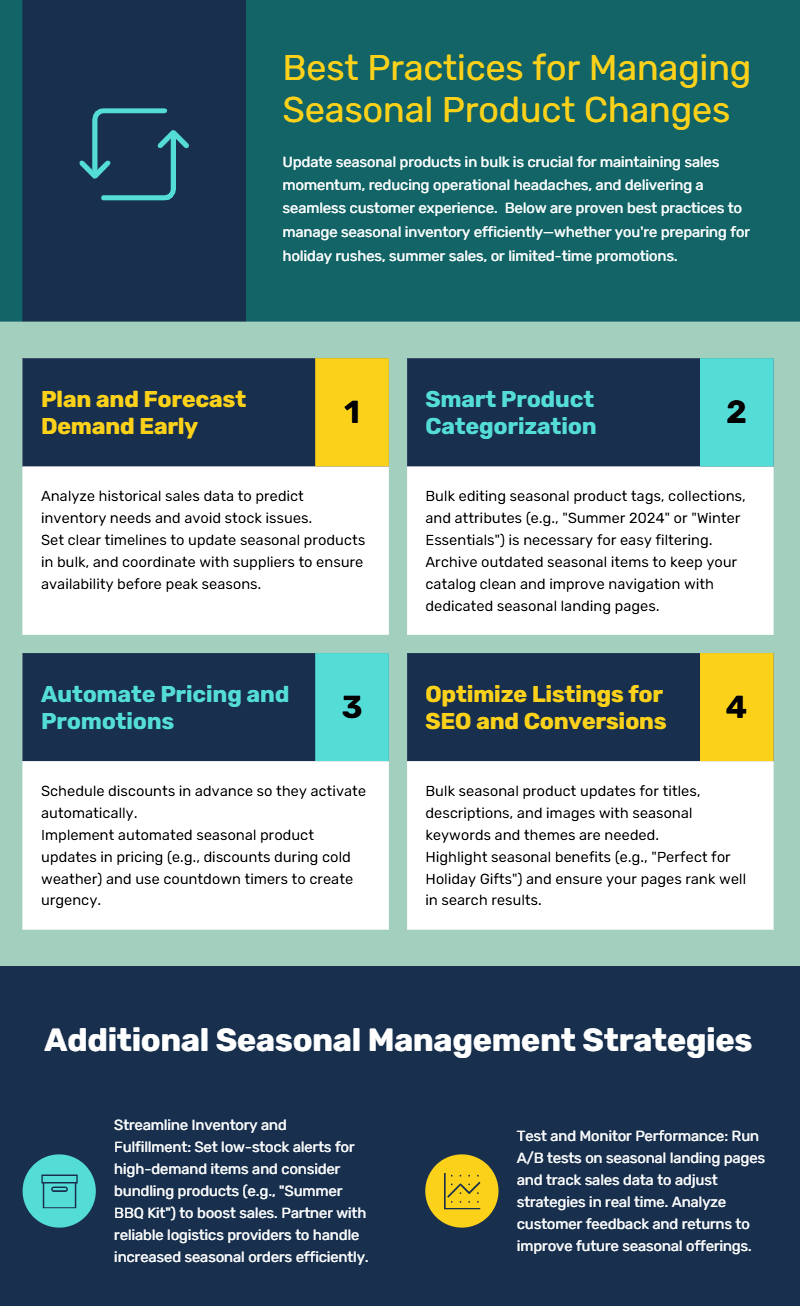
1. Plan and Forecast Demand Early
Analyze historical sales data to predict inventory needs and avoid stock issues. Set clear timelines to update seasonal products in bulk, and coordinate with suppliers to ensure availability before peak seasons.
2. Smart Product Categorization
Bulk editing seasonal product tags, collections, and attributes (e.g., “Summer 2024” or “Winter Essentials”) is necessary for easy filtering. Archive outdated seasonal items to keep your catalog clean and improve navigation with dedicated seasonal landing pages.
Read more: How to Bulk Edit WooCommerce Product Categories With 2 Easy Methods
3. Automate Pricing and Promotions
Schedule discounts in advance so they activate automatically. Implement automated seasonal product updates in pricing (e.g., discounts during cold weather) and use countdown timers to create urgency.
4. Optimize Listings for SEO and Conversions
Bulk seasonal product updates for titles, descriptions, and images with seasonal keywords and themes are needed. Highlight seasonal benefits (e.g., “Perfect for Holiday Gifts”) and ensure your pages rank well in search results.
5. Streamline Inventory and Fulfillment
Set low-stock alerts for high-demand items and consider bundling products (e.g., “Summer BBQ Kit”) to boost sales. Partner with reliable logistics providers to handle increased seasonal orders efficiently.
6. Test and Monitor Performance
Run A/B tests on seasonal landing pages and track sales data to adjust strategies in real time. Analyze customer feedback and returns to improve future seasonal offerings.
Common Mistakes to Avoid During Bulk Updates
Updating the product catalog quickly in bulk can save time, but even small errors can lead to major headaches—from pricing mistakes to inventory mismatches. Whether you’re preparing for holiday sales or seasonal shifts, avoiding these common pitfalls before trying to update seasonal products in bulk will help ensure a smooth transition. Below are key mistakes to watch out for and how to prevent them.
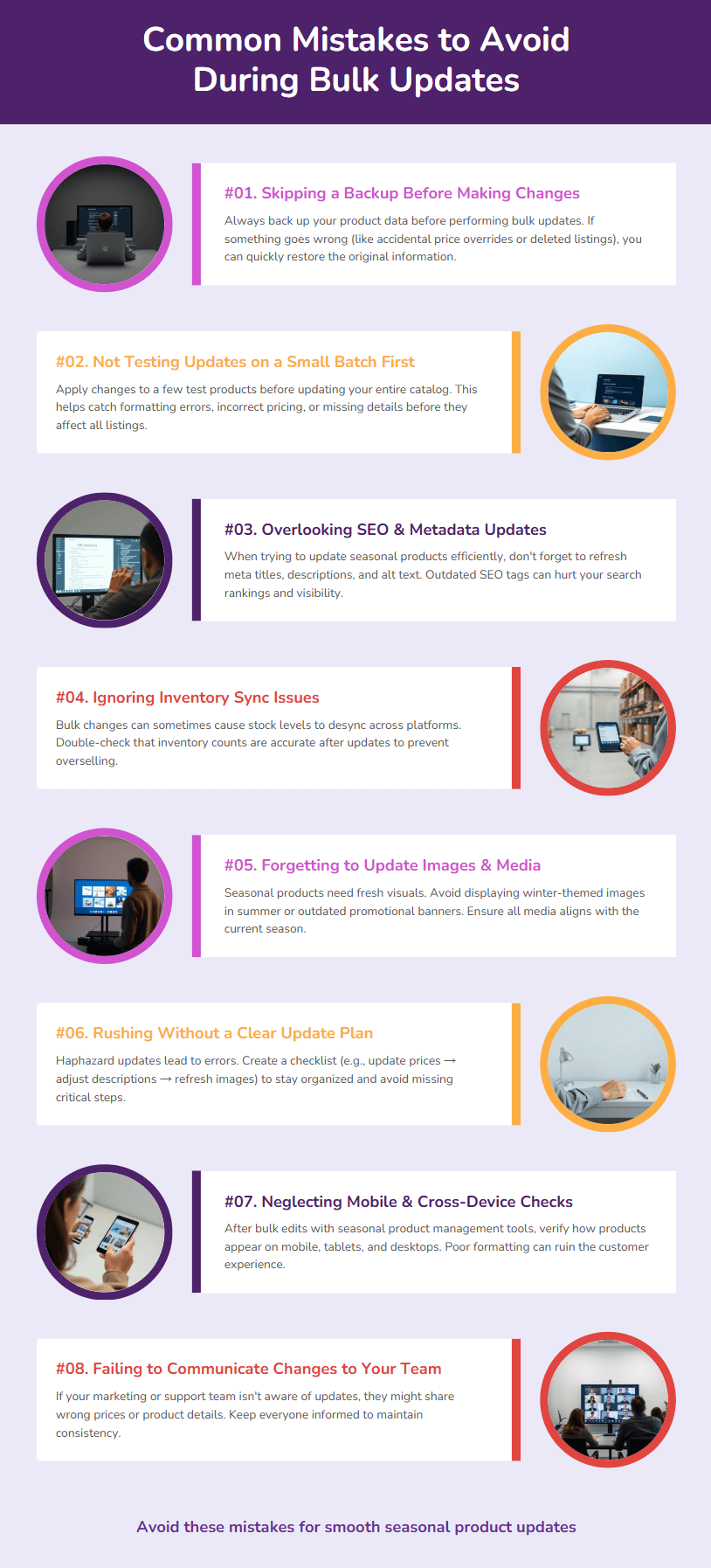
1. Skipping a Backup Before Making Changes
Always back up your product data before performing bulk updates. If something goes wrong (like accidental price overrides or deleted listings), you can quickly restore the original information.
2. Not Testing Updates on a Small Batch First
Apply changes to a few test products before updating your entire catalog. This helps catch formatting errors, incorrect pricing, or missing details before they affect all listings.
3. Overlooking SEO & Metadata Updates
When trying to update seasonal products efficiently, don’t forget to refresh meta titles, descriptions, and alt text. Outdated SEO tags can hurt your search rankings and visibility.
4. Ignoring Inventory Sync Issues
Bulk changes can sometimes cause stock levels to desync across platforms. Double-check that inventory counts are accurate after updates to prevent overselling.
5. Forgetting to Update Images & Media
Seasonal products need fresh visuals. Avoid displaying winter-themed images in summer or outdated promotional banners. Ensure all media aligns with the current season.
6. Rushing Without a Clear Update Plan
Haphazard updates lead to errors. Create a checklist (e.g., update prices → adjust descriptions → refresh images) to stay organized and avoid missing critical steps.
7. Neglecting Mobile & Cross-Device Checks
After bulk edits with seasonal product management tools, verify how products appear on mobile, tablets, and desktops. Poor formatting can ruin the customer experience.
8. Failing to Communicate Changes to Your Team
If your marketing or support team isn’t aware of updates, they might share wrong prices or product details. Keep everyone informed to maintain consistency.
PBULKiT – Bulk Edit WooCommerce Products
The easy way to update seasonal products in bulk
Conclusion
A successful approach to update seasonal products in bulk begins with a clear objective. Store owners should decide what they want to improve, choose a manageable workflow, and review the result with the right metrics. This makes it easier to identify which changes create a real business benefit and which ones only add complexity.
The next step is to start with one practical use case, apply the strategy carefully, and compare the outcome with a reliable baseline. As the store grows, the process can become more detailed through better segmentation, clearer reporting, and more consistent execution. This gradual approach helps teams prepare seasonal catalog changes faster while keeping product data consistent.
For WooCommerce store owners who want to manage this process more efficiently, PBULKiT – Bulk Edit WooCommerce Products provides a focused way to apply the recommendations discussed in this article. By using a purpose-built workflow, store managers can spend less time on repetitive setup and more time improving the customer experience and the business result.
Updating seasonal items is a focused tactic that benefits from a wider strategy. To learn more, read this guide.
FAQ
1. When should I use WooCommerce bulk editing?
Bulk editing is useful when the same type of change must be applied to many products, orders, or coupons. It saves time and reduces inconsistent manual updates.
2. How can I avoid mistakes during a bulk update?
Start with precise filters, preview the affected records, make one type of change at a time, and review the results before moving to the next update.
3. Can bulk editing be used for seasonal campaigns?
Yes. Seasonal campaigns often require price, date, category, stock, and visibility changes across many products, making bulk editing especially useful.
4. Should I back up store data before a large bulk edit?
Yes. A current backup and a clear rollback plan are sensible precautions before any large catalog or order update.
5. Can I filter records before applying bulk changes?
Yes. Filters are essential because they help you target only the products, orders, or coupons that match the intended rule.
6. Which iThemelandco bulk editor should I use?
Use the editor that matches the data you need to manage: PBULKiT for products, OBULKiT for orders, and CBULKiT for coupons. Each workflow should begin with accurate filtering.